- Version
- 22.4.1
- Studio or maker
- Movavi
- Languages
- English
- Activation
- K'ed by TNT team
- Runs on macOS
- macOS 10.13 or later
- Chip type
- Intel 64-bit
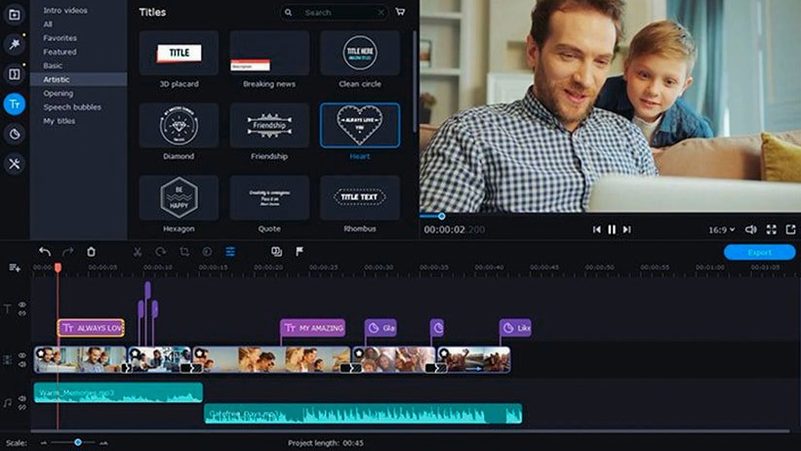
The mouse cursor effects in Movavi Video Suite 22.4.1 let you highlight clicks and movements during screen recordings, which makes it useful for tutorials or presentations. The suite combines three tools — video editing, file conversion, and screen recording — into one app, so you can switch between tasks without opening separate programs.
Records your screen with cursor highlights
- Recording your screen to show a process, with optional cursor highlights that draw attention to specific spots.
- Converting multiple videos at once, such as preparing a batch of recordings for upload.
- Editing short clips with titles and music, then exporting them in a format your students or colleagues can open.
Version 22.4.1 fixes a title-related shutdown
- Version 22.4.1 fixes a shutdown issue that could happen while working with titles, so it is more stable than earlier builds.
- The interface is in English only.
- It runs on macOS 10.13 and later, but only on Intel-based Macs — Apple Silicon is not supported.
Needs an Intel Mac running macOS 10.13 or later
Since Movavi Video Suite 22.4.1 is built for Intel architecture, you will need a Mac with an Intel processor and at least macOS 10.13 (High Sierra) to run it. The app loads as a single window with the three main tools accessible from a toolbar or a menu, so you are not jumping between different applications. Because it handles file conversion, editing, and recording in one place, the interface stays consistent across tasks — buttons and panels look the same whether you are trimming a clip or setting up a screen capture.
The disk image you mount to install it is a standard .dmg file, and the setup process includes a step where you open Gatekeeper and then run a command in Terminal to bypass it. Once installed, the app takes up a fair amount of space on your drive because it includes media libraries, effects, and the three modules together. You will see the new music tracks that were added in version 22.4.1, and the updated symbol for applied effects now shows a small icon next to any filter or transition you have placed on a clip.
Record a geometry walkthrough for a school open day
Let me walk you through a session I might do before a school open day. I need to record a short walkthrough of a geometry tool on my screen, add a voiceover explaining the steps, and then convert the finished video to a format parents can play on any device.
First, I open the screen recording module. I choose to capture the full monitor because the geometry tool uses the whole screen. I check the box to record system sound so the clicks from the tool are audible, and I also enable the microphone for my audio commentary. Before I start recording, I turn on the mouse cursor effects — a small highlight ring appears around the cursor each time I click, which helps viewers follow along.
Once the recording is done, I switch to the video editing module. I trim the beginning and end of the clip to remove the setup moments, then add a title slide with the date and topic. The new music tracks from version 22.4.1 are available in the audio library, so I pick a short instrumental loop and place it under the narration. I lower the music volume so it does not overpower my voice.
When I am satisfied with the edit, I open the file conversion module to export the project. I select a format that is compatible with most smartphones and tablets — the app supports over 180 formats, so I have plenty of options. I also add subtitles during the conversion step, typing a few key terms that show up on screen, which saves me from having to embed them in the editor. Since I have a couple more recordings from the same lesson, I batch convert them all at once to the same output format.
Includes file conversion that ScreenFlow lacks
If you are used to ScreenFlow for screen recording and editing, you will notice Movavi Video Suite offers a broader toolkit because it includes file conversion as a core feature. ScreenFlow is excellent for capturing and editing screen content, but it does not handle batch conversion of unrelated media files the same way. For a teacher who needs to prepare videos for different platforms, having the conversion module inside the same app removes an extra step.
Compared to HandBrake, which is a dedicated file converter, Movavi Video Suite adds recording and editing on top of conversion. HandBrake is free and very capable for converting video formats, but it lacks the screen recording module and the timeline editor. If you only convert files occasionally, the suite's conversion tool is enough for that task and you do not need a separate app.
Against OBS Studio, which is popular for live streaming and recording, Movavi Video Suite feels more like a post-production tool. OBS is great for capturing high-quality footage and streaming, but its editing capabilities are limited to replay buffers and basic trimming. Once your recording is finished in OBS, you would export it to a video editor anyway. Movavi Video Suite keeps the recording and editing in one workspace, which saves time for simple projects like tutorial videos.
- The program no longer shuts down while working with titles.
- New music tracks were added.
- The symbol for applied effects was updated.
- macOS 10.13 or later
- Intel processor
- Interface language: English
Questions I keep getting
Does Movavi Video Suite support batch conversion?
Yes, you can convert multiple files at the same time, which saves time when processing several recordings or clips.
How to install
- Mount the disk image and open Gatekeeper friendly to allow the installer to run.
- Press Enter in the Terminal window to bypass Gatekeeper.
- Complete the standard installation procedure.
Similar apps
Sign in or join the club to leave a comment.
Nobody has commented yet.