
- Version
- 2024.2.0
- Studio or maker
- Maxon
- Languages
- English, German, Arabic, Spanish, Italian, Chinese (Simplified), Korean, Polish, French, Czech, Japanese
- Activation
- K'ed by Monter Group
- Runs on macOS
- macOS 11 or later
- Chip type
- Apple Silicon, Intel 64-bit
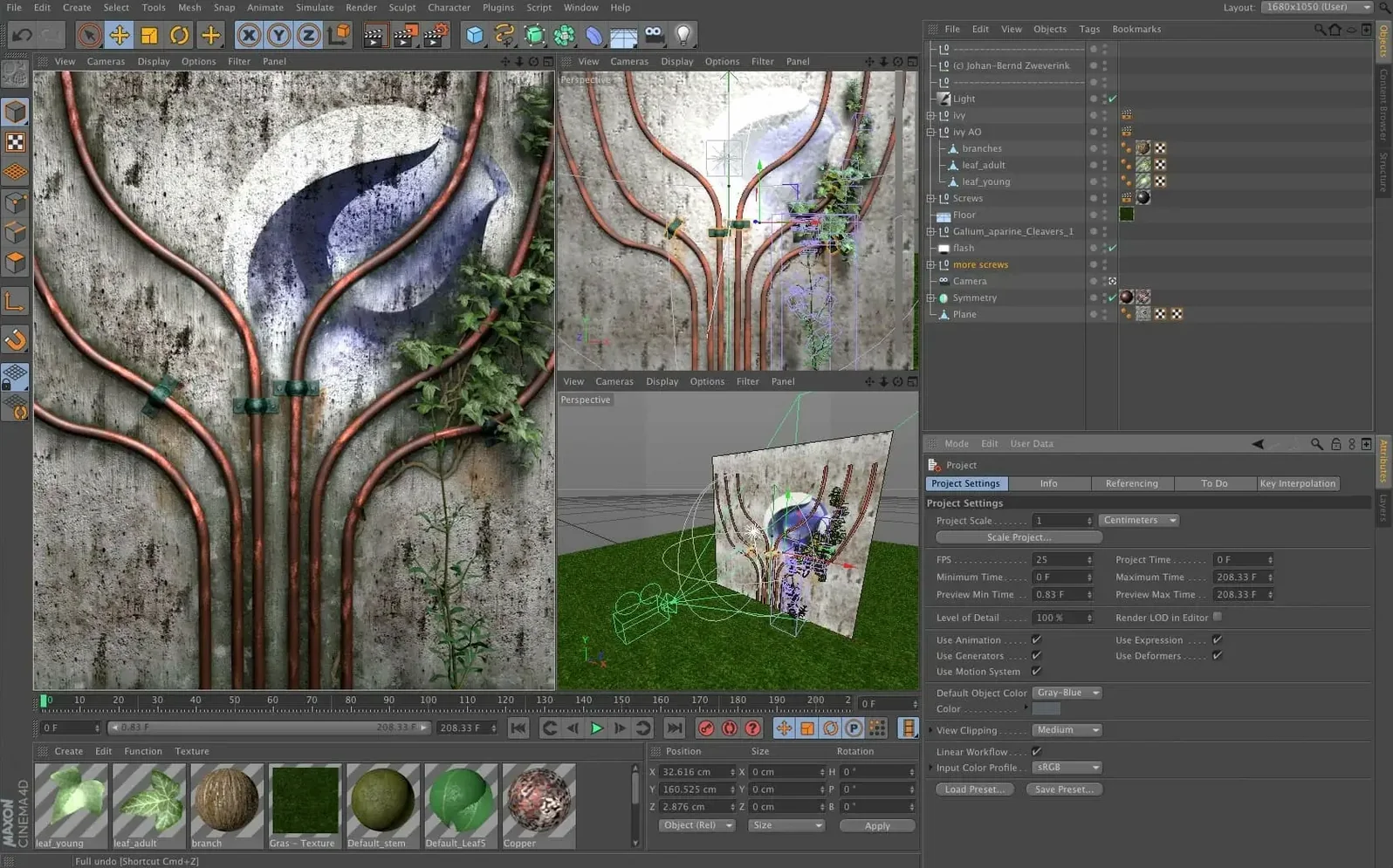
When a project calls for 3D modeling, animation, or realistic rendering, the question is not which software can do it, but which one you can actually work in. Cinema 4D for macOS answers that with a modern interface and preset-based workflows that keep you moving from idea to image.
Modeling — build objects with polygonal tools, splines, and generators.
Animation — keyframe motion, character rigs, and timeline controls.
Simulation — add dynamics, cloth, and particles to scenes.
Rendering — produce final images with built-in and third-party render engines.
Scene Nodes & Capsules — use node-based logic in the classic Object Manager.
Data Import & Splines — bring in external data and shape it with new spline tools.
A complete workflow: building a motion graphics title sequence
Let me walk you through a typical task that shows how Cinema 4D fits together for motion graphics. Start with a blank scene and a text object from the Objects menu. Type your title, choose a clean font, and adjust the depth with the Extrude object — this gives your text volume in seconds. Add a Bevel Caps setting to soften the edges so the letters catch light naturally.
Next, apply a simple material from the Content Browser. Drag a metallic preset onto the text, then tweak the reflection to match your scene's lighting. Add a Sky object with an HDRI image for realistic environment reflections. You can rotate the Sky to change how light plays across the letters without rearranging any physical lights.
For animation, set a keyframe on the text's Position at frame 0, move to frame 30, and set another keyframe where the text slides into frame. Use the Timeline's curve editor to add an ease-in so the movement feels weighty. Then place a camera, keyframe its rotation, and you have a simple orbiting reveal.
Render with the standard renderer first, set to 1920x1080 at 30 frames per second. Use the Render Queue if you need multiple takes — it processes scenes overnight while you work on the next project.
Browse the Content Browser first
Spend your first session inside the Content Browser. Maxon includes hundreds of preset materials, objects, and scenes. Browse through categories like "Cinema 4D Lite" or "Broadcast Design" and drag a few presets into your scene. This shows you what the software can produce before you learn every tool.
Open the Learning pane from the Help menu. It contains interactive tutorials that run inside the viewport — you follow steps while Cinema 4D highlights the buttons you need. Complete the first three tutorials before you start your own project. They cover navigation, basic modeling, and rendering in about an hour.
Set your interface layout to "Motion Design" from the Window menu. This places the timeline, material editor, and object manager in positions suited for animation work. You can save your own layout later, but starting with a dedicated layout reduces clutter.
Finally, adjust your viewport settings. Switch the display mode to "Gouraud Shading with Lines" so you see both materials and wireframes. Turn on "Viewport Clipping" at 10000 percent to avoid objects vanishing when you zoom far out.
Blender is free but Cinema 4D runs smoother on Intel Macs
Blender is free and widely used. Its modeling toolset is deeper for hard-surface work, and its node-based material system is more flexible. But Blender's interface is complex for newcomers, and its viewport performance on Intel Macs can lag behind Cinema 4D. Cinema 4D's preset system and timeline feel more approachable if you come from After Effects or other Adobe software.
Maya excels at character rigging and large-scale VFX pipelines. Studios use it for film and game cinematics. However, Maya's learning curve is steeper, and its macOS support has historically been less polished than Cinema 4D's. Cinema 4D offers better out-of-the-box motion graphics tools and a faster render preview for single-artist projects.
Houdini is the choice for procedural effects — fire, smoke, destruction. Its node-based workflow is powerful for simulations but demands a different way of thinking. Cinema 4D's simulation tools (dynamics, cloth, particles) are simpler to set up for common tasks like falling objects or fabric draping. For custom simulation logic, Houdini wins. For quick motion graphics results, Cinema 4D leads.
Use the Coordinates Manager for precise alignment
Skipping the coordinate system. New users often move objects by dragging in the viewport, which works fine for rough placement. But precise alignment requires the Coordinates Manager. Type exact X, Y, Z values to align objects perfectly. Use the Align tool from the Tools menu for distributing multiple objects evenly.
Ignoring the Render Settings. Beginners render a single frame, see a good result, and immediately launch a full animation. Then the render takes hours because the Anti-Aliasing setting is too high, or Global Illumination is enabled unnecessarily. Lower the Anti-Aliasing to "Geometry" for preview renders. Only enable Global Illumination for final frames, and use the "Light Mapping" preset for faster feedback.
Not using the Viewport Solo feature. When you have 20 objects in a scene, selecting the one you want becomes frustrating. Right-click an object in the Viewport and choose "Solo" to hide everything else. Alternatively, use the "Toggle Solo Mode" button in the Object Manager to isolate objects without hiding them permanently.
Applying materials incorrectly. Dragging a material onto an object in the viewport applies it to every polygon. For multi-material objects, use the Selection tag in the Object Manager to assign different materials to different polygon selections. This matters for text objects where you want the front face glossier than the beveled edges.
Forgetting to save incremental versions. Cinema 4D autosaves by default, but a corrupted scene file can lose hours of work. This also helps if you want to revert a specific change without undoing everything.
Cinema 4D 2024.2 supports both Intel and Apple Silicon Macs and runs on macOS 11 or later.
- Released on December 11, 2023, Cinema 4D 2024.2 refines the current version’s tools.
- macOS 11 or later
- Intel or Apple Silicon
How to install
- Download the package and open it.
- Follow the included installation and activation guide to set up the software on your Mac.
Similar apps






Sign in or join the club to leave a comment.
Nobody has commented yet.