- Version
- v2024.2.139 (r52064)
- Studio or maker
- CLO Virtual Fashion Inc.
- Languages
- Russian, English, Arabic, Spanish, Italian, Chinese (Traditional), Chinese (Simplified), Korean, Portuguese, Turkish, French, Japanese
- Activation
- K'ed by The Blade
- Runs on macOS
- macOS 12 or later
- Chip type
- Apple Silicon, Intel 64-bit
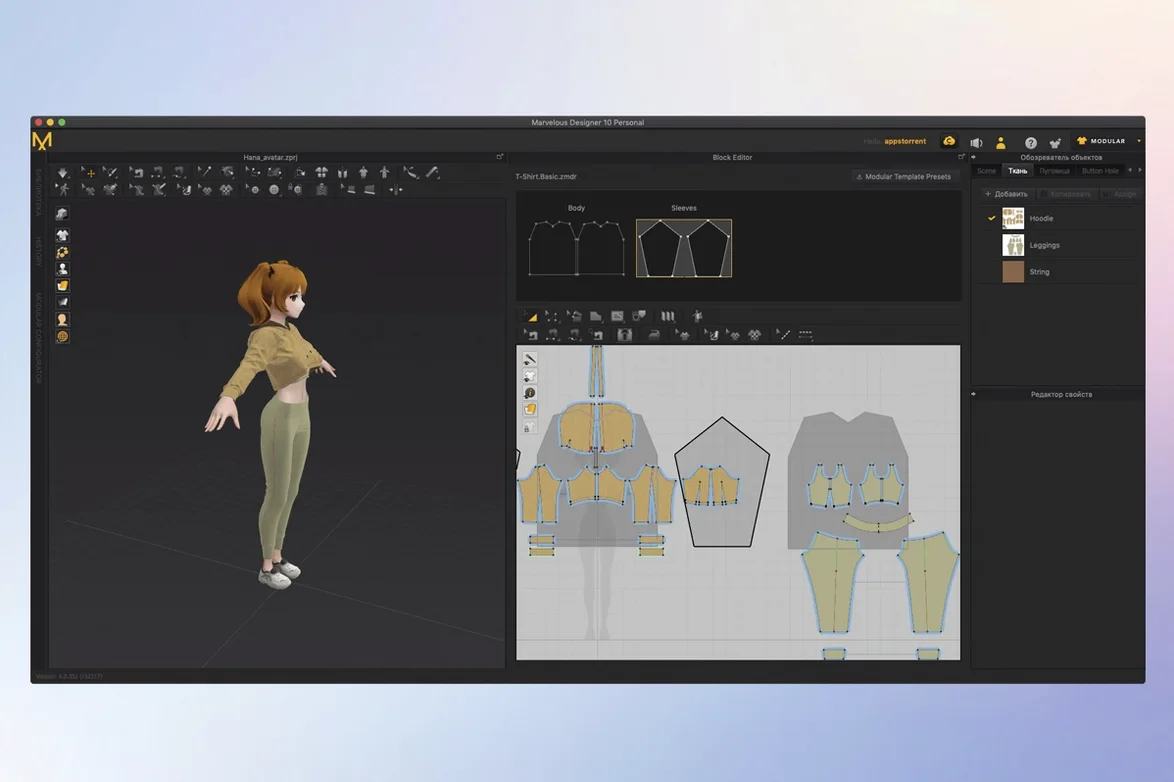
The latest version of Marvelous Designer for Mac keeps the focus on what matters: making 3D clothing that behaves like real fabric. You work on a 3D form, place points, adjust contacts, and see every change appear on the garment in real time. That immediate feedback is what makes the tool feel less like CAD software and more like sketching with fabric in your hands.
It is built for anyone who needs believable clothing on digital characters. Game artists, animators, and 3D generalists use it to dress avatars, build character wardrobes, and reuse pieces across projects. The interface is approachable, and the online learning materials get beginners past the first few folds without a steep climb.
Data flows in and out of Maya, 3ds Max, Softimage, Modo, and ZBrush, so it fits into an existing pipeline. For teachers like me, it is a practical way to show students how cloth moves and how seams work. If you want to see what 3D garment design feels like, Marvelous Designer macos is a solid place to start.
Change unit and workspace defaults first
A few adjustments early on save time later. When you first open the interface, the workspace and defaults are set for a general user, not for how you actually work. Here are the ones I tell people about.
- Unit and grid scale. The software starts with millimeters. If you work with pattern pieces from a different metric or from an inch-based package, change the unit display once. You set it in the canvas preferences, and it sticks for every new file.
- Auto-save interval. Turn it on if it is not already. Set it to five or ten minutes, depending on how many pieces you are drafting. A crash after an hour of draping hurts; the auto-save version lives in a folder you can open from the file menu.
- 3D view snap. Beginners often find the 3D view moves too freely when they want it locked to a front or side angle. The view menu has a snap-to-angle toggle that keeps the camera from drifting.
- Fabric simulation quality. The real-time preview runs at a moderate quality setting. If your Mac is on the older side, lower the preview resolution in the simulation settings so the view keeps up with your mouse movement. Raise it when you export.
None of these are hidden, but they are easy to skip when you are eager to start sewing a shirt.
Garment not following avatar? Check contact points
Even with a clear interface, certain things catch new users out. I see these regularly in the game club.
The garment does not follow the avatar's movement. The most frequent cause is a missing or broken contact point. When you animate a walk cycle and the skirt stays still, open the point placement tool and check that contact is enabled for the waist area. A single disconnected point is enough to freeze the whole piece.
Seams pull apart or overlap oddly. This usually means the sewing direction arrows are pointing in opposite ways on the two edges. Select the seam tool, click the seam line, and flip the direction on one side. The software then knows which side of the fabric meets the other.
Fabric clips through the avatar's body. The thickness or stiffness setting is too low for the gravity acting on the piece. Increase the fabric stiffness slider in the property panel, or add a few extra internal seam lines to give the cloth structure. For a stiff uniform jacket, start with a higher stiffness value and lower it gradually.
The imported USD or Alembic file shows up as a flat plane. Check the import scale. Marvelous Designer expects certain units, and a mismatch collapses the geometry. Reimport using the scale setting in the file dialog. A quick test is to import a simple cube from your source app and see if it measures correctly.
Skip complex garments—start with a straight skirt
These are not errors in the software; they are habits that slow people down.
Starting with a complex garment. A dress with pleats, a collar, and sleeves is tempting but hard to troubleshoot. Start with a simple straight skirt or a basic shirt. Learn how the sewing tool handles straight edges before you try curved ones. Once the simple piece drapes correctly, build up.
Forgetting to save pattern pieces as separate files. Marvelous Designer lets you keep everything in one project, but a project file can become large and slow to open. Save each finished piece as its own Alembic file. Then assemble them in a fresh project. This also makes it easier to reuse a sleeve or collar in another outfit.
Ignoring the contact point map. Contact points tie the garment to the avatar. Beginners sometimes draw a jacket, then wonder why it floats off the shoulders. Open the contact view, and you will see which parts of the garment actually touch the body. Adjusting contact is faster than redraping.
Using the mouse for everything. The interface works fine with a mouse, but the real-time view responds better to a tablet pen or a trackpad gesture. If you have a stylus, use it for drawing seam lines and placing points. The difference in precision is noticeable.
Marvelous Designer focuses more on simulation than Clo 3D
Several tools let you work with digital clothing on a Mac. Marvelous Designer sits in a specific spot that is worth understanding.
Marvelous Designer vs. Clo 3D. Marvelous Designer and Clo 3D share a similar lineage, but Marvelous focuses more on the simulation side than on pattern drafting. Clo 3D has deeper grading and marker-making tools for production. Marvelous Designer wins for character artists who need quick draping and animation-friendly output. Clo 3D is better if you plan to cut real fabric from the pattern.
Marvelous Designer vs. Blender (with the sewing add-ons). Blender is free and powerful, but its cloth simulation requires add-ons and manual setup. You spend time rigging the mesh before you see any fabric behavior. Marvelous Designer gives you a ready avatar and a dedicated sewing tool that respects seam direction and contact from the start. For a classroom or a game studio, the lower setup cost matters. Blender is an option if budget is the only concern and you have hours to learn the add-on workflow.
Marvelous Designer vs. ZBrush (clothing feature). ZBrush can sculpt clothing as solid forms, but it does not simulate fabric behavior. You push and pull geometry by hand; there is no gravity, no fold simulation. Marvelous Designer treats cloth as cloth. If you need animated uniforms that wrinkle and sway, it is the right choice. If you need a static armor piece that never moves, ZBrush works fine and you already own it.
- macOS 12 or later
- Intel or Apple Silicon Mac
Questions I keep getting
Who is Marvelous Designer for?
It is aimed at 3D artists, game developers, and animators who need realistic clothing for characters. Beginners can also start with the included online tutorials.
Can I use Marvelous Designer with other 3D software?
Yes. It imports and exports data with Maya, 3ds Max, Softimage, Modo, and ZBrush.
How to install
- Open the downloaded package and drag the app to your Applications folder. That keeps everything in one place.
- Follow the activation steps included in the package. This makes sure the software runs on your Mac.
Similar apps






Sign in or join the club to leave a comment.
Nobody has commented yet.