- Version
- 15.8
- Studio or maker
- Good Snooze
- Languages
- English
- Activation
- Not required
- Runs on macOS
- macOS 14 or later
- Chip type
- Apple Silicon, Intel 64-bit
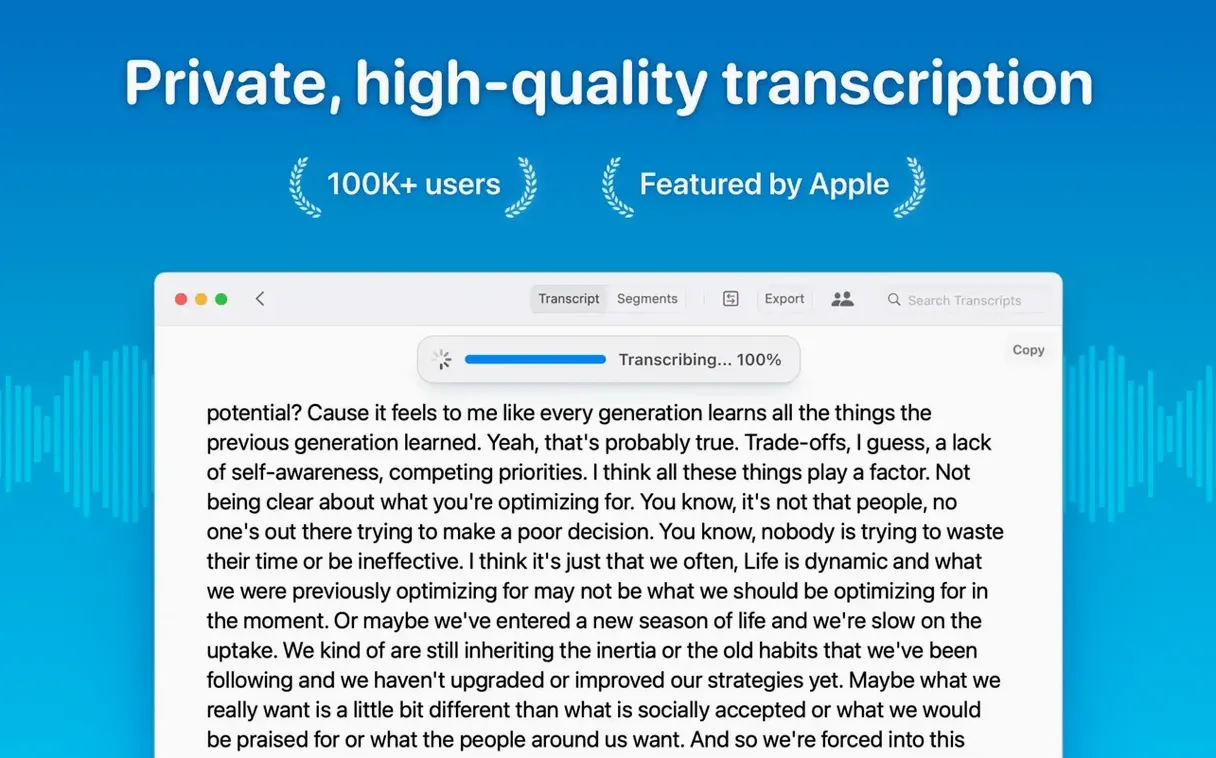
Version 15.2 of MacWhisper focuses on making transcripts easier to manage and more accurate in group settings. The headline change is improved speaker recognition through a new diarization model, which matters when you transcribe a podcast or a classroom discussion with several voices. Real-time meeting transcripts are now part of the app, so you can follow along as someone speaks instead of waiting for the recording to finish.
Local Models list hides empty categories and checks your Mac
The Local Models list got a cleaner layout in 15.2.1, including a new Qwen provider icon. Empty categories are now hidden when your Mac cannot run those models, and the app checks your Mac model requirements before you download anything. Support for Qwen3-ASR on M1-series Macs was removed in this update.
Is transcription still fully local?
Yes, everything runs on your machine. You can record audio directly or import files, and the app handles system audio too. Language selection is manual or automatic, covering 100 languages.
What about organizing transcripts?
Folders and subfolders for transcripts and meetings arrived in 15.2. You can copy all text or just selected sections, and export subtitles as SRT or VTT. A reading mode remains available for reviewing long transcripts.
What beginners often miss
The most common mistake I see in the game club, and with teachers starting to use MacWhisper, is picking the wrong transcription model for the job. People choose Large-V3 by default because it sounds like the most capable option. But on a machine with less available memory, that model can take noticeably longer to process a file. Tiny or Small often deliver perfectly readable transcripts for a single speaker in a quiet room, and they finish much faster. Start with Small and move up only if the accuracy is not good enough for your use.
Another early misstep is ignoring the language setting. Automatic detection works well for clear recordings in English, but if your file contains heavy accents or background noise, telling the app which language to expect improves results. I have watched colleagues struggle with garbled transcripts when a quick manual language selection would have solved half the trouble.
People also forget that segments can be edited and deleted. When you see a line that looks off, you are not stuck with it. Click into the transcript, fix the text, or remove a wrong segment entirely. The app keeps the rest intact.
Start with Base or Small for balanced speed and accuracy
Before you transcribe your first file, open the model selection and choose Base or Small unless you know your Mac handles Medium well. These two give a good balance between speed and accuracy for everyday recordings like lectures or short meetings.
Turn on language selection manually for the first few transcripts. Once you see how the app handles your usual recordings, you can decide whether automatic detection is reliable enough. For podcasts with multiple speakers, enabling speaker separation from the start saves later manual work.
If you plan to export subtitles, set your preferred format early. SRT works with most video editors and media players, while VTT is a common choice for web players. Picking one and sticking with it makes your export workflow faster.
A two-minute mp3 voice memo shows how editing tools work
Start with a short, clean recording. A two-minute voice memo on your phone, exported as mp3, gives you a quick result you can check for accuracy. This helps you understand how the app presents text and where the editing tools are without waiting through a long file.
Use drag-and-drop for your first few imports. It is straightforward and shows you the file format support immediately. Later you can explore batch transcription, but getting comfortable with one file at a time reduces confusion.
Try the reading mode on a transcript you already know well. It removes extra interface elements and lets you focus on the text, which is useful when you proofread a lesson transcript or a meeting summary.
Organize your transcripts into folders from day one. The folder and subfolder system in version 15.2 keeps everything tidy, and you will thank yourself when you have twenty recordings from different classes or meetings instead of a flat list.
How MacWhisper compares with similar apps
MacWhisper versus Whisper Transcription
It uses the same underlying speech recognition engine and runs locally as well. The main difference is distribution: MacWhisper you download directly, while Whisper Transcription goes through the store. Functionality overlaps heavily, so choosing between them often comes down to whether you prefer installing from outside the store or inside it.
MacWhisper versus Otter
Otter focuses on meeting transcripts with live collaboration and cloud storage. Your audio goes to their servers for processing, which means you need an internet connection and your data leaves your machine. MacWhisper keeps everything local, which appeals to schools or professionals who handle sensitive recordings. Otter offers real-time transcription in a browser or mobile app, while MacWhisper provides real-time meeting transcripts on your Mac.
MacWhisper versus Descript
Descript is a full audio and video editor with transcription as one feature among many. It is aimed at podcasters and video creators who need to edit media by editing text. MacWhisper stays focused on transcription and export, without the editing studio. For someone who only needs clean transcripts and subtitle files, MacWhisper is simpler to learn and does not tempt you with tools you do not need. Descript also processes audio in the cloud by default, whereas MacWhisper runs everything locally.
- Improved speaker recognition using a new diarization model
- Added real-time meeting transcripts
- Added folders and subfolders for organizing transcripts and meetings
- macOS 14 or later
- Apple Silicon or Intel 64-bit Mac
- No activation required
How to install
- Open the downloaded disk image to mount it.
- Drag the app into the Applications folder alias so it is available system-wide.
- Launch the app from Launchpad once copying finishes.
Similar apps





Sign in or join the club to leave a comment.
Nobody has commented yet.