
- Version
- 1.26.0
- Studio or maker
- Skylum
- Languages
- English, German, Spanish, Italian, Chinese (Traditional), Chinese (Simplified), Korean, Dutch, Portuguese, Ukrainian, French, Japanese
- Activation
- K'ed by TNT team
- Runs on macOS
- macOS 11 or later
- Chip type
- Apple Silicon, Intel 64-bit
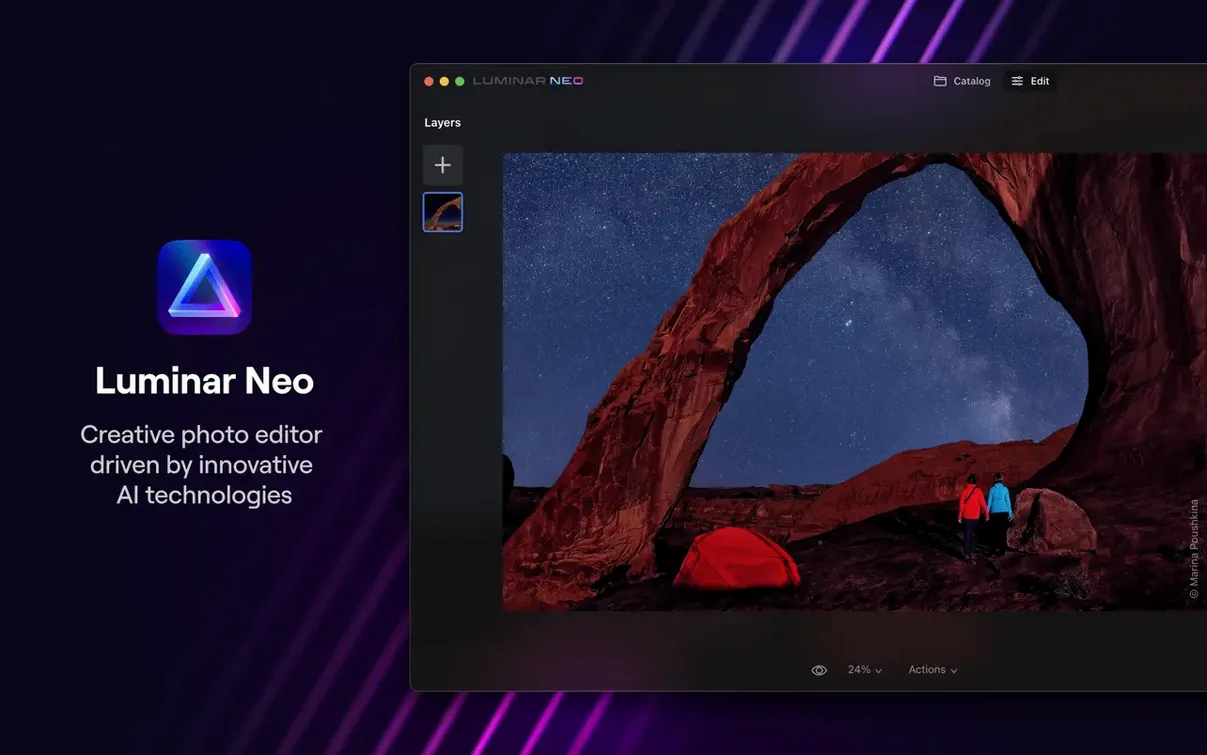
Luminar Neo 1.26.0 is a major update to Skylum's AI-based photo editor for macOS. The headline addition is the AI Assistant, now available in both the Presets and Edit tabs. It's designed to make editing faster and more intuitive, so you can spend less time clicking and more time on the creative decisions.
Runs on macOS 12.0 or later with 16 GB recommended
You'll need macOS 12.0 or later. The app runs on both Intel and Apple Silicon Macs. The download page lists 8 GB of RAM as the minimum, but 16 GB is recommended, especially for larger image files.
What can Luminar Neo do?
It's a customizable photo editor built on Skylum's LuminarAI technology. You get tools for relighting, background replacement, and dust removal—all handled with AI assistance.
Portrait photographers save hours with AI relighting and background swaps
Luminar Neo suits anyone who edits photos regularly but doesn't want to spend hours learning complex layer masks or channel adjustments. Portrait photographers benefit from the AI-powered relighting and background replacement tools, which handle lighting inconsistencies and swap out a distracting backdrop in fewer steps than a manual selection. Landscape shooters will find the dust removal feature helpful for cleaning up sensor spots across a series of sky shots. Digital artists who work with multiple exposures or composite scenes appreciate the layer support, especially when combining different images with the AI scene analysis doing the rough masking.
People who shoot in mixed indoor and outdoor conditions — event photographers, real estate agents, travel bloggers — often find that the relighting tool saves them from carrying extra gear or spending time in manual curves adjustments. Beginners who feel overwhelmed by traditional editors get a gentler start because the AI Assistant suggests edits rather than leaving you with a blank panel of sliders.
Mac users who have upgraded to Apple Silicon and want native performance will find the current version runs well on both architectures. If you are still on macOS 12 Monterey, note that Skylum has indicated the next release will require macOS 13 Ventura, so this version is your last chance to use Luminar Neo on that system.
Explore the Presets tab with AI Assistant on your first launch
When you open the app for the first time, spend a few minutes exploring the Presets tab with the AI Assistant turned on. It will suggest starting points based on the image you have loaded. Try it on a few different photos — a portrait, a landscape, a low-light shot — to see how the suggestions shift.
Set aside one afternoon to test the background replacement tool on a handful of images. The AI needs a moment to analyze the scene depth and separate the subject from the background. Move the subject close to a new backdrop and check the edges at full zoom. If the mask is not perfect, refine it using the manual brush rather than starting over.
Turn off the AI Assistant for your third or fourth session and adjust sliders manually. This helps you understand what each control does, so later you can override the AI suggestions when they get close but not quite right. Keep a backup of your original files before you save any edited version, just in case you want to start fresh.
A workflow for replacing a background
Here is a typical start-to-finish process for replacing the background in a portrait taken outdoors. I use this sequence when a busy street scene distracts from the subject.
- Open the portrait in Luminar Neo and duplicate the image layer so you have a backup inside the project.
- Select the background replacement tool from the Edit tab. The AI will analyze the scene and separate the subject from the background. This takes a few seconds, and you can watch the progress as it identifies edges and depth layers.
- Inspect the mask that the AI created. If the subject's hair or the edge of a jacket looks cut off, switch to the Refine Brush and paint along those edges. The AI often handles clean backgrounds well, but fine hair or transparent objects may need your touch.
- Choose a new background image from your library or use one of the replacement presets. The app previews the composite in real time, so you can see how the lighting and colors match.
- Adjust the relighting slider to match the subject's original light direction with the new background. This step keeps the composite looking natural rather than pasted.
- Apply the changes and save the result as a new file. Keep the project file with layers if you think you will revisit the mask later.
Don't let the AI Assistant override your photo's mood
One mistake I see often is relying entirely on the AI Assistant for every image. The Assistant works well for standard corrections, but it can suggest a preset that looks good on screen but alters the mood of a photo in a way you did not intend. Use it as a starting point and then override individual sliders.
Another misstep is ignoring the layer stack. After you replace a background or add a relighting adjustment, the changes live on a new layer. If you flatten the image too early, you lose the ability to fine-tune the mask later. Keep the layers visible until you are certain the edit is final.
Some users skip the dust removal tool and try to clone out sensor spots manually. That works, but it takes longer. Let the AI handle repetitive clean-up first. Then you can focus manual effort on the areas where the AI missed, like a spot that sits on a pattern or texture.
Finally, beginners sometimes load a very large image on a machine with only 8 GB of RAM and wonder why the app lags when applying masks. If your Mac has 8 GB, work with smaller previews or reduce the image size temporarily for editing, then export the full version at the end.
Editing a headshot from a weekend portrait session in a project
Friday afternoon, I sit down with a batch of photos from a weekend portrait session. I open Luminar Neo and create a new project. The first image is a headshot taken in front of a brick wall. The lighting is flat, and the background is busier than I want.
I click the Edit tab and activate the AI Assistant. It suggests a preset called "Soft Portrait" with a slight relighting adjustment. I apply it, then scroll through the individual sliders. The AI Assistant set the exposure to +0.4, but I bump it to +0.6 because the subject's skin looks a little dark on my display. I also reduce the vibrance by a notch — the brick wall was already warm, and I want the focus on the face, not the red tones.
Next, I switch to the background replacement tool. The AI separates the subject from the wall in about five seconds. The edges around the shoulders look clean, but the hair has a few thin strands that the mask did not catch. I use the Refine Brush to paint those strands back in. Then I choose a simple dark gray background from my library. I finalize the layer and move on to the second image.
The second photo is a full-body shot with a distracting parked car in the background. I use the same background replacement approach, but this time I try a preset background from the app's library — a muted green that complements the subject's clothing. The AI Assistant suggests a Landscape preset for the overall exposure, which I override because the portrait needs a different white balance. I adjust the temperature slider until the skin tones look natural against the green.
After editing three images, I save the project file. I do not flatten any layers yet. I also export each image as a high-resolution JPEG, keeping the Luminar Neo project for future tweaks. The whole session takes about forty minutes, with most of that time spent on the second image, where I had to refine the mask more carefully.
That is the kind of session where Luminar Neo works best: a small batch of photos where each gets individual attention, with the AI handling the repetitive analysis and me making the creative calls. The AI Assistant is a shortcut, not a replacement for the final decision.
The interface comes in English, German, Spanish, Italian, Chinese (both traditional and simplified), Korean, Dutch, Portuguese, Ukrainian, French, and Japanese.
- AI Assistant added to the Presets and Edit tabs.
- Update described as a major release for faster, smarter editing.
- macOS 12.0 or later
- Intel or Apple Silicon
- 8 GB RAM minimum, 16 GB recommended
Questions I keep getting
Does Luminar Neo run on Apple Silicon Macs?
Yes, Luminar Neo supports both Intel and Apple Silicon Macs.
What is the AI Assistant in Luminar Neo 1.26.0?
It's a new feature in the Presets and Edit tabs that aims to make editing faster and more inspiring.
How much RAM do I need for Luminar Neo?
The listed minimum is 8 GB, but 16 GB is recommended for smoother performance.
How to install
- Mount the disk image and run the Open Gatekeeper friendly command.
- Press Enter in Terminal to bypass Gatekeeper.
- Drag the app to your Applications folder.
- Launch Luminar Neo once the copy finishes.
Similar apps





Sign in or join the club to leave a comment.
Nobody has commented yet.