- Version
- 2.0.05
- Studio or maker
- LightBurn Software
- Languages
- English
- Activation
- Included
- Runs on macOS
- macOS 10.13 or later
- Chip type
- Intel 64-bit
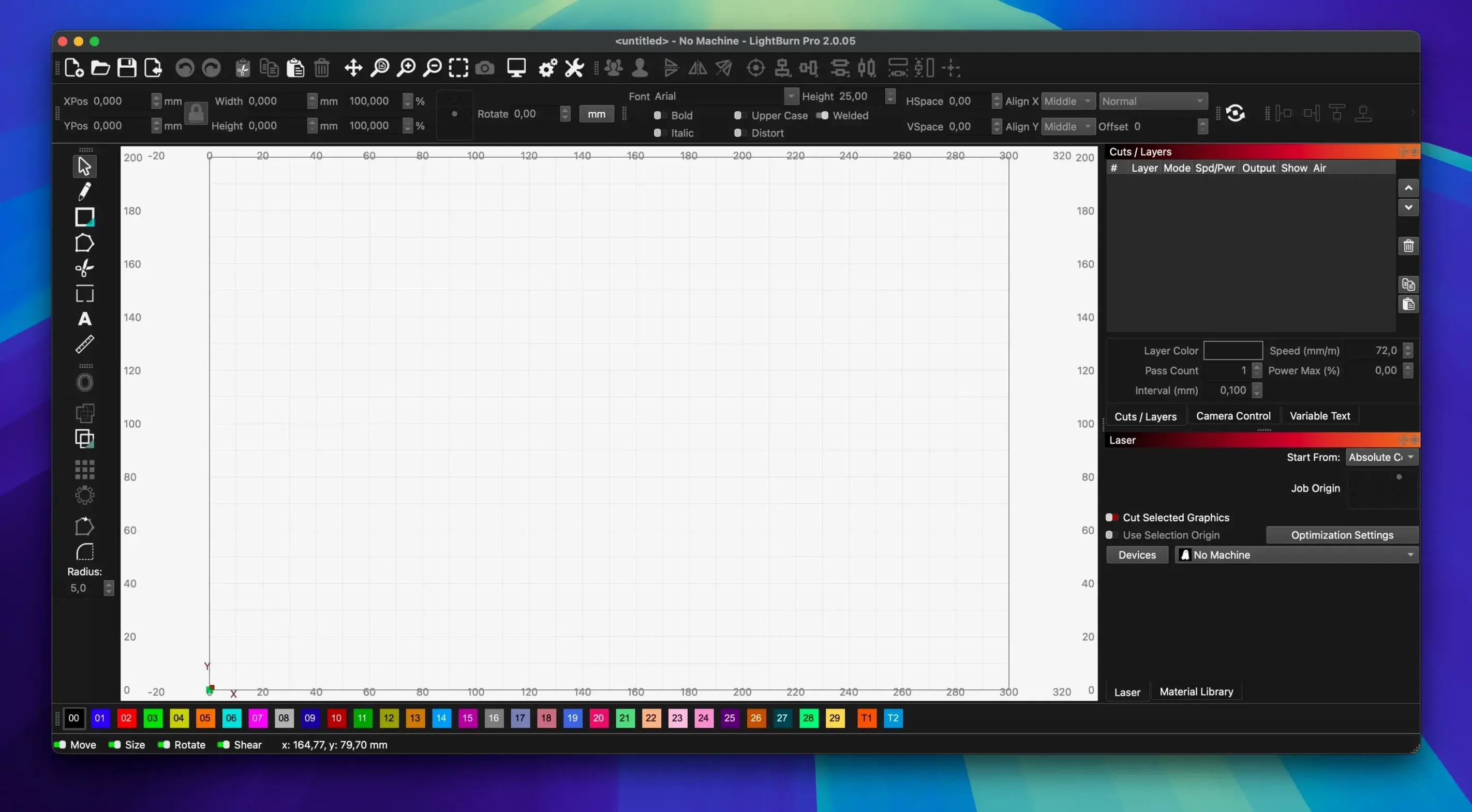
LightBurn is layout, editing, and control software for laser cutters.
Before you install it, here are the questions people usually ask.
Designs shapes and runs the laser directly
- Designing and editing shapes with the built-in vector editor.
- Importing vector and raster files – AI, SVG, DXF, PDF, PNG, JPG – and preparing them for cutting.
- Controlling the laser directly, without extra software, through power, speed, pass count, cut order, brightness, contrast, and dithering settings.
- Working with most GCode, DSP, and Galvo controllers, plus direct connections to many lasers.
Requires Rosetta on Apple Silicon and is English-only
- On Apple Silicon Macs, LightBurn needs Rosetta to run. It's a small extra step, but it works fine.
- The interface is in English only.
- It's a native app for Mac, Windows, and Linux, so it feels at home on a desktop.
Once you have LightBurn running, a few settings and habits will make the first days noticeably smoother. The defaults are sensible, but the software rewards a little early customization.
Show last used settings to save time with multiple materials
Open the preferences panel and look at the General tab. If you work with more than one laser or switch materials often, enable the option that shows the last used settings when you open a project. It saves a few clicks each time.
Under the Edit tab, check the auto‑save interval. The default works, but setting it to five minutes instead of ten means less lost work if something unexpected happens. LightBurn does not have an automatic recovery window like a word processor, so a shorter interval is good practice.
The Workspace section lets you pick a grid and ruler unit. Millimetres is the default in most regions, but if your material comes in inches or you work from imperial drawings, change it here. The grid snap can stay on at first. You can soften it later once you feel the spacing.
In the Material Library, take ten minutes to rename the built‑in presets you will use most often. Add your own material name, thickness, and a note about the source. The library is one of LightBurn's strong points, and a few personal labels make it genuinely useful from day one.
Dark Mode is in version 2.0. If you work in a dim workshop or after school, turn it on in the Appearance section. It does not change the tools or the output, just the interface colours, and it is easier on the eyes during long sessions.
Cut a simple square in scrap to test connection and settings
Start with a simple square or circle cut in scrap material. Do not worry about the design. The goal is to confirm the connection, the power, and the speed settings work together. Adjust the power down and the speed up for the first pass. A low‑risk test saves material and teaches you the relationship between the two controls faster than reading the manual.
Keep the Material Library open on a second monitor if you have one, or pinned to the side of the workspace. When you try a new material, duplicate the nearest preset, change the values, and save it with a test date in the name. After a few days you will have a small collection of settings that you trust.
Use the Preview button before every cut, even on simple jobs. It shows the cut order and the estimated time. You can reorder passes here without changing the design. This is especially useful if you cut the same file on different material thicknesses.
If you import SVG or DXF files from other sources, run the Clean Up tool from the Edit menu before you do anything else. It removes duplicate nodes, merges nearby points, and closes small gaps. Imports from web projects or free vector sites often have tiny errors that only show up during the cut. Clean Up catches most of them.
Save a backup of your workspace layout after the first evening. LightBurn remembers panel positions, open tools, and zoom levels. If you experiment with the layout and lose your preferred arrangement, the backup restores it quickly.
Runs laser cutters on a Mac without switching to a PC
LightBurn suits anyone who runs a laser cutter from a Mac and prefers not to switch to a PC or a virtual machine for the control software. That alone is a relief for workshop operators who have an iMac or a MacBook as their daily machine.
School and makerspace staff will appreciate the direct laser control. Students can design in the same application, send the file to the cutter, and see the results without transferring files between programs. The material library helps when multiple users work with different materials in one session.
Hobbyists who design their own projects from scratch, rather than downloading ready‑made files, get the most from the vector editor. The boolean operations, offset, and weld tools let you build shapes that would need two or three separate applications otherwise. If you design in Illustrator or Inkscape and then import, LightBurn still works, but you are not using its full design capability.
LightBurn is also a good fit for light burn torrent and lightburn torrent searches from people who want a full‑featured laser tool without hunting for separate controller software. The application handles the layout and the machine control in one window, which is uncommon on macOS.
Professional users who run a laser for small production runs will value the repeatable workflow. Save a project file with the material preset, the cut order, and the camera calibration already set. Open it, place the new material, and run. No reconfiguring each time.
Few native Mac alternatives: LaserGRBL, T2Laser, and brand software
There are not many native Mac applications that combine design and laser control. The main alternatives are LaserGRBL, T2Laser, and the software that ships with specific laser brands.
LaserGRBL is free and works on macOS through a Java runtime. It handles GCode‑based lasers and has a simple interface. It can import images and do basic dithering, but it does not have a vector editor. You must prepare your design elsewhere and import a bitmap. LightBurn's built‑in vector tools mean you can stay in one application from the first sketch to the finished cut. LaserGRBL also lacks a material library and direct support for rotary axes or cameras.
T2Laser is a lightweight option for laser engraving with inexpensive diode lasers. It runs on macOS natively, but it is focused on image engraving rather than vector cutting. You cannot edit shapes or set cut order. LightBurn covers both raster engraving and vector cutting in the same project, and the material library gives you more control over power and speed per layer.
Brand‑specific software such as the applications from Epilog, Trotec, or Full Spectrum Laser are designed for their own machines and often only run on Windows. Some run on macOS through a web interface or a limited companion app, but they lack the general‑purpose controller support that lets LightBurn connect to most GCode, DSP, and Galvo controllers. If you change laser brands later, LightBurn adapts. Brand software usually does not.
LightBurn's strength is its position between a dedicated CAD tool and a simple image‑to‑laser converter. It does not replace a full vector design suite, but it does not need to. It is the middle layer that many Mac laser users were missing. A lightburn mac crack search often leads here because it is one of the few applications that fills that gap without asking you to learn a separate controller program.
If you want a quick‑facts comparison: LaserGRBL is free but limited to GCode and images. T2Laser is simple and native but only does image engraving. Brand software ties you to one machine. LightBurn is the only one that combines a full vector editor, a material library, and multi‑controller support on macOS.
LightBurn 2.0.05 supports macOS 11 and later. The installation is a straightforward drag into Applications.
- Fixes window title bar placement when stored offsets are incorrect.
- Fixes rotary jogging direction in CCW mode.
- Fixes a crash when importing SVG files with ungrouped DEF shapes.
- macOS 10.13 or later
- Intel 64-bit
- Rosetta required on Apple Silicon Macs
How to install
- Open the downloaded disk image.
- Drag the LightBurn app into your Applications folder.
- Launch it from Launchpad once the copy finishes.
Similar apps


Sign in or join the club to leave a comment.
Nobody has commented yet.