- Version
- 5.1.0
- Studio or maker
- Belight Software
- Languages
- Russian, English, German, Spanish, Italian, Chinese (Simplified), Ukrainian, French, Japanese
- Activation
- K'ed by TNT team
- Runs on macOS
- macOS 12 or later
- Chip type
- Apple Silicon, Intel 64-bit
Planning a renovation or building from scratch often means juggling sketches, measurements, and a lot of guesswork. Live Home 3D Pro for Mac replaces that with a single workspace where you can draw walls, place furniture, and see the result in 3D as you go. Before you download, let's make sure it will run on your machine.
Runs on macOS 12 or later for Intel or Apple Silicon
Live Home 3D Pro requires macOS 12 or later, and it supports both Apple Silicon and Intel 64-bit Macs. So whether you have a newer M-series model or an older Intel iMac, this app should work fine.
2D and 3D design with natural lighting based on geolocation
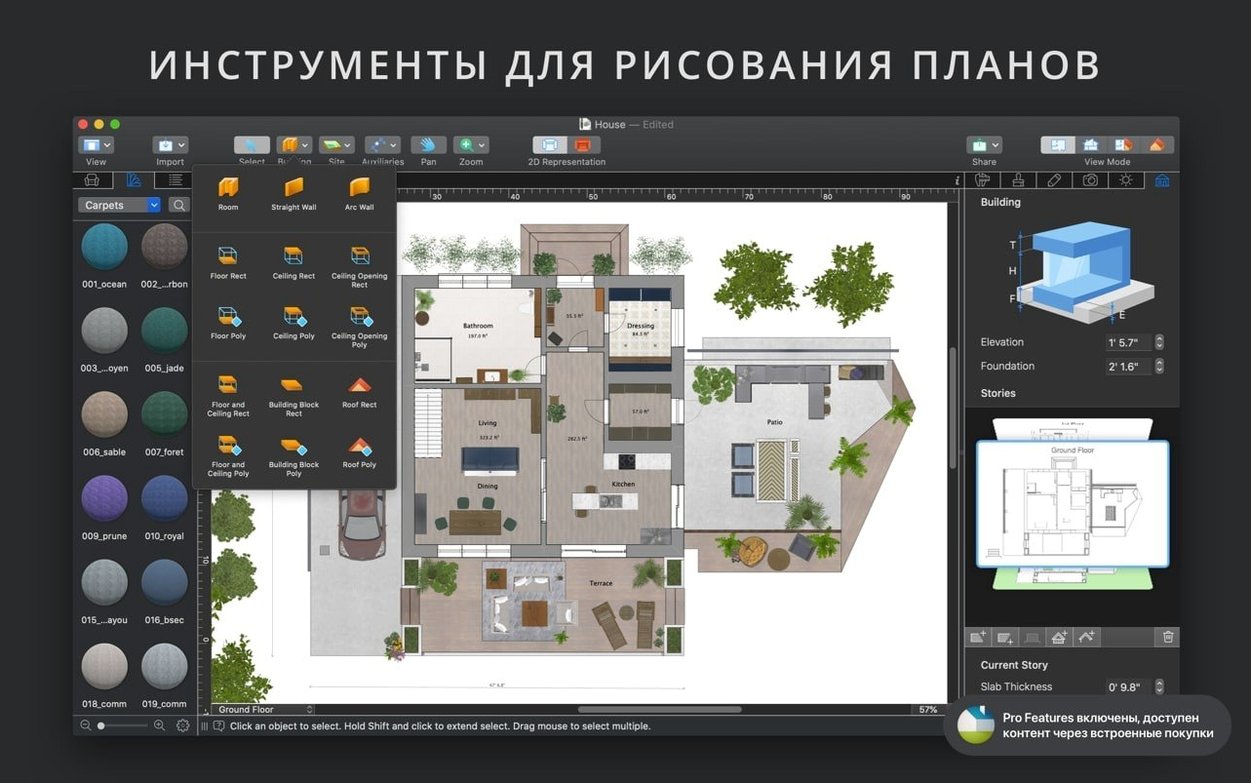
- Design in 2D and 3D with tools for straight and curved walls, corner windows, and complex openings.
- Natural lighting that responds to geolocation, time of day, and cloudiness — great for checking how a room feels at sunset.
- A library of over 2,000 furniture and other models to furnish your project.
- A roof assistant with 12 customizable templates for quick roof designs.
- Softer shadows thanks to a shadow map technique.
- Built-in video tutorials and detailed room drawings to help you learn and share.
The app is available in English, German, French, Spanish, Italian, Russian, Ukrainian, Simplified Chinese, and Japanese. You can also send a project copy via Mail, Messages, or AirDrop, which makes collaborating with a contractor or family member straightforward.
Setting up a room from start to finish
I find that new users often want to see a complete workflow, so here is one I walk through with students at the game club when they try the app for the first time. Start by opening a new project. The grid appears, and you can begin drawing the outer walls. Click to set a corner, then drag to the next corner. As you draw, the app automatically adds dimension lines for walls, floors, and ceilings — no need to measure afterward. For an irregular layout, switch to the curved wall tool and click-drag to create rounded edges.
Once the room outline is closed, add interior walls for separate spaces like a kitchen and a living area. The snapping guides help line everything up precisely. Then switch to the 3D view to see the room take shape. You can change the camera field of view or projection type to get a better angle. If you need more than one floor, the Pro version allows unlimited floors, so you can stack levels and see the whole house.
Next, furnish the space. Open the library of over 2,000 furniture models and drag a sofa, table, or bed into the room. In 3D view, you can move objects, rotate them, and adjust their height directly. The level-of-detail control keeps the model responsive while editing — it simplifies the display so your Mac doesn’t slow down. When you are happy with the layout, assign surface materials. Choose from the 2,100 included materials or import an image from Finder to create a custom texture. The advanced material editor lets you tweak reflectivity and roughness.
Finally, add lighting. Natural lighting is automatic based on the project’s geolocation and time of day, but you can also add custom light sources. The light source editor lets you attach lights to imported objects, so a floor lamp actually casts light in the scene. To share your design, export a realistic walkthrough video in Ultra HD resolution or send a project copy via AirDrop to a collaborator.
Started with a basic two-room layout and video tutorials
Let me describe a recent session I had while helping a friend plan a small cottage. I opened the gallery of house projects and picked a basic two-room layout as a starting point. The built-in video tutorials were helpful for remembering how to add a roof — something I don’t do often. I used the roof creation assistant with one of the 12 customizable templates to get a gable roof in place quickly.
In 2D view, I adjusted wall lengths using automatic dimension lines as a reference. Then I switched to 3D and used the vertical view mode to check the ceiling height. For the living room, I imported a few models from Trimble 3D Warehouse — the app supports SketchUp, COLLADA, KMZ, and other formats, so I could grab a specific sofa design. After placing furniture, I spent time in the material editor creating a wood finish for the floors. I used an image from Finder as the surface material, which saved searching through the built-in library.
Lighting came next. I set the geolocation to the cottage’s actual spot in southern Germany and chose an afternoon time. The app calculated natural shadows automatically. I added a couple of custom light sources for the kitchen counters using the light source editor. The shadow map technique gave softer, more realistic shadows than standard rendering. To finish, I rendered a short walkthrough video in Ultra HD — the export took a while, but the result was shareable via Messages or Mail.
Fixed standalone Pro app licensing in a maintenance release
Version 5.0.4 is a maintenance release — it fixed the problem with sharing standalone Pro app licensing. No more unexpected license prompts mid-session. For day-to-day work, the fix is invisible, but it removes a friction point that could interrupt a design session.
Beyond that specific fix, the app remains at 5.0 with the same Pro features: unlimited floors, the Custom Roof tool, Elevation View, advanced terrain editing, the custom Light Source Editor, and the Material Editor. Ultra‑high‑resolution image, panorama, and video rendering are still part of the Pro package. Everything else — the library of models, materials, import/export formats, and the interface — stays unchanged in this release.
- Fixed the problem with sharing standalone Pro app licensing.
- macOS 12 or later
- Apple Silicon or Intel 64-bit
Questions I keep getting
Does Live Home 3D Pro support Apple Silicon Macs?
Yes, Live Home 3D Pro supports both Apple Silicon and Intel 64-bit Macs, so it runs natively on M1, M2, and later chips.
How to install
- Mount the disk image and launch Open Gatekeeper friendly.
- Press Enter in Terminal to bypass Gatekeeper.
- Drag the app to the Applications folder.
- Open the app when installation is complete.
Similar apps






Sign in or join the club to leave a comment.
Nobody has commented yet.