- Studio or maker
- motionVFX
- Languages
- English
- Activation
- Not required
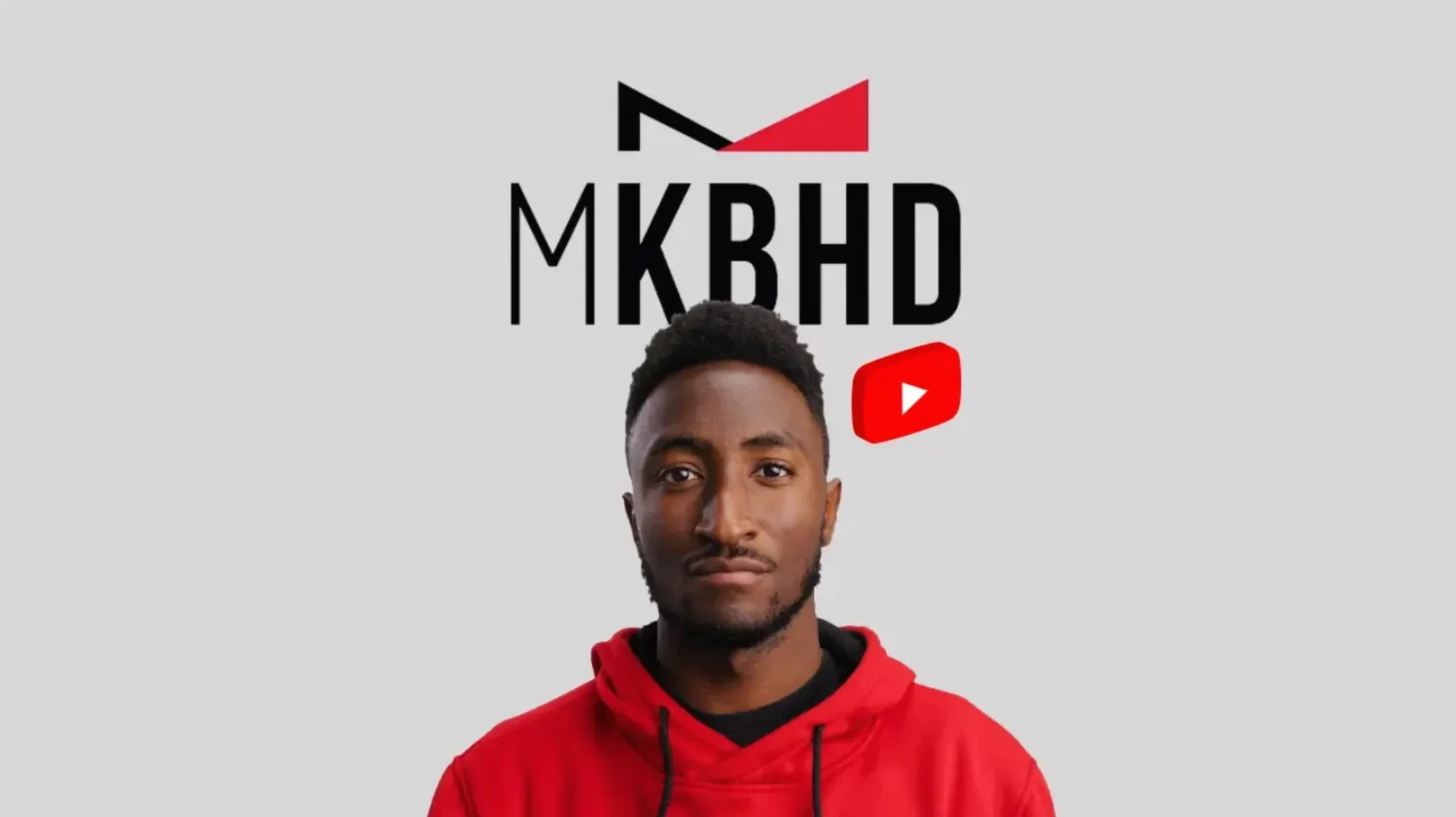
Take the Lower Thirds collection. It is one of the 45 titles in the Final Cut Pro version, and it is where the MKBHD look shows up most clearly. The pack, built with Marques Brownlee himself, drops ready-made presets that mirror his clean, bold graphics and quick cuts.
In a typical edit session, the titles sit on the story track above your footage, the effects go on clips that need a bit of that signature pop, and the transitions handle the cuts between scenes. The plugin works for horizontal or vertical aspect ratios, so you can build for YouTube or Shorts without redoing the graphics.
Here is a quick look at what is inside:
| Host app | Titles | Effects | Transitions |
|---|---|---|---|
| Final Cut Pro | 45 | – | 6 |
| DaVinci Resolve | 35 | 10 | 6 |
| Premiere Pro | 45 | – | 6 |
For DaVinci, the effects are the extra layer — ten of them for fine-tuning a clip’s look. The Premiere version matches Final Cut in titles and transitions. Whichever host you use, the presets are meant to feel like MKBHD’s own videos, not like a generic template pack.
Walking through a short tech-review clip with mKBHD
Let me walk you through how I used it on a recent project. I was editing a short tech-review clip for the school’s YouTube channel — something quick, no voiceover, just B-roll and text overlays.
I opened my Final Cut Pro project, which was already set to a 16:9 timeline. The first thing I did was browse the Titles browser. I scrolled past the built-in options and opened the mKBHD folder. The thumbnails give you a good sense of each preset’s style — some are minimal, others have that signature MKBHD boldness with thick outlines and bright accents.
I picked a Lower Third called “Mini Specs” — it shows a small badge-style label with the product name on the left. I dragged it onto the story track above my footage. The text placeholder said “TITLE HERE” and there was a small color swatch for the accent. I double-clicked the title in the timeline to open the inspector, typed “MacBook Air M3” and changed the accent color to match the product’s blue. The animation was a simple slide-in from the left, held for about four seconds, then faded out. No manual keyframing needed.
For the transition between two clips — a wide shot of the laptop and a close-up of the keyboard — I used one of the six transitions. I dropped it between the two clips on the primary storyline. The transition added a quick, snappy wipe with a slight color shift. It felt faster and more deliberate than the default cross-dissolve I usually rely on.
Later, I tried one of the DaVinci effects. I opened Resolve, went to the Effects library, and found the mKBHD folder under “Effects.” I applied a subtle color grade preset to a clip of someone typing. It added a slight desaturation and a blue tint to the shadows — nothing overwhelming, just a polish that made the footage look more intentional.
By the end of the session, I had a complete rough cut with titles, transitions, and effects applied in under 20 minutes. The drag-and-drop workflow really does speed things up when you’re not in the mood to build graphics from scratch.
What to do after moving mKBHD folders to the right location
Once you have unpacked the archives and moved the folders to the right Motion Templates locations, there are a few things worth doing before you start a real project.
- Open your host app and find the mKBHD folder. In Final Cut, it appears under Titles and under Transitions. In DaVinci, check both Effects and Titles. In Premiere, look in the Essential Graphics panel. Make sure everything shows up before you start editing.
- Test each preset on a dummy timeline. Create a short project with a few clips and drop every title and transition onto it. This lets you see how each one behaves — how long it holds, whether it has a background, how the text handles long names. You will remember them better when you need them later.
- Note the color accent behavior. Some presets let you change the accent color in the inspector. Others are locked to a specific shade. Spend five minutes adjusting colors on a few titles to see which ones are flexible.
- Check vertical compatibility. If you plan to use mKBHD for Shorts or TikTok, switch your timeline to a vertical aspect ratio and test a few titles. Most work, but the layout might shift differently than you expect.
Using too many mKBHD presets in one project
I have seen a few common stumbles in the game club and in my own first attempts.
- Using too many presets in one project. It is tempting to try everything at once. But a video that uses five different lower thirds and three transitions in thirty seconds looks chaotic, not polished. Pick two or three presets and stick with them throughout the edit.
- Ignoring the text length. Some titles have a fixed duration for the text animation. If you type a long sentence, it might get cut off before the animation finishes. Keep your text short — three to five words usually fits best.
- Forgetting to update your host app. mKBHD requires Final Cut Pro 10.6.5 or later, DaVinci Resolve 17.4, or Adobe Premiere Pro 2022+. Running an older version means the presets may not load or may behave oddly. Check your app’s version before installing.
- Not unpacking the archives correctly. The instructions say to move the folders into Motion Templates. If you drag the whole zip archive instead of the extracted folder, the plugin won’t appear. Make sure you unpack first.
Setting your default transition to an mKBHD transition in Final Cut Pro
Before you jump into a big project, there are a few adjustments that make mKBHD easier to work with day to day.
- In Final Cut Pro, set your default transition to one of the mKBHD transitions. Go to the Transitions browser, right-click your favorite mKBHD transition, and choose “Set as Default Transition.” Then pressing Command+T will apply that transition directly, saving you a drag every time.
- In DaVinci Resolve, create a bin for mKBHD presets. Right-click in the Effects library and create a new bin called “mKBHD.” Drag all the titles, effects, and transitions into it. That way you are not scrolling through the long default lists.
- In Adobe Premiere Pro, save a custom template. After you adjust the font or color on a title, right-click it in the Essential Graphics panel and choose “Save Preset.” Name it something clear, like “mKBHD Lower Third Blue.” It will appear in your user presets for reuse.
- Adjust the timeline zoom. Some mKBHD transitions are short — about half a second. Zoom in on your timeline (use Command+Plus in Final Cut or Alt+Scroll in DaVinci) so you can see the transition handles clearly. It makes trimming easier.
- The recent release added 51 ready-made presets for use in editing workflows.
- macOS Big Sur 11.7.10 or later
- Final Cut Pro 10.6.5, DaVinci Resolve 17.4, Adobe Premiere Pro 2022+, or After Effects 2022+
- 16 GB system memory
- 4 GB VRAM
- Interface language: English
How to install
- Unpack the archives. You will get two folders, one for transitions and one for titles.
- Move the transitions folder to Motion Templates/Transitions. That is where Final Cut looks for transition presets.
- Move the titles folder to Motion Templates/Titles. That makes the titles appear in your browser.
Similar apps

Sign in or join the club to leave a comment.
Nobody has commented yet.