

- Version
- 26H1 (25388279)
- Studio or maker
- VMware
- Languages
- English
- Activation
- Included
- Runs on macOS
- macOS 13 or later
- Chip type
- Apple Silicon, Intel 64-bit
VMware Fusion Pro works on any Intel 64-bit or Apple Silicon Mac running macOS 13 or later. That covers most machines from 2017 onward, so you likely have a compatible system already. The 26H1 release adds support for Ubuntu 26.04 LTS, Fedora 43, openSUSE 16.0, and other recent guest operating systems.
Which Macs run this version?
Any Mac with macOS 13 (Ventura) or newer, on either Intel or Apple Silicon. Fusion Pro also supports eGPU devices and USB 3.1 connections, which helps if you need to pass through external hardware.
Install Windows by pointing at a Windows ISO file
Create a new virtual machine, point it at your Windows ISO file, and follow the on-screen prompts. Fusion Pro handles the basic setup automatically — you just choose how much RAM and disk space to assign. The process is the same on Intel and Apple Silicon, though the guest operating system must be compatible with your Mac’s architecture.
Can I move a VM from an old Mac to a new one?
Yes. Copy the virtual machine folder to the new Mac, open it in Fusion Pro, and the software adjusts the hardware configuration to match the new host. Timestamps for creation and last power-on time (new in 26H1) make it easier to track which VM is which.
How a typical working session with Fusion Pro goes
I set up Fusion Pro when I need Windows for testing a web app or running a piece of software that only works on Windows.
First, I open Fusion Pro and look at the virtual machine library. The 26H1 release adds timestamps for when each VM was created and last powered on, which helps me pick the right one. I have a Windows 10 VM for testing older software and a Linux VM for development work. I select the Windows 10 VM and click the power button.
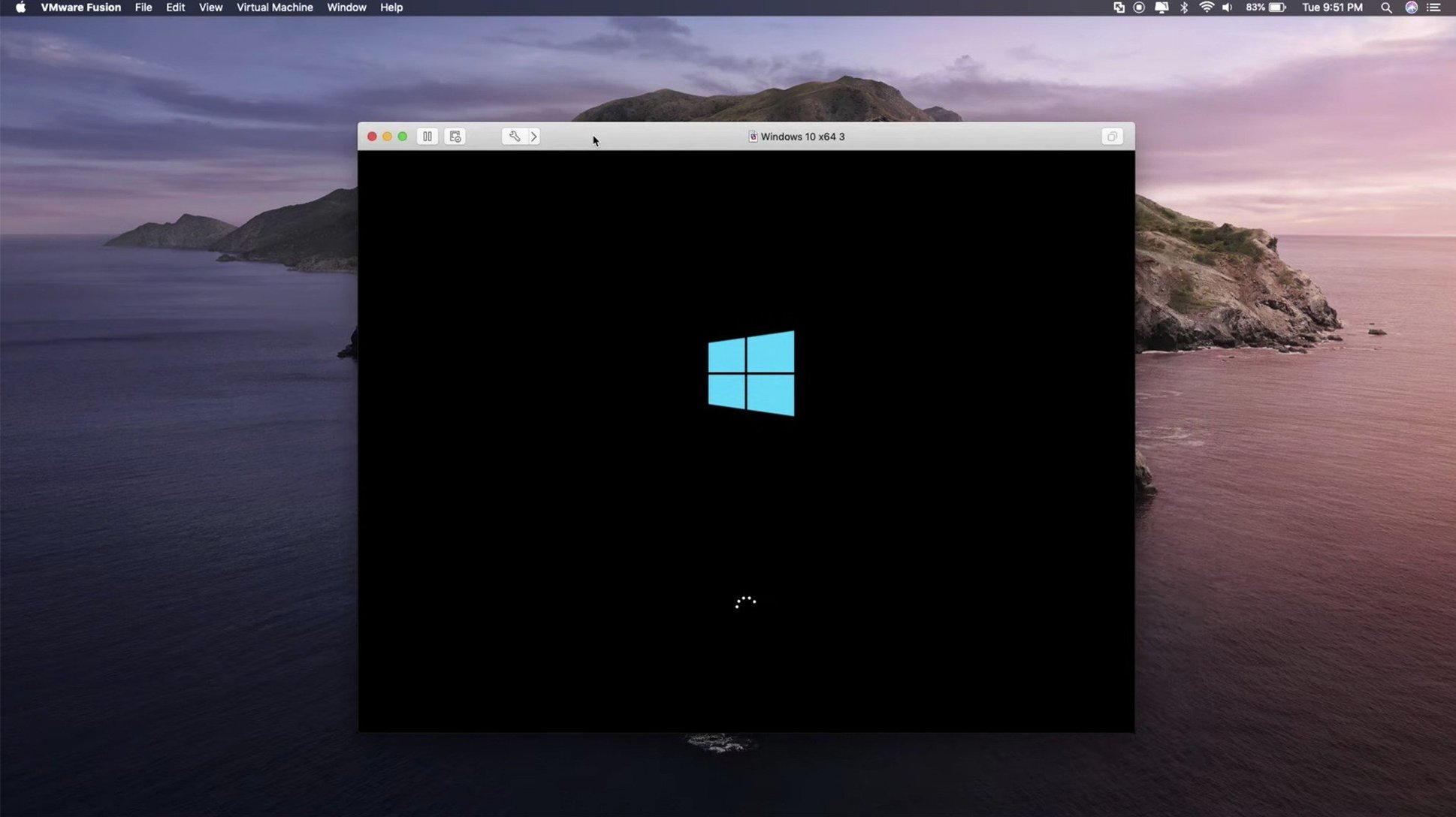
The VM boots in a window on my desktop. It takes about the same time as booting a physical machine. Once Windows is running, I can resize the window, use full screen, or put it in Unity mode if I want Windows applications to appear as if they are native Mac apps. I usually keep it in a window so I can see my Mac desktop alongside.
I connect a USB drive with test files. Fusion Pro supports USB 3.1, so the connection is fast enough for transferring large files. I plug in the drive, and a dialog asks whether to connect it to the Mac or to the virtual machine. I choose the VM, and the drive appears inside Windows.
I run the software I need to test. If I need to troubleshoot a DirectX 11 issue, I open Device Manager inside Windows and check that the virtual graphics driver is active. Fusion Pro supports DirectX 11 hardware acceleration in Windows 10 VMs, so games and graphics applications work reasonably well.
When I am done, I pause the VM instead of shutting down, so it resumes quickly next time. Fusion Pro saves the state, and the timestamp updates to show the last power-on time.
What the 26H1 release changed in everyday use
The latest version, 26H1 (build 25388279), makes a few practical improvements.
- Timestamps for VM creation and last power-on time appear in the virtual machine library. If you have several VMs, you can see at a glance which one you used most recently or which one is older.
- Remote connections to ARM-based ESX hosts are now supported. If your organization runs ESX on ARM hardware, you can connect to it from Fusion Pro directly.
- New guest OS support includes Ubuntu 26.04 LTS, Fedora 43, Fedora 44, SUSE Linux Enterprise 16, openSUSE 16.0, and FreeBSD 15.0. This means you can create VMs running these operating systems without waiting for a future update.
These additions do not change the core workflow, but they remove friction. The timestamps alone save me from opening a VM just to check when I last used it.
Developers can run multiple OSes side by side
Not everyone needs a virtual machine, but for certain groups, Fusion Pro is a practical tool.
Developers benefit from the ability to run multiple operating systems side by side. You can test a web application in Windows, Linux, and macOS without rebooting. The support for local Kubernetes clusters and OCI containers through the command-line interface means you can work with containerized applications without leaving your Mac.
IT administrators can manage remote ESX hosts, including the new ARM-based ones. They can also run legacy applications that require older operating systems inside a VM, keeping the Mac on a modern release.
Testers and QA professionals often need to verify software on different OS versions. With Fusion Pro, you can keep a library of VMs for Windows 10, various Linux distributions, and FreeBSD, and switch between them quickly.
The eGPU support helps if you need extra graphics power for rendering or simulation work.
For casual users who only need one Windows application occasionally, the investment in learning the software may not be worth it. Fusion Pro is best suited to people who work with VMs regularly.
Requires macOS 13 or later on Intel or Apple Silicon
Fusion Pro requires macOS 13 or later and works on both Intel 64-bit and Apple Silicon Macs. The interface is in English only.
Installation follows the included instructions. You also get activation instructions and a link to download registration keys if needed. The process is straightforward — you run the installer, activate the software, and you are ready to create your first VM.
The software supports DirectX 11 hardware acceleration in Windows 10 virtual machines, which means graphics performance is better than a basic software renderer. It also supports eGPU devices, so if you have an external graphics enclosure, you can assign it to a VM for extra graphical work. USB 3.1 device support covers most modern peripherals like storage drives, cameras, and audio interfaces.
On Apple Silicon Macs, Fusion Pro runs x86 guest operating systems in emulation or ARM-compatible guests natively. On Intel Macs, it runs x86 guests natively. The architecture support is built in, so you do not need to configure it manually.
Fusion Pro is part of the VMware Fusion and Workstation product family, so it shares the same core technology. The 26H1 release is the current version, and it builds on the features from previous releases without changing the system requirements.
- Timestamps for virtual machine creation and last power-on time
- Remote connections to ARM-based ESX hosts
- Guest OS support for Ubuntu 26.04 LTS, Fedora 43, Fedora 44, SUSE Linux Enterprise 16, openSUSE 16.0, and FreeBSD 15.0
- macOS 13 or later
- Intel 64-bit or Apple Silicon Mac
- Interface language: English
How to install
- Install the application by following the included setup instructions. This places Fusion Pro in your Applications folder.
- Use the activation instructions provided with the download to register your copy. You’ll need a valid key to unlock the full feature set.
- If the package includes registration keys, download them from the linked source and keep them somewhere safe for future reinstalls.
Similar apps


Sign in or join the club to leave a comment.
Nobody has commented yet.