
- Version
- 10.5
- Studio or maker
- Twocanoes Software
- Languages
- English
- Activation
- K'ed by TNT team
- Runs on macOS
- macOS 10.15 or later
- Chip type
- Intel 64-bit
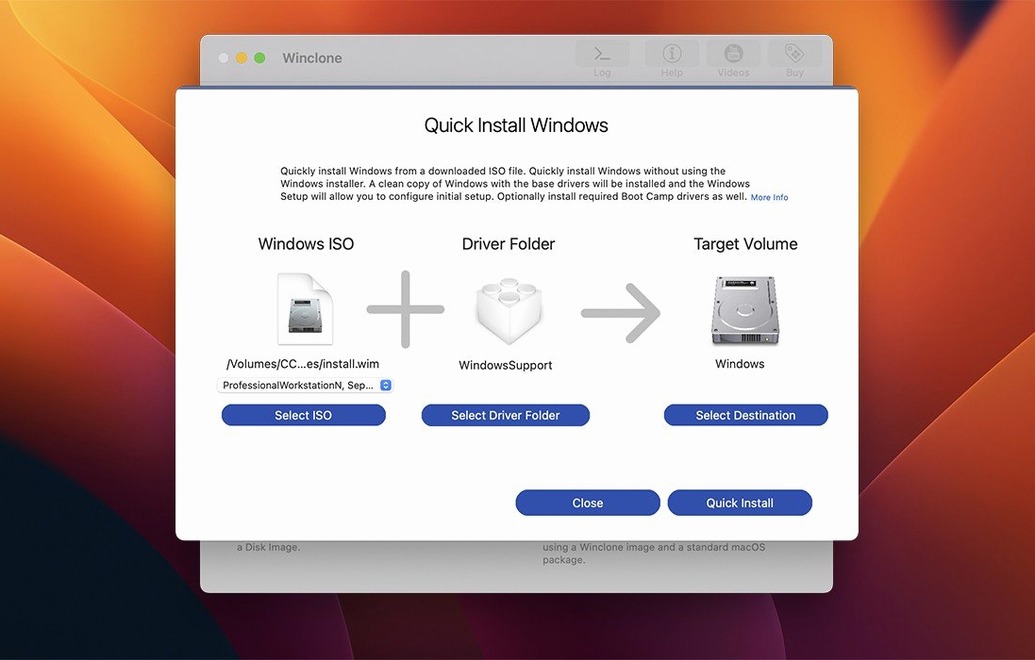
Winclone Pro 10.5 is a Mac application for cloning, migrating, and restoring Boot Camp Windows installations, aimed at users who need more than a basic backup tool.
Deeper tools for experienced users
- Check GPT and MBR consistency before restoring. Winclone detects and reports mismatched boot records so you can fix alignment issues before they cause a failure.
- Create a package installer for deployment. The app builds a package that partitions the drive and restores a Winclone image into it, useful for MDT or SCCM workflows.
- Run local disk-to-disk migration without an intermediate image file. This saves time when moving a Boot Camp volume between internal drives.
- Use incremental images for recurring backups. Each snapshot captures only the changes since the last full image, reducing storage and transfer time.
- Restore to attached volumes when hardware and Windows version permit. The progress display shows estimate and completion percentage.
Winclone Pro is positioned for business and education settings where reliability and repeatability matter. Version 10.5 build 50105, released 2025-09-08, adds verified compatibility with Tahoe and updated OS requirements. The standard edition shares the same cloning engine but omits package creation and incremental imaging.
Suits IT admins managing Intel Mac fleets with Windows
Winclone Pro suits anyone who needs to keep a Boot Camp partition stable across multiple machines or over time, but it really shines in three groups. IT administrators in schools or companies who manage fleets of Intel Macs with Windows dual-boot setups will find the package installer and incremental images essential. Instead of manually setting up each machine, they push a single package through MDT or SCCM, and every workstation ends up identical. The disk-to-disk migration also saves hours when swapping internal drives during hardware refreshes.
Boot Camp users who rely on Windows for a specific application — say, a CAD tool that only runs on Windows, or a piece of lab equipment that requires a particular OS version — benefit from having a restorable image that preserves that exact configuration. If an update breaks something or a drive fails, they restore the clone and are back to work without reinstalling Windows and all its drivers. The sound notification is a small but practical detail: you can step away during a long restore and know when it finishes.
Education settings, such as computer labs or media suites where students need access to both macOS and Windows, fit the target audience well. The ability to detect inconsistent GPT and MBR boot records before a restore prevents the kind of boot failures that disrupt a class schedule. Version 10.5 also verified Tahoe compatibility, which matters for schools that plan to upgrade their Macs to that macOS release while keeping their Windows partitions intact.
Works with APFS hosting drives and NTFS Boot Camp partitions
Some people ask whether Winclone Pro works with disks formatted as APFS. The answer is that Boot Camp partitions themselves remain as NTFS or FAT32, but the hosting drive can be APFS. The app handles the partition alignment and boot record checks regardless of the main volume format.
Others wonder if they need to disable System Integrity Protection permanently. The install process does require SIP to be disabled before installing, but you can re-enable it afterward. The application itself can run with SIP enabled once the copy is in place. The Open Gatekeeper friendly step and the Terminal bypass are part of the initial setup and not something you repeat daily.
A frequent question concerns external drives as restore targets. Winclone Pro supports restoring to DOS-FAT32, ExFAT, and NTFS volumes on attached storage, but success depends on the specific hardware and Windows version. For example, a Thunderbolt-connected drive may work where a USB 2 enclosure does not. The progress estimate gives you a sense of how long the operation will take, which helps when planning around other tasks.
People also ask about compatibility with newer macOS releases. The 10.5 update specifically addressed Tahoe compatibility, and the requirements state macOS 10.15 or later. Since Winclone 10 handles macOS 11.0 and newer for the core tasks, most users on modern Intel Macs will be covered.
Adjusts partition sizes during restore without starting over
Several features in Winclone Pro are not flashy but make a real difference in daily use. The ability to shrink or expand the Boot Camp file system during a restore means you can adjust partition sizes without starting from scratch.
Incremental images are another feature that users sometimes overlook. After creating an initial full clone, each subsequent backup records only the changed blocks. This keeps storage consumption low and speeds up recurring backups, which is particularly valuable for network storage destinations where bandwidth is limited.
The in-app links to support resources are a thoughtful addition. When something goes wrong — a failed restore or a boot record mismatch — the application points you directly to Twocanoes documentation rather than leaving you to search forums. The notification sound for successful or failed operations is configurable in the sense that you hear it regardless of whether you are looking at the screen, which helps during overnight backups or deployments that run unattended.
Finally, the updated user interface in version 10.5 makes it easier to locate options like legacy bootable installation versus EFI bootable setup for Windows 7 and later. The distinction matters because older hardware may require legacy boot, and the UI now presents both paths clearly.
Workflow: cloning a Boot Camp partition to a network drive
Here is a typical task from start to finish that shows how the pieces fit together. This example assumes you have a Boot Camp partition already set up on your Mac and want a restorable image stored on a network share.
First, open Winclone Pro and select the Boot Camp volume from the source list. The application reads the partition layout and checks the GPT and MBR consistency automatically, reporting any mismatches before you proceed. If a mismatch appears, you can cancel and fix the boot records rather than creating a faulty image.
Second, choose the destination. Instead of a local drive, pick a network storage location or an external drive formatted as ExFAT or NTFS. The app supports saving to network storage without intermediate copying. For this first full backup, you will create a standard image, so the incremental option stays off. Click Start and watch the progress bar, which shows an estimate and a completion percentage. The sound notification will let you know when the clone finishes.
Third, after the initial clone, you can set up recurring incremental backups. Mount the same network location, select the source volume again, and this time enable incremental imaging. Winclone Pro compares the current partition state with the previous full image and writes only the changed data. Subsequent backups complete faster and consume less space on the network drive.
If you ever need to restore, open the app, choose the image file from the network location, select a target disk, and run the restore. The application handles partition shrinking or expanding as needed, and it verifies boot record alignment before writing. The whole workflow is repeatable, which is precisely what makes it useful for administrators managing multiple systems.
- Updated OS requirements.
- Verified Tahoe compatibility.
- macOS 10.15 or later
- Intel-based Mac
- English interface
Questions I keep getting
Does Winclone Pro work on Apple Silicon Macs?
Winclone Pro 10.5 requires an Intel-based Mac running macOS 10.15 or later. It is not compatible with Apple Silicon (M-series) hardware.
What is the difference between Winclone and Winclone Pro?
Winclone Pro adds package installer creation, incremental imaging, and disk-to-disk migration. The standard edition handles basic cloning and restoration.
Can I restore a Winclone image to an external drive?
Yes, Winclone Pro can restore images to attached volumes, but support depends on the specific hardware and Windows version being used.
How to install
- Mount the disk image and run Open Gatekeeper friendly.
- Press Enter in the Terminal window to bypass Gatekeeper.
- Drag the app to the Applications folder.
- Disable SIP before installing.
Similar apps


Sign in or join the club to leave a comment.
Nobody has commented yet.