

- Version
- 10.15.7 (19H15)
- Studio or maker
- Apple
- Languages
- Russian, English, German, Arabic, Hungarian, Vietnamese, Greek, Danish, Hebrew, Indonesian, Spanish, Italian, Catalan, Chinese (Traditional), Chinese (Simplified), Korean, Malay, Dutch, Norwegian, Polish, Portuguese, Romanian, Slovak, Thai, Turkish, Ukrainian, Finnish, French, Hindi, Croatian, Czech, Swedish, Japanese
- Activation
- DRM-free
- Chip type
- Intel 64-bit
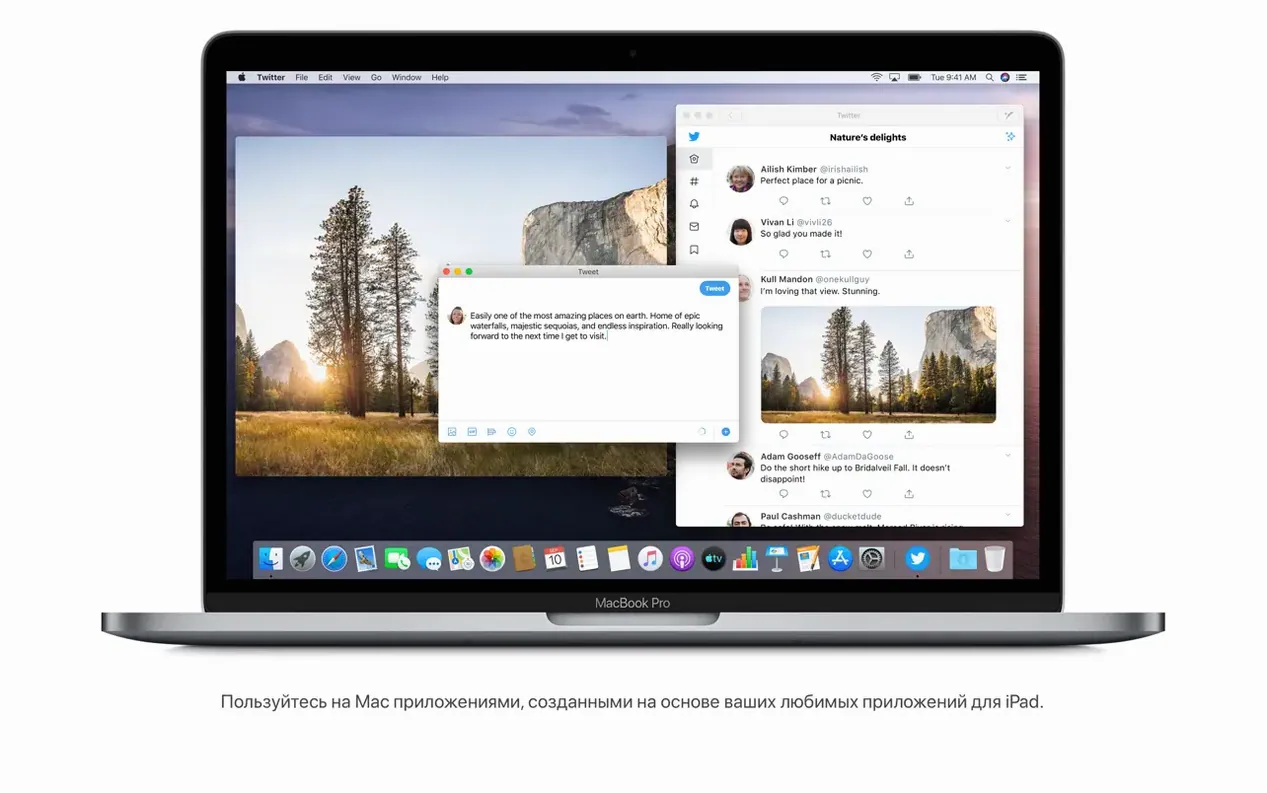
Teachers, librarians, and anyone keeping an older Intel Mac alive are the ones who still reach for macOS Catalina. It is the last version of macOS that runs comfortably on many 2012–2019 Macs, and 10.15.7 is the final polish of that line. Here is what the current version brings and what stayed the same.
Security fixes for Wi-Fi, iCloud, and graphics glitches
Security and bug fixes — 10.15.7 includes important security updates and resolves issues where the Mac would not join Wi-Fi networks automatically, files would not sync through iCloud Drive, and a graphics glitch appeared on iMac (Retina 5K, 27-inch, 2020) with Radeon Pro 5700 XT.
Media apps replace iTunes and Finder syncs iPhones
Media apps — Apple Music, Apple TV, and Apple Podcasts replace the old iTunes media functions.
Finder sync — Sync, back up, update, and restore an iPhone or iPad directly from the Finder when it is connected.
Sidecar — Use an iPad as a second display, extending your Mac desktop.
Notes — Gallery view with thumbnails, and search that can find text in scanned documents and recognize objects in photos.
Voice Control — Control the Mac entirely with speech.
Catalina still supports 4 GB of memory and runs on Intel 64-bit Macs. It is available in dozens of languages, from English and German to Hindi and Vietnamese. For many Intel users, this is the most stable stopping point before newer macOS versions leave them behind.
Turn off the three-finger drag gesture in Trackpad
After the installation is complete and you have copied the installer app to the Applications folder, opening System Preferences is the logical first stop. I usually start with the Trackpad settings to turn off the three-finger drag gesture that students trigger by accident. Under Accessibility, enable the zoom shortcut if you plan to use Voice Control or if you project your screen during lessons — it saves squinting at the back of the room.
In the Security & Privacy panel, check that the firewall is active and that the option to allow apps from anywhere is turned off. Schools and libraries typically want that locked down. Then open Finder preferences and switch on the toolbar to show the connected iPhone or iPad status for the sync workflow. Catalina remembers this setting across reboots, so you only do it once.
Mac now reconnects to Wi-Fi after sleep
The most noticeable change in the 10.15.7 release is that the Mac now reconnects to saved Wi-Fi networks without you intervening. Earlier versions sometimes dropped the connection after sleep, which meant a trip to the network menu each morning. That fix alone saves a small annoyance every day.
The iCloud Drive sync fix matters if you share files between a school Mac and a personal machine. Previously, a modified document might not appear on the other device until you manually forced a sync. Now the change propagates as expected. And on the 27-inch iMac with the Radeon Pro 5700 XT, the display glitch is gone — no more artifacts when switching between apps or waking the screen.
Requires Intel 64-bit, 4 GB RAM, and 12.5 GB free
Catalina requires an Intel 64-bit processor and at least 4 GB of memory. The installer needs 12.5 GB of free storage if you are upgrading from OS X El Capitan 10.11.5 or later, and a broadband internet connection is required for some features. Compatible models start with the MacBook (Early 2015 or newer), MacBook Air and Pro (Mid 2012 or newer), Mac mini (Late 2012 or newer), iMac (Late 2012 or newer), iMac Pro (2017), and Mac Pro (Late 2013 or newer).
On these machines, the system runs as you would expect from a mature operating system — it boots, sleeps, and wakes reliably. The three new media apps launch quickly, and the Finder-based iPhone and iPad sync replaces the old iTunes workflow.
Morning iPhone sync via Finder with no extra software
I start the morning by connecting my iPhone to the Mac with a USB cable. The Finder shows the device immediately, and I drag a folder of worksheets onto it for the day's classes. No extra software, no waiting for iTunes to load. Then I open Apple Music to play a quiet track while I check the attendance list in Notes — the gallery view shows last week's scanned sign‑in sheets as thumbnails, and the search finds a student's name written in a scanned document.
When a colleague asks for a file from the shared iCloud Drive folder, I double-click it and it opens without any sync errors. During the lunch break, I close the MacBook and walk to the staff room. It reconnects to the Wi-Fi automatically when I open it again — no prompt, no manual selection.
In the afternoon, I hand a student an iPad and enable Sidecar so they can see my screen as I explain a geometry proof. I use Voice Control to switch between apps while my hands are busy with a document camera. At the end of the day, I open the Find My app to locate a missing Mac that a student left in the art room. The whole workflow stays inside Catalina without needing third-party tools.
- Important security updates and bug fixes.
- Resolves an issue where macOS would not automatically connect to Wi-Fi networks.
- Fixes an issue that could prevent files syncing through iCloud Drive.
- Addresses a graphic issue on iMac (Retina 5K, 27-inch, 2020) with Radeon Pro 5700 XT.
- macOS 10.9 or later
- Intel 64-bit processor
- 4 GB of memory
- 12.5 GB of available storage (for upgrade from OS X El Capitan 10.11.5 or later)
How to install
- Open the downloaded disk image.
- Copy the installer app to the Applications folder.
Similar apps


Sign in or join the club to leave a comment.
Nobody has commented yet.