
- Version
- 2.20.2.2629
- Studio or maker
- Adguard Software Limited
- Languages
- Russian, English, German, Amharic, Arabic, Bengali, Bulgarian, Hungarian, Vietnamese, Greek, Gujarati, Danish, Hebrew, Indonesian, Spanish, Italian, Catalan, Chinese (Traditional), Chinese (Simplified), Korean, Latvian, Lithuanian, Malay, Malayalam, Marathi, Dutch, Norwegian, Persian, Polish, Portuguese, Romanian, Serbian, Slovak, Slovenian, Swahili, Thai, Tamil, Telugu, Turkish, Ukrainian, Filipino, Finnish, French, Hindi, Croatian, Czech, Swedish, Estonian, Japanese
- Activation
- Included
- Runs on macOS
- macOS 10.15 or later
- Chip type
- Apple Silicon, Intel 64-bit
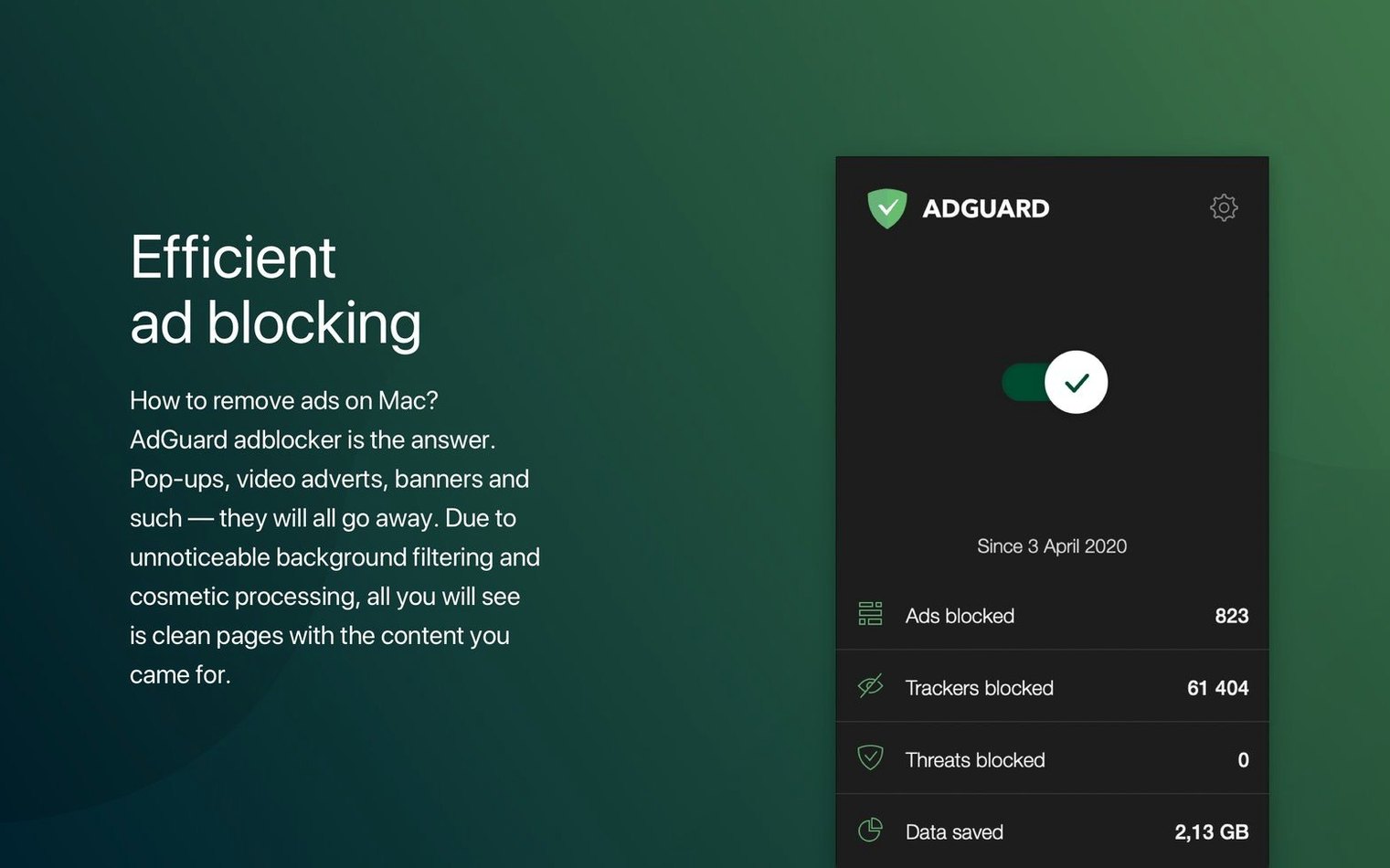
DNS filtering sits at the heart of AdGuard for Mac, which means it catches ads and trackers before they ever reach your browser, regardless of which one you use. This system-wide approach also covers apps, so the clutter disappears from places you might not expect, like in-app banners or embedded feeds.
- All-browser coverage: Safari, Chrome, Firefox, or a newly supported AI-powered browser — AdGuard filters traffic across all of them without extensions.
- Spyware filter: Blocks known tracking scripts and hidden beacons that try to build a profile of your browsing habits.
- Dangerous website scanning: Checks pages for malicious activity and warns you before you interact with something risky, reducing the chance of phishing or fraud.
- Phishing and fraud protection: Keeps suspicious links and impostor pages at bay, which is handy when an email or message tries to steer you somewhere fake.
- Dark mode: The menu bar icon and settings window match your system appearance, so the tool itself doesn’t glare at you at night.
- Works with any architecture: Runs natively on Apple Silicon and Intel 64-bit Macs, and needs macOS 10.15 or later.
For a utility that runs quietly in the background, AdGuard for Mac does a lot of the heavy lifting. It’s a practical addition if you want a cleaner browsing experience and a bit more privacy without juggling per-browser settings.
Ads still slip through sometimes
Even a straightforward tool like AdGuard for Mac can trip people up now and then. Most issues are small and have simple fixes, so here are the ones I hear about most often from teachers and colleagues.
- Ads still showing in one browser: If you see ads in Safari but not Chrome, check that the filter is actually active for that browser. Sometimes a browser update resets permissions, and AdGuard needs a moment to reconnect. Restarting the browser usually clears it.
- A website looks broken or missing elements: Aggressive filters can occasionally hide something you actually want, like a login button or a video player. The manual blocking tool helps here: you can unblock a specific element or whitelist the whole site if it keeps misbehaving. It’s a quick fix rather than a permanent change.
- Menu bar icon disappears: This happens if the app was closed unexpectedly or after a system update. Open AdGuard from the Applications folder, and if the icon still doesn’t show, a full restart of the Mac usually brings it back. Nothing is lost — your settings stay intact.
- Filter updates seem slow: AdGuard refreshes its filter lists periodically, but if you’ve just installed it, the first update can take a few minutes. Be patient, and if it stalls, check your internet connection. A weak Wi-Fi signal is often the culprit.
- VPN or network tools conflict: If you run a VPN or a proxy, the two can occasionally argue over network traffic. The order in which they load matters. Starting AdGuard after your VPN connects usually avoids the clash, though the exact fix depends on your setup.
None of these are deal-breakers. They’re the kind of quirks you’d expect from any system-level filter, and they all have workarounds that don’t require digging into config files.
Will it slow down my Mac?
Before someone commits to a system-wide blocker, a few concerns tend to come up. Here are the ones I’ve answered more than once.
Will it slow down my Mac? AdGuard filters traffic as it flows, which does add a small step to every request. In practice, most people don’t notice a difference because the filtering happens quickly, and you gain time by not loading ads in the first place. If you’re on an older Intel machine, you might feel it slightly, but it’s not the kind of drag that makes the beach ball spin constantly.
Does it work with Safari’s own content blocker? Yes, but you don’t need both. AdGuard replaces the need for Safari extensions entirely, so you can turn off Safari’s built-in blocker if you want a single point of control. Having both on isn’t harmful, but it can occasionally cause double-filtering, which might hide more than you intended.
Can I turn it off temporarily? Absolutely. The menu bar icon gives you quick access to pause filtering for a while. That’s useful when you’re troubleshooting a site or just want to see if the blocker is causing a problem. You can toggle it back on just as easily.
What about my privacy? AdGuard’s whole point is to stop trackers from following you. The spyware filter and analytics protection are on by default, so you get that protection without configuring anything. The app itself doesn’t need to collect your browsing data to do its job — it works locally on your Mac.
Will it filter ads inside apps like Spotify or news readers? Yes, that’s the system-wide part. Any app that pulls ads from the network can be filtered, though results vary depending on how the app delivers its content. Some apps bundle ads into their own feeds, which is harder to block, but the majority of common apps respond well to the filter.
Manual blocking for stubborn elements
AdGuard for Mac has a few touches that are easy to overlook but make daily use smoother.
- Manual blocking for stubborn elements: When a page element slips through the automatic filters, you can select it and block it yourself. This is handy for newsletter sign-up boxes or sticky video overlays that aren’t technically ads but still annoy you.
- Dark mode that follows your system: If you run your Mac in dark mode, the AdGuard menu bar icon and settings window switch to match. It’s a small detail, but it keeps things consistent when you’re working late.
- Phishing warnings before you click: The dangerous-site scanning isn’t just about ads. It checks pages for malicious activity, which adds a layer of protection when you’re clicking links from emails or messages. That’s a quiet benefit that doesn’t call attention to itself.
- Filter support for AI-powered browsers: The latest version added support for three AI-driven browsers. If you’ve switched to one of those, you don’t lose ad blocking — it works the same as with the usual suspects.
AdGuard Mini for Mac is the lighter sibling
AdGuard for Mac sits alongside a few other system-level blockers, each with its own approach.
AdGuard Mini for Mac is the lighter sibling. It focuses on Safari only, so it’s a good choice if you rarely leave Apple’s browser. AdGuard for Mac goes further by filtering everything across all browsers and apps, which makes it the better fit if you switch between Chrome, Firefox, or the newer AI-powered options. The trade-off is that the full version does more, so it has a bit more to manage.
uBlock Origin is a browser extension rather than a system tool. It works well in Firefox and Chrome, but it only protects the browser it’s installed in. You’d need to set it up separately in each browser, and it won’t touch ads inside apps. AdGuard for Mac handles all of that in one place, which saves setup time if you use multiple browsers.
Little Snitch takes a different angle. It focuses on outgoing network connections and gives you detailed control over what apps can communicate with. That’s powerful for privacy, but it’s more technical — you’re approving or denying individual connections. AdGuard for Mac is simpler: it filters ads and trackers automatically without asking you to make decisions about every connection.
For most people, the choice comes down to scope. If you want Safari-only filtering, AdGuard Mini is enough. If you want everything covered without fiddling with per-browser extensions, AdGuard for Mac is the more complete option. The system-wide approach means you set it once and it works quietly in the background, which is exactly what I look for in a tool I recommend to others.
- Support for three AI-powered browsers added in version 2.18.
- System requirements updated for the current release.
- Stability improvements across the app.
- macOS 10.15 or later
- Apple Silicon or Intel 64-bit Mac
Questions I keep getting
Does AdGuard for Mac work with every browser?
Yes, AdGuard filters traffic in all browsers, including the AI-powered browsers supported in version 2.18, because it works at the system level rather than through browser extensions.
Can AdGuard for Mac protect me from phishing?
It includes a phishing and fraud filter that helps block fraudulent sites, and it can also scan websites for dangerous activity before you proceed.
How to install
- Follow the installation instructions that come with the app, which walk you through setting up the system extension and network filter.
- Use the included activation instructions to unlock the full feature set, such as DNS filtering and the spyware filter.
Similar apps





Sign in or join the club to leave a comment.
Nobody has commented yet.