
- Version
- 59.0.12
- Studio or maker
- Adobe
- Languages
- Russian, English, German, Spanish, Chinese (Simplified), Korean, Portuguese, French, Japanese
- Activation
- Included
- Runs on macOS
- macOS 10.15 or later
- Chip type
- Apple Silicon, Intel 64-bit
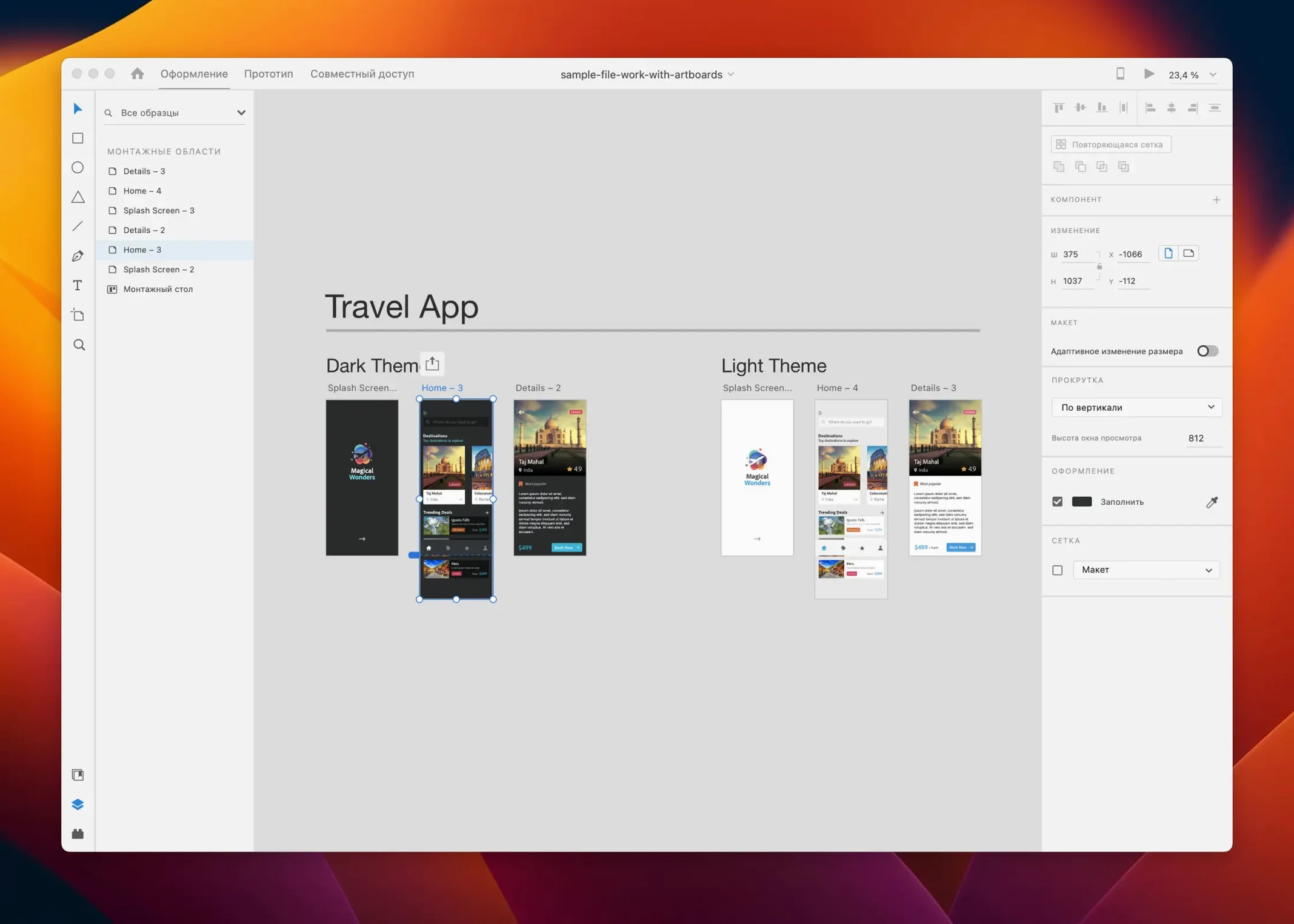
Designing a screen is only half the work. The other half is showing how it behaves, and that’s where Adobe XD steps in. It is a single app for designing, prototyping, previewing, and sharing user experiences, aimed at UI and UX designers who work on web or mobile projects.
Design the layout
Adobe XD includes content-aware layout, responsive resize, and repeat grid, so you can build flexible designs that adapt to different screen sizes without redrawing everything.
Prototype the flow
Use auto-animate to turn static artboards into interactive transitions. You can preview the result on your Mac or on a device, which helps you catch usability issues before development starts.
Share and extend
Adobe XD works alone or with team members, and it integrates with third-party tools. The app runs on macOS and Windows, making it easy to collaborate across platforms.
Adobe Stock integration lets you search for and license images, icons, and templates without leaving the app, which saves time when you need placeholder visuals that look realistic.
On the macOS side, XD supports drag-and-drop from Finder, so you can bring in local images or exported design files directly onto the canvas. The app also works well with macOS split view for multitasking: you can keep a browser with reference material on one side and XD on the other. Exporting prototypes as PDFs or sharing links via the share sheet are straightforward, and the generated preview links open in Safari or Chrome without extra plugins.
For teams that use third-party tools like Slack, Jira, or Zeplin, XD lets you share design specs and prototypes through public or password-protected links. Developers can inspect the exported files to see measurements, colors, and assets without needing XD installed themselves.
Skipping grids leads to inconsistent spacing
New users often jump straight into creating high-fidelity designs without first setting up a grid or layout system. This leads to inconsistent spacing and alignment later. Starting with a 12-column grid and using repeat grid for lists and galleries keeps everything proportional from the beginning.
Another common mistake is using too many artboards without grouping or naming them. When you have fifty artboards named "Artboard 1," "Artboard 2," and so on, the prototype flow becomes confusing. It helps to name each artboard after the screen it represents, like "Home" or "Settings – Notifications."
Beginners also overlook the responsive resize feature. They resize components manually, which breaks the layout. Learning to use responsive resize early saves time because it keeps elements pinned to the right edges or centers, just like CSS flexbox or auto-layout would.
Finally, many forget to set a clear start screen in the prototype mode. Without a designated home screen, the prototype may start on a random artboard, confusing anyone who reviews the design.
Enabling show hover state and auto-open last document
Before starting a project, open the Preferences and adjust a few defaults. Turn on "Show hover state" in the prototype panel if you plan to build interactive buttons or links. Enable "Auto-open last document" if you switch between projects frequently during the day.
In the design panel, set the default artboard size to the resolution you use most often, such as 375 x 812 for mobile or 1440 x 900 for desktop. This saves you from resizing the first artboard every time. Under the grid settings, enable "Show grid on new artboards" so every screen starts aligned.
If you work with developers who inspect your files, enable "Include specs and assets" in the share settings by default. This ensures exported links contain all the information a developer needs, reducing back-and-forth questions.
Building a mobile onboarding flow for a meditation app
Consider a freelance product designer who is building a mobile onboarding flow for a meditation app. Using repeat grid, the designer quickly populates the survey options without duplicating elements manually.
After the layout is done, the designer uses auto-animate to create a smooth transition between the welcome screen and the survey. The prototype is shared via a link with the client, who can click through it on their phone. The client requests a change: swap the order of the two final screens. Because the designer named each artboard clearly, the change takes only a few seconds in the prototype panel. The updated link is sent, and the client approves the flow the same day.
This scenario shows how XD fits into a real workflow where speed, clarity, and client feedback are all part of the same loop.
- The July 2025 release includes bug fixes and minor workflow improvements.
- macOS 10.15 or later
- Works on both Intel and Apple Silicon Macs
Questions I keep getting
Is Adobe XD still being updated?
Adobe XD is currently in maintenance mode, meaning it no longer receives major feature updates but still gets bug fixes and minor improvements.
Can Adobe XD be used with other design tools?
Yes, Adobe XD can be used with third-party tools and can be extended within the app or in the cloud.
Does Adobe XD work on both Mac and Windows?
Yes, Adobe XD is available on both macOS and Windows systems.
How to install
- Follow the installation and activation instructions included with the download.
- If you need an earlier version, look for setup guides on YouTube.
Similar apps





Sign in or join the club to leave a comment.
Nobody has commented yet.