
- Version
- 2.6.5
- Studio or maker
- Serif Labs
- Languages
- English, German, Spanish, Italian, Chinese (Simplified), Portuguese, French, Japanese
- Activation
- K'ed by TNT team
- Runs on macOS
- macOS 10.15 or later
- Chip type
- Apple Silicon, Intel 64-bit
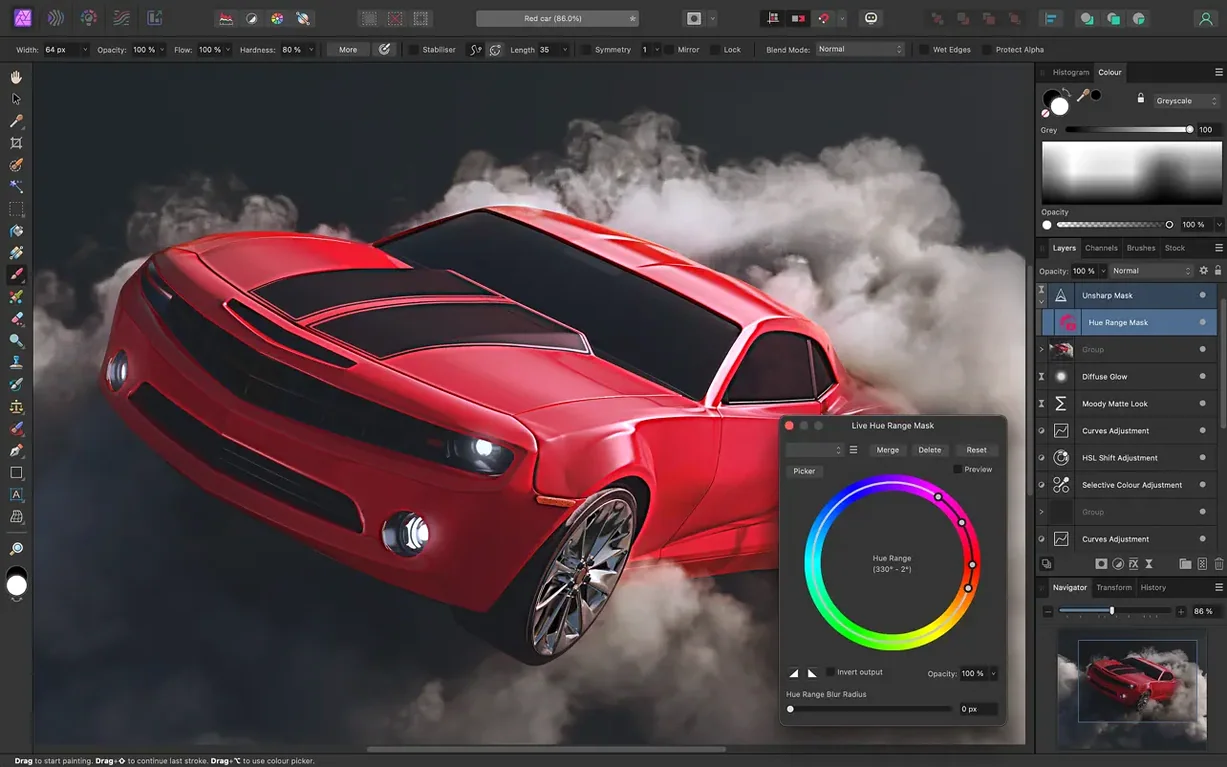
You have a stack of RAW files from a weekend shoot and want to edit them without destroying the originals. Affinity Photo for macOS handles that, and more. Before you install it, here are the questions that come up most often.
Does Affinity Photo support layers and nondestructive editing?
Yes. You get unlimited layers, layer groups, adjustment layers, filter layers, and masks. Live filters, adjustments, effects, blend modes, and masks stay editable after you apply them, so you can tweak a look without starting over.
Can it handle professional retouching tasks?
It includes selection tools for hair and fine details, plus frequency separation for skin smoothing. Exposure, black point, clarity, vibrance, white balance, shadows, and highlights are all under your control, and the editor works with 16-bit and 32-bit images per channel.
What about merging and stacking photos?
Focus stacking, HDR merging, and tone mapping are built in. Those tools are handy for landscape shots or macro work where you need a wider depth of field or a balanced exposure.
Starting out with Affinity Photo: a few common stumbles
Starting with a powerful photo editor means there is a bit of a learning curve. I have watched students at the game club try their hand at image editing, and the same few things trip people up when they first open Affinity Photo.
Forgetting to work on a duplicate layer. Nondestructive editing only helps if you keep the original untouched. Beginners often paint or erase directly on the background layer, then realize they cannot undo ten steps. The habit to build is simple: duplicate the background layer (Layer menu, Duplicate) before doing anything permanent. That way the original stays safe below.
Using the wrong color space for the output. Affinity Photo supports RGB, CMYK, LAB, and grayscale. A beginner might edit a photo destined for print in RGB, then wonder why the colors shift after export. If the final use is a printed magazine, set the document to CMYK from the start. If it is for a screen, stick with RGB.
Overlooking the RAW pre-processing workspace. When you open a RAW file, Affinity Photo does not drop you straight into the main editor. It opens a dedicated workspace where you adjust exposure, white balance, shadows, and highlights before the image ever touches a layer. Many new users press the Develop button too quickly, missing the chance to recover highlight detail or fix a color cast while the data is still raw. Take a moment to work through those sliders first.
Applying lens corrections after heavy edits. Lens distortion, chromatic aberration, and vignetting corrections work best at the RAW stage, before you start cloning or painting. Fixing geometry after you have spent time retouching can shift the image in unexpected ways and leave your work misaligned.
A realistic session: importing RAW files from a school event
Let me walk through a realistic session, the kind I might do after a day photographing students at a school event.
I start by importing a folder of RAW files. Affinity Photo opens each one in the pre-processing workspace. For the first image, I adjust the white balance using the temperature slider, then pull up the shadows a bit and bring down the highlights. I also enable the lens correction profile to remove a slight barrel distortion. Satisfied, I press Develop, and the image appears in the main editor as a pixel layer.
Now the real work begins. I duplicate the background layer and name it "retouch." Using the blemish removal tool, I take out a few dust spots on the backdrop. For a portrait where the student’s hair is a bit messy against the background, I switch to the selection tools designed for fine details. It takes a couple of passes to get the selection right, but the result is a clean mask around the flyaway strands.
I add an adjustment layer for curves to brighten the subject’s face without blowing out the background. Because it is an adjustment layer, I can double-click it later and tweak the curve without affecting the original pixels. Then I apply a slight blur effect to the background to reduce distraction, using a live filter so I can change the blur radius later.
I export the finished image as a high-quality JPEG for the school newsletter and save the master file in Affinity Photo’s native format with the edit history included. If the principal asks for a different crop next week, I can reopen the file and adjust without redoing any work.
Real-time brush preview and other quiet time savers
A few features in Affinity Photo 2.6.5 do not get much attention but save time once you know about them.
- Real-time brush tip preview. When you select a brush and hover over the canvas, a small preview shows the exact size and shape of the brush tip before you click. It prevents the guesswork of painting with a brush too large or too small.
- Edit history saved with the document. If you save the file in the native format, every step you made stays in the file. You can go back to any earlier state even after closing and reopening the document.
- Macro recording and playback. If you perform the same sequence of adjustments every time you open a RAW file, you can record it once as a macro and replay it on other images. It is like a simple automation for repetitive edits.
- Graphics tablet support with pressure, tilt, and shortcut buttons. The app respects pen tilt for angle-sensitive brushes, and you can assign keyboard shortcuts to your tablet buttons for faster workflow.
- Blur, distortion, tilt-shift, shadow, glow, and lighting effects as live filters. These are not destructive; you can adjust their settings or delete them without altering the underlying image.
PSD file support and compatibility with Intel and Apple silicon
Both Intel Macs and Apple silicon machines are supported. The version covered here is 2.6.5.
Can I open Photoshop files in Affinity Photo? Yes. The app opens, edits, and saves PSD files. If you work with a team that uses Photoshop, you can exchange files without converting formats.
What file formats does it support for saving and exporting? You can work with PNG, TIFF, JPG, GIF, SVG, EPS, EXR, HDR, and PDF. For print-ready files, it handles CMYK and supports 16-bit and 32-bit per channel editing.
Does it include tools for removing objects or fixing blemishes? Yes. There is a dedicated brush for removing unwanted objects, plus dodge, burn, clone, patch, blemish removal, and red-eye removal tools. Frequency separation for skin retouching is also included.
How many languages does the interface support? The interface is available in English, German, Spanish, Italian, Simplified Chinese, Portuguese, French, and Japanese.
- macOS 10.15 Catalina or later
- Works on Apple silicon and Intel Macs
- Interface languages: English, German, Spanish, Italian, Simplified Chinese, Portuguese, French, Japanese
Questions I keep getting
Does Affinity Photo run on both Apple silicon and Intel Macs?
Yes, it supports both architectures. The app runs natively on Apple silicon and also works on Intel Macs.
Which macOS version do I need?
You need macOS 10.15 Catalina or later. The app is available in English, German, Spanish, Italian, Simplified Chinese, Portuguese, French, and Japanese.
How to install
- Mount the disk image and launch Open Gatekeeper friendly. This lets the app bypass the usual security check.
- Press Enter in Terminal to bypass Gatekeeper. That step tells macOS the app is safe to run.
- Drag the app to the Applications folder. This keeps it in the standard location for Mac software.
- The app is ready to use. Open it from Applications and start editing.
Similar apps





Sign in or join the club to leave a comment.
Nobody has commented yet.