
- Version
- 2.6.5
- Studio or maker
- Serif Labs
- Languages
- English, German, Spanish, Italian, Chinese (Simplified), Portuguese, French, Japanese
- Activation
- K'ed by TNT team
- Runs on macOS
- macOS 10.15 or later
- Chip type
- Apple Silicon, Intel 64-bit
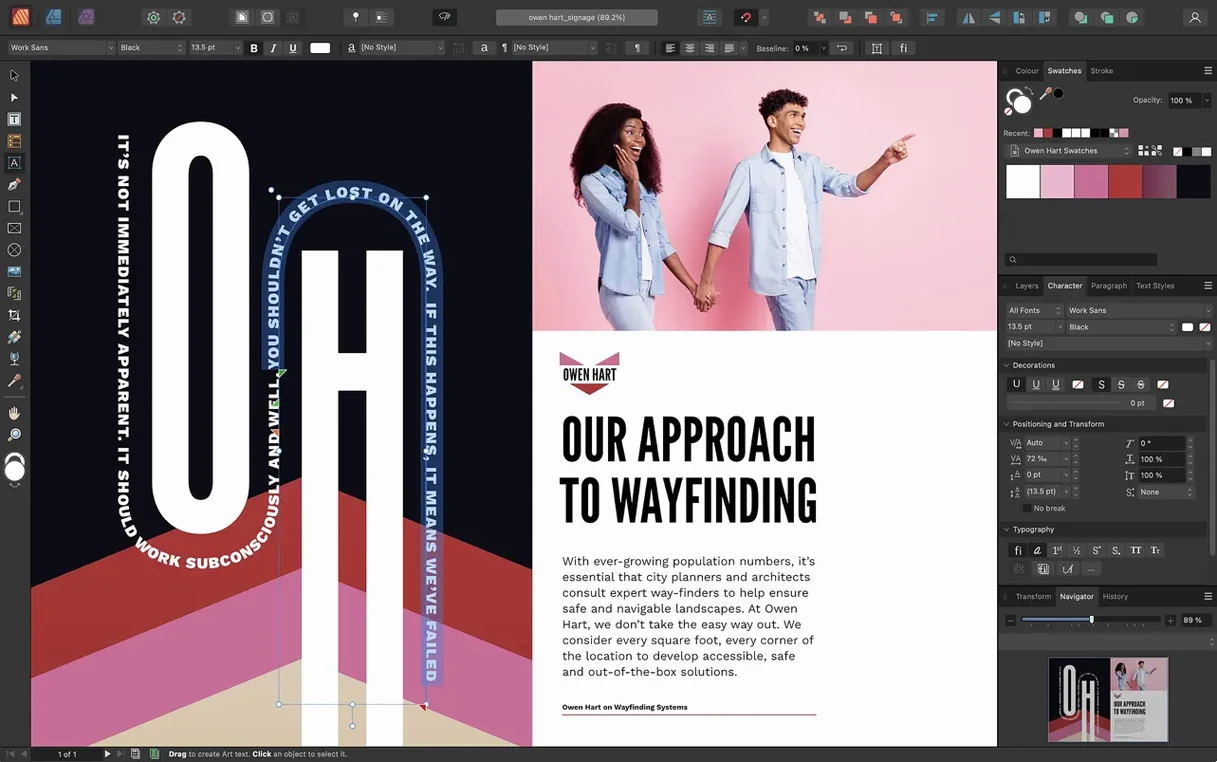
Version 2.6 of Affinity Publisher adds multiple-page spreads, which means you can now design gatefolds, trifolds, and accordion folds right inside a single document. That alone saves me a round of manual aligning in a separate program. For a teacher who sometimes puts together a school brochure or a multi-panel event flyer, it’s one less headache.
Let’s say you need to make a simple eight-page booklet for a parent evening. You start by placing images — jpgs from the school photographer, a png of the school logo — directly onto the page. The text frames can be any shape you like, so you can wrap text around a photo of the school band without fighting the margins. When the layout is done, you export as PDF/X-4, which keeps the CMYK colors intact for the print shop. The whole job, from placing the first picture to the final export, takes about an hour once you know where everything is.
The Pen and Node tools let you draw vector shapes if you need a custom divider or a simple map of the school grounds. And because Publisher can import PSD, AI, and PDF files, you can pull in artwork from students or colleagues without asking them to save a special format. The StudioLink feature means if you also have Affinity Photo or Designer, you can switch between them without leaving the Publisher window.
Single disk image works on Intel and Apple Silicon Macs
Affinity Publisher 2.6.5 runs on both Intel-based Macs and Apple Silicon machines, including the M1, M2, and M3 series. The installer is a single disk image that works on either architecture — no separate download needed. The program requires macOS 10.15 or later, so if your school issued you a Mac running Catalina or newer, you are set.
For the display, you need at least 1280 by 768 pixels. That covers most 13-inch laptops in extended mode; on a 11-inch screen you might need to scroll more, but it is usable. The recommended system memory is 8 GB of RAM, which is typical for a secondary school office or a teacher's personal machine. The installation itself takes up to 2.8 GB of hard drive space, with a little extra during installation for temporary files. After that, your documents and image assets will add their own storage, but for day-to-day work the footprint is modest.
The installer includes a helper step that runs a Terminal command to bypass Gatekeeper. Once you drag the app into your Applications folder, it is ready to launch. No additional registration or license file to track.
Build a classroom newsletter from start to finish
You teach maths, but you also coordinate the monthly newsletter for the parent association. Here is a complete workflow from start to finish using version 2.6.5.
Step 1: Set up the document. Create a new file with facing pages for a booklet layout. In the spreads options, choose a foldable spread — a trifold, for example — so the panels align automatically. The multiple-page spread feature in 2.6 makes this straightforward; you see the whole folded piece as one continuous layout.
Step 2: Add master pages. Create a master page for the inside panels and another for the cover. Nested masters let you put a footer on every page and then override specific panels later. Apply the master pages to the relevant document pages.
Step 3: Place your images. Drag in a PNG of the school logo and a JPG from the last sports day. Use the image frame tool to embed rather than link, so you don't lose track of files if you move the document folder later. Resize and crop using the handles.
Step 4: Build the text flow. Draw a text frame on the first panel. Paste or type your article. Then link the frame to the next panel's frame so the text flows across the fold. Continue linking frame to frame until all panels contain content. The text wrap options let the sports day photo sit inside a column of text without ugly gaps.
Step 5: Apply styles. Set up character and paragraph styles for the headlines, body copy, and captions. If the principal changes the opening paragraph, you update the style and the whole document follows. Drop caps on the first article give it a published feel.
Step 6: Check the reading order. Open the Reading Order panel — new in version 2.6 — to set the tag sequence for screen readers. This is important if the newsletter goes out as a PDF to families who use assistive technology.
Step 7: Export. Choose PDF/X-4 for the print shop. The spot colors and Pantone library support are there if the printer specifies a particular PMS color for the school logo. Export and send.
A free hour after the cancelled game club
Thursday afternoon. The after-class game club is cancelled because of a staff meeting, so you have a free hour. You open the publisher torrent file you downloaded earlier — the disk image mounts and you launch the app. No prompts, no activation screen.
You load a half-finished brochure for the upcoming school fair. The document has four pages in a gatefold spread. Yesterday you placed the text but the images were just placeholders. Today the photographer emailed you the final files.
You import the new JPGs directly into the image frames. The snapping guides help you align the photos to the grid. One image needs a quick color adjustment — you add a non-destructive adjustment layer instead of editing the original. The Pen tool draws a vector arrow pointing to the main tent location.
At the end of the session you export a proof PDF to check the fold lines. The PDF/X-3 preset works for the school printer. You close the document and the app. The whole session took forty minutes. No crashes, no file corruption, just steady work.
The red triangle means overset text—here's the fix
Snag: The text frame shows a red triangle at the bottom. That means there is overset text — content that doesn't fit. Either resize the frame or create a new linked frame on the next page. Linking is done by selecting the first frame, clicking the output port, then clicking inside the target frame.
Snag: Images appear blurry on screen but fine on export. Go to View and check the display quality setting. Publisher shows a low-res preview by default to save performance. The export will use the full resolution. If you need to check detail, switch to high-quality view temporarily.
Snag: The Gatekeeper message appears when you try to launch the app. You need to run the Terminal command from the installer instructions. If you already moved the app and got the warning, open Terminal, type the command as shown in the install steps, and press Enter. Then launch the app again. It will open normally.
Snag: The Reading Order panel stays empty. The panel only shows tags after you add them manually. Select an element on the page, then use the panel to assign it a role — paragraph, heading, figure. This step is necessary for accessibility compliance. If you do not need it, you can leave the panel closed.
Snag: A linked image file shows a missing link icon. You moved the image folder after placing the images. Use the Resource Manager in the Document menu to relink the files. Click the missing link, browse to the new location, and reconnect. Publisher will remember the new path for that session.
Snag: The foldable spread does not print correctly on a home printer. Foldable spreads in version 2.6 are designed for commercial printing where the printer handles the folding. For home printing, export flat pages and arrange them manually. The gatefold and trifold presets assume a professional workflow.
Most of these issues come up once and then you remember the fix. The program follows standard desktop publishing logic, so if you have used other layout software before, the learning curve is short. If you are coming from a word processor, give yourself a few sessions to get used to frames and linked text. After that, it clicks.
- macOS 10.15 or later
- 8 GB RAM recommended
- Up to 2.8 GB of available hard drive space (more during installation)
- Display size 1280x768 or larger
Questions I keep getting
What file formats can Affinity Publisher import?
It can import PSD, AI, PDF, JPG, TIFF, PNG, and Affinity-native files.
Can I use Affinity Publisher for professional print work?
Yes, it supports CMYK and spot colors, and exports to PDF/X-1a, PDF/X-3, and PDF/X-4.
Does it work on Apple Silicon Macs?
Yes, it runs on both Intel and Apple Silicon Macs, requiring macOS 10.15 or later.
How to install
- Mount the disk image and run Open Gatekeeper friendly. This tells macOS the app is safe to open.
- Press Enter in Terminal to bypass Gatekeeper. A quick confirmation, then the app is allowed to run.
- Drag the app to the Applications folder. That keeps it in the usual place for easy access.
- The app is ready to use. No extra activation steps.
Similar apps






Sign in or join the club to leave a comment.
Nobody has commented yet.