
- Version
- 2.6.5
- Studio or maker
- Serif Labs
- Languages
- English, German, Spanish, Italian, Chinese (Simplified), Portuguese, French, Japanese
- Activation
- K'ed by TNT team
- Runs on macOS
- macOS 10.15 or later
- Chip type
- Apple Silicon, Intel 64-bit
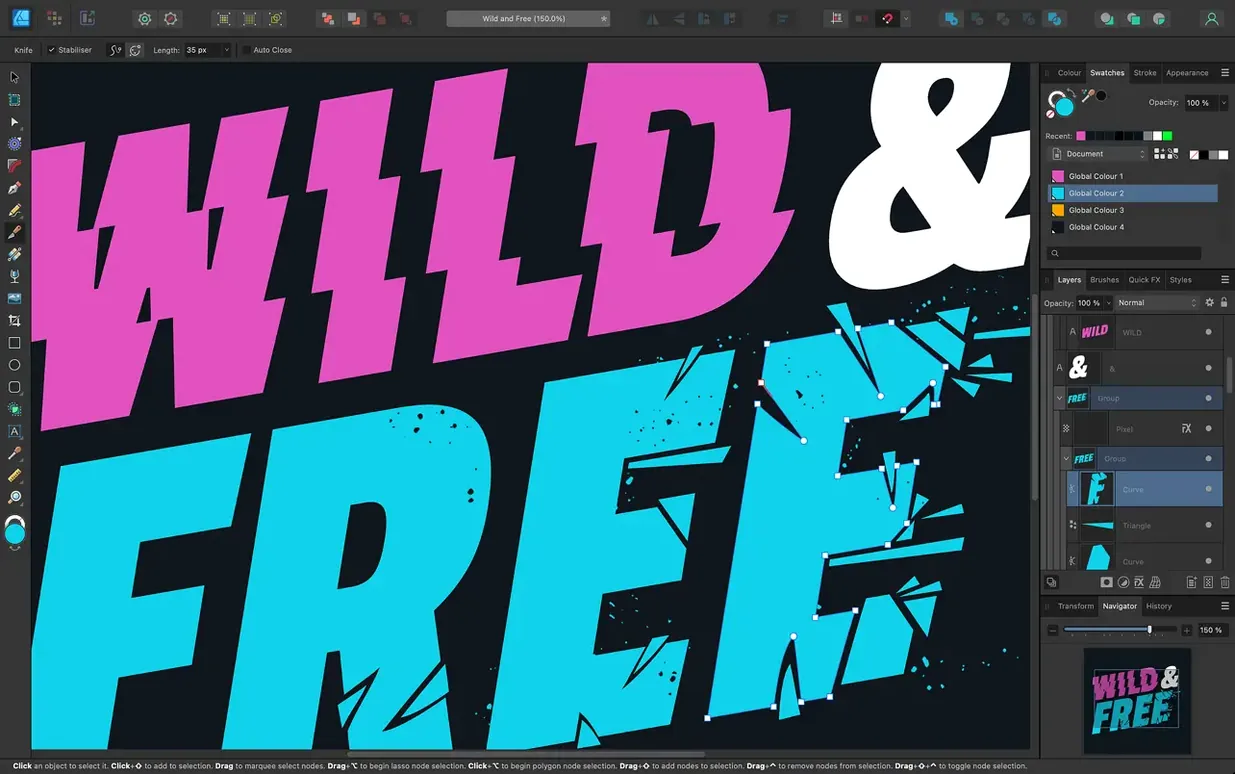
The latest update, version 2.6.5, focuses on bug fixes and stability improvements, building on the more substantial changes that arrived in 2.6. That release introduced Pencil tool improvements, which make freehand drawing feel more natural, plus enhancements to the Stroke Width Tool, including a Reset Profile option. There's also a handy new toggle: holding Command or Ctrl while marquee selecting now intersects with the existing selection, a small change that speeds up detailed work.
At its core, Affinity Designer is a vector graphics app for macOS. It handles everything from a simple logo to a complex illustration, and it does so with a fluidity that suits both quick sketches and precise technical drawings. The brush and pencil stabilization is a standout feature for anyone who draws with a stylus; it smooths out wobbly lines without making them feel stiff.
You can switch between raster and vector workspaces, which is useful when you want to add texture or effects to an otherwise clean vector piece. The app supports 16-bit per channel editing for richer color depth, and it respects ICC color profiles, so your on-screen colors stay consistent with your printer or other software.
Affinity Designer is part of the Affinity suite, alongside Photo 2 and Publisher 2. If you work with text, you'll appreciate the artistic text and frame text tools, plus OpenType support for advanced typography. The interface is available in eight languages, including English, German, Spanish, and Japanese. It runs on both Apple Silicon and 64-bit Intel Macs, and requires macOS 10.15 or later.
Unlimited artboards for brand guides and logos
Affinity Designer suits a few different kinds of Mac users, and the way each person uses it tends to be different. Logo designers and brand identity people will appreciate the unlimited artboards; you can lay out a full brand guide on one canvas, with each variation on its own board, and export them all at once. UI and screen designers find the vector tools precise enough for interface elements, and the ability to switch to a raster workspace means you can add textures or mock up photos without opening a second app.
Print designers who work with CMYK and spot colors will find the color management solid. The app supports ICC profiles and 16-bit per channel editing, so a brochure or poster you design on screen will match what comes off the press more closely than you might expect from a vector app at this level. Illustrators who draw with a stylus, especially on a tablet or iPad connected to a Mac, benefit from the brush and pencil stabilization; it catches the small shakiness in a hand-drawn line without dulling the stroke.
For teachers and students, the learning curve is reasonable. If you already know vector tools from other software, you will find the layout familiar but lighter. If you are new to vector drawing, the workspace is clean enough that you can learn by experimenting without getting lost in panels.
Pencil tool strokes feel more responsive in 2.6
The 2.6 release, which 2.6.5 refines with bug fixes, added a few improvements that affect how you work day to day. The Pencil tool improvements are the most noticeable if you draw freehand. The strokes feel more responsive, and the tool does a better job of keeping curves clean while still following your hand. It is not a dramatic overhaul, but it reduces how often you have to go back and adjust nodes after drawing a line.
The Stroke Width Tool got profiling improvements and a Reset Profile option. If you have ever set a stroke width profile and then wished you could start over without deleting the stroke and redrawing it, that reset button is a small relief. The other addition is a keyboard toggle for marquee select: holding Command or Ctrl now makes the selection intersect with what is already selected instead of adding to it. It is the kind of change that you do not think about until you use it, and then you wonder why it was not there before.
Math worksheets designed on A4 artboards at 300 dpi
I teach maths, but I also design worksheets and diagrams for the school. A recent session looked like this. I opened Affinity Designer with a new document set to A4, CMYK, 300 dpi. I created an artboard for each worksheet page. For the first page, I used the shape tools to draw a grid of squares, then switched to the Pen tool to draw a graph axis. The stabilizer on the pencil tool helped when I added a freehand curve for a sine wave; it came out smooth on the first try.
I added text frames for the questions, using the character panel to set the font and size. I wanted a label along the x-axis, so I drew a path with the Pen tool and used the text-on-path feature to position the label exactly where I wanted it. When I needed to adjust the stroke width on a diagram, I used the Stroke Width Tool, and when I made a mistake, the Reset Profile option saved me from deleting the stroke.
By the end of the session, I had four artboards ready. I exported each one as a separate PDF using the export options, which kept the colors consistent with the ICC profile I had set at the start. The whole process took about an hour, and I did not need to open any other application.
Set default color format to CMYK for print work
When you first open Affinity Designer, a few settings can make the experience smoother from the start. If you work in print, set the default color format to CMYK and choose an appropriate ICC profile in the document setup. That avoids the frustration of designing in RGB and then converting later. If you draw with a stylus, adjust the brush and pencil stabilization in the brush settings; a low stabilization value keeps your strokes fast and loose, while a higher value helps with slow, deliberate lines.
Enable the View > Pixel View mode when you are aligning vector elements to a pixel grid for screen design. It helps you avoid half-pixel lines that look blurry on a display. If you use multiple artboards regularly, set the artboard tool to show a new board with each click, so you can plan your layout without stopping to adjust settings each time.
- Bug fixes and stability improvements in version 2.6.5.
- The 2.6 release added Pencil tool improvements for smoother freehand curves.
- The 2.6 release added Stroke Width Tool profiling improvements and a Reset Profile option.
- The 2.6 release added a Command or Ctrl toggle for marquee select intersection behaviour.
- macOS 10.15 or later
- Apple Silicon or 64-bit Intel Mac
Questions I keep getting
What Mac models does Affinity Designer 2.6.5 support?
It supports both ARM (Apple Silicon) and 64-bit Intel Macs, and requires macOS 10.15 or later.
How to install
- Mount the disk image, then launch the installer package. This step lets macOS inspect the app before you run it.
- Open Terminal and press Enter to bypass Gatekeeper. The system asks for this once so the app can run on your Mac.
- Drag the app into your Applications folder. Keeping it there makes it easy to find and launch from Launchpad.
- Open the app once the copy finishes. The first launch may take a moment as macOS verifies the app.
Similar apps






Sign in or join the club to leave a comment.
Nobody has commented yet.