- Version
- 3.14
- Studio or maker
- Aiarty
- Languages
- English, German, Chinese (Traditional), Chinese (Simplified), Japanese
- Activation
- K'ed by TNT team
- Runs on macOS
- macOS 11 or later
- Chip type
- Apple Silicon, Intel 64-bit
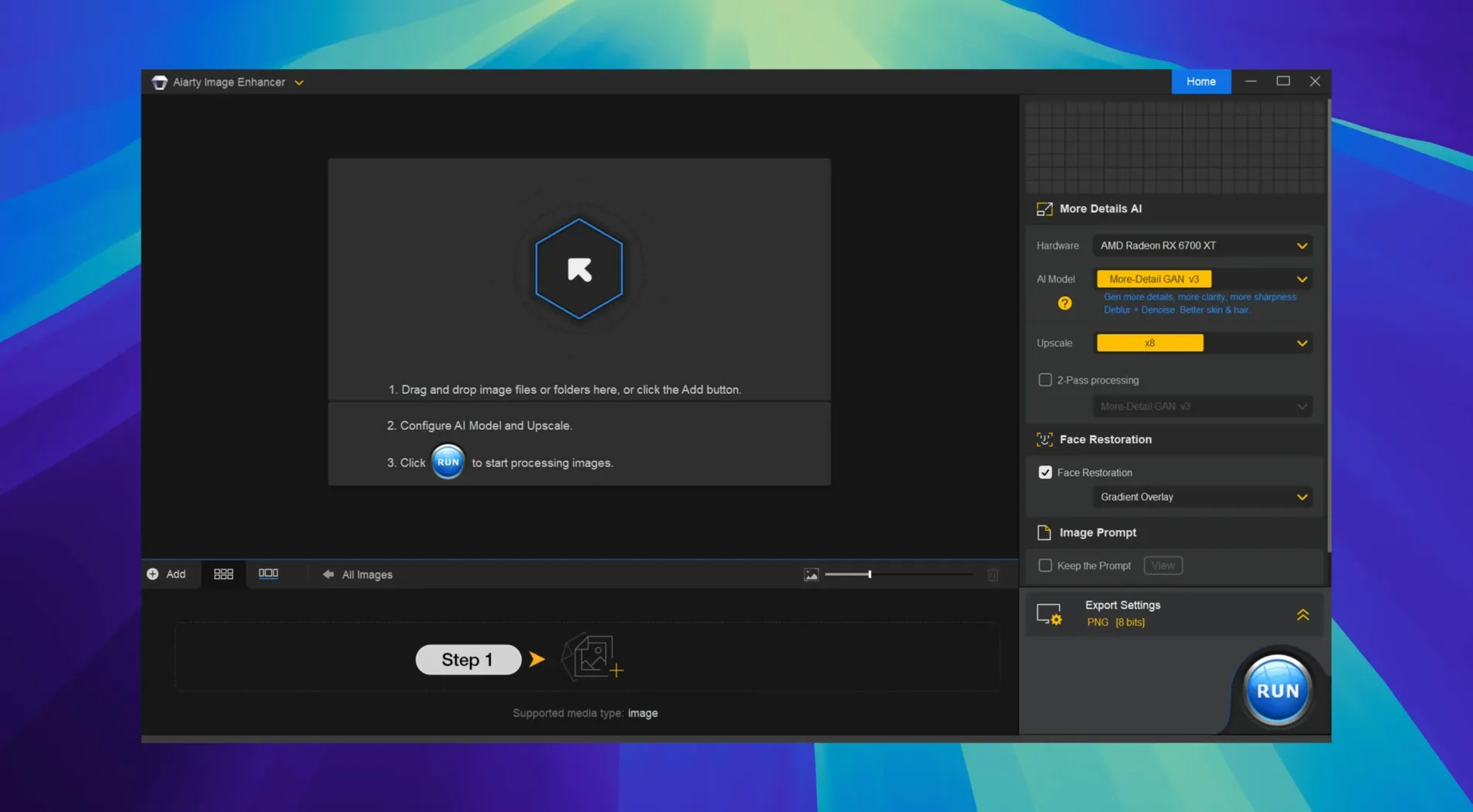
The current version 3.14 of Aiarty Image Enhancer adds EXIF metadata access, a helpful detail for organizing or verifying photo collections. The rest of the tool remains the same capable AI image enhancer it has been — here is what it needs from your Mac and what it gives you.
System requirements and compatibility
macOS version — macOS 11 (Big Sur) or later.
Processor — Apple Silicon or Intel 64-bit; Rosetta 2 available for Intel apps on Apple Silicon Macs.
Interface languages — English, German, Traditional Chinese, Simplified Chinese, Japanese.
Upscales to 32K while preserving detail
Upscaling — Enlarges images up to 32K resolution while preserving detail.
Denoising and deblurring — Reduces noise and sharpens blurry photos.
File support — Imports JPEG, PNG, TIFF, WebP, BMP, AVIF, and RAW files.
Metadata — Version 3.14 lets you view EXIF data for each image.
People often ask me about little hiccups they run into with Aiarty Image Enhancer, especially when they are new to AI-based editing. I have a few notes from running the school's game club and from helping teachers with their own photos.
Gatekeeper may block the app after installation
The most frequent issue I hear about is the app not opening after installation. The install instructions mention pressing Enter to bypass Gatekeeper in Terminal — that step is essential. If you skipped it, mount the disk image again, open Terminal, and type the command shown in the readme. A second try often does the trick.
Another snag: the app opens but the interface looks wrong or buttons do not respond. On Apple Silicon Macs, Aiarty Image Enhancer expects to run natively, but some users find better stability with Rosetta. If the interface seems sluggish or unresponsive, right-click the app in Applications, choose Get Info, and tick the box for Open using Rosetta. Then relaunch. This is a simple fix that solves most display quirks.
People also get stuck when the app cannot see their RAW files. The app supports RAW, but macOS may not recognize every camera brand's format without a system update. Check that your Mac is on macOS 11 or later and that you have the latest camera RAW compatibility update from Apple. If the files are from a very new camera, converting them to DNG with Adobe's free converter first can help.
One more: the upscaled image looks too smooth or plastic. That is a sign the AI model is working with too little source detail. For very small or heavily compressed images, try applying denoising before upscaling. The app does both, and running denoise first gives the upscaler better material to work with.
Choosing a target resolution too high for the source
The biggest mistake I see is choosing a target resolution that is far too high for the source image. Upscaling a 500×500 pixel photo to 8K will create an image that looks sharp from a distance but has no real detail up close. A better approach is to upscale in stages: go from 500 to 2000 pixels, then to 4000, and so on. The AI has an easier time adding plausible detail in smaller jumps.
Another common error is forgetting to save the output in a lossless format. The app offers JPEG, PNG, TIFF, and others. After upscaling or denoising, a JPEG at high compression can undo all the work. I always tell people to save as TIFF or PNG if they plan to edit further, and only export to JPEG for sharing.
Some users also overlook the EXIF metadata that version 3.14 added. It is a small feature, but checking EXIF data after processing can confirm that the original capture settings (aperture, ISO, shutter speed) survived the enhancement. That can be useful when comparing before and after shots.
Upscaling microscopic plant cells into classroom posters
A colleague of mine, Ulrike, teaches biology at a school in Bremen. She wanted to create large printed posters for her classroom showing microscopic images of plant cells. The original photos were taken with a laboratory microscope camera and were only about 2 megapixels each — fine for a computer screen, but blurry and noisy at poster size.
She used Aiarty Image Enhancer to denoise each image first, then upscaled them to about 6000 pixels on the long side. The AI filled in the cell wall textures and membrane details convincingly. She printed the posters at A2 size, and the students could clearly see the chloroplasts and vacuoles. The EXIF data in version 3.14 helped her keep track of which images came from which slide preparation session. Without the enhancer, she would have needed to borrow a better microscope or hire a photographer.
Working through old family photos from scanned prints
Last week I sorted through old family photos my aunt scanned from prints. Here is how a session with Aiarty Image Enhancer looks in practice.
Starting
I opened the app from the Applications folder. The interface is straightforward — one main window with a file browser on the left and a preview area on the right.
Importing
I dragged a folder of JPEG scans into the import area. The app read them all, and I could see a thumbnail grid. Version 3.14 shows the filename and file size below each thumbnail, which helps when you have duplicates.
Choosing the enhancement
I selected one photo of my grandfather standing in front of a car from the 1950s. The scan was grainy and slightly out of focus. I clicked Denoise first, waited a few seconds, then clicked Deblur. The preview showed a clearer face and the car's chrome trim became readable.
Upscaling
The scan was 1200×800 pixels. I set the target to 4K (3840×2560) and let the AI generate the extra detail. The fabric of his jacket and the texture of the car's tires came out looking natural, not like a smoothed painting.
Saving and checking metadata
I saved the result as a TIFF file to keep all the quality. Then I opened the EXIF panel in the app to confirm that the original scan date was preserved — useful for my aunt's family records.
The whole process for ten photos took about fifteen minutes, with most of that time being the AI processing. The app ran quietly in the background while I graded papers.
For anyone working with old or small images, Aiarty Image Enhancer 3.14 is a practical tool that does what it promises without unnecessary complexity.
- macOS 11 (Big Sur) or later
- Apple Silicon or Intel 64-bit processor
- Interface languages: English, German, Traditional Chinese, Simplified Chinese, Japanese
Questions I keep getting
Does Aiarty Image Enhancer work on Intel Macs?
Yes, it supports both Apple Silicon and Intel 64-bit Macs running macOS 11 or later.
Can it process RAW photos from my camera?
Yes, it supports RAW files along with common formats like JPEG, PNG, TIFF, and WebP.
How to install
- Mount the disk image and launch Open Gatekeeper friendly.
- Press Enter in Terminal to bypass Gatekeeper.
- Drag the app to your Applications folder.
- Open the app from Applications.
- If the app does not open, run it with Rosetta and connect through a VPN.
Similar apps






Sign in or join the club to leave a comment.
Nobody has commented yet.