

- Version
- 18.0.6
- Studio or maker
- PremiumSoft
- Languages
- Russian, English, German, Spanish, Chinese (Traditional), Chinese (Simplified), Korean, Polish, French, Japanese
- Activation
- Not required
- Runs on macOS
- macOS 14.6 or later
- Chip type
- Apple Silicon, Intel 64-bit
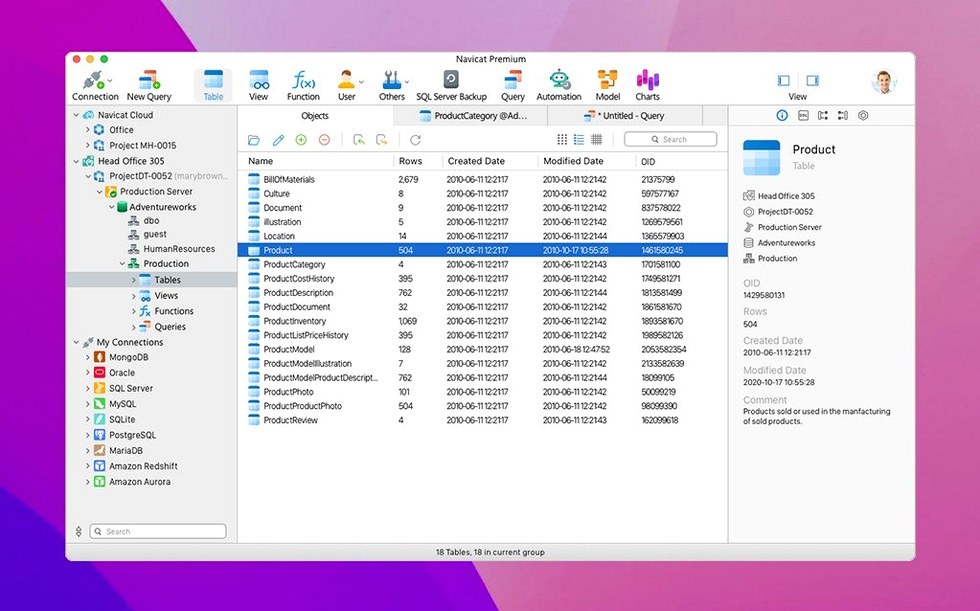
Navicat Premium is a database administration and development app that connects to multiple database types in one interface. For a newcomer, the first thing to try is the SQL console: open it, type a simple SELECT query, and see results instantly. Next, create a database and a table using the visual designer — no SQL needed. Then run the data migration wizard to move rows between different database types, which shows you the real power of having everything in one place. Try the backup tool (works for MySQL InnoDB), and finally explore the security configuration to set user access rights. Each step builds on the last and makes the interface feel familiar quickly.
- Open the SQL console and run a SELECT query.
- Create a database and a table with the visual designer.
- Run the data migration wizard between different database types.
- Use the backup tool (MySQL InnoDB only).
- Configure security and access rights for a test user.
Once you have done these five things, the rest of Navicat Premium — stored procedures, triggers, views, HTTP tunnels, report wizard — will feel like natural next steps.
Keep it simple for your first session
The first thing I tell new users at the school's game club, when they sit down with a tool like this, is to keep it simple for the first session. Navicat Premium can feel overwhelming because it offers connections to so many database types at once. Do not try to set up every connection on day one. Pick one database you know well — MySQL or SQLite, for example — and connect to that. Save the connection profile with a clear name. Everything else can wait.
A habit that saves time later: name your saved connections by project or environment, not by database type. I used to name connections by server address, but that becomes confusing once you have a dozen profiles. A name like "school timetable dev" or "library catalog staging" makes more sense when you are switching between tasks.
Use the visual query builder before you write raw SQL. It helps you see how joins and filters work together, especially if you are still learning the table structure of a new project. You can always switch to the SQL console later once you know what you need. The query builder also shows the generated SQL, so you learn the syntax naturally.
Schedule one backup task early, even if you have only a small database. Go to the job scheduler, set a daily backup for a MySQL InnoDB table, and let it run. That way you confirm the backup tool works with your setup before you need it in an emergency. The scheduler is one of those features that people discover only after losing data, so I recommend testing it on purpose.
Finally, close the sign-in window if it appears after installation. The app works without an account. Just drag it to Applications, close any prompts, and start connecting.
Fewer unexpected disconnections with SSH tunnels
Version 17.3.8 is a maintenance release, so the changes are under the hood. PremiumSoft fixed several bugs and made general improvements. In practice, this means fewer unexpected disconnections when you are running long queries or working with SSH tunnels. The interface feels a little more responsive when switching between connection types, especially if you have PostgreSQL and MongoDB open at the same time.
Nothing in this release changes the layout or moves buttons around. If you are already comfortable with Navicat Premium, you will not need to relearn anything. The update just makes the daily routine a bit smoother. For someone who uses the data synchronization tool regularly, the improvements in this version reduce the chance of a sync failing due to a timeout or a character encoding mismatch.
I appreciate that the release notes are honest: bug fixes and improvements, nothing flashy. That is the sign of a tool that is mature and stable. You do not need to upgrade the moment it appears, but when you do, you will notice that things that used to annoy you — a slow table load, a query that sometimes hangs — happen less often.
How Navicat Premium compares with similar Mac apps
On the Mac, the closest alternatives to Navicat Premium are TablePlus and DBeaver. Each has its own strengths, and the right choice depends on what you do every day.
TablePlus is a native Mac app that feels fast and lightweight. It connects to a similar range of databases and has a clean, modern interface. Where it differs from Navicat Premium is scope: TablePlus focuses on quick browsing, editing, and querying. It does not include the data modeling tools, the report wizard, or the business intelligence features. If you need to design an ER diagram or generate a formatted report from database data, TablePlus will not help. Navicat Premium includes all of that in one package.
DBeaver is a cross-platform app based on Eclipse. It is open source and free for basic use. It connects to many database types and includes a decent query builder and data export. The interface, however, is not as polished as Navicat Premium. Menus and dialogs feel like they come from different systems, and setup can take longer. DBeaver also requires Java, which means an extra runtime on your Mac. Navicat Premium runs natively on Apple Silicon and Intel without dependencies. For a classroom or a small team that wants a consistent experience without configuring Java, Navicat Premium is simpler to manage.
Neither TablePlus nor DBeaver offers the same breadth of features as Navicat Premium.
Export data straight to Numbers or Excel
Navicat Premium works well with the tools you probably already use on your Mac. Export data as XLS or CSV, then open it directly in Numbers or Microsoft Excel. The report wizard can produce documents that you can share with colleagues who do not use database software. Import data from a CSV file exported from a web app or a spreadsheet — the import wizard handles the field mapping for you.
On macOS, the SSH Tunnel feature works with the system's built-in SSH client. No extra software is needed. If you already manage servers through Terminal and SSH keys, you can reuse those keys in Navicat Premium. The HTTP Tunnel option is useful if your network restricts direct database connections, and it does not interfere with your usual network settings.
For developers who use Visual Studio Code or another editor alongside Navicat Premium, the workflow is straightforward. Write SQL in the SQL console, copy it to your code editor, or export query results directly to a file format that your app can read. The Unicode support means you can work with data in any language without character corruption — useful if your database contains German, French, or Chinese text.
Navicat Premium also respects macOS Gatekeeper. The installation steps are simple: mount the disk image, open it, press Enter in Terminal if needed, and drag the app to Applications. No complex workarounds are required. The app runs on macOS 11 and newer, both on Intel and Apple Silicon, so it fits in with a mixed fleet of older and newer Macs. If you are managing databases from a MacBook, all the standard macOS keyboard shortcuts and trackpad gestures work as expected in the interface.
Release notes for version 18.0.6 are published on Navicat's official website, covering the adjustments that come with this update.
- macOS 14.6 or later
- Works on Apple Silicon and Intel 64-bit Macs
Questions I keep getting
Which database types can Navicat Premium connect to at the same time?
It connects to MySQL, SQLite, Oracle, and PostgreSQL databases simultaneously in one application.
Does Navicat Premium support stored procedures?
Yes, it supports stored procedures, events, triggers, functions, and views in MySQL, SQLite, Oracle, and PostgreSQL.
Can I move data between different databases with Navicat Premium?
Yes, it includes a data migration feature that lets you move data between different database types.
How to install
- Mount the disk image and run Open Gatekeeper friendly.
- Press Enter in Terminal to bypass Gatekeeper.
- Drag the app into the Applications folder.
- If a sign-in window appears, close it.
Similar apps






Sign in or join the club to leave a comment.
Nobody has commented yet.