- Version
- 11.1.0
- Studio or maker
- GraphPad Softwar
- Languages
- English
- Activation
- Not required
- Runs on macOS
- macOS 11 or later
- Chip type
- Apple Silicon, Intel 64-bit
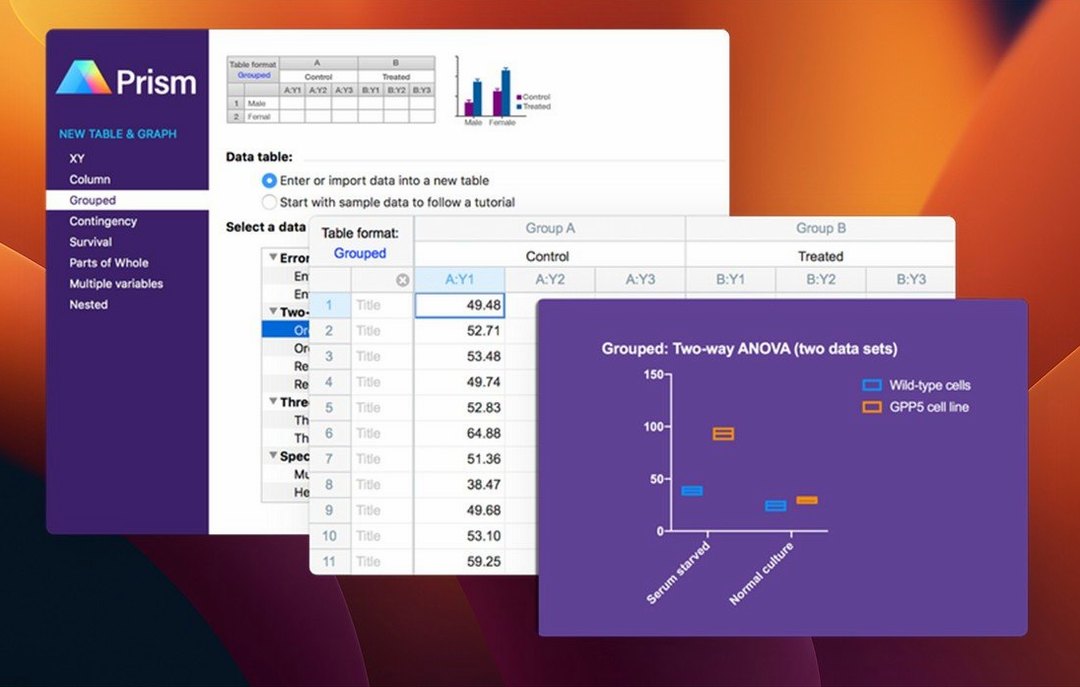
Choose a starting point from the Welcome dialog
When you launch Prism for the first time, take a moment to look through the Welcome dialog. It offers a choice of starting points: creating a new data table, opening a recent file, or browsing the sample data sets. The samples are worth exploring — they show you how the program handles different experiment types, from dose-response curves to survival data. Opening one and clicking through its sheets gives you a feel for the layout before you bring in your own numbers.
I usually suggest setting aside an hour to try a small dataset from start to finish. Pick something you already know the results for. Run a basic t test or a one-way ANOVA, generate a bar graph, and export it. That first run-through confirms that the workflow matches your expectations. If something feels off, check the preferences under the Prism menu before you go far — the defaults are sensible, but you might prefer different font sizes or a specific graph template.
Set a default graph type and size for your lab
A few preferences can save time over the long run. Under the Graphs tab in Preferences, you can set a default graph type and size that matches your lab's publication requirements. If your department uses a specific color scheme or font, adjust those here rather than editing every figure individually.
The Analysis tab lets you control how Prism handles missing values and outliers. If your field expects explicit reporting of excluded data points, turn on the option to keep a record of exclusions. This creates a note in the Results sheet that you can reference later. Under the General tab, decide whether you want Prism to automatically check for software updates — useful if your IT policy restricts background connections.
Designed for bench scientists who skip custom scripting
GraphPad Prism occupies a specific spot between general statistics packages and spreadsheet programs. It is less flexible than R or JASP in terms of custom scripting, but that is by design. Prism focuses on the workflow of bench scientists who run repeated experiments and need publication-ready graphs quickly.
Compared to Apple's Numbers, Prism makes it far easier to perform nonlinear regression and to annotate graphs with statistical results. Numbers handles basic charting well, but it does not offer curve fitting, survival analysis, or the kind of organized data structure that repeated experiments require. JASP, on the other hand, is free and strong on Bayesian statistics, but its graphing options are more limited and less configurable for scientific journals.
Prism's strength is the way it links data tables, analyses, and graphs into one project file. Change a data point, and the results and graph update automatically. That connected structure is harder to replicate with separate tools. For researchers who produce figures regularly, the integration alone can justify the choice.
Enter dose-response data from three experiments
On a Tuesday morning, a pharmacologist opens Prism to analyze a new batch of dose-response data. She has concentrations and responses from three independent experiments. The Welcome dialog lets her choose "New project and enter data." She picks an XY table, tells Prism there are three replicates each, and pastes the numbers from her lab notebook.
With the data in place, she highlights the columns and selects "Analyze." The streamlined variable selection dialog appears — she checks the boxes for the three data sets she wants to include, then chooses "Nonlinear regression" from the analysis list. Prism suggests a standard sigmoidal dose-response model. She clicks OK.
In under a minute, the Results sheet appears with fitted EC50 values and confidence intervals. A graph is already waiting on the layout sheet, showing the curve and the individual points. She adjusts the axis labels and adds a legend by double-clicking the graph elements. The graph title font is already set to her preferred style because she changed it in Preferences last week.
She exports the figure as a TIFF at 300 DPI for the manuscript draft. Before closing the project, she adds a note to the Info sheet about the compound batch number. The whole session takes about twenty minutes, and she knows that if the reviewer asks for a different graph type — a violin plot, for example — she can select a new graph from the "Change graph type" menu and keep the same analysis. That sort of flexibility is what makes Prism a reliable companion for a research day.
- macOS 11 or newer
- Apple Silicon or Intel 64-bit processor
Questions I keep getting
What macOS version does GraphPad Prism 11.1.0 require?
It requires macOS 11 or newer.
Does Prism 11.1.0 run on Apple Silicon Macs?
Yes, it supports both Apple Silicon and Intel 64-bit architectures.
How to install
1. Open the downloaded disk image. 2. Drag the app to the Applications folder. 3. Launch the app from Launchpad after copying finishes.Similar apps






Sign in or join the club to leave a comment.
Nobody has commented yet.