
- Version
- 16.93
- Studio or maker
- Microsoft Corporation
- Languages
- Russian, English, German, Hungarian, Greek, Danish, Indonesian, Spanish, Italian, Korean, Dutch, Polish, Portuguese, Slovak, Thai, Turkish, Finnish, French, Czech, Swedish, Japanese
- Activation
- Volume license
- Runs on macOS
- macOS 13 or later
- Chip type
- Apple Silicon, Intel 64-bit
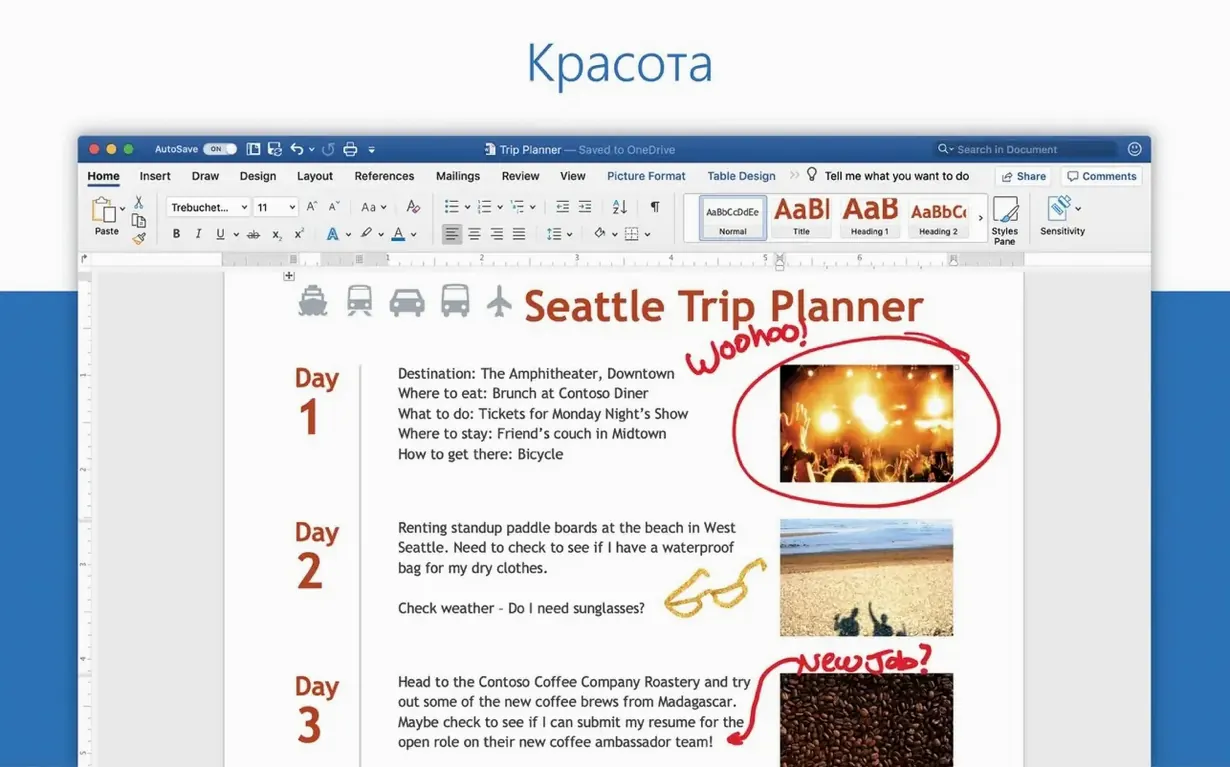
The current version of Microsoft Outlook for Mac is 16.93, included in the Office suite release from late January 2025. This update keeps the app stable for managing messages and planning schedules across personal, work, and school accounts. Outlook supports ARM and 64-bit Intel Macs, so it works on the full range of modern Apple hardware.
| Detail | Information |
|---|---|
| Version | 16.93 |
| Developer | Microsoft Corporation |
| Category | Office |
| Architecture | ARM and Intel (64-bit) |
| macOS required | macOS 13 or later |
| Languages | 18 including English, German, Spanish, French, Japanese |
Beyond basic email, Outlook includes a calendar, task list, and support for Gmail, Yahoo, POP, and IMAP accounts, making it a central hub for correspondence and time management. If you need an email client that also handles appointments and contacts without switching apps, Outlook remains a solid choice. The app is part of the Mac Office suite alongside Word, Excel, PowerPoint, OneNote, and OneDrive.
How outlook fits with other apps and macos features
Outlook does not sit in isolation on your Mac. It takes advantage of several macOS integrations that make daily work feel less like jumping between separate tools. One example is Profiles, a macOS feature that lets you separate work and personal data on the same machine. Set up a work profile, add your Microsoft 365 account there, and Outlook will keep your work mail and calendar separate from your personal iCloud or Gmail accounts. Switch profiles without logging out or creating a second user account.
Because Outlook is part of the Office suite, it shares a common design language with Word, Excel, and PowerPoint. Attaching a file from OneDrive works much the same way in Outlook as it does in those apps, and the sharing dialog for documents uses the same interface. If you regularly send meeting notes from OneNote, you can drag them into an Outlook appointment without reformatting. The suite does not force you into a single workflow, but it rewards learning how the pieces connect.
For calendar management, Outlook also respects macOS notifications. When a meeting reminder fires, you can snooze, accept, or decline directly from the notification banner. The app uses the system-level calendar event store for some sync operations, so appointments you create in Outlook can appear in the built-in Calendar app if your accounts are set up that way. This is not automatic for all account types, but it works well with Microsoft 365 and Exchange accounts.
Gmail and Yahoo accounts work with Outlook on Mac
The most common mistake I see when people start using Outlook on a Mac is assuming it only works with Microsoft accounts. They bring a Gmail or Yahoo address, try to add it, and then give up when they cannot find the right settings. Outlook supports POP and IMAP accounts, but you need to enter the incoming and outgoing server details manually for some providers. If you skip this step, the app cannot send or receive mail. Write down your provider’s IMAP and SMTP server addresses before you begin, and keep the port numbers handy.
Another frequent error is not running Microsoft AutoUpdate after installation. Outlook will work on day one, but Microsoft releases stability fixes and security patches through AutoUpdate. If you ignore it, you may miss small improvements that prevent crashes or sync errors later. The app checks for updates automatically if you leave the tool enabled, so the fix is simply to say yes when it prompts you.
A third mistake is treating the calendar like a separate app. New users sometimes create events in the macOS Calendar app and then wonder why those events do not appear in Outlook. The two apps can share data, but only if the account type and sync settings are configured correctly. It is safer to pick one calendar app and stick with it for your primary schedule. If Outlook is your main tool, create and manage all events inside Outlook.
Anna books two projectors in Outlook on Wednesday morning
Anna teaches history at a different school, but we talk shop sometimes. She uses Outlook for her department’s email and for booking the school’s two projectors. Here is how a Wednesday morning looks for her.
She opens Outlook first thing. The inbox loads with messages from overnight, sorted by conversation. She reads the email from the head of department about next week’s staff meeting, then drags it to the calendar pane to create an event. Outlook suggests a time based on the meeting details in the message body. She confirms, and the event appears on her calendar with a reminder set for one hour before.
Next, she checks the shared calendar for the projector booking system. A colleague has reserved the projector for third period, so Anna moves her film screening to fourth period. She sends a quick reply to the colleague using the inline reply field, then flags a message from a parent for follow-up later.
Around mid-morning, she receives a file from another teacher – a PowerPoint slideshow attached to an email. She opens it directly from Outlook, makes a small edit, and saves it to OneDrive. Outlook keeps the attachment linked to the original email in her sent items, so she can find it again without searching folders.
Before lunch, she uses the search bar to find a message from two weeks ago about exam schedules. Outlook searches the body of emails and calendar entries, so the result appears quickly. She forwards it to the new teacher who joined the department last week.
The session ends when she closes Outlook. It remembers which folders she had open and restores them the next time she starts the app.
Microsoft 365 users get seamless Exchange and SharePoint sync
Outlook is a natural fit for anyone who already uses Microsoft 365 at work or school. The integration with Exchange and SharePoint means your calendar, contacts, and tasks sync without extra setup. If your employer issues a Microsoft 365 account, Outlook will feel like the intended home for your work email.
People who manage multiple email accounts also benefit. You can add a work account, a personal Gmail account, and a shared department mailbox in one window. Switching between them takes one click, and you can apply the same rules and categories across all accounts. That saves time compared to opening separate browser tabs or using different apps for each address.
Teachers and administrators who plan schedules with shared calendars will like the calendar sharing features. You can see when colleagues are free, book resources like rooms or equipment, and send meeting invitations that include attachments. The calendar also supports time zones, which matters if your school collaborates with partner institutions abroad.
For users who prefer keyboard navigation, Outlook on Mac supports standard macOS shortcuts for composing, replying, and moving between messages. It is not the lightest email client on the market, but for users who need a full-featured tool that handles email, calendar, tasks, and contacts in one place, Outlook remains the most practical choice in the Office suite.
- macOS 13 or later
- ARM and Intel (64-bit) architecture
How to install
- Install Office 2024 using the standard procedure.
- Alternatively, download the required package using the provided links for Word, Excel, PowerPoint, Outlook, and OneNote.
- The packages are downloaded from Microsoft’s official servers and require activation.
- Install Microsoft AutoUpdate to receive updates.
Similar apps






Sign in or join the club to leave a comment.
Nobody has commented yet.