- Version
- 3.13.4
- Studio or maker
- Readdle Inc.
- Languages
- Russian, English, German, Spanish, Italian, Chinese (Simplified), Portuguese, Ukrainian, French, Japanese
- Activation
- Not required
- Runs on macOS
- macOS 12 or later
- Chip type
- Apple Silicon, Intel 64-bit
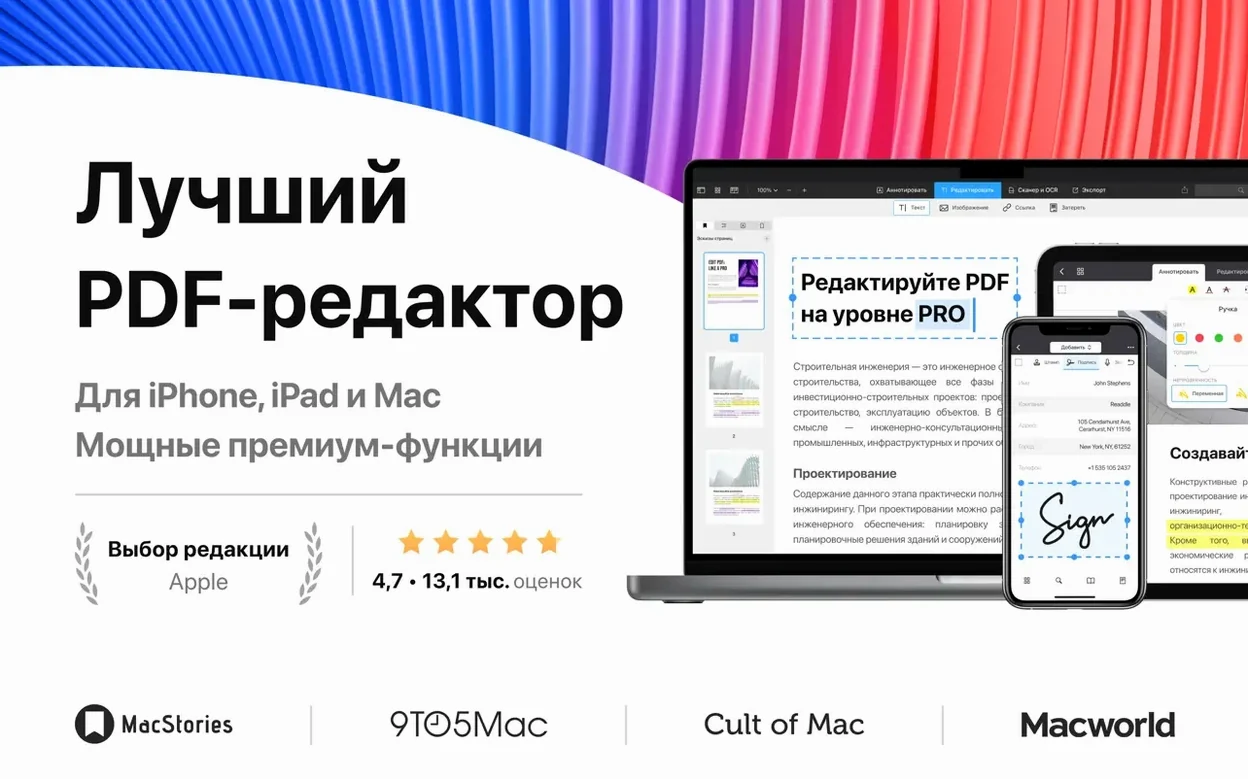
You already know the feeling: a colleague sends a Word file you need to return as a signed PDF. PDF Expert for macOS handles that chain from start to finish without extra apps. Here is how one realistic task plays out.
Term — what it means
Convert to PDF — PDF Expert opens Word, Pages, and Docs files directly and converts them to PDF with a single menu command. No need to export from the source app first.
Edit PDF text — Click on any text block in the PDF and type your changes. The font and size stay matched to the original so the page still looks right.
Fill out forms — Tap on any form field to enter text. Checkboxes and dropdowns respond like a real form.
Sign and save signatures — Draw your signature with the trackpad or mouse, then save it for reuse. Place it anywhere on the page.
Edit images — Replace or move images inside the PDF without leaving the app. Useful for swapping a logo or cropping a photo.
macOS file handling — PDF Expert works with the Quick Look preview and can be set as the default PDF viewer in System Settings, so double-clicking a PDF opens it here.
set PDF Expert as the default viewer
When you first open PDF Expert, it works fine out of the box. But a few changes in Preferences make the daily use much smoother.
Set PDF Expert as the default PDF viewer. By default, macOS opens PDFs in Preview. To switch, open any PDF in PDF Expert, go to the app menu, choose Preferences, and you will see a button to set it as the default. Once set, every PDF you double-click opens here instead of Preview. That saves you from dragging files to the app each time.
Choose a default page view. In Preferences under the General tab, you can pick whether documents open in single page, continuous scroll, or facing pages. If you read long reports or textbooks, continuous scroll feels closer to a web page. If you review two-page spreads like a printed book, facing pages works better.
Adjust annotation colors and thickness. The Highlight, Underline, and Strikethrough tools have default colors. In Preferences, you can set your own defaults for each tool. I pick a soft yellow for highlights and a thin red underline — less jarring on the eyes over a long session.
Save signatures early. Draw your signature once and save it. That way you never need to redraw it for a contract or permission slip. In the Signature tool, draw it on the trackpad or with a mouse, then tap Done. It stays available across all documents.
handoff between Mac, iPhone, and iPad
PDF Expert is not an island. It works alongside other tools you already have on your Mac.
Handoff between devices. If you have an iPhone or iPad with PDF Expert installed, you can start reading a document on your Mac and continue on your phone without hunting for the file. The Handoff icon appears in the Dock or the App Switcher. This is useful when you are reviewing a handout on the way to class.
Quick Look and Finder. PDF Expert respects macOS Quick Look. Highlight a PDF in Finder and press Space — you see a preview without opening the app. When you do open it, edits save directly to the original file, so Finder shows the updated version immediately.
Drag and drop from other apps. You can drag a Word document from a Finder window straight into the PDF Expert window. It opens as a PDF. Same for Pages and Docs files. No need to open the source program first.
Print to PDF Expert. In any app that has a Print menu, choose Print, then in the PDF dropdown at the bottom of the print dialog, select PDF Expert. It opens the printed output as a new PDF in PDF Expert. That is faster than saving a file and then opening it.
Share sheets. From within PDF Expert, you can share a document via Mail, Messages, AirDrop, or any other service macOS offers. The share button in the toolbar sends the PDF as an attachment, not a link.
saving edits is not automatic
I have watched students and colleagues stumble over the same few things. Here are the ones to avoid.
Not saving after editing text. PDF Expert does not auto-save changes immediately on every keystroke. After you edit text or move an image, hit Command-S or wait for the little save indicator to finish. Otherwise you might close the window and lose work.
Moving an image by accident. Clicking an image selects it, and then dragging it moves it on the page. If you just want to select text near an image, click outside the image first. Beginners often grab a photo and drag it off the page without noticing.
Forgetting to flatten the PDF before sharing. If you fill out a form or add annotations, other people can still edit those fields if they have PDF software. If you want to lock everything in place, use the Flatten tool. It turns all annotations and filled fields into permanent parts of the page.
Using the wrong tool for text selection. The hand tool moves the page. The text selection tool lets you highlight words. If you cannot select text, check which tool is active in the toolbar. It is a common cause of frustration.
Not compressing before emailing. A scanned document can be several megabytes. PDF Expert has a compress function that reduces file size without ruining quality. Use it before attaching a PDF to an email.
PDF opens blank or shows garbled text
Even with a straightforward tool like PDF Expert, little problems come up. Here are the ones I see most often in the game club and around school, along with what works.
PDF opens blank or shows garbled text. This usually means the PDF was created with unusual fonts or a non-standard encoding. Try reopening the file. If that fails, convert the original document to PDF again from the source program. If you cannot get the source, the text is likely embedded as an image and cannot be edited directly.
Cannot edit text in a scanned PDF. PDF Expert does not have built-in OCR. If the PDF is a scan of a printed page, the text is just a picture. You can annotate over it with highlights or sticky notes, but you cannot change the words. You would need an OCR tool first, then bring the result into PDF Expert.
Signature does not appear where you placed it. The signature tool places the image at the cursor position. If you tap too close to an existing text field or image, the signature may snap to a different spot. Tap carefully in an empty area of the page. You can drag it into precise position after placing it.
Form fields do not respond. Some PDF forms are locked by the creator. Look for a padlock icon in the toolbar. If the document is secured, you cannot fill fields or add annotations. The same applies if a password was set. Without the password, PDF Expert cannot unlock it.
PDF Expert does not open after a macOS update. Rare, but it happens. First, drag PDF Expert to the Trash, then download it again. Your documents are safe. If the issue persists, check that you have macOS 12 or later — the app requires it.
Copy and paste from a PDF loses formatting. PDF text does not always copy cleanly into Word or Pages. Paste the text into a plain text editor first, then copy it into your document to remove odd line breaks and font artifacts. This is a PDF limitation, not a bug in PDF Expert.
- macOS 12 or later
- Apple Silicon or Intel processor
- No activation required
How to install
- Open the downloaded disk image.
- Drag the app into the Applications folder shortcut — this places it where macOS expects it.
- Launch the app from Launchpad after the copy finishes.
- Close the sign-in screen if it appears on first launch; the app activates automatically the next time you open it.
Similar apps




Sign in or join the club to leave a comment.
Nobody has commented yet.