
- Version
- 3.5.2 fix
- Studio or maker
- Literature & Latte Ltd
- Languages
- English
- Activation
- K'ed by TNT team
- Runs on macOS
- macOS 10.13 or later
- Chip type
- Apple Silicon, Intel 64-bit
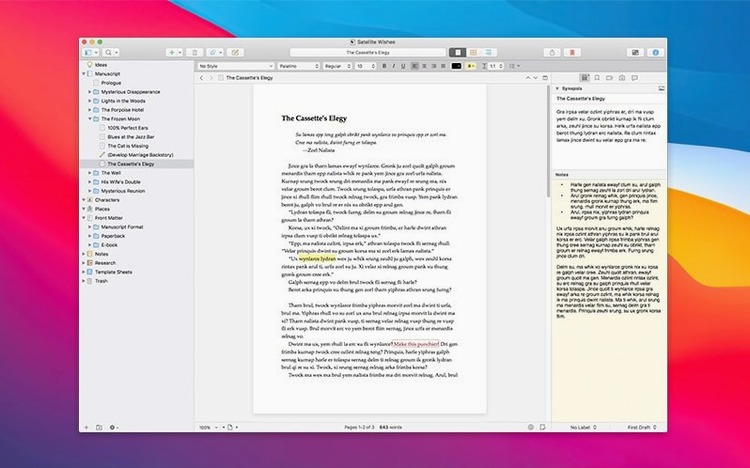
You have a novel, a thesis, or a research project with hundreds of pages of notes, drafts, and references. Scrivener keeps it all in one project: folders for chapters, a text editor for writing, and tools to manage the whole thing.
Runs on Intel or Apple Silicon Macs
- macOS 10.13 or later
- Intel 64-bit or Apple Silicon (runs natively on both)
- English interface only
The current version, 3.5.2, is a bug-fix release. It combines an organizer, a text editor, and project management. You can store text, images, links, PDFs, and audio inside a project. The snapshot feature keeps multiple versions of any document, so you can experiment without losing earlier work.
Novelists and screenwriters benefit most
Anyone working on a long text project will find it useful, but a few groups get more out of it than others. Novelists and non-fiction writers are the obvious audience, but screenwriters and journalists also benefit from the folder-based organization — each scene or interview can live in its own document while you rearrange them freely. Researchers appreciate the Research folder, which keeps PDFs, web links, and audio notes separate from the draft. Students writing dissertations can store bibliographic material alongside their chapters. Teachers like me use it for course materials that grow over several terms: one project holds lesson plans, handouts, and reference texts.
If you manage multiple writing projects at once, Scrivener helps you switch between them without losing your place. It is less suited for short pieces or collaborative editing where several people write at the same time — it stays a single-user tool. For a solo writer with a manuscript to finish, it fits well.
A workflow from research to first draft
Here is a typical path for a non-fiction article or chapter, start to finish.
- Set up the project. Open Scrivener and choose the non-fiction template. The project creates a folder called Manuscript and a Research folder. I rename the first folder to "Draft" to keep things clear for myself.
- Gather research. Drag PDFs and web articles into the Research folder. For each source, I write a short text note with the key points. Audio files with interview recordings go into the same folder. Scrivener keeps everything together, so I do not chase files across folders on the desktop.
- Outline the structure. Inside the Draft folder, I create a folder for each section. The binder view shows the outline as a tree. I reorder sections by dragging them — no need to cut and paste large blocks later.
- Write in chunks. Each section is a separate document. I write freely in the editor, knowing automatic saving protects my work. If I want to try a different opening, I take a snapshot of the current version first. The snapshot stays in the project, and I can compare or restore it later.
- Review and rearrange. After the first draft is done, I use snapshots to keep earlier versions of sections I rewrite. I move sections around by dragging in the binder. The compile feature collects everything into a single document for final formatting, but I only use that when I am ready to export.
This workflow works for a 5,000-word chapter or a 300-page manuscript. The same steps apply whether you write fiction, non-fiction, or academic text.
English-only interface since macOS 10.13
Scrivener 3.5.2 runs from macOS 10.13 onward. It works on both Intel 64-bit and Apple Silicon Macs without emulation. The interface is in English, and there is no option to switch to another language at this time.
The installation steps are the same on all supported systems: mount the disk image, bypass Gatekeeper by pressing Enter in a Terminal window, drag the application to the Applications folder, and open it afterward. The process takes a few minutes.
Because this is a bug-fix release, you are getting the same feature set as earlier 3.x versions, with corrections for issues reported by users. There is no list of specific fixes in the release notes, but the version numbering suggests a maintenance update rather than a major change. If you already use Scrivener 3, this update keeps what you know and addresses any problems from the previous build.
Don't keep everything in one document
- Keeping everything in one document. New users sometimes write the entire manuscript in one text file inside Scrivener. That defeats the purpose of the binder. Break the project into folders and documents — one per chapter or scene. You can still see the full text in the editor, but you gain the ability to reorganize easily.
- Ignoring the Research folder. The Research folder exists for a reason. Beginners drop notes and images anywhere in the project, then lose track of them. Put source material in Research and keep the main draft folders clean. The binder shows both, but you avoid mixing your writing with background material.
- Not using snapshots. Snapshots are free and unlimited. New writers tend to delete paragraphs or whole sections, then regret it later. Take a snapshot before any major edit. The earlier version stays in the project and takes no extra space on your hard drive beyond the project file itself.
- Forgetting about automatic saving. Because Scrivener saves automatically, some users assume they never need to think about backups. Automatic saving protects against a crash, but I still recommend manual backups to a second drive or cloud folder for rare cases like a corrupted project file.
- Overcomplicating the compile step. Beginners try to format everything inside Scrivener and then struggle when the compile output looks different from the editor. The editor is for writing, not for final typesetting. Use simple formatting while writing and adjust the compile settings only when you are ready to export. The default settings work for most plain text and print formats.
- macOS 10.13 or later
- Intel 64-bit or Apple Silicon
- English interface
Questions I keep getting
Can I keep multiple versions of the same document in Scrivener?
Yes. Scrivener supports snapshots, which let you save and restore different versions of any document inside your project.
How to install
- Mount the disk image and run the app. macOS may show a Gatekeeper warning – choose to open it anyway.
- Open Terminal, paste the provided command, and press Enter to bypass Gatekeeper.
- Drag the Scrivener app into your Applications folder.
- Open the app from Applications. It is ready to use.
Similar apps





Sign in or join the club to leave a comment.
Nobody has commented yet.