- Version
- 4.11.0
- Studio or maker
- The Omni Group
- Languages
- Russian, English, German, Spanish, Italian, Chinese (Simplified), Korean, Dutch, Portuguese, French, Japanese
- Activation
- K'ed by TNT team
- Runs on macOS
- macOS 11 or later
- Chip type
- Apple Silicon, Intel 64-bit
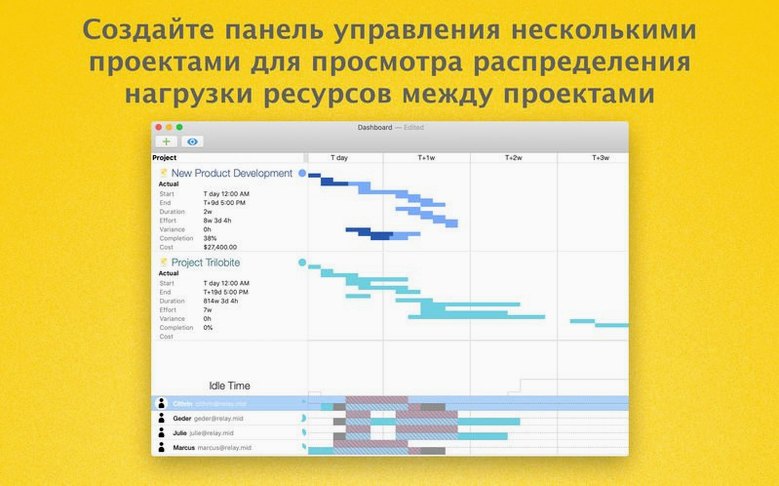
Project managers, team leads, and anyone who juggles deadlines on a Mac will find OmniPlan Pro a steady companion. It turns scattered tasks into a clear schedule, then tracks the work as it happens.
planning a project from start to finish
Start a new project — Create a document, add tasks, and set durations. OmniPlan calculates the timeline automatically.
Assign resources — Add people, equipment, or materials to tasks. The app checks for over-allocation and suggests adjustments.
Track progress — Mark tasks complete, log actual hours, and compare planned versus real effort. Earned value analysis shows if the project is on track.
Adjust for reality — Add days of absence to the calendar, then let OmniPlan rework the schedule around available time and resources.
Share the plan — Export to PDF, CSV, OmniOutliner, OmniGraffle, or ICS. Or publish through Omni Sync Server or WebDAV so the team sees updates.
Extend with AppleScript — Automate repetitive steps, from creating tasks to generating reports.
What I tell colleagues before they install OmniPlan Pro
When I recommend OmniPlan Pro to colleagues at other schools or to friends who run small teams, a few questions come up again and again. Here is what I usually say.
Do I need an Apple Silicon Mac? No. OmniPlan 4.11.0 runs on both Intel and Apple Silicon Macs. If you have an older Intel machine with macOS 12 or later, it will work. The interface responds well on both architectures.
Can I open Microsoft Project files? Yes, but only in the Pro version. OmniPlan Pro imports and exports Microsoft Project documents, which is helpful if your client or your team uses that format. The conversion preserves task hierarchies, dependencies, and resource assignments.
Is the app in my language? Chances are good. OmniPlan Pro ships in eleven languages including English, German, Spanish, French, Italian, Dutch, Portuguese, Russian, Simplified Chinese, Korean, and Japanese.
Can I undo changes after I accept them? The Pro version tracks changes, so you can see what was modified and accept or reject edits one by one or all at once. That gives you a safety net when collaborating.
first days with OmniPlan Pro
Start with a small project you know well, not your biggest deadline. A personal task list with five or six steps teaches you how the app handles dependencies and resources without the pressure of a real project timeline.
Use the Gantt chart view from day one. It shows tasks as horizontal bars, so you can see overlaps and gaps immediately. Network diagrams and calendar views are useful later, but the Gantt chart is the quickest way to understand how OmniPlan thinks about time.
Set a few milestones early. Right-click a task and turn it into a milestone. This gives you clear checkpoints without adding duration. Milestones help you see if the plan has enough room for reviews or approvals.
When you assign resources, let the app warn you about over-allocation. It will highlight when a person is scheduled for more work than their available time allows. You can then redistribute tasks or extend the schedule.
Save after every change during the first week. The app is stable, but building the habit of saving means you never lose a careful adjustment.
Match the default work day to your team's real hours
Open OmniPlan Preferences and go to the Scheduling pane. Set the default work day to match your team's real hours. If your team works eight hours, set it to eight hours. The app uses this default to calculate task durations, so getting it right early saves manual corrections later.
In the Calendar pane, add the public holidays and school holidays for the year. OmniPlan uses this calendar to skip non-working days when it calculates the schedule. Once the calendar is set, you can forget about it and let the app handle the timing.
Turn on the critical path display. This highlights the chain of tasks that directly affects the project end date. If any task on the critical path slips, the finish date slips. Seeing it helps you decide which tasks need your attention first.
If you work with a team, enable change tracking in the Pro features. It records every edit, and you can review the changes before updating the shared plan. This is especially useful when several people send updates through Omni Sync Server or WebDAV.
Export project outlines to OmniOutliner or diagrams to OmniGraffle
OmniPlan Pro works well alongside the other Omni apps. You can export a project outline to OmniOutliner for a text-based task list, or send a visual overview to OmniGraffle for a presentation-ready diagram. The export menu also offers PDF, CSV, and ICS for calendar integration.
If you use AppleScript, you can connect OmniPlan to other Mac apps. A script could pull task updates from Numbers, or send a daily progress report to Mail. The AppleScript support in the Pro version gives you room to build small automations that match your workflow.
Your team can open the shared plan, make changes, and publish their updates. You then review and accept or reject those changes. This workflow keeps one person in control of the master plan while letting everyone contribute.
The export to ICS format means you can add project milestones to your macOS Calendar. That way you see upcoming deadlines alongside your personal events. The CSV export is useful for loading data into spreadsheet apps if your organization uses a different reporting tool.
- Improved compatibility with newer versions of macOS.
- Improved performance when editing a task with many assigned resources.
- macOS 12 or later
- Works on both Intel and Apple Silicon Macs
How to install
- Mount the disk image and launch Open Gatekeeper friendly — this prepares the installer for a smooth setup.
- Press Enter to bypass Gatekeeper in the Terminal window — this allows the app to run on your Mac.
- Drag the app into the Applications folder — this completes the installation.
- Start the app after installation — you’re ready to plan.
Similar apps





Sign in or join the club to leave a comment.
Nobody has commented yet.