- Version
- 6.5.0
- Studio or maker
- PDF Technologies
- Languages
- Russian, English, German, Spanish, Italian, Chinese (Traditional), Chinese (Simplified), Dutch, Polish, French, Japanese
- Activation
- K'ed by TNT team
- Runs on macOS
- macOS 11 or later
- Chip type
- Apple Silicon, Intel 64-bit
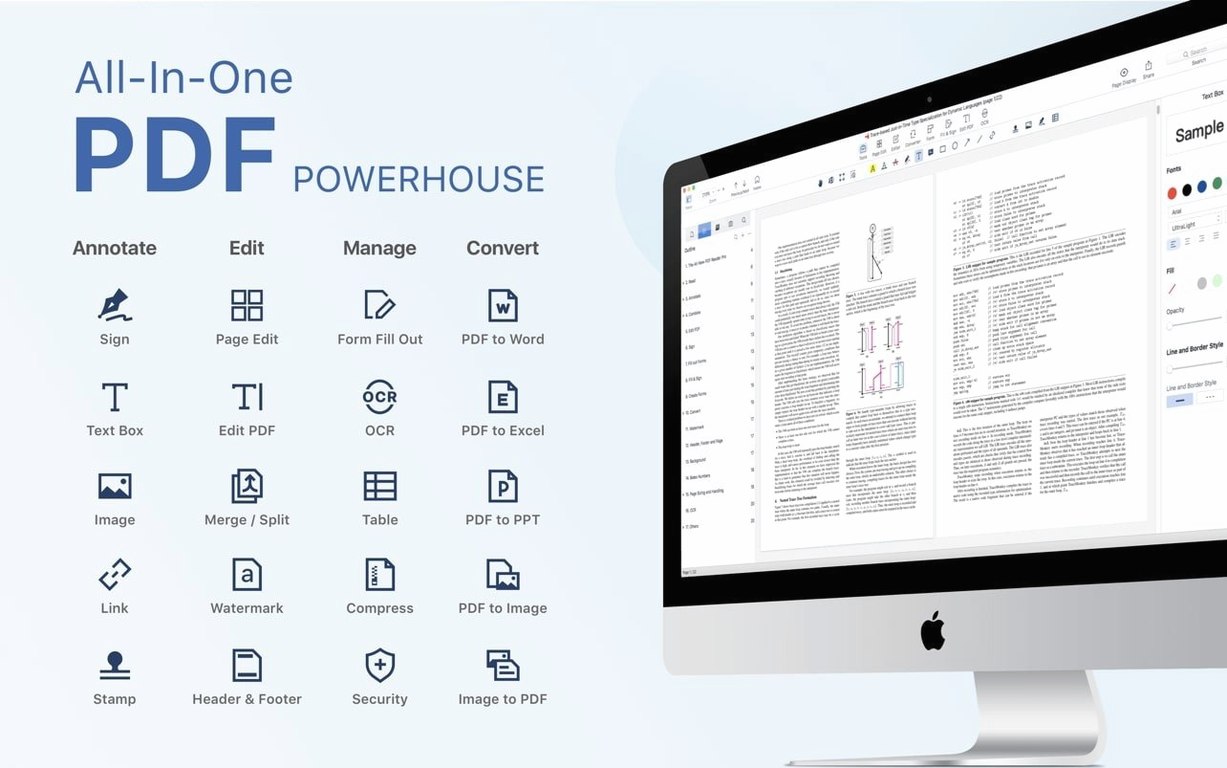
The Form Fill tool is where I often start when I open PDF Reader Pro. It recognizes fields in most scanned documents and lets you click through them quickly — a relief when a stack of paperwork lands in your inbox. Beyond forms, this is a straightforward PDF editor for Mac that covers the daily tasks: reading, annotating, converting, and signing documents without much fuss.
Annotate, convert, and sign PDFs without printing
| Feature | What it means for you |
|---|---|
| Viewing and annotating | Add comments, highlights, and notes to any PDF. |
| Converting files | Turn PDFs into other formats and back again. |
| Form filling | Fill in interactive and scanned forms. |
| Digital signing | Sign documents electronically without printing. |
| Document management | Merge, split, insert pages, and add bookmarks. |
| Extra tools | Text-to-speech, Dropbox sync, and more. |
Who will find this useful? Teachers like me who handle worksheets and permission slips, office workers with form-heavy days, or anyone who wants a dependable PDF tool without a steep learning curve. It runs on both Intel and Apple Silicon Macs, so it fits whatever machine you have.
A practical middle ground between Preview and advanced editors
PDF Reader Pro sits in a practical middle ground. The built-in Mac Preview app opens PDFs quickly and lets you add basic highlights or a signature, but that is about where it stops. You cannot merge files, fill in scanned forms, or convert a document to Word inside Preview. For those tasks you would need to open another app or use a web service.
Apple's own Notes and markup tools are good for quick comments, but they do not handle multi-page document assembly or form recognition. PDF Reader Pro covers both of those without requiring a separate tool for each job.
Compared to other full-featured editors, PDF Reader Pro keeps the interface simpler. Some PDF editors on Mac pack every option into a single toolbar, which can feel overwhelming when you only need to sign a form or insert a page from another file. This app spaces out the tools by task: reading tools are together, editing tools are separate, and the conversion options are in their own area. It is a design that makes sense for someone who uses PDFs regularly but does not want to memorize a dozen menu paths.
The text-to-speech feature is something you do not often find in free or lightweight PDF readers. It reads the document aloud, which can help when proofreading a long report or reviewing a contract while doing something else.
Set your default preferences and get started quickly
After you have the app in your Applications folder and have launched it, take a few minutes to set yourself up for the kind of work you do most often. Here are a few habits that help.
Set your default view first. If you mostly read PDFs, the single-page or continuous scroll mode will save you from clicking through pages one at a time. The app remembers your preference between sessions.
Try the form fill on a simple document first. Open a PDF with clearly marked form fields and click through them. Once you see how the app highlights each field, you will know what to expect when you open a more complex document. For scanned forms, run the text recognition step before you start typing — it makes the fields clickable.
Use bookmarks from the start. If you work with multi-page reports, add bookmarks as you go. The app keeps them in the sidebar so you can jump between sections without scrolling. This is especially useful for course materials, legal documents, or any PDF longer than ten pages.
Sync one folder with Dropbox. If you use Dropbox, set the sync to a folder where you keep PDFs you edit regularly. That way the updated file is already in your cloud folder without extra upload steps. I use this for permission slips and signed forms that need to be shared with the school office.
Try the presentation mode before you need it. Open a PDF and switch to presentation view. It fills the screen and lets you advance pages like slides. If you present handouts or slides from a PDF, this is a neat way to do it without switching to a separate slides app.
Runs on macOS 11 and on Intel or Apple Silicon Macs
PDF Reader Pro runs on macOS 11 and later. It works on both Intel-based Macs and Apple Silicon models, so whether you have an older Mac or a newer M1 or M2 machine, the app will launch and function. The interface languages cover eleven options including English, German, French, Spanish, Italian, Dutch, Polish, Russian, Japanese, and both Simplified and Traditional Chinese.
Version 6.0.0 is the current release. The app is a standard macOS application that you install from a disk image. The install process involves mounting the disk image, running a small Terminal command to bypass a Gatekeeper restriction, and then dragging the app into your Applications folder. After that it launches normally from the Applications folder or the Dock.
The app itself is a full PDF viewer and editor. You do not need additional software to open or convert files — everything is inside the one application.
Text recognition makes scanned documents searchable and fillable
Can I use this for scanned documents that are not text-searchable? Yes. The text recognition tool works on scanned pages and turns them into selectable, searchable text. You can then copy text, fill in forms that were part of the scan, or search for specific words inside the document.
What about signing documents that need a real digital signature? The app supports electronic signing. You can add a signature field, draw your signature with a trackpad or mouse, or use a saved signature image. Version 6.0.0 includes eSign workflows and signature fields for online signing.
Does it handle large PDFs? The app opens and navigates multi-page documents. You can bookmark pages, split large files into smaller ones, or merge several documents into one. How well it handles a specific file depends on the file itself, but the tools for managing size are there.
Can I convert a PDF to Word or Excel and keep the formatting? The conversion export includes Word, PowerPoint, Excel, RTF, HTML, text, images, and CSV. Formatting holds up well for text-heavy documents. Tables and images in the original PDF carry over into the converted file, though it is always a good idea to check the result before sending it.
Do I need an internet connection to use it? Most features work offline. The only exception is Dropbox sync and online signing — those require a connection. Everything else, including reading, annotating, converting, filling forms, and text-to-speech, works without being online.
- macOS 11 or later
- Both Intel and Apple Silicon (ARM) supported
Questions I keep getting
Can PDF Reader Pro merge multiple PDFs?
Yes, you can merge several documents into one file. You can also split a PDF into separate files or insert pages from another PDF.
Does PDF Reader Pro work on Apple Silicon Macs?
Yes, the app supports both ARM and x86 64-bit Macs, so it runs natively on M-series and Intel models.
How to install
- Mount the disk image and run the Open Gatekeeper friendly script. This prepares the app for installation.
- Press Enter in Terminal when prompted to bypass Gatekeeper. This is a one-time step to allow the app to run.
- Drag the app into your Applications folder. This keeps it organized and accessible.
- Launch the app from Applications. You can now start using PDF Reader Pro.
Similar apps


Sign in or join the club to leave a comment.
Nobody has commented yet.