- Version
- 16.93
- Studio or maker
- Microsoft Corporation
- Languages
- Russian, English, German, Hungarian, Greek, Danish, Indonesian, Spanish, Italian, Korean, Dutch, Polish, Portuguese, Slovak, Thai, Turkish, Finnish, French, Czech, Swedish, Japanese
- Activation
- Volume license
- Runs on macOS
- macOS 13 or later
- Chip type
- Apple Silicon, Intel 64-bit
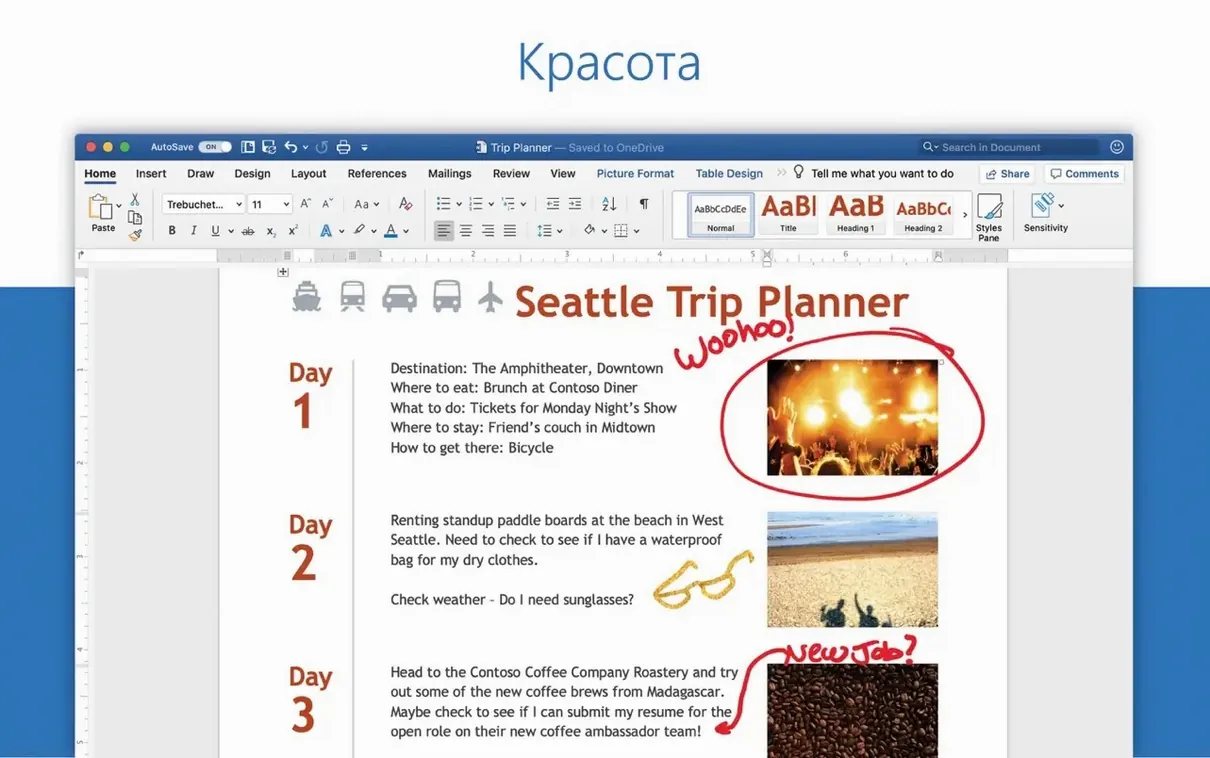
Teachers, students, office workers, and anyone who writes reports or letters will find a familiar home in Microsoft Word. It creates, edits, views, and shares text documents, and it works smoothly on Apple silicon and Intel Macs alike.
First Things a Newcomer Should Try
Start a blank document — Open Word and choose Blank Document from the start screen. That gives you a clean page to type on.
Use Styles for headings — On the Home tab, pick Heading 1 or Heading 2. This keeps your document organized and makes navigation easier.
Insert a table — Go to Insert > Table and drag to choose rows and columns. Tables help present data clearly.
Track changes — Under the Review tab, turn on Track Changes. It shows every edit, which is handy for collaboration or giving feedback.
Share your document — Click Share in the top right to invite others to view or edit. Word handles collaborative work well.
Focus mode hides the ribbon
Word for Mac has a handful of features that don't get highlighted during a first run but save time once you know they exist. One is the Focus Mode under the View menu. It hides the ribbon and other interface elements so you see only your text against a clean background. Helpful when you need to write without distractions.
The Dictation tool is built into the Home tab. It converts speech to text in several languages, which works well for drafting emails or notes when typing feels slow. It requires an internet connection but handles punctuation decently.
AutoSave is on by default for documents saved to OneDrive or SharePoint. It saves changes as you work, so a sudden quit or power loss doesn't cost you anything. For local files, the regular Save keeps things safe.
If you paste text from a website and it brings unwanted formatting, use Paste Special. Right-click and choose Keep Text Only under paste options. That strips fonts, colors, and sizes while keeping the words.
The Navigation Pane is a small toggle under the View tab. It shows a sidebar with headings, pages, and search results. Click any heading to jump there instantly. A quick way to move through long documents without scrolling.
Version History lives under File > Browse Version History. It lets you go back to earlier drafts of a document saved in OneDrive or SharePoint. Useful when you realize an edit from yesterday should not have happened.
Word also remembers the fonts you use most often. They appear at the top of the font menu under Recently Used, saving a few clicks when switching between your regular body and heading fonts.
Starting a math lesson with a template
Let me walk through a common morning with Word. I teach maths, so my documents are a mix of lesson plans, worksheets, and test corrections. Here is how a session might look.
Start with a template. Instead of a blank page, I open Word and choose a template from the start screen. For a worksheet, I pick one with a clean layout and two columns. Word loads it with placeholder text I delete or replace. This saves me from setting margins and columns manually each time.
Write the content. I type the day's problems directly. For equations, I use the Insert Equation tool under the Insert tab. It opens a small editor where I can build fractions, exponents, and square roots. The results look neat and match the font in my document. I avoid formatting as I go, focusing on getting the text right first.
Apply styles afterward. Once the content is in place, I highlight the main title and pick Heading 1 from the Styles gallery. Subheadings get Heading 2. This takes a few seconds but makes the document easy to navigate later. It also lets me generate a table of contents with one click if I need one.
Add a table for answer keys. I insert a table under Insert > Table, set it to four columns for a class of 30, and type the answers. Word keeps the columns aligned, which is harder to do with tabs or spaces.
Review and share. I turn on Track Changes from the Review tab before sending the worksheet to a colleague who teaches the same grade. She adds comments and suggestions. When I open the returned document, I can accept or reject each change individually. No confusion about what was edited.
Save and close. Word saves the file automatically to OneDrive, so I can open it on my laptop at school or my iPad at home. I close Word when I am done. The next time I open it, the recent documents list shows up, and I am back to work in one click.
This workflow repeats every week. The templates and styles make it predictable, and the collaboration tools keep the handoff between teachers clean.
Switching from Calibri to your preferred font
Word comes with defaults that work for many people, but a few adjustments make the experience better for regular use. Here are the ones I change on every installation.
- Default font. Word starts with Calibri size 11. If your school or office uses a different standard, go to Format > Font, pick your preferred font and size, then click Set As Default. Choose All documents based on the Normal template so every new document uses your choice.
- Autocorrect options. Under Tools > AutoCorrect, you can turn off specific replacements. I disable the one that changes straight quotes to curly quotes because my worksheets need plain apostrophes. You can also add your own shortcuts, like typing "mth" to expand to "mathematics".
- Save location. Word saves new documents to the last folder you used. To set a permanent default, go to Word > Preferences > Save and change the default file location to your Documents folder or a shared classroom drive.
- Language. If you write in English but also need German or French for occasional assignments, set the proofing language under Tools > Language. Word checks spelling differently per language, which avoids false flags.
- Spell check settings. Under Preferences > Spelling & Grammar, you can turn off Check spelling as you type if red underlines distract you. I leave it on but disable Mark grammar errors as you type because math documents break grammar rules intentionally.
These changes take five minutes and apply to all future documents. They reduce friction over the long term.
Working offline without an internet connection
Does Word work without an internet connection? Yes. You can create, edit, and save documents offline. Features like Dictation, AutoSave to cloud storage, and some online templates require a connection, but the core word processor runs fully offline.
Can I open files from older versions of Word? Yes. Word opens .doc files from Word 97 onward, along with .docx, .rtf, .txt, .html, and .odt files. It saves by default to the modern .docx format, which is readable by most other word processors.
Does it work on both Intel and Apple silicon Macs? Yes. The app runs natively on M-series chips and on Intel processors. The installer detects your architecture and downloads the right version.
Will my old templates and keyboard shortcuts carry over? Most do. Word imports custom templates from the previous version if they are stored in the default template folder. Keyboard shortcuts you set under Tools > Customize Keyboard transfer with the app, though a few may need reassignment after an upgrade.
Can I collaborate with people who use Windows Word? Yes. The file format is identical. Track Changes, comments, and simultaneous editing work across platforms. The Mac version's interface differs slightly, but the underlying document behaves the same.
How large is the download? The full Office package is around 2 to 4 GB depending on the version. You can install only the apps you need by choosing individual packages during setup.
How Word compares to Apple's free Pages app
Word is not the only word processor on macOS. Here is how it stands next to a few alternatives.
Pages. Apple's own app comes free with every Mac. It handles basic documents well and has beautiful templates. Its collaboration uses iCloud, which works smoothly if everyone in your group uses Apple devices. Pages struggles with complex formatting, especially when you import a .docx file from another office suite. Tables, footnotes, and section breaks sometimes shift. Word handles those without surprises. Pages is a good choice for simple documents or school newsletters, but Word is more reliable for multi-page reports or anything with tracked changes.
LibreOffice Writer. This free open-source application supports .docx files and many Word features. It has styles, tables, and a basic equation editor. The interface feels older, and some menu names differ from Word. Collaboration tools are weaker: no real-time co-authoring, and Track Changes works but looks different. LibreOffice is a capable option if you need a word processor occasionally, but for regular work with colleagues who use Word, the native experience reduces compatibility headaches.
Google Docs. The web-based word processor is free with a Google account. It excels at real-time collaboration and works on any computer. The feature set is smaller than Word's: no advanced equation editor, no mail merge, and limited table formatting. It requires an internet connection for most features, though offline mode exists. Google Docs is ideal for quick drafts or group projects, but for long documents with complex formatting, tables, and equations, Word gives you more control.
Each tool has its place. Word sits in the middle: it offers more depth than Pages or Google Docs, and it integrates better with other Office apps and cloud storage than LibreOffice. If your workflow involves sharing files with people outside your immediate team, Word's widespread compatibility makes it the safest choice.
- Quality and performance improvements.
- Fixed an issue where editing equations may not work as expected.
- macOS 13 or later
- Works on both Intel and Apple silicon Macs
Questions I keep getting
Is Microsoft Word available for Mac?
Yes, Word is part of Microsoft Office for Mac, including the Office 2024 package.
What macOS version do I need?
Word requires macOS 13 or later. It runs on both Intel and Apple silicon Macs.
Does Word support multiple languages?
Yes, it includes 18 interface languages, such as English, German, Spanish, French, and Japanese.
How to install
- Install the standard Office 2024 package first. This gives you the base apps.
- If you only need certain apps, download the package for Word, Excel, PowerPoint, Outlook, or OneNote from the provided links.
- All packages come directly from Microsoft servers, so the download is straightforward.
- Run the Microsoft Office LTSC 2024 VL Serializer to activate your copy.
- Install Microsoft AutoUpdate (MAU) so you receive future updates without extra effort.
Similar apps






Sign in or join the club to leave a comment.
Nobody has commented yet.