- Version
- 3.24.2 [MAS]
- Studio or maker
- Cultured Code GmbH & Co. KG
- Languages
- Russian, English, German, Spanish, Italian, Chinese (Traditional), Chinese (Simplified), French, Japanese
- Activation
- K'ed by TNT team
- Runs on macOS
- macOS 10.15 or later
- Chip type
- Apple Silicon, Intel 64-bit
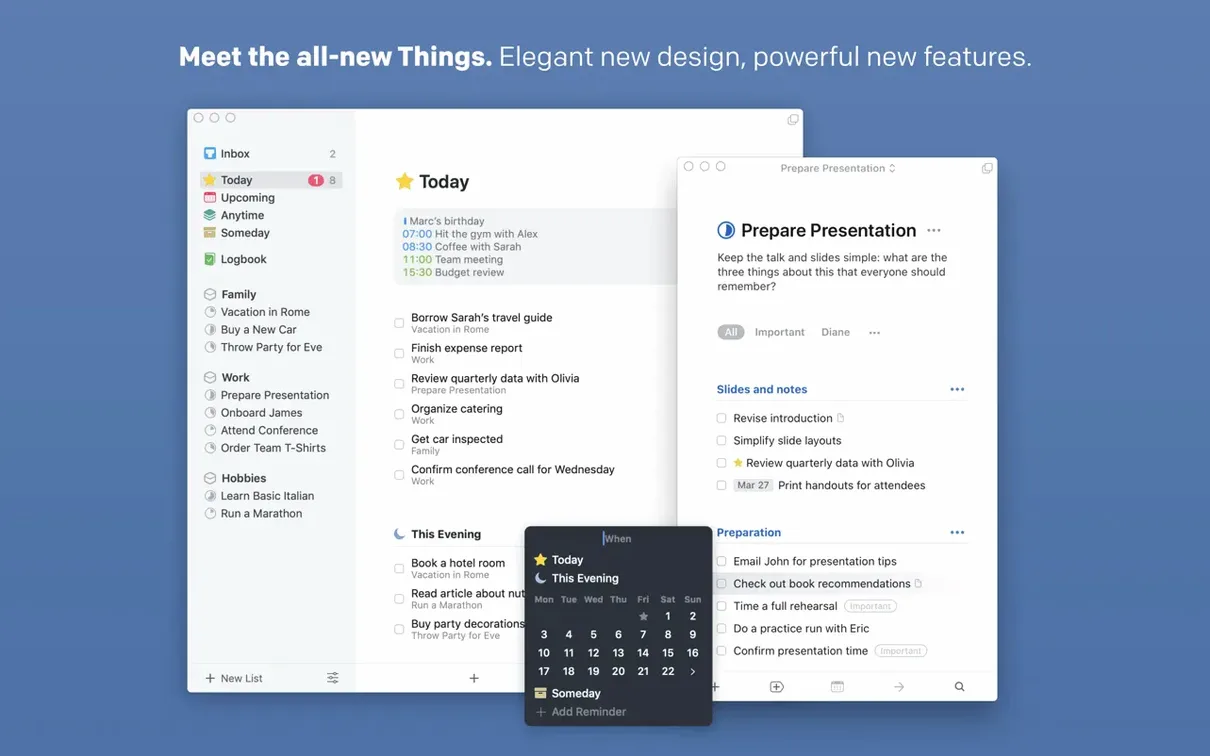
People who teach, write code, or run a household often land on Things because it asks for a task and a due date, nothing more. The current release (3.24) keeps that clarity while adding a few tools for people who live inside macOS all day.
What a typical workflow looks like
- Capture fast. Press the quick-entry shortcut from any app — a browser, a mail window, a terminal — and type a task. It lands in the Inbox.
- Organize later. Open Things and drag tasks from Inbox into Today, Upcoming, or an Area. Tags color the list: blue for calls, green for errands, red for grading.
- See the day. The Today view shows calendar events and Things tasks in one scrollable list. The new extra-tall widget puts that list on the desktop or in Notification Center.
- Snooze and defer. 3.24 rewrote the snooze menu. Instead of picking a time from a small grid, you type or pick a date and the task disappears until then.
- Search with Spotlight. Press Cmd+Space, type part of a task name, and open it directly. Works for overdue items and future tasks.
The Mac app syncs through Things Cloud (free, required for sync). It runs on ARM and 64-bit Intel Macs with macOS 10.15 or later. Languages include English, German, French, Spanish, Italian, Japanese, Simplified and Traditional Chinese, and Russian.
How Things fits with other apps and macOS features
Things works alongside the tools you already use. The quick-entry shortcut works from any application, so you can capture a task without leaving what you are doing. The Spotlight integration added in 3.24 means you can search for any task by pressing Cmd+Space and typing part of its name. That search covers overdue items and future tasks, not just today's list.
Calendar integration shows events from your Mac calendar together with Things tasks in the Today view. You see a meeting at 10:00 and a task due at lunch in one place. The extra-tall widget in Notification Center keeps that combined view visible on the desktop without opening the full app.
For automation, Things supports AppleScript. You can build small scripts that create tasks, move items between projects, or mark things done. This works well for repeated actions like logging meeting notes or tracking grading deadlines. The AppleScript support means you can connect Things to other apps that also support scripting, though each connection takes a little setup.
Siri can add tasks directly. On supported systems with OS 27, the new Siri AI understands more natural language like "add grading to my things for Friday afternoon." The Touch Bar on supported Macs offers another way to add tasks without touching the keyboard or trackpad. Share actions from other apps let you send links or text into Things as new tasks. Handoff lets you start a task on one device and continue on another, as long as both sync through Things Cloud.
Tasks parked in the Inbox need a drag to Today, Upcoming, or an Area
People new to Things sometimes find tasks going to the Inbox and staying there. That is by design. The Inbox is a holding area. Drag tasks into Today, Upcoming, or an Area to give them a place. Tasks left in Inbox have no date, so they do not appear in Today or Upcoming views.
Sync issues happen when the Things Cloud account is not set up or the login has expired. Open Things, go to Preferences, and check the account section. If it shows "not signed in," sign in again. Sync works over the internet, so a weak connection can delay updates between devices.
The Spotlight integration needs a moment to index after first launch. If you press Cmd+Space and do not see tasks right away, give it a minute. The search gets faster as the index builds. For the widget, the extra-tall version shows more tasks than the standard one. If you prefer a compact view, switch back in widget settings.
Repeating tasks sometimes stop repeating if you mark them done on the wrong day. Open the task, check the repeat settings, and confirm it is set to repeat from the completion date or the original date as you prefer. Subtasks do not inherit deadlines automatically. Set deadlines on subtasks individually if timing matters.
A teacher's workflow for setting up a new term with projects and areas
Here is how one teacher might use Things to set up a new term. The steps work for any project with phases and deadlines.
- Open Things and create a project called "Winter Term." Add areas for each class you teach: "Algebra 1," "Geometry," "Study Hall."
- Use the quick-entry shortcut to dump every task you remember: create syllabi, order textbooks, set up grade books, schedule parent night, plan first week lessons. Each task goes to the Inbox.
- Open the Inbox and drag each task to the right area. Syllabus tasks go to each class area. Ordering textbooks is a general task that stays in the project but not in a specific area.
- Set deadlines on tasks that have fixed dates. First week of term is September 1. Parent night is September 15. Things shows these in the Upcoming view when the date approaches.
- Add tags to tasks that share a type. Tag all "email" tasks with a tag for communication. Tag all "print" tasks with a tag for materials. The tag filter in the sidebar shows only tasks with that tag.
- Look at the Today view. It shows today's calendar events and Things tasks together. If a meeting about curriculum falls on the same day as a syllabus deadline, you see both in one list.
- Set a repeating task for weekly lesson planning, repeating every Monday. Open the task and choose a repeat interval. Things adds the next instance automatically.
- Use the Spotlight integration later to find tasks from weeks ago. Type "textbook" and open the task to check the order status.
This setup takes about twenty minutes the first time. After that, each day starts with the Today view showing only what needs attention. The inbox catches new thoughts during the day, and a quick drag each evening keeps the lists organized.
The latest update for Things 3 is now available for download. The developer's official release notes detail what has changed in version 3.24.2, so you can review the full list of adjustments there.
- macOS 10.15 or later
- Works on both Apple Silicon and Intel 64-bit Macs
Questions I keep getting
Can I use Things without signing up for Things Cloud?
You can use Things on one Mac without a Things Cloud account, but syncing across devices requires a free Things Cloud account.
How to install
- Mount the disk image and open it – Gatekeeper will show a warning because the app is not notarized.
- Open Terminal, type the bypass command, and press Enter to let Gatekeeper accept the app.
- Drag the app from the mounted image into your Applications folder.
- Launch the app from Applications.
Similar apps


Sign in or join the club to leave a comment.
Nobody has commented yet.