
- Version
- 9.8.59
- Studio or maker
- Hamrick Software
- Languages
- Russian, English, German, Arabic, Basque, Belarusian, Bulgarian, Hungarian, Vietnamese, Greek, Georgian, Danish, Hebrew, Spanish, Italian, Catalan, Chinese (Simplified), Korean, Latvian, Lithuanian, Dutch, Norwegian, Persian, Polish, Portuguese, Romanian, Slovak, Slovenian, Turkish, Ukrainian, Finnish, French, Hindi, Croatian, Czech, Swedish, Estonian, Japanese
- Activation
- Included
- Runs on macOS
- macOS 10.15 or later
- Chip type
- Apple Silicon
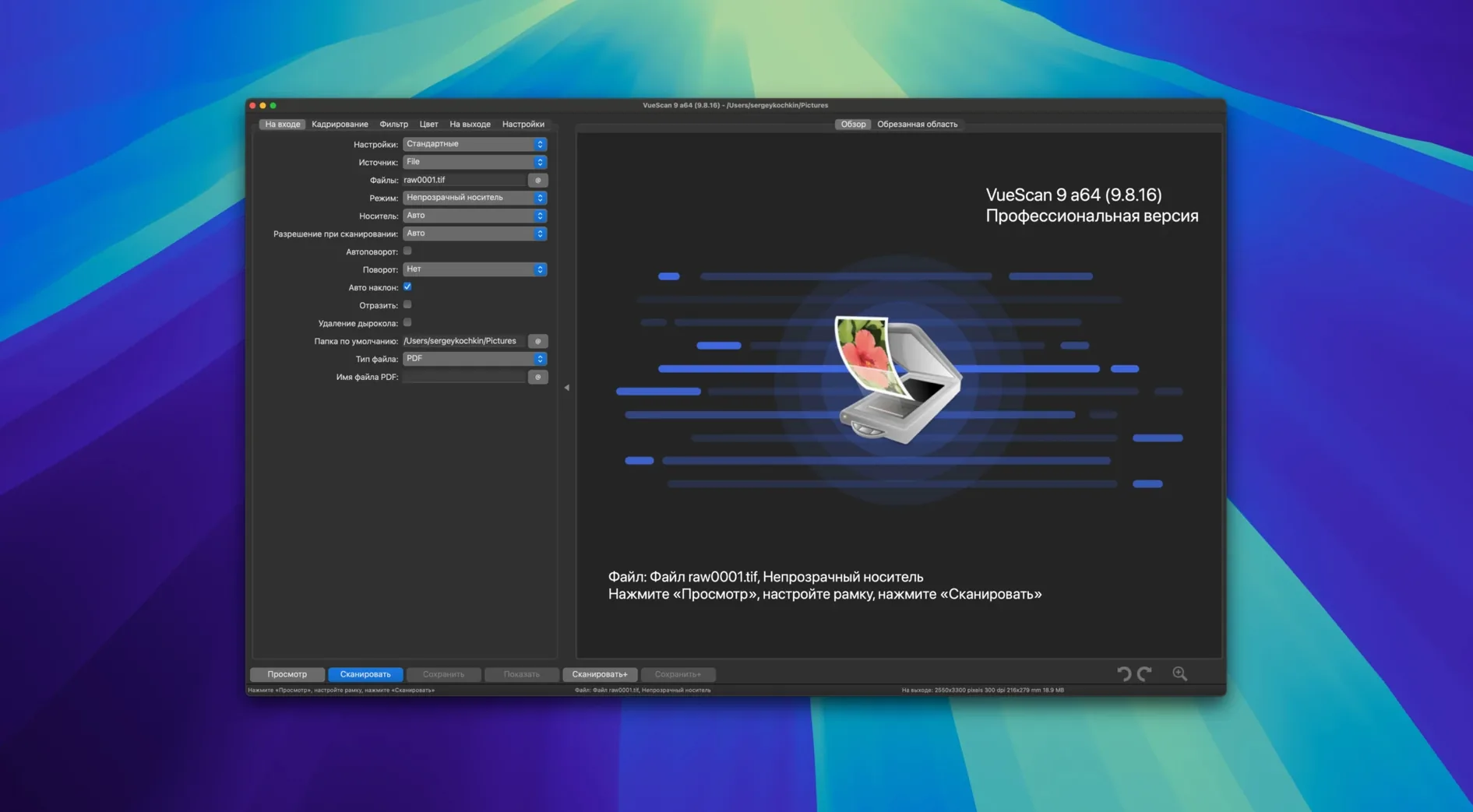
Anyone who has tried to run an older scanner on a modern Mac knows the frustration. VueScan Pro is the tool that solves that problem. It supports more than 6,000 scanner models, including older hardware from HP, Minolta, Nikon, Polaroid, Epson, and Canon. Teachers like me, who digitize old slides or handouts, find it especially useful when the manufacturer has stopped updating drivers.
What makes VueScan Pro stand out
Version 9.8.57 adds batch processing for colorize and super-resolution, plus improved AI-assisted touch-up quality. You can set exposure, color correction, choose the maximum color depth, and pick your output file format. The software works with the scanner's internal color depth and supports multi-pass scanning with averaging, which helps reduce noise on tricky originals.
New hardware and file handling
This update adds support for 7 new Epson scanners and 11 new Brother scanners. It also improves USB scanner support on macOS. For anyone managing large scanning jobs, the ability to use file names with varying increments — like file001+2.jpg — saves real time. Batch scanning is available, and you can control most settings either automatically or manually.
Skipping the preview scan is the top mistake
The first one I see often is skipping the preview scan. Many people load a photo or document, adjust a few sliders, and scan directly to the final file. Without a preview, you cannot see where the crop box sits or whether the color balance looks right. A quick preview scan takes only a few seconds and lets you check the frame before committing to a full-resolution output.
Another mistake is leaving the output resolution too low or too high. Beginners sometimes set everything to 300 DPI and call it done, but that undershoots for slides or small negatives. Others max out the scanner at 4800 or 6400 DPI for every job, which creates enormous files without visible extra detail for most prints. For a typical letter-sized document, 300 DPI is fine. For 35mm negatives, try starting around 2400 DPI and see whether the grain and detail satisfy you.
I also see people forget to save their settings as a reusable profile. VueScan Pro can save user settings to a separate file. If you scan slides regularly, or always use the same output format and color correction, saving a profile means you never have to re-enter those choices. Beginners who rely on memory often lose a good configuration when they close the program.
Finally, many new users do not use the infrared channel for defect removal. If your scanner has an infrared scan channel, VueScan Pro can use it to remove dust and scratch marks automatically. Beginners who own a capable scanner sometimes leave this feature off, then spend extra time editing out spots in another program.
Run a preview scan before adjusting anything else
When you first open VueScan Pro, take a few minutes to run a preview scan of something simple — a printed page or a photograph you know well. Adjust only the crop box and the output format. Make one final scan. That gives you a baseline to compare against later when you start exploring sliders and filters.
Next, try the batch scanning feature with a small stack of documents. Set the file naming pattern to something like scan001+2.jpg so VueScan Pro automatically increments the number for each page. This habit saves time on larger projects later. Many beginners forget to test the naming before scanning ten pages, then rename everything manually.
I recommend spending a few minutes with the grain-reduction and unsharp masking filters on a single test image. Scan the same image with each filter off, then on, and compare the results side by side. You will learn quickly how strong each effect is and which one suits your typical originals. The color cast removal filter is worth testing on an old yellowed photo you have lying around.
On the second or third day, try a scan with the multi-pass option enabled. VueScan Pro supports multi-pass scanning with averaging of results. It takes longer, but for a precious negative or a faded document, the noise reduction can make a difference. Save the raw data to a file as well, so you can reprocess it later with the device turned off.
How VueScan Pro fits together with other apps and macOS features
VueScan Pro works alongside your existing scanner drivers. It supplies its own scanning software for many models, which means you do not have to uninstall the manufacturer's app. On macOS, the improved USB scanner support in version 9.8.57 helps keep communication stable. I have found it helpful to close other scanning apps before using VueScan Pro, just to avoid any driver conflicts at the system level.
For post-processing, VueScan Pro exports to standard file formats that open in any image editor. You can set the output to TIFF, JPEG, or PNG and then use Preview, Pixelmator, GIMP, or Photoshop for further adjustments. The color correction and dynamic range settings in VueScan Pro often reduce the amount of work you need to do later, especially if you adjust the R, G, and B channels independently.
On macOS, you can use the date and time substitution feature in folder names to organize scans automatically. For example, if you set the folder name to include %Y-%m-%d, VueScan Pro creates a dated folder for each batch. That fits neatly with the way macOS Finder groups files by date in column view or list view.
If you keep a digital archive, you can save your scanner raw data to a file. This file stays on your Mac even after you unplug the scanner. Later, you can reopen it in VueScan Pro and adjust settings as if the scanner were still connected. Teachers and archivists who digitize materials in sessions find this useful when they want to reprocess a batch without setting up the hardware again.
Use increment patterns like file001+2.jpg for automatic naming
The file naming with varying increments is one of those features that seems small but changes your workflow. Instead of typing each filename, you set a pattern like file001+2.jpg and VueScan Pro creates file001.jpg, file003.jpg, file005.jpg and so on. It works well for scanning numbered slides or frames from a contact sheet.
Another convenience is the ability to work with the scanner's internal color depth directly. Many consumer scanner apps limit you to 24-bit color. VueScan Pro lets you access the scanner's full bit depth, which matters when you plan to do heavy adjustments in another program and want to avoid banding.
The AI-assisted touch-up improvement in version 9.8.57 is easy to overlook if you are in a hurry. It lives in the filter or correction section of the interface. On a test scan of a scratched photograph, I noticed it caught small defects that manual dust removal would have missed. Batch processing for colorize and super-resolution is another addition that beginners might not find until they explore the menus. Colorize can add color to black-and-white images, and super-resolution increases detail using the software's processing, not the scanner's optics.
Finally, the language support is broader than many users expect. VueScan Pro includes Japanese, Hindi, Arabic, Catalan, and many others. If you work with colleagues or students who prefer a different interface language, you can switch without downloading a separate version.
- macOS 10.15 or later
- Intel or Apple Silicon
How to install
1. Open the downloaded package and run the installer. The installer places VueScan in your Applications folder. 2. Launch VueScan once, then follow the activation instructions included inside the package to register the software.Similar apps






Sign in or join the club to leave a comment.
Nobody has commented yet.