- Version
- 1.7.9
- Studio or maker
- Henrik Ruscon
- Languages
- English
- Activation
- Included
- Runs on macOS
- macOS 14 or later
- Chip type
- Apple Silicon, Intel 64-bit
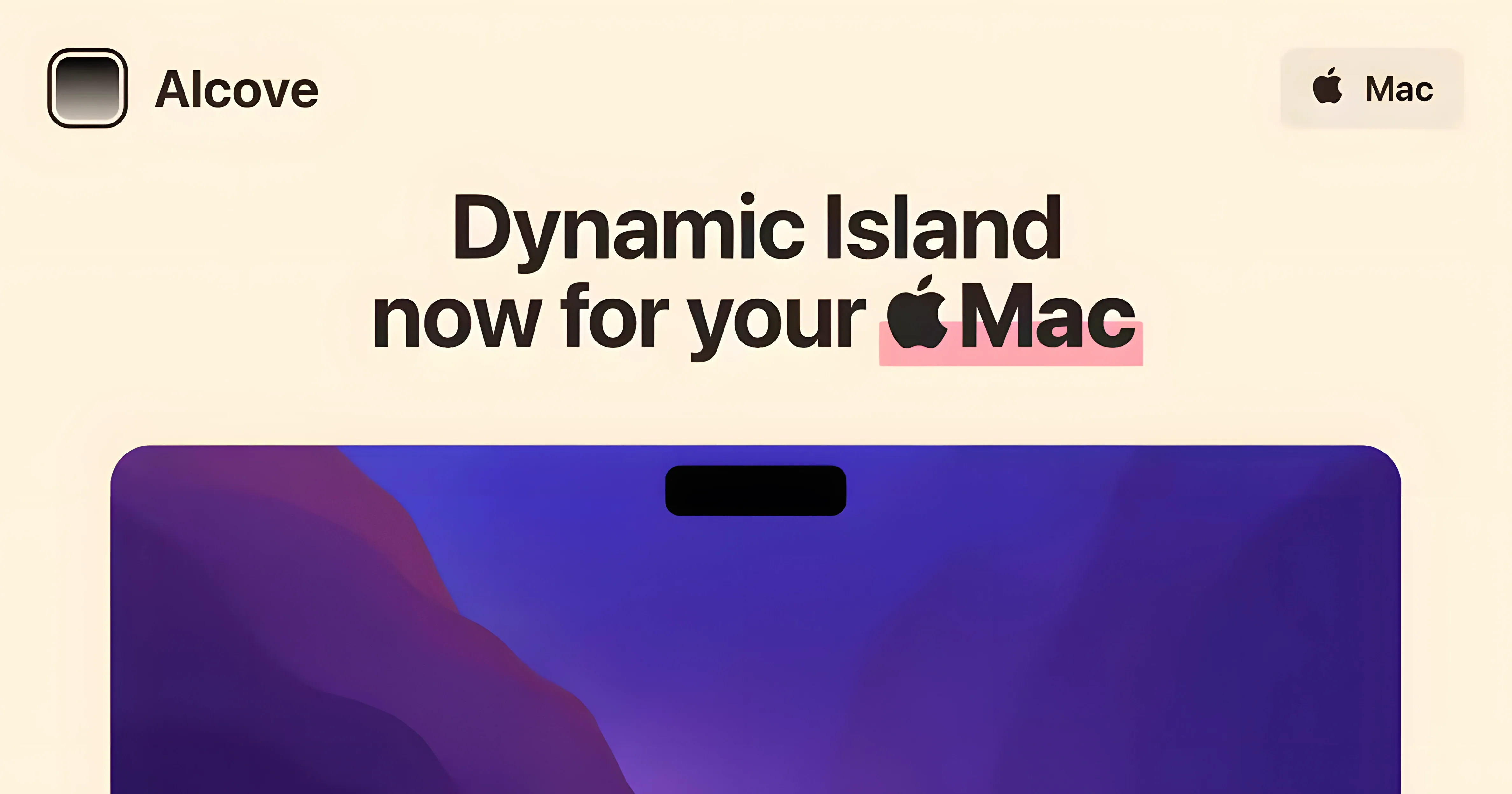
People who miss the iPhone's Dynamic Island on their Mac often look for a way to make the notch more useful. Alcove, developed by Henrik Ruscon, is a utility that adds interactive actions and responses to that area, turning a simple hardware cutout into a small command center. It launched in November 2024 and works with macOS 14 or later, on both Intel and Apple Silicon machines.
Before you install, here are the questions that come up most often:
- Does it work with any Mac app? Alcove responds to events and actions system-wide, so it fits into your normal workflow without needing per-app setup.
- Is it safe to leave automatic updates on? The developer recommends turning them off, so you control when changes happen.
- Will it slow down my Mac? It's a lightweight utility, designed to improve the overall experience without getting in the way.
- Is the interface complicated? No, the interface is in English and stays out of your way until you need it.
Alcove 1.7.9 is a neat way to give your Mac's notch a second job. If you like having quick controls at hand, it's worth a try.
For Mac users who play music or podcasts while working
Alcove fits best into the workflow of people who use their Mac for media and notifications throughout the day. If you play music or podcasts while working, the interactive capsule for media playback keeps controls always visible without switching apps. The same applies if you rely on system notifications for messages, calendar reminders, or timers — alcove pulls those into a Dynamic Island-style view at the top of the screen, so nothing gets buried in the notification center.
Teachers who run digital classrooms, for example, often juggle a timer, a music player, and a messaging app at the same time. Having those controls in the notch cuts down on alt-tabbing. The same logic works for anyone who keeps communication apps open during meetings or study sessions. The stock volume and brightness HUDs are replaced with custom ones, which means fewer large overlays blocking your work.
People with Intel-based Macs should know alcove supports both architectures, so you are not left out if your machine is a few years old. The requirement is macOS 14, which limits it to machines that can run Sonoma or later, but that still covers a wide range of Macs from 2018 onward.
A real scenario: grading with a podcast on
Imagine a weekday afternoon. You are marking student assignments in a spreadsheet, and a podcast plays in the background. A student emails you about a missing grade. Your normal flow would be to click over to the music app to pause the podcast, then open the email app, then remember to restart the podcast. With alcove, the media capsule appears at the notch. You hover, pause, read the email notification that also appears there, and resume the podcast without opening a single extra window. The system volume and brightness HUDs appear inside the capsule too, so adjusting the volume while the podcast plays does not throw a big gray box across your spreadsheet.
It is a small change, but after a full school day of small interruptions, those extra clicks add up. Alcove 1.7.9 handles this quietly in the background.
Version 1.7.9 improved how the utility responds to actions
Alcove launched in November 2024, and version 1.7.9 is a later refinement. The developer has not published a detailed changelog for each increment, but the build listed for this version reflects improvements to how the utility responds to different actions and events in the Dynamic Island area. Users who have updated from earlier builds notice that the capsule responds more reliably to media playback changes and that notifications appear without lag. The custom HUDs for volume and brightness also feel more integrated into the notch area rather than floating separately.
If you are coming from an earlier version, the main shift is in polish — fewer moments where the capsule seems unresponsive or slow to appear. The install process remains the same: open the disk image, drag the app to Applications, and turn off automatic updates.
Turning off automatic updates and not expecting every app to show controls
- Leaving automatic updates on. The developer specifically advises turning them off. If you let updates install automatically, the app may change behavior unexpectedly. A quick manual check now and then works better.
- Expecting every app to show controls. Alcove responds to system events and supported media apps. Not every third-party app will produce a capsule. That is normal, not a glitch.
- Ignoring the interface language. Alcove is in English only. If your system language is different, the utility still works, but its settings and labels will be in English. Some users assume it will switch automatically; it does not.
- Forgetting to check macOS version. macOS 14 or later is required. If you try to run it on Ventura or earlier, it will not open. Check your system settings before copying the app over.
Alcove 1.7.9 is a straightforward tool once you understand its limits. If you match the use case and follow the install steps, it integrates cleanly into your daily Mac routine.
- macOS 14 or later
- Intel or Apple Silicon
Questions I keep getting
Does Alcove require a specific Mac model?
Alcove requires macOS 14 or later and runs on both Intel and Apple Silicon Macs. Any Mac with a notch and that system version should work.
Can I turn off automatic updates?
Yes, and the developer recommends you do. That way you decide when Alcove gets updated, not the app.
What does Alcove actually do?
Alcove adds interactive Dynamic Island-style actions to the notch area. It responds to different actions and events, giving you quick controls and information without opening apps.
How to install
- Open the downloaded disk image to see its contents.
- Drag the app to the Applications folder alias inside the image — that copies it where macOS expects it.
- Once the copy finishes, launch Alcove from Launchpad.
- Turn off automatic updates in the app's preferences so you stay in control of changes.
Similar apps


Sign in or join the club to leave a comment.
Nobody has commented yet.