- Version
- 10.0
- Studio or maker
- Nektony
- Languages
- Russian, English, German, Spanish, Italian, Chinese (Traditional), Chinese (Simplified), Ukrainian, French, Japanese
- Activation
- Not required
- Runs on macOS
- macOS 12 or later
- Chip type
- Apple Silicon, Intel 64-bit
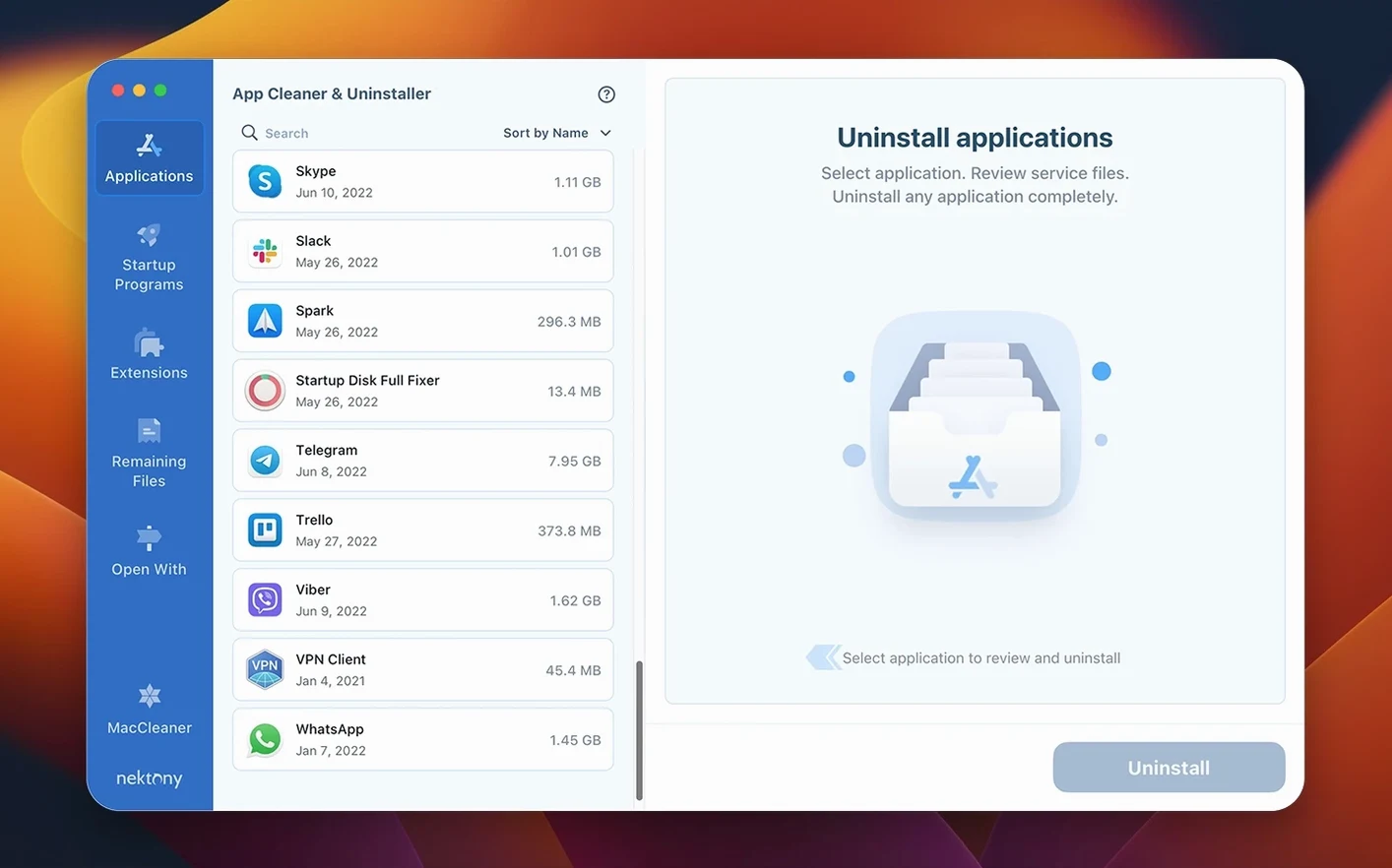
App Cleaner & Uninstaller 10 runs on any Mac with macOS 12 or newer, whether it's Intel or Apple Silicon. That covers a wide range of machines, so most users can update without worry.
Find leftovers
The app still hunts down files that apps leave behind after you drag them to the Trash. It's a straightforward way to keep your system tidy.
Manage startup and extensions
You can still pick which apps launch at login and disable or delete extension files. Handy when something keeps popping up that you never asked for.
Track updates
The built-in update tracker remains, so you can see when installed apps have new versions. That part hasn't changed, but the database behind it now includes Safari extensions and Homebrew tools.
Network access tab shows which apps have internet permission
Version 10.0 adds a network access tab. When you open App Cleaner & Uninstaller now, you can see which installed apps have permission to reach the internet. The menu bar app was redesigned to include network traffic control, so you can block or allow connections without opening the full window. That is a small shift in how you interact with the tool day to day.
The updates database now covers Safari extensions and Homebrew command-line tools. If you use Homebrew regularly, you might notice that the app lists updates for packages you installed through the terminal. That used to be a blind spot. The incompatible applications filter is new as well. It flags software that may not work with your current macOS version, which saves you from installing something that would fail immediately.
Selecting every leftover file can remove needed configuration data
One common mistake is treating App Cleaner & Uninstaller like a one-click cleaner for everything. People select every leftover file the scan finds and delete them all at once. That can remove configuration files you might need later or shared libraries that other apps still use. The safer approach is to review the list and only remove items clearly tied to an uninstalled app.
Another is ignoring the startup manager. Beginners often disable startup items they do not recognize, only to find that a legitimate app stops working correctly. Some background processes are part of system utilities or drivers. If you are unsure what something does, leave it enabled and check online before making changes.
Many users also skip the extension management section. Extensions accumulate quietly in browsers and system folders. Leaving unused ones can slow things down over time, but removing everything without checking can break functionality you depend on. Take a moment to read each entry before clicking delete.
Run one leftover scan after installation for a clean baseline
Start with the leftover scan once after installation. Let it find files from apps you previously trashed. That gives you a clean baseline. After that, use the app mainly when you uninstall something new rather than running full scans every day.
Check the network access tab after you install a few apps. You might spot something that phoned home without you realizing it. The menu bar icon makes this quick to glance at without opening the main window.
Get familiar with the update tracker. Open it weekly to see what needs attention. With Safari extensions and Homebrew tools now included, you will have a fuller picture of what is outdated on your machine.
It is not a guarantee, but it catches obvious version mismatches early.
Nonstandard install folders can hide programs from detection
If the app does not detect a program you know is installed, check whether the program was placed in a nonstandard location. App Cleaner & Uninstaller follows the usual macOS install paths. Programs installed manually in custom folders may not appear. In that case, uninstall them manually and then run the leftover scan to clean up the remains.
Sometimes the update tracker shows a notification for an app you already updated. That usually means the developer changed the version number format or the database needs refreshing. Restarting App Cleaner & Uninstaller often clears the false reading.
If extensions do not appear in the extension manager, verify that the extension is enabled in the browser or system settings first. The app reads from active extension lists, so disabled or deleted extensions will not show up. Re-enable the extension, launch the scan, then disable it again after cleanup.
Network access controls may not apply to every app. Some background services use system-level permissions that override the block. If you block an app and it still connects, it might be running as a system service. You can stop the service manually through the terminal or system settings, then remove the app entirely if you no longer need it.
App Cleaner & Uninstaller removes leftover files from apps you delete, keeping your Mac tidy. It handles leftovers, startup items, extensions, and network checks in one place. That is why many people search for an app cleaner & uninstaller pro version later on, after they realize how much extra space they can recover.
- Network access tab added.
- Menu bar app redesigned, now includes network traffic control.
- Updates database expanded to cover Safari extensions and Homebrew command-line tools.
- Incompatible applications filter added.
- macOS 12 or later
- Apple Silicon or Intel
Questions I keep getting
Does App Cleaner & Uninstaller work on Apple Silicon Macs?
Yes, the app supports both Intel and Apple Silicon Macs, as long as you're running macOS 12 or later.
Can it remove leftover files from apps already in the Trash?
Yes, it finds leftover files from apps that were previously moved to the Trash and lets you delete them.
What new features does version 10 add?
Version 10 adds a network access tab, a redesigned menu bar app with traffic control, an expanded updates database, and an incompatible applications filter.
How to install
- Open the downloaded disk image.
- Drag the app into the Applications folder.
- Launch the app from Launchpad after copying finishes.
Similar apps


Sign in or join the club to leave a comment.
Nobody has commented yet.