- Version
- 2.0.3 fix
- Studio or maker
- Austin Sarner and Brian Ball
- Languages
- English
- Activation
- K'ed by TNT team
- Runs on macOS
- OS X 10.9 or later
- Chip type
- Intel 64-bit
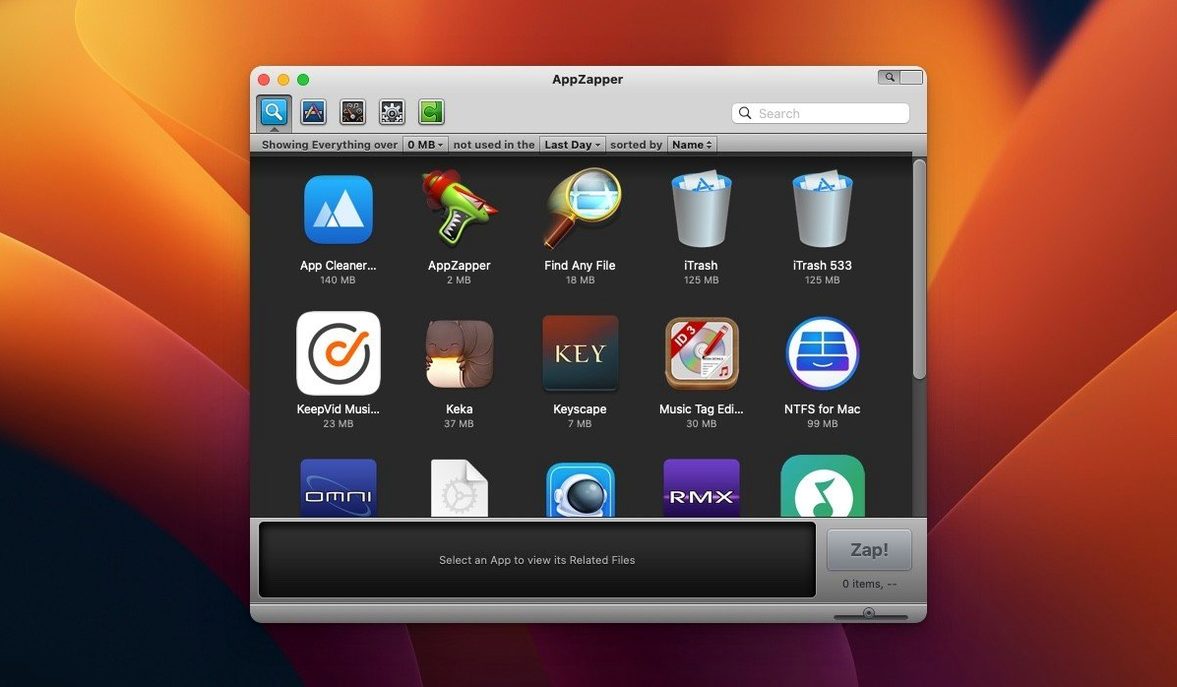
When you drag a Mac app to the Trash, stray preference files, caches, and support folders often stay behind. AppZapper finds those leftovers so you can remove an app together with its related files in one pass.
Zap — The main action: select an app and AppZapper locates associated files. Check what you want gone, uncheck anything you want to keep, then confirm deletion. Deleted items sit in the Trash until you empty it, so you can restore if needed.
Grid view — Arranges installed apps in rows and columns of large icons. Useful when you want to browse visually rather than scroll a list.
ZapGenie — A browser that lists installed apps and lets you filter them by name or by date last used. Helps find apps you haven't opened in a while.
Sparkle integration — In-app update checking was added in version 1.6.0. The app checks for new releases automatically.
Compatibility — Runs on OS X 10.9 and later, built for 64-bit Intel Macs. Interface is in English.
Gatekeeper blocks AppZapper on first launch
The most frequent hiccup people report is Gatekeeper blocking the app on first launch. AppZapper was built before Apple's current signing requirements, so macOS may refuse to open it. The installer steps include a workaround: after mounting the disk image, run Open Gatekeeper friendly and press Enter in Terminal when prompted. That tells macOS to allow this one app through. If you skip that step, the app may bounce in the Dock once and stop. Just repeat the Terminal step — no need to re-download.
Another common snag: AppZapper does not find any related files for a freshly installed app. Related files are typically created after you run an app, so if you zap something right after installing it, there may be nothing to show. Wait until you have launched it at least once. Similarly, very old apps that stored support files in now-deprecated locations may not be fully detected; a manual check of ~/Library/Application Support and ~/Library/Preferences can catch stragglers.
If you try to zap an app that is currently running, AppZapper will not be able to delete it. Quit the app first, then try again. The grid view can make this easier — you see the app icon clearly and can Command-Q before dragging it into the zap window.
Restoring a deleted file from the Trash works, but only if you have not emptied the Trash yet. If you realize you removed something important, open the Trash, locate the file, and put it back before you do a clean-up. AppZapper does not keep its own backup folder.
Start with one app you know you don't need
Start small. Drag it onto AppZapper and look at the list of related files before you click delete. This gives you a feel for what the app considers "related" without risking anything important.
Use the ZapGenie browser regularly during the first week. Filter by date last used to spot apps you have not touched in six months or a year. You might be surprised how many old downloads are still sitting in your Applications folder. Make it a habit to check once a week until you have cleared out the obvious clutter.
Before zapping anything, uncheck any file whose purpose you do not recognize. Shared frameworks or support folders that multiple apps use can appear in the related list. If you see something in /Library rather than ~/Library, it is more likely to be shared. When in doubt, leave it checked for deletion — but double-check by looking at the file path shown in the list.
Keep the app somewhere easy to reach. The Applications folder is fine, but some people prefer a dedicated Utilities subfolder. The grid view works well for browsing your whole collection, so you can open AppZapper, switch to grid view, and scan visually for anything you want to remove.
Long-time Mac users with years of accumulated apps benefit most
Manual cleanup of ~/Library folders is tedious and easy to miss files in. AppZapper automates that search, catching preference files and caches that you would otherwise have to hunt for one by one.
Users who test a lot of software — educators evaluating classroom tools, developers checking utilities, or anyone who frequently downloads and deletes apps — will find the grid view and ZapGenie especially useful. Rather than remembering what you installed last week, you can filter by date and remove the ones you no longer need. This keeps the Applications folder manageable without much effort.
People who share a Mac with others can also benefit. If a family member installed a game or a tool and later left it unused, AppZapper removes the app and its support files cleanly, reducing clutter in shared user folders. Just make sure you have permission before zapping someone else's software.
Users who prefer a visual approach to file management will appreciate the grid view over a plain list. Browsing large icons makes it easier to spot apps by their logo or design, which is helpful if you do not remember the exact name but recognize the icon. The app zapper mac workflow stays simple: drag, review, confirm.
Version 2.0.3 fix.
- Added a grid-style app browser with large icons, introduced in version 2.
- macOS OS X 10.9 or later
- 64-bit Intel processor
- English interface language
Questions I keep getting
Can I undo a deletion if I change my mind?
Yes. AppZapper sends deleted files to the Trash, so you can restore them from there as long as you haven't emptied the Trash.
Does AppZapper work on Apple Silicon Macs?
The current version is built for 64-bit Intel Macs. It runs on macOS 10.9 and later, but Apple Silicon support is not listed in the requirements.
How do I install AppZapper?
Mount the disk image, run Open Gatekeeper friendly, press Enter in Terminal to bypass Gatekeeper, then drag the app into the Applications folder. Open it after copying finishes.
How to install
Why: Gatekeeper may block apps from outside the App Store, so these steps let you install AppZapper cleanly.
- Mount the disk image and run Open Gatekeeper friendly.
- Press Enter in Terminal to bypass Gatekeeper.
- Drag the app into the Applications folder.
- Open the app after copying finishes.
Similar apps





Sign in or join the club to leave a comment.
Nobody has commented yet.