- Version
- 4.6.0
- Studio or maker
- Rogue Amoeba Software
- Languages
- English
- Activation
- Included
- Runs on macOS
- macOS 14.4 or later
- Chip type
- Apple Silicon, Intel 64-bit
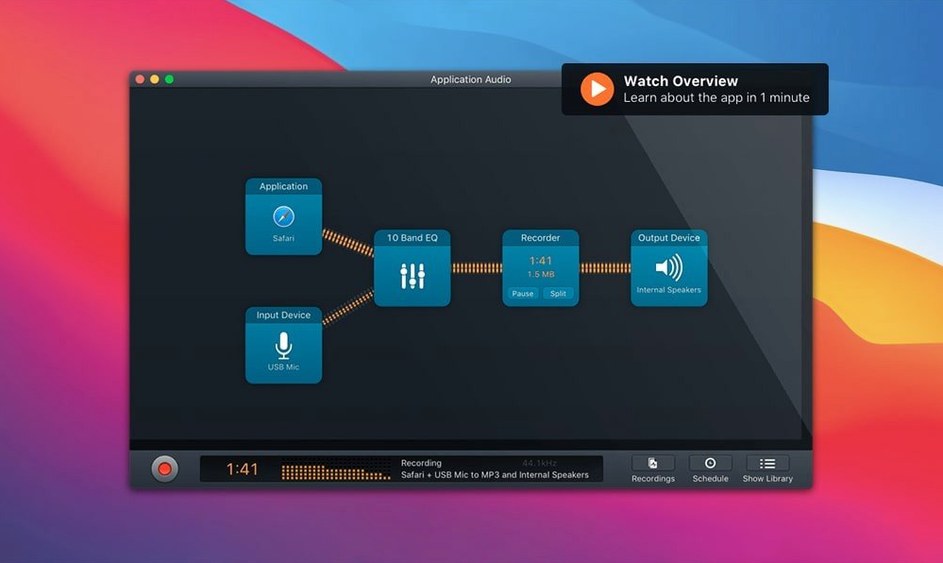
Start with the Record block. You pick any audio source on your Mac — a Skype call, a FaceTime conversation, a web stream, even an analog tape you’re digitizing — and Audio Hijack begins capturing right there. The block-based interface lets you add a Transcribe block afterward, so the spoken words become text while the recording stays intact. For a single session you can pull from multiple sources, which is handy when you’re editing together clips from different apps.
Captures calls, analog audio, and app output
- Recording calls and conversations in Skype or FaceTime.
- Digitizing old analog tapes and records into digital files.
- Capturing audio from any macOS app that outputs sound.
- Transcribing recordings with the built-in Transcribe block now using a recommended model.
Only runs on macOS 14.4 to 27
- Only runs on macOS, from version 14.4 up to version 27.
- The interface is English only.
- Works on both Intel and Apple Silicon Macs.
- Version 4.6.0 was released August 27, 2026.
Perfect for podcasters and voice-call recorders
Podcasters are the obvious fit. You can record a guest over Skype, add a Denoise block to clean up background hum, and output a file ready for editing — all without moving audio between apps. Voice-call recorders who need a permanent copy of interviews or remote meetings also find it straightforward. The block system means you can set up a session once and reuse it session after session.
Audio archivists who are digitizing old LPs or cassettes benefit from the Declick and Dehum filters. Those two blocks remove pops, clicks, and low-frequency rumble that analog sources often carry. If you have a shelf of family recordings or vinyl that you want to save as FLAC files, Audio Hijack handles the whole pipeline from analog input to clean digital file. The FLAC output choice keeps the quality high while saving space compared to WAV.
Teachers and presenters who record lectures or webinars also get good use out of it. You can capture the system audio and your microphone at the same time, then run the recording through the Transcribe block for notes. The recommended transcription model introduced in 4.6.0 does a decent job with clear speech, so you end up with a text summary to share alongside the audio.
Set output to FLAC or AIFF before recording
Before you start your first real recording, open the block palette and check the Recording block's output format. The default is probably fine for most people, but if you plan to edit later, set it to FLAC or AIFF rather than a lossy format. The choice matters most when you are capturing analog sources or calls you want to archive.
The Denoise, Declick, and Dehum blocks each have a strength slider. Start low — a setting around 30 percent — and preview a short clip. Over-correcting can make voices sound hollow or remove room ambience that sounds natural. Adjust upward only if the noise is obvious in your test recording.
If you are recording calls, set the source to the app itself rather than "System Audio." That way you capture only the call, not notification sounds or a video playing in another window. The block interface makes this simple: just pick the app from the source list.
Fix: app stops producing sound after hijack session
A few things trip people up when they first use Audio Hijack. The most frequent one is that a source app stops producing sound after the hijack session ends. This happens because Audio Hijack keeps a temporary hold on the audio driver. The fix is to stop the hijack session properly — click the Stop button in the session window — rather than just closing the app. If sound still does not return, restart the source app.
Another snag: the Transcribe block produces nothing but a blank text file. This usually means the recording contains too much background noise or the speaker is too quiet. Run a Denoise block before the Transcribe block in your chain, and check the recording level in the Recording block's meter. If the waveform looks tiny, increase the source volume.
Sometimes the app does not see a source you expect, like a specific browser tab. Audio Hijack captures the entire app's audio output, not individual tabs. If you need only one tab, close other tabs that might play sound, or use Safari's per-tab muting to silence them. The recording will still include the whole app, but only the tab you want will have audible content.
Recording a FaceTime interview start to finish
Let me walk through a real recording session I did last week. I needed to capture a remote interview with a historian who was calling in over FaceTime. I opened Audio Hijack and picked the "Record a Call" template from the library. That gave me a starting chain with a Recording block already set to capture FaceTime audio and a Save block that writes to AIFF.
I added a Denoise block between them because the historian was calling from a room with an air conditioner. I set the Denoise strength to 35 percent. Then I dropped a Transcribe block at the end of the chain so I would get a text version afterward. I chose the Recommended model from the Transcribe block's dropdown — that is the new option in version 4.6.0 — and left the language set to English.
I clicked the Start Session button and heard the FaceTime call come through clearly. The meter showed good levels. The call lasted about forty minutes. When it ended, I hit Stop. The AIFF file saved to my desktop automatically. I waited for the Transcribe block to finish processing — it took maybe a minute for thirty minutes of speech — and opened the text file. The transcription caught most names and dates correctly, with a few small errors I fixed later.
That whole workflow, from selecting the template to having a finished file and transcript, took about five minutes of setup and no moving audio between applications. For repeat sessions, I saved the chain as a preset so next time I can start the same interview setup in one click.
- Added support for macOS 27 (Golden Gate).
- Updated the built-in Transcribe block with a Recommended transcription model.
- Whisper.cpp backend updated from version 1.7.4 to 1.9.2.
- macOS 14.4 to macOS 27
- Intel or Apple Silicon processor
- Interface language: English
Questions I keep getting
Can I record from more than one app at the same time?
Yes, Audio Hijack supports multiple sound sources in a single session, so you can record from a video call and a music player simultaneously.
How to install
- Mount the disk image and run Open Gatekeeper friendly. This lets the installer work with macOS security settings.
- Press Enter in Terminal to bypass Gatekeeper. That step gives the installer permission to modify system protections.
- Drag the app to the Applications folder. Keeping it there makes it easy to find and launch.
- Open the app when installation is complete. You should see the main interface ready to go.
Similar apps


Sign in or join the club to leave a comment.
Nobody has commented yet.