- Version
- 4.0.4
- Studio or maker
- waydabber
- Languages
- Russian, English, German, Hungarian, Vietnamese, Spanish, Italian, Chinese (Simplified), Korean, Polish, Portuguese, Romanian, Turkish, Ukrainian, French, Swedish, Japanese
- Activation
- K'ed by Antibiotics
- Runs on macOS
- macOS 13.3 or later
- Chip type
- Apple Silicon, Intel 64-bit
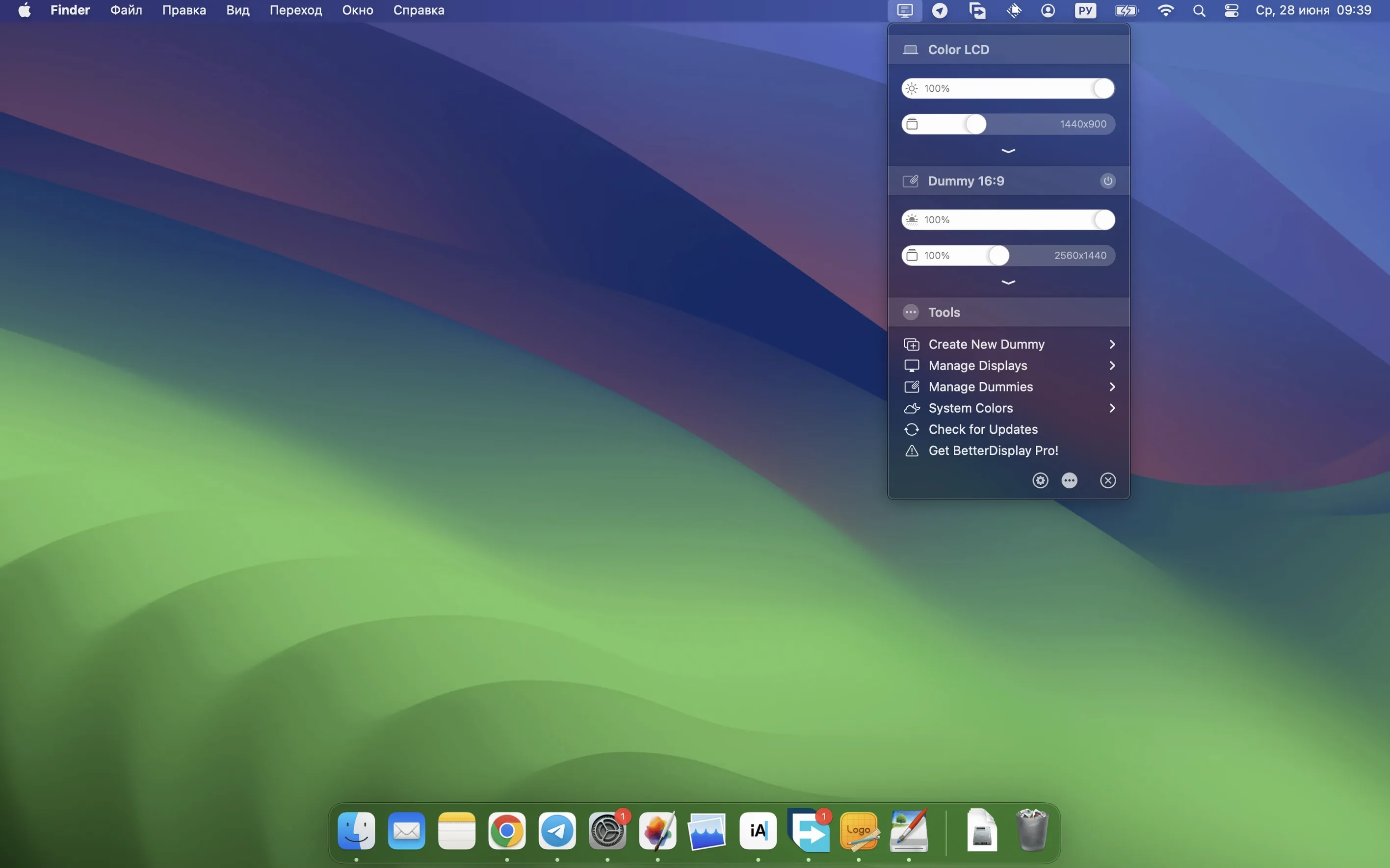
BetterDisplay Pro is a macOS utility for adjusting how your displays work — brightness, color, scaling, and virtual displays all from the menu bar.
Works on Intel and Apple Silicon Macs with macOS 26
The app works on both Intel and Apple Silicon Macs. It requires macOS 26, which means it is a very current tool aimed at the latest system. The developer does not require an activation step, so once the app is on your Mac you can use it directly. Version 5.0.6 brings faster multi-display DDC control, stronger sharpening effects, and stream video filter automation, all of which run without extra configuration on supported hardware.
Controls brightness and color from the menu bar
You can control brightness and color for any connected display through the menu bar. On compatible Apple Silicon Macs, BetterDisplay Pro provides XDR and HDR brightness upscaling. It supports full black dimming and display configuration overrides, and it can create picture-in-picture windows for individual displays. The app talks to monitors through DDC and HDMI-CEC, so changes happen directly without software overlays. Interface languages include English, German, French, Spanish, Japanese, Korean, and Simplified Chinese, among others.
First launch scans and lists your connected displays
When you open BetterDisplay Pro for the first time, let it sit for a moment. The app scans your connected displays and populates the menu bar icon with each one. Open that icon and you see your monitors listed by model or connection name. This is a good time to check that every display you expect appears there. If one does not, confirm the cable is fully seated and the monitor is powered on. The app needs a moment to detect the display's EDID data, so give it that moment.
Start with one display you use most. Click its name in the menu and explore the brightness slider first. Move it up and down and watch the physical monitor change. That confirms DDC communication works. If nothing happens, your monitor may have DDC locked in its own on-screen menu — some displays ship with DDC disabled. Check the monitor's own settings under something like "DDC/CI" or "Control" and enable it. Once you see the brightness respond, you know the connection is ready.
Adjusting a virtual display does not change your physical monitor
A common one is adjusting settings on a virtual display and expecting the physical monitor to change. Virtual displays are separate. They do not control your real monitors. If you create a virtual display, treat it as a tool for recording or streaming — your physical displays keep their own settings.
Another mistake is ignoring the full black dimming feature. New users sometimes think the display has failed when blacks go completely dark. That is a deliberate setting. If you enable full black dimming and see a screen that looks off, check the dimming slider first before assuming hardware trouble.
Some users also forget that BetterDisplay Pro talks to the monitor directly. That means if you disconnect and reconnect the cable, the app may need a few seconds to re-establish DDC communication. Patience there avoids confusion. The app does not lose its configuration, it just needs to see the display again.
Reordering your displays in the preferences panel
Open the preferences panel from the menu bar. If you use multiple monitors, the first thing worth adjusting is the display arrangement. The app lets you reorder how macOS sees your displays, which helps if your primary monitor is not the one macOS picks as default. You can set which display shows the menu bar and which one acts as the main workspace.
If you have an Apple Silicon Mac and a compatible HDR or XDR display, look for the XDR brightness upscaling option. Enabling it makes the monitor's brightness range feel more natural, especially in mixed lighting. The effect is subtle but useful in rooms where ambient light changes during the day.
The sharpening control in version 5.0.6 is stronger than before. If you use a large display or sit close to it, try a small increase to sharpen fonts without making them harsh. You can always dial it back.
I click the icon every morning after plugging in
I start my morning by plugging in my laptop at my desk. The external monitor wakes up and macOS arranges it automatically. Before I open any work files, I click the BetterDisplay Pro icon in the menu bar. My eyes are still adjusting to the room light, so I find the brightness slider for the external display and lower it two notches. That takes about three seconds.
I teach maths after lunch, so around noon I open a browser tab with my lesson slides and a terminal window with a quick calculation tool. I keep both on the external monitor. The laptop screen holds my email and the game club calendar. With BetterDisplay Pro, I set the external monitor to a slightly warmer color temperature during classroom prep so text feels softer on my eyes. I do not need to touch the monitor's own buttons.
In the afternoon, I sometimes test a small puzzle game for the game club. If the game window looks too small on a 4K display, I open BetterDisplay Pro's scaling options and nudge the resolution down for that display. The app handles the scaling without macOS re-detecting the monitor. When I close the game, I switch the scaling back. The whole process is two clicks and a slider.
At the end of the day, I dim both displays to their lowest setting before disconnecting. BetterDisplay Pro remembers my morning brightness level, so plugging in the next day picks up where I left off. I do not think about it. The app just works.
- macOS 26
- Intel or Apple Silicon processor
How to install
- Open the downloaded disk image file. This mounts a virtual drive on your desktop.
- Drag the BetterDisplay Pro application into the Applications folder alias shown in the window. This keeps the app accessible system-wide.
- Once the copy finishes, open the app from Launchpad or the Applications folder.
Similar apps





Sign in or join the club to leave a comment.
Nobody has commented yet.