- Version
- 6.726
- Studio or maker
- Andreas Hegenber
- Languages
- English
- Activation
- Included
- Runs on macOS
- macOS 10.15 or later
- Chip type
- Apple Silicon, Intel 64-bit
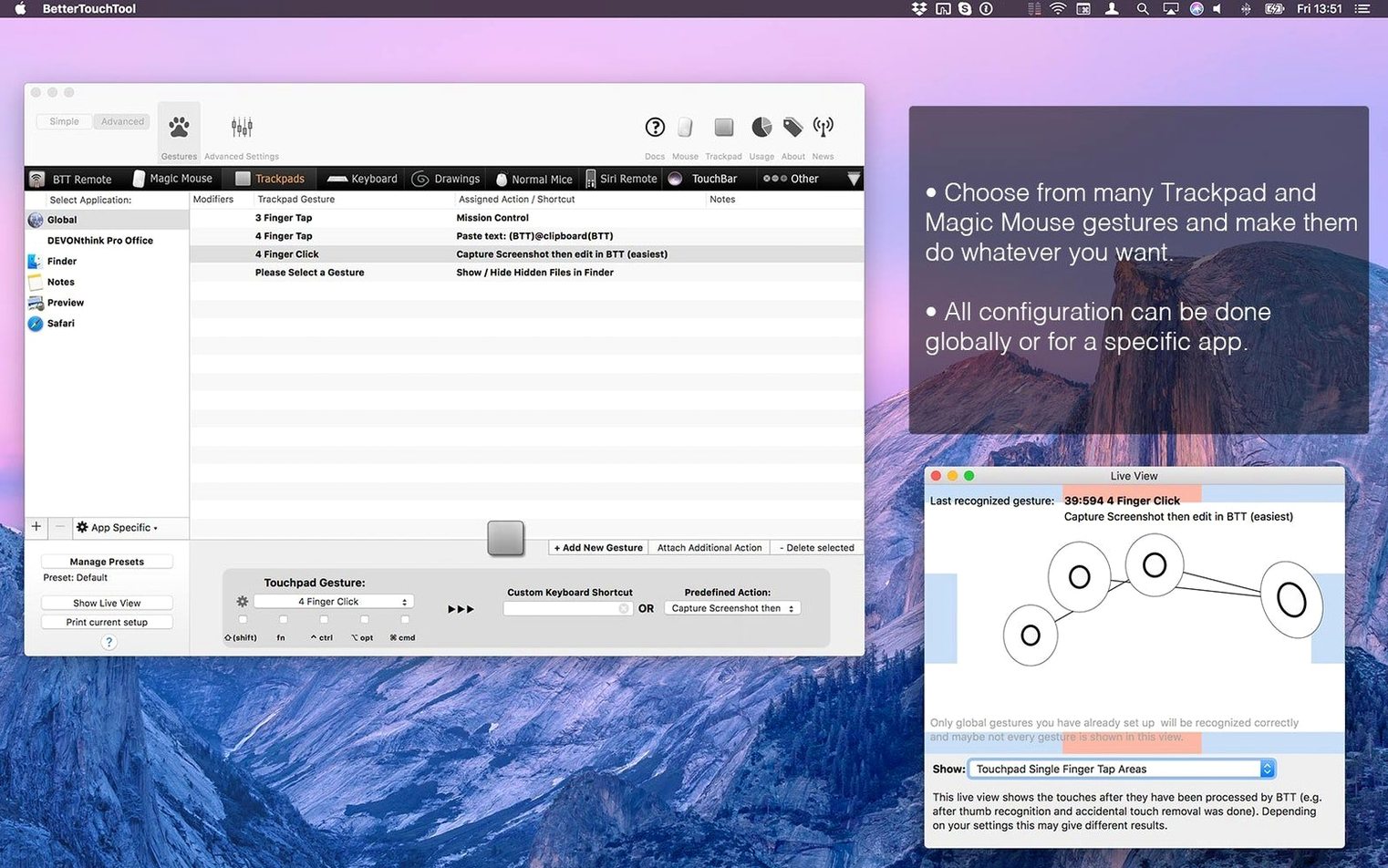
You press a key combination and your Mac instantly snaps a screenshot, edits it, and copies the result to the clipboard. That's the kind of workflow BetterTouchTool makes possible. This macOS utility extends how you interact with your Mac, letting you define custom gestures, movements, and even drawings for actions across your trackpad, Magic Mouse, normal mouse, Siri Remote, and Apple Remote.
| Detail | Info |
|---|---|
| Developer | Andreas Hegenberg |
| Version | 6.726 |
| Category | Utilities |
| Architecture | Apple Silicon / Intel |
| macOS | 10.15 or later |
| Language | English |
The developer describes it as his main app for automating the system and customizing input devices. Beyond gestures and shortcuts, BetterTouchTool includes a screenshot tool with on-the-fly image editing and a built-in clipboard manager that remembers multiple copied items. It supports ARM and x86 64-bit Macs, so it runs on both Intel and Apple Silicon machines.
Opening BetterTouchTool shows all your input devices in one sidebar
I usually start a session by opening BetterTouchTool and glancing at the sidebar. The app organizes itself by input device types: keyboard, trackpad, Magic Mouse, normal mouse, Touch Bar, Siri Remote, and Apple Remote. Each section holds its own set of triggers and actions. I often begin with the keyboard section because that is where I spend most of my time.
From there I create a new keyboard shortcut. I press the key combination I want to use, then choose an action from the dropdown. The action could be anything from launching an application to pasting a snippet of text. I name the trigger something I will remember, like "open Downloads" or "paste email signature." The process repeats for each shortcut I want to add. I might define a dozen shortcuts in one session, each tied to a specific app. That targeting is useful because a shortcut that works in Safari does not have to interfere with the same key combination in Photoshop.
Next I move to the trackpad section. I define a three-finger swipe downward that triggers Mission Control, and a four-finger pinch that opens the clipboard manager. The clipboard manager is something I check often during a session. It stores everything I have copied recently, so I can paste older items without copying them again. I also set a drawing gesture: a circle in the upper right corner of the trackpad that takes a screenshot and opens the built-in editor. The editor lets me crop, annotate, and highlight before saving. That replaces a separate screenshot app for me.
At the end of a session I test each trigger in the app where it is supposed to work. If something does not fire, I check the trigger configuration. Usually it is a matter of adjusting the gesture sensitivity or redefining the shortcut. The whole process takes maybe twenty minutes and leaves me with a setup that feels personal.
How BetterTouchTool compares with similar Mac apps
Keyboard Maestro
Keyboard Maestro focuses almost entirely on keyboard shortcuts and macro automation. It can build complex sequences of actions, like renaming files and then moving them to a folder. BetterTouchTool handles gestures and Touch Bar customization, which Keyboard Maestro does not. If you rely heavily on trackpad swipes or a Magic Mouse, BetterTouchTool gives you more control. If you need multi-step macros that run without user interaction, Keyboard Maestro is the deeper tool. Some people use both.
Alfred (with Powerpack)
Alfred with the Powerpack extension adds clipboard history, snippets, and workflows triggered by keywords. Its clipboard manager is polished and fast. BetterTouchTool includes a clipboard manager of its own, but Alfred's is more fully featured for text expansion and search. Where BetterTouchTool pulls ahead is in gesture recognition and Touch Bar support. Alfred does not interpret a drawn shape on the trackpad. BetterTouchTool does.
Bartender
Bartender organizes your menu bar icons. It is not a direct competitor. I mention it because people often ask whether one replaces the other. BetterTouchTool can hide and show menu bar items, but that is a minor feature. Bartender is dedicated to that task and does it more thoroughly. BetterTouchTool is not a menu bar manager; it is an input customizer that happens to offer a few extra utilities.
Switching between calculator, slides, and quiz without touching the Dock
I teach maths and run the after-class game club. In a typical lesson I switch between a graphing calculator app, a presentation, and a web-based quiz platform. Before BetterTouchTool, I was clicking through windows or using the Dock. Now I have three-finger swipes assigned to each of those apps. A swipe left opens the calculator, right opens the presentation, up opens the quiz browser. I also have a keyboard shortcut that pastes my email signature when I reply to parents. It saves me a few seconds each time, and over a school day those seconds add up.
In the game club, BetterTouchTool is useful for running game emulators and managing multiple windows quickly. I set a mouse gesture to open the club's game library folder. The clipboard manager helps when I copy player names or game rules from one document to another. The screenshot tool is handy for capturing high scores or glitches to discuss with the group. It is a quiet utility that does not distract the students.
Writers, coders, and designers replace repetitive actions with one keypress
People who use keyboard shortcuts heavily will benefit immediately. Writers, coders, and designers often have a set of repetitive actions that would be faster as a single keypress. BetterTouchTool lets them assign those actions without installing a separate macro app.
Touch Bar users on older MacBook Pros gain a lot because Apple's own customization options for the Touch Bar are limited. BetterTouchTool turns it into a dynamic control panel that changes per app. I have seen teachers put their most used lesson tools there.
Trackpad and Magic Mouse users who want to extend gestures beyond what macOS offers will find the app essential. The ability to draw shapes or define custom multi-finger swipes opens up input methods that the system does not support natively.
Power users who automate parts of their workflow and want a single point of control for all input devices will find BetterTouchTool worth the setup time. It replaces several smaller utilities with one consistent interface.
- Version 6.726 is the latest release, with refinements to existing features.
- macOS 10.15 or later
- Apple Silicon or Intel processor
Questions I keep getting
What input devices does BetterTouchTool support?
It supports the trackpad, Magic Mouse, normal mouse, Siri Remote, and Apple Remote, along with keyboard shortcuts and Touch Bar customization.
Can I use BetterTouchTool on an Apple Silicon Mac?
Yes, the app supports both Apple Silicon (ARM) and Intel x86 64-bit Macs.
How to install
- Open the downloaded package and run the installer.
- Follow the activation instructions included in the package to get started.
Similar apps




Sign in or join the club to leave a comment.
Nobody has commented yet.