
- Version
- 1.5.46
- Studio or maker
- INCHMAN1900
- Languages
- English
- Activation
- Included
- Runs on macOS
- macOS 14 or later
- Chip type
- Apple Silicon, Intel 64-bit
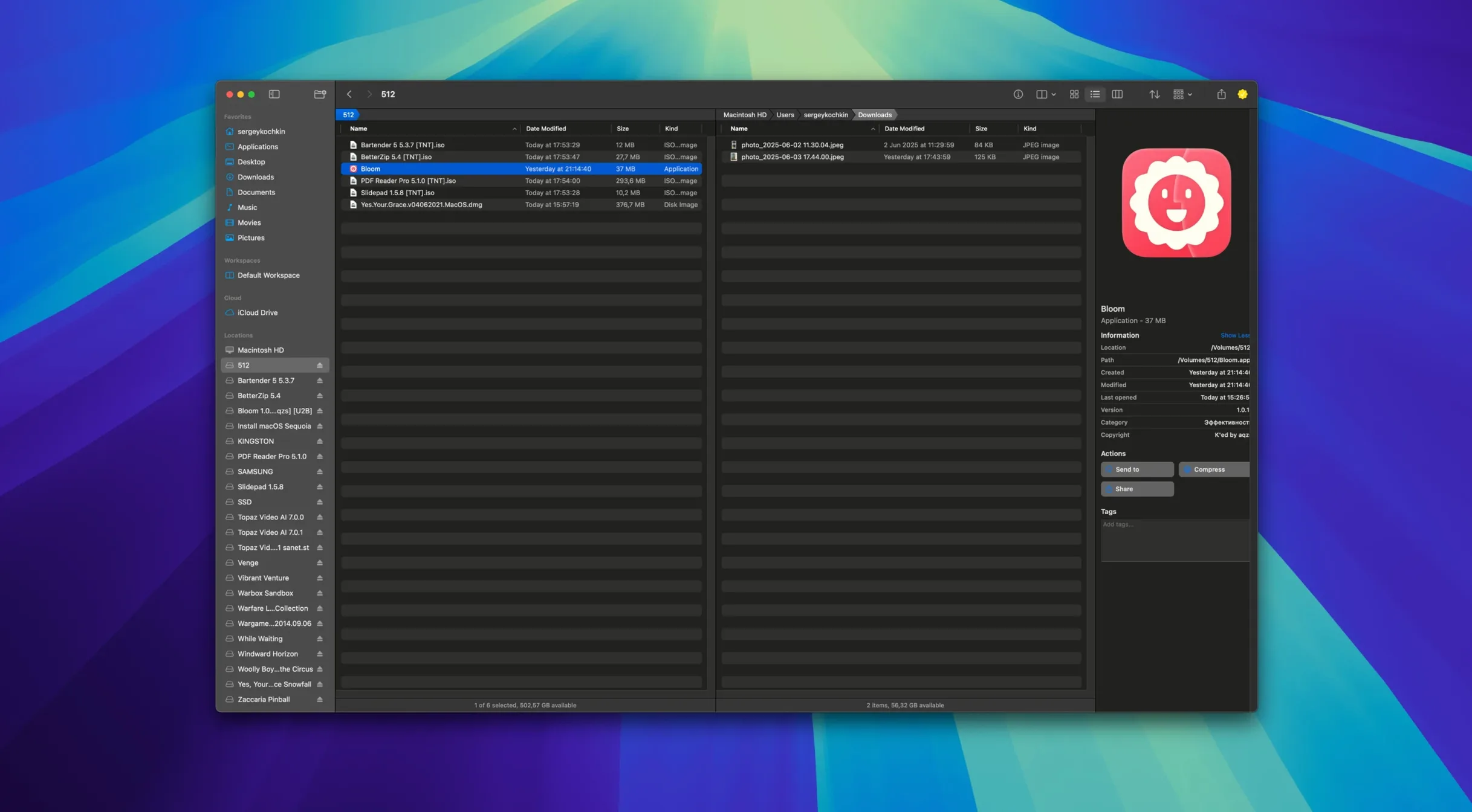
You have a folder of mixed images and documents that needs sorting, resizing, and a quick check on what is eating up your drive. Open Bloom, and you can do all of that without switching between Finder and a separate image tool.
See which files take up the most space with the treemap view
- First, use the treemap view to see which files take up the most space. It scans the folder and shows a visual map of file sizes, so you know where to focus.
- Select the images you want to shrink and use the built-in convert and optimize function. It handles resizing and compression in one step.
- Create a few new folders for your sorted files. Bloom can create different file types, so you can make a folder, a text file, or a zip archive right from the same window.
- Tag the files as you go. Bloom supports tag management, so you can mark items for later without moving them.
How Bloom fits into daily work
Bloom is designed as an alternative to Finder, and it shows in the details. The workspace is customizable, so you can set up the sidebar and previews the way you like. Portal mode gives you a compact window without the sidebar, which is handy when you only need to drop a file somewhere. Pressing ⌘⇧⏎ jumps instantly to a system location like your home folder or iCloud Drive. It works on both Apple Silicon and Intel Macs, and it integrates with iCloud Drive, so your files stay in sync. It is a solid tool for anyone who wants more control over their files than the default Finder offers.
Preview won't open for files over 10 MB
A few things trip people up when they first switch from Finder. Knowing these saves you a little head-scratching.
- Preview won't open for some files. Bloom's preview works for text, images, and PDFs under 10 MB. If nothing shows, check the file size first. For larger files, use the regular open command instead.
- Search returns no results. Make sure you have selected the right location. Bloom searches in predefined locations by default. Use ⌘F to search inside a specific folder, and ⌘R to refresh the results if you added files while the search was still running.
- Portal mode feels stuck. Portal mode creates a compact window that can be pinned above others or docked at the screen edge. If you cannot move it, check whether it is pinned. Closing and reopening the portal window resets its position.
- Rename operations did not behave as expected. Bloom supports advanced renaming with regular expressions. If you are new to regex, start with a simple find-and-replace before trying patterns. You can undo the operation if something goes wrong.
A complete workflow: scanning a downloads folder
This is a typical task for a cluttered Downloads folder, from start to finish in Bloom.
- Open the folder and scan. Navigate to Downloads and run the treemap view. You immediately see which files are taking up space. Old disk images and large video files stand out.
- Delete or move the obvious clutter. Select the files you no longer need and delete them. For files you want to keep but not in Downloads, create a new folder using Bloom's file creation function.
- Preview archive contents. If you have zip files or disk images, Bloom shows their contents without extracting them. This lets you decide whether to keep the archive or pull out a single file.
- Rename the remaining files. Use the advanced renaming tool to give files consistent names. For example, replace spaces with underscores or add dates with a regex pattern.
- Tag and organize. Apply tags to group files by project or priority. Then open Terminal directly from the folder if you need to run a command on the files.
- Schedule a cleanup if needed. Bloom's task scheduler can run file operations later. Set it to move old files to an archive folder once a week.
Bloom runs alongside Finder, not replacing it
A few things come up regularly when someone is deciding whether to try Bloom. Here is the short version.
Does it replace Finder entirely? Not really. Bloom runs alongside Finder. You can set it as your default file manager for certain tasks and still use Finder for others. Most people keep both around and use Bloom when they need the extra tools like treemap, regex renaming, or image conversion.
Will it work on my older Mac? Bloom requires macOS 14 or later and runs on both Apple Silicon and Intel Macs. If your system is older than that, it will not install. The app updates itself after installation, so you stay on the latest version without manual downloads.
Is it complicated to learn? The core file management works like Finder. The extra features are tucked into menus and keyboard shortcuts. Portal mode and the treemap are easy to find. Advanced renaming and the task scheduler take a bit of practice, but the undo function covers you if something goes wrong.
Does it work with iCloud Drive? Yes. Bloom integrates with iCloud Drive, so files you manage in Bloom stay in sync across your devices just like they would in Finder.
- macOS 14 or later
- Apple Silicon or Intel Mac
- Interface language: English
Questions I keep getting
Does Bloom work with iCloud Drive?
Yes, Bloom integrates with iCloud Drive, so you can manage your cloud-stored files directly from the app.
How to install
- Mount the downloaded disk image by double-clicking it.
- Drag the Bloom app to the Applications folder shortcut. This keeps it accessible from Launchpad and Spotlight.
- After copying finishes, open the app from Launchpad. It is ready to use.
Similar apps






Sign in or join the club to leave a comment.
Nobody has commented yet.