- Version
- 5.7.0
- Studio or maker
- MacPaw
- Languages
- Russian, English, German, Spanish, Italian, Chinese (Simplified), Korean, Dutch, Polish, Ukrainian, French, Japanese
- Activation
- Not required
- Runs on macOS
- macOS 11 or later
- Chip type
- Apple Silicon, Intel 64-bit
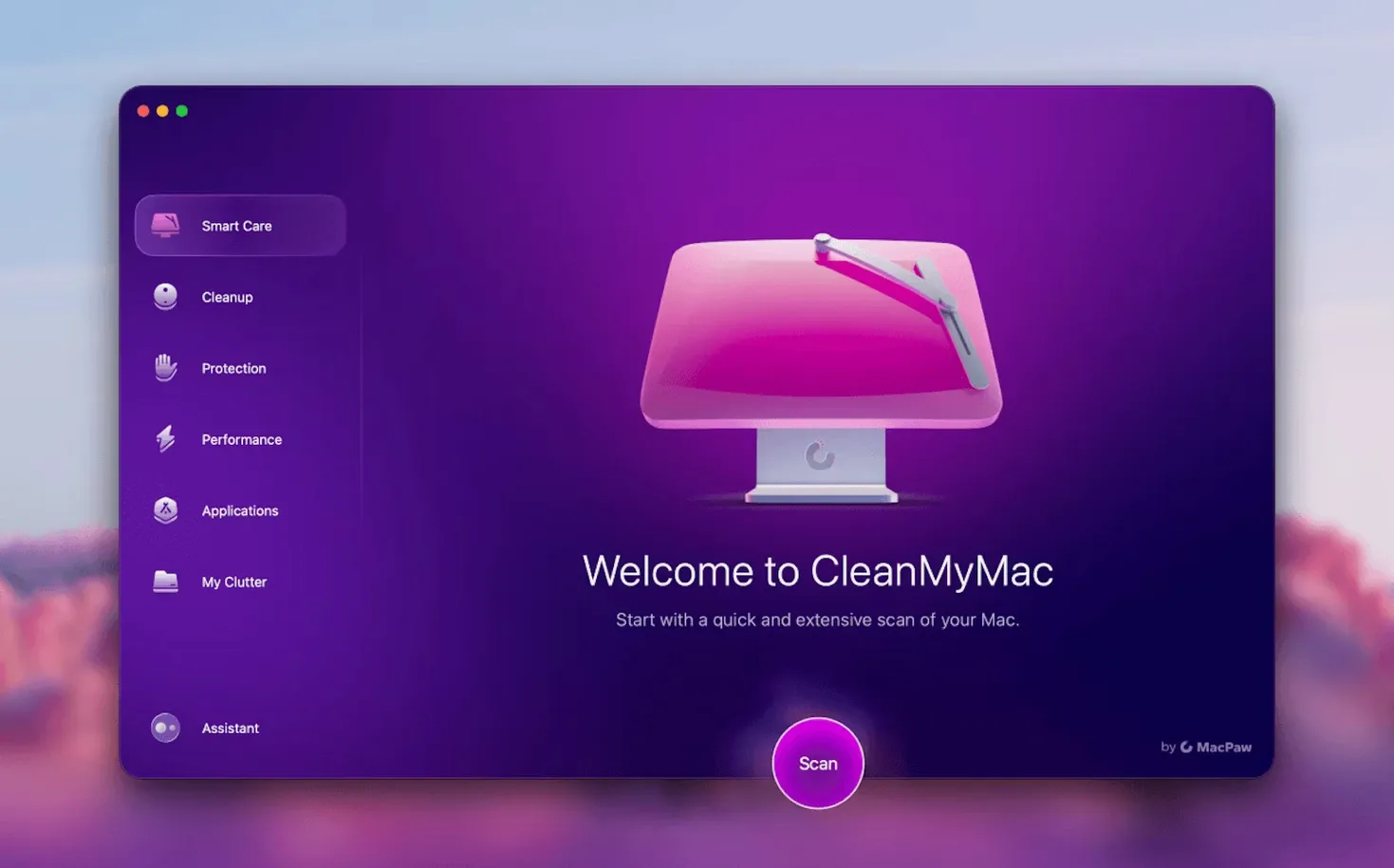
Macs collect clutter. Caches grow, large files hide, and mail piles up. CleanMyMac is a Mac cleaner and maintenance app built to take those tasks on, from the developer MacPaw.
What does the cleaning actually do?
The main cleaner scans for system junk, cache files, and leftovers from uninstalled apps. It shows you what it found and lets you decide what goes, which keeps the process in your hands.
How does the large file tool help?
Finding what eats your storage is a separate job. The large file finder scans your disks and lists the biggest items, so you can spot old disk images or video files you no longer need.
What is File Scope?
File Scope is a memory view that breaks down how space is used across folders and file types. It gives a visual map of your drive, making it easier to target problem areas directly.
Your first session with CleanMyMac
When you open CleanMyMac for the first time, it runs a quick scan automatically. That scan covers the system junk, caches, and temporary files it can reach without extra permissions. On macOS 27 you need to grant full disk access before that scan completes, so expect a prompt early on.
Once the scan finishes, the app shows a list of categories with file counts and sizes. You can uncheck anything you want to keep. I usually leave browser caches checked but uncheck system caches I know are harmless. Then click the clean button and wait a minute or two while it works through the list.
After that first pass, I switch to the large files tool. It needs a moment to index the drive, but once it does, you see everything sorted by size. I look for files above 1 GB that I do not recognize. Old movie downloads and disk images from past projects often show up here.
Next I open File Scope. This is the memory view that shows your drive as a set of colored blocks. Each block represents a folder or file type. Clicking a block zooms in, so you can drill down to specific folders without guesswork. I find this useful for seeing at a glance whether my Downloads folder or my Documents folder is taking up more space.
If I have time, I run the app removal tool to check for leftover apps I installed once and forgot about. The tool lists every application on the machine. Selecting one shows its size and when you last used it. That helps decide what stays and what goes.
Start with one full scan, then run it weekly
Start with a full scan and clean, but do not expect to do it every day. Weekly is enough for most people. The app remembers what you unchecked, so your preferences carry over between sessions.
Before you use the large file finder, close other open applications. The indexing takes less time when the system is not busy with a web browser or a video call.
If you have Gmail, explore the email cleanup feature early. It scans your inbox for large attachments, old newsletters, and promotional emails. Cleaning those out can free up a surprising amount of storage, especially if you have years of emails sitting there.
Use the protection module once after installing, just to see what it finds. It checks for malware threats in your system and browser extensions. You can run it again any time you install something from an unfamiliar site.
Do not remove files you are unsure about. The app lets you review items before deletion, and it is fine to leave questionable items for another day. You can always run another scan later.
The app updater hides inside the Applications section
The app updating tool is tucked inside the applications section. It checks installed apps against their latest versions and lists updates you might have missed. That saves you from hunting through each app's own update menu.
When you delete files permanently, CleanMyMac uses a secure erase method. That means the files are overwritten so they cannot be recovered, which is useful for sensitive documents or financial records you want to remove for good.
The interface language is easy to switch if you share the computer with someone who prefers another language. The supported set includes English, German, Spanish, Italian, French, and several others. You change it in the app's preferences, and it takes effect immediately without restarting.
CleanMyMac does not require activation. After installation, it is ready to use. That is a small thing, but it means no account setup or license key to keep track of.
The disk image installer works like many other Mac apps. You open it, drag the app to the Applications folder alias, wait for the copy to finish, and launch it from Launchpad. No extra steps unless you are on macOS 27, where the disk access prompt appears before the first launch.
Uncheck browser history and autofill in Preferences first
Open the preferences before your first scan. The default settings are reasonable, but you might want to adjust what gets cleaned automatically. Some people prefer to keep browser history and autofill data, for instance. You can uncheck those categories in the cleaning module so they are never touched.
The scheduling option lets you set automatic scans. If you want the app to run weekly without remembering to start it yourself, turn that on. Otherwise, leave it off and run scans manually when you think of it.
The large file finder has a minimum file size setting. The default includes smaller files too, which can clutter the view.
If you use Gmail heavily, check the email settings inside the email cleanup module. You can choose which labels to scan and whether to include Trash and Spam. Narrowing the scan to your inbox and a few key folders keeps it fast.
The protection module lets you exclude specific folders or file types from scanning. If you store developer tools or game mods that the scanner might flag, add them to the exclusion list to avoid false positives.
The latest version adds tools for cleaning and managing mail in Gmail, including new email cleanup functionality. That extends the utility beyond just disk maintenance.
- Adds tools for cleaning and managing mail in Gmail.
- Includes new email cleanup functionality.
- macOS 11 or later
- Apple Silicon or 64-bit Intel Macs
- Interface languages: Russian, English, German, Spanish, Italian, Simplified Chinese, Korean, Dutch, Polish, Ukrainian, French, Japanese
Questions I keep getting
Which Macs does CleanMyMac support?
CleanMyMac supports macOS 11 and later, on both Apple Silicon and 64-bit Intel Macs.
What happens on macOS 27 before first launch?
On macOS 27, you need to grant full disk access before the app will launch.
How to install
- Remove any older version of CleanMyMac first. This avoids conflicts between the old and new copies.
- Open the downloaded disk image.
- Drag the app to the Applications folder alias. That is all the installer does.
- After copying finishes, open the app from Launchpad.
- On macOS 27, grant full disk access before launching. The system will prompt you.
Similar apps





Sign in or join the club to leave a comment.
Nobody has commented yet.