
- Version
- 5.3 + NON CS
- Studio or maker
- Apple
- Languages
- English, German, Spanish, Chinese (Simplified), French, Japanese
- Activation
- K'ed by Antibiotics x TEAM EDiSO
- Runs on macOS
- macOS 15.6 or later
- Chip type
- Apple Silicon, Intel 64-bit
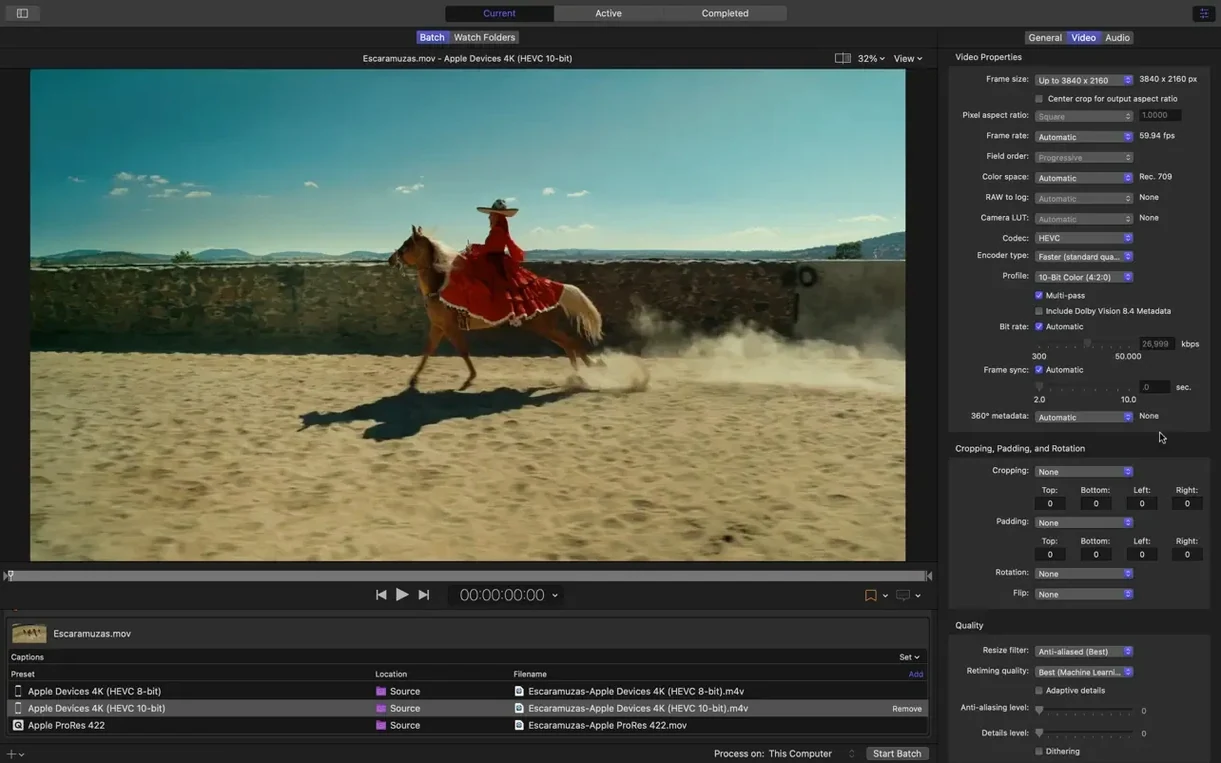
Compressor 5.3 shows it plainly, next to the resolution and codec info, so you know what you are working with before you touch a single setting. For a newcomer, that little strip of data is the best place to begin.
- Add a source file. Drag a clip from the Finder into the batch area at the bottom of the window. The viewer at the top previews it, and the side panel lists the current settings.
- Pick an output setting. Click the Settings button in the toolbar. The library on the left groups outputs by device and purpose: Apple Devices, Web, Broadcast, and Professional. For most classroom needs, Apple Devices covers your bases.
- Choose a destination. Click the Destination button and select a folder, like a class project folder on the server, or leave it at the default Movies folder.
- Start the batch. Hit the big Start Batch button. Compressor uses the hardware encoders on your Mac for H.264 and HEVC, so the transcode is usually fast enough to fit in a single prep period.
- Check the inspector. Once the job finishes, select the output file in the history list and press Command-I. The inspector shows the exact video and audio properties, which is handy when you need to explain why a file is the size it is.
After the first batch, you will want to look at the custom output settings for HDR, 360° video, or MXF. But the five steps above are the daily routine: bring something in, choose a format, send it out. The rest of the app builds on that rhythm.
First days with Compressor 5.3
If you are new to Compressor, the first day is about building trust with the interface. Open the app and spend five minutes clicking through the Settings library on the left side of the window. Expand a few folders like Apple Devices or Broadcast. Notice that HEVC and H.264 options appear side by side. That layout will become your reference shelf.
The second day, try a short test clip from your phone. Drop it into the batch area and choose one Apple Device preset and one Web preset. Run them both. When the jobs finish, compare the file sizes and visual quality by playing each output side by side in QuickTime Player. That quick test gives you a feel for how much codec choices compress the same source.
By the third day, you should explore the inspector. After a job finishes, click the output file in the history list at the bottom of the window. For a teacher tracking down why a student video looks washed out on a projector, that panel is the first place to check.
One habit worth building early: create a custom destination for your most common folder. Click the Destination button, then Add Destination. Name it something like "Final Projects" and point it to a folder on your school server. That saves you from navigating the same path every time you export.
What Compressor expects from your Mac
Compressor 5.3 runs on macOS 15.6 or later and works on both Apple silicon and Intel Macs with a 64-bit processor. It asks for 8 GB of memory and about 1.2 GB of free disk space for the app itself. Keep in mind that your source files and output files live outside that space, so a working drive with plenty of room for large video clips is still needed.
The app uses your Mac's hardware encoders for H.264 and HEVC, which means the encoding speed depends on the hardware you have, not on Compressor's own software. On a Mac with Apple silicon, that encoding pipeline also handles HEVC data rate limits, a new addition in this version. When you work with long-form video or batch multiple jobs, you will see the workload spread across available CPU cores. That is built into the rendering engine that Compressor shares with Final Cut Pro and Motion.
If your Mac is on the lower end of the requirements, say 8 GB of memory, you will want to close other memory-heavy apps while encoding. That is not a speed claim, just a practical note from managing a classroom lab for years.
Compressor’s side panel and inspector vs HandBrake’s basics
HandBrake is the closest free alternative for basic transcoding. It covers H.264, H.265, and a handful of container formats, and it runs on the same Macs. What HandBrake lacks is the side panel and inspector workflow that Compressor provides, and it does not integrate with Final Cut Pro or Motion. If you need to send a single file from a download folder to a student device, HandBrake works fine. If you need to run a batch of classroom projects with consistent settings and then copy them to a shared folder automatically, Compressor's post-encode actions make that possible without extra steps.
Shutter Encoder offers a broad set of professional formats including MXF and ProRes, and it is free. Its interface is more crowded than Compressor's, which can confuse students at first. Shutter Encoder also lacks the destination presets and the inspector for detailed file properties. For a teacher who only needs to convert video formats now and then, Shutter Encoder is a reasonable choice. For someone who runs a regular club or production pipeline, the structured workflow in Compressor saves time in the long run.
FFmpeg is the command-line powerhouse behind many other tools. It can do almost anything with video, but it requires typing arguments and remembering syntax. Compressor gives you the same core encoding engine in a visual interface that a student can learn in one session. If you teach video production, you might introduce FFmpeg later as a deeper concept, but Compressor is the tool for the first weeks of class.
A workflow for preparing a class video set
Imagine you have ten clips from a school event, each shot on different phones and cameras. You want to convert them all to a uniform 1080p H.264 format for a class editing project in Final Cut Pro. Here is how that looks in Compressor from start to finish.
- Prepare the source files. Gather all ten clips in a single folder on your desktop. Check that no file names contain characters that might confuse a batch job, such as slashes or colons. Rename them if needed.
- Add all sources at once. Drag the entire folder into Compressor's batch area. The window shows each clip as a separate row with a default output setting inherited from the last job you ran.
- Select a common output setting. Click the Settings button and choose Apple Devices. It will apply to every row at once.
- Set a destination. Click Destination and choose the folder where you want the finished files to land. If you created a "Final Projects" destination earlier, select it here.
- Add a post-encode action. With all rows selected, click the Action pop-up menu at the bottom of the batch area. Choose "Copy to" and pick a shared location, such as a classroom server. This way, the finished files appear in both your local folder and the server without extra steps.
- Start the batch. Click Start Batch. The job list shows progress for each clip. While the files encode, you can still use other apps, though you may notice the system feeling busier if the memory is near its limit.
- Verify the outputs. Once the batch finishes, open any output file in QuickTime Player and check its inspector. Confirm that the resolution says 1920x1080 and the codec is H.264. A quick glance at the destination folder confirms all ten files are there, ready for the editing lab.
That workflow replaces a repetitive manual process with a single setup. When you run it again next month, the settings and destinations are already in place. You just drag in the new clips and press Start Batch.
- Adds an immersive metadata viewer before encoding.
- Adds support for 180° Apple Projected Media Profile output.
- Adds an anaglyph preview option for stereoscopic video.
- Adds a 5.1 AAC option to Apple Device export settings.
- Adds support for HEVC data rate limits on Apple silicon devices.
- Adds support for transcoding immersive sources without WAV files to Apple Immersive outputs.
- macOS 15.6 or later
- Intel or Apple silicon processor
- 8 GB of memory
- 1.2 GB of available disk space
How to install
- Mount the downloaded disk image by double-clicking it.
- Drag the Compressor app to the Applications folder alias inside the disk image window. That copies it to the right place.
- After the copy finishes, open the app from the Applications folder or Launchpad.
Similar apps



Sign in or join the club to leave a comment.
Nobody has commented yet.