
- Version
- 5.0.1
- Studio or maker
- MakeTheWeb
- Languages
- English
- Activation
- Included
- Runs on macOS
- macOS 11 or later
- Chip type
- Apple Silicon, Intel 64-bit
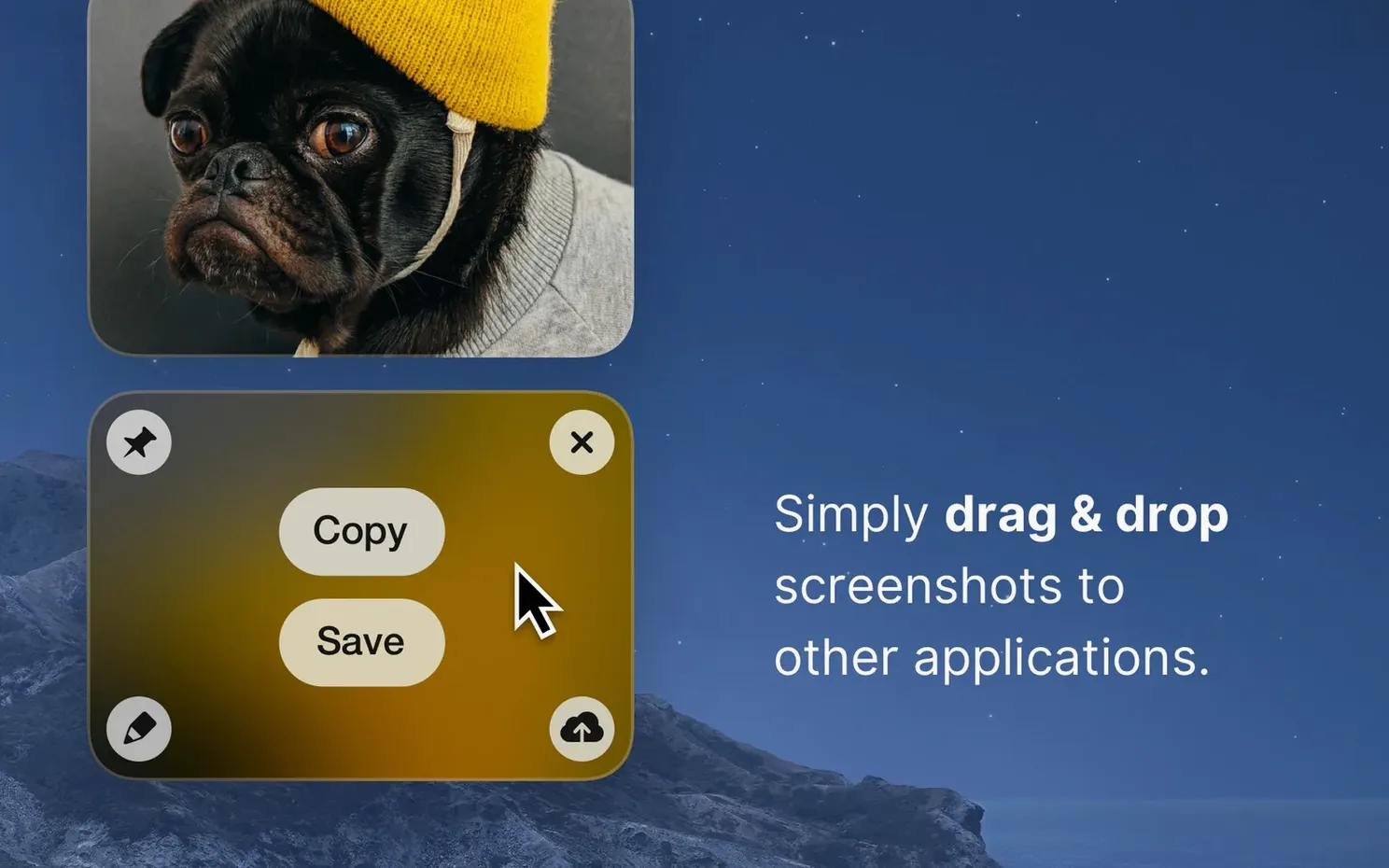
CleanShot X 5.0.1 supports macOS 11 and later, on both Intel and Apple Silicon Macs. That covers most machines still getting updates.
Runs on Big Sur and newer
If your Mac runs Big Sur or newer, you are set. No extra requirements beyond the operating system.
What you get after install
Capture an area, a full screen, a window, or a scrolling window. Set a timer before the shot, hide desktop icons for a clean look, and choose a solid color or image as the screenshot background.
Fixes for three common new-user trip-ups
A few things trip up new users regularly. Here is what I see most often and how to fix each one.
The app does not appear in the menu bar
CleanShot X runs from the menu bar by design. If you do not see its icon there after launching, check that you moved the app into the Applications folder and launched it from there rather than running it directly from the disk image. Remove the disk image from the Finder sidebar, drag the app to Applications, then open it from Launchpad or Spotlight. The menu bar icon should show up within a few seconds.
Scrolling capture stops short
Scrolling capture works on most web pages, PDFs, and document windows. If it stops before you expect it to, the content window may not have keyboard focus. Click once inside the window you want to capture, then start the scrolling capture again. Some older web apps or Electron-based tools do not support it, and in those cases you get only the visible area.
Recordings save with no audio
By default CleanShot X records system audio and microphone audio together. If the exported file has no sound, open the recording settings and confirm that both audio sources are enabled. On Apple Silicon Macs, system audio capture needs the app to have screen recording permission in System Settings, even if you already granted it for an earlier version. Revoking and re-granting that permission usually fixes it.
Don't close the editor after saving
The app is straightforward, but a few habits lead to head-scratching moments until you learn the workflow.
- Closing the editor immediately after saving. Once you save a screenshot, the editor window disappears. If you need to annotate further, you have to capture again. Get in the habit of doing all your markup before you hit save.
- Forgetting to switch resolution for sharing. The default captures at Retina resolution, which looks crisp on your screen but can produce very large images. If you are pasting a screenshot into a document or an email, switch to standard resolution first. You will save space and the recipient will see a normal-sized image.
- Pinning screenshots and wondering where they went. The pin feature keeps a screenshot floating above all windows. If you pin one and then switch to full-screen mode in another app, the pinned image stays behind that full-screen space. Move pinned screenshots to a regular desktop space if you need them visible during a presentation.
- Not hiding desktop icons before a clean shot. The app can hide icons automatically when you capture. If you skip that setting, your screenshot will include whatever is scattered on the desktop. Enable that option once and it becomes a habit.
Teacher records coding GIFs weekly
A colleague of mine runs a weekly computer science elective for ninth graders. Every Friday, she needs to record a short GIF showing how to solve a coding puzzle on the whiteboard app they use. Before CleanShot X, she would take a screen recording with QuickTime, trim it in iMovie, then convert it to GIF online. That process took ten minutes per GIF.
Now she opens CleanShot X, selects the area around the whiteboard, chooses GIF as the output format, and records the solution in one take. The built-in editor lets her crop the timing and highlight a key line before saving. The whole thing takes under two minutes. She also uses the scroll capture to copy full-page coding reference sheets for her students, which saves her from stitching multiple screenshots together manually.
Set your own capture shortcut first
When you first open CleanShot X, the defaults are fine for general use. A few adjustments make it fit your own habits better.
- Set your preferred capture shortcut. The default keyboard shortcut may conflict with other apps you use. Change it to something that does not overlap with your workflow. I use Option+Shift+5 to avoid any clash with system shortcuts.
- Choose a screenshot background. If you share a lot of screenshots on a white background, a subtle shadow or a solid color border helps the image stand out. Pick one that complements your content. A light gray background works well for most interfaces.
- Disable desktop notifications during recordings. This is on by default in the recording section, but double-check that it is enabled so no pop-ups interrupt your capture.
- Adjust the timer duration. The default timer is three seconds. If you need extra time to set up the screen before a capture, increase it to five or ten seconds in the capture settings.
A workflow for creating a step-by-step tutorial image
Here is how I put together a clean tutorial screenshot for my students, from start to finish.
- Enable the hide desktop icons option. Before any capture, I turn that on so the final image shows only the app content.
- Capture the full window. I select the window capture mode and click the window I want to document. This gives me a clean screenshot with the window shadow included.
- Open the built-in editor. The screenshot opens automatically in the editor. I do not save yet.
- Add step numbers. I use the numbered label tool to mark each step in the interface. The editor keeps the numbers evenly spaced and aligned.
- Highlight the important area. I draw a colored rectangle around the button or field I want students to focus on. The editor has a semi-transparent highlight that does not cover the underlying text.
- Crop out unnecessary space. I trim the edges so only the relevant panel is visible. This keeps the image compact.
- Switch to standard resolution. Before exporting, I change the resolution setting to standard so the image is not unnecessarily large for a handout.
- Save as PNG. I choose a descriptive filename and save. The whole process takes about thirty seconds once you know the steps.
Screen recording works as video or GIF, captured during the same workflow.
- Minor bug fixes and improvements.
- macOS 11 or later
- Intel or Apple Silicon
Questions I keep getting
Can CleanShot X record GIFs?
Yes, CleanShot X can record video or GIF during capture, so you can choose the format that suits the moment.
How to install
- Open the downloaded disk image.
- Drag the app into the Applications folder shortcut. This keeps it available for all users.
- Launch the app from Launchpad after copying finishes.
Similar apps


Sign in or join the club to leave a comment.
Nobody has commented yet.