
- Version
- 3.18.0 [MAS]
- Studio or maker
- Electronic Team
- Languages
- Russian, English, German, Hungarian, Spanish, Chinese (Simplified), Korean, Dutch, Polish, Portuguese, Ukrainian, French, Czech, Japanese
- Activation
- K'ed by TNT team
- Runs on macOS
- macOS 10.13 or later
- Chip type
- Apple Silicon, Intel 64-bit
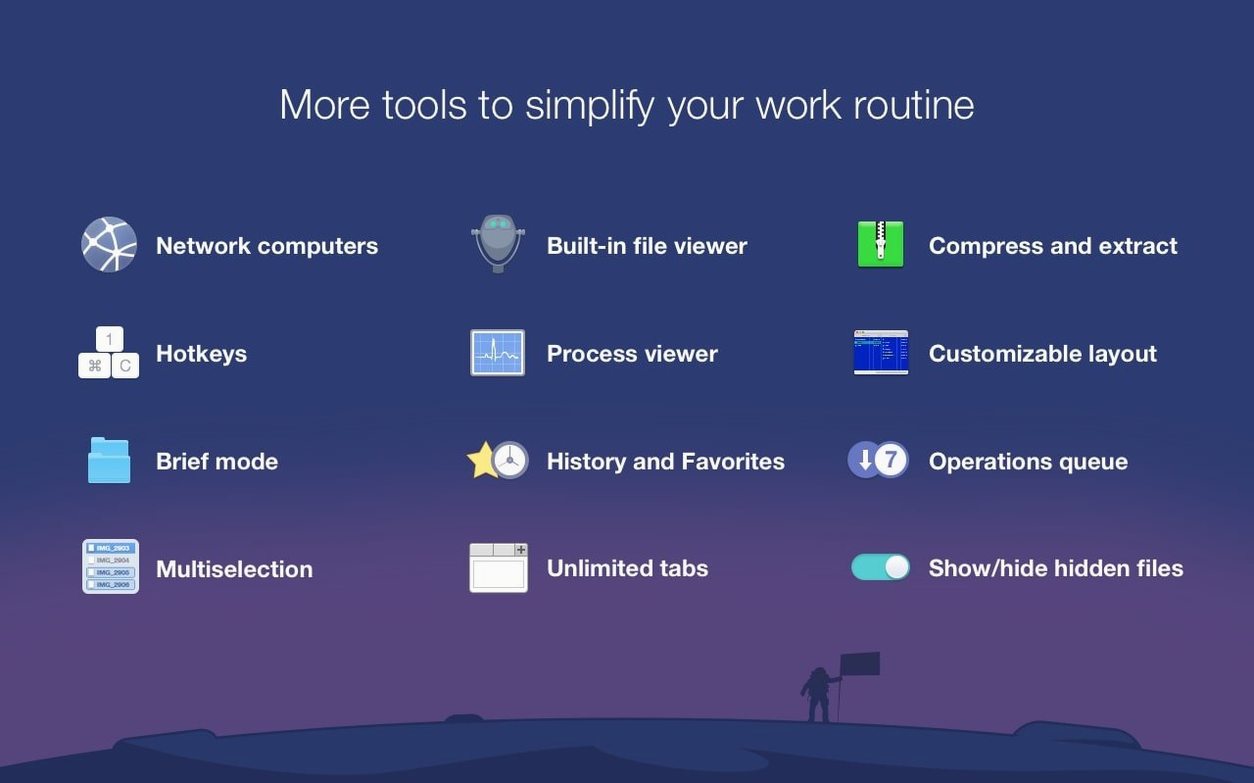
Most Mac users know Finder as the default file browser, but it has limits. Commander One PRO full Mac takes over where Finder stops, giving you two panes side by side, direct access to cloud storage, and tools for connected devices.
Why use dual-pane file management?
Copying or moving files between folders is faster when you can see both locations at once. The two-pane layout lets you drag items directly from one folder to another without juggling windows.
Saves steps for remote files on Dropbox, Google Drive, and network servers
It works with Dropbox and Google Drive, plus network servers, so you can manage remote files as if they were local. For a teacher moving lesson plans between school and home, that saves a lot of steps.
What about connected devices and archives?
Commander One PRO accesses iOS, MTP, and Android devices plugged into your Mac. It also unpacks ZIP, RAR, TBZ, TGZ, and 7z archives, which is handy when students hand in compressed project folders.
Show hidden files and adjust view settings first
When you open Commander One PRO for the first time, it works well out of the box, but a few adjustments make it feel more natural for daily use. Start with the view settings. Toggle on Show hidden files from the View menu — this is the quickest way to see everything inside a folder, including system files that Finder hides by default. It is useful when cleaning up library folders or when an app leaves leftover configuration files after uninstalling.
Next, switch to Brief Mode from the same menu if you work with many files at once. It strips away extra columns and shows only file names, so you can scroll through lists quickly. For maths teachers sorting class worksheets by filename, this is a small time-saver.
Set up your cloud accounts early. Open the Connections panel and add Dropbox or Google Drive. Once linked, those folders appear as tabs in the sidebar, and you can drag files between local and cloud folders without launching a browser or Finder tabs. It saves me about ten clicks per lesson plan transfer.
Don't close a pane when you meant to switch folders
I have seen a few common missteps when colleagues try dual-pane managers for the first time. The biggest one is closing a pane instead of switching its folder. People press Command-W expecting to close a tab, and the whole pane disappears. Instead, use the folder navigation buttons or the sidebar to change locations — leave both panes open and move between folders inside each one.
Another mistake is forgetting that the active pane is the one with the highlighted border. If you click a file in the right pane but try to copy it to the left pane, the copy happens from left to right because the left pane was last active. Watch the blue highlight around the pane edges to know which side is the source.
Some users drag a file to a cloud folder and assume it has uploaded immediately. Commander One PRO queues transfers, so check the transfer queue panel at the bottom to see the progress. Files to cloud services take a few seconds depending on size and connection speed.
Finally, do not double-click an archive expecting a traditional extraction dialog like in the Unarchiver. Instead, select the archive and use the Unpack button in the toolbar to choose where to extract the contents. This gives you more control over the destination folder.
Less polished than ForkLift but covers FTP, cloud, and archives
There are other dual-pane file managers for macOS, and each suits different workflows. ForkLift is probably the closest competitor. It also supports FTP, cloud accounts, and archive handling. ForkLift has a more polished interface with darker themes, but Commander One PRO feels quicker to set up cloud connections — you link accounts in a few clicks without digging through preferences.
Path Finder is another option, packed with features like a built-in hex editor and advanced file tagging. It is excellent for power users who need those tools, but the extra features make the interface busier. Commander One PRO keeps things simpler: two panes, a sidebar, and the core tools you need for school or office work.
muCommander is a free alternative, though its Java-based interface feels older and less responsive on modern Macs. It works for basic file moves but lacks cloud integration and the Process Viewer. For teachers who want a cleaner experience, Commander One PRO full Mac is worth the switch.
Each app has its strengths, but Commander One PRO strikes a balance between function and simplicity. It does not overwhelm you with options, yet it handles the tasks that Finder cannot — cloud transfers, connected device access, and archive unpacking — without forcing you to hunt through menus.
The built-in Process Viewer shows active processes on your Mac, so you can spot a stuck app and deal with it without opening Activity Monitor.
- Compatibility with macOS 27 was improved.
- Drag and drop of files on macOS 27 was fixed.
- Handling of some hotkeys with non-English keyboard layouts was fixed.
- macOS 10.13 or later
- Intel or Apple Silicon
- 52.82 MB of free space
Questions I keep getting
Does Commander One PRO work with cloud accounts?
Yes, it supports Dropbox and Google Drive, along with network servers, so you can manage files stored off your Mac.
Which archive formats can it unpack?
It can unpack ZIP, RAR, TBZ, TGZ, and 7z archives directly in the app.
Can I access files on my phone through it?
Yes, it can access iOS, MTP, and Android-connected devices when they are plugged into your Mac.
How to install
- Mount the disk image and launch Open Gatekeeper friendly, which prepares the installer.
- Press Enter in the Terminal window to bypass Gatekeeper, a step needed for this app to run.
- Drag the app into the Applications folder to place it where macOS expects it.
- The app is ready to use from your Applications folder.
Similar apps



Sign in or join the club to leave a comment.
Nobody has commented yet.