- Version
- 2.4 [MAS]
- Studio or maker
- App ahead GmbH
- Languages
- English, German, Spanish, Italian, Chinese (Simplified), Korean, French, Japanese
- Activation
- K'ed by TEAM HCiSO
- Runs on macOS
- macOS 11 or later
- Chip type
- Apple Silicon, Intel 64-bit
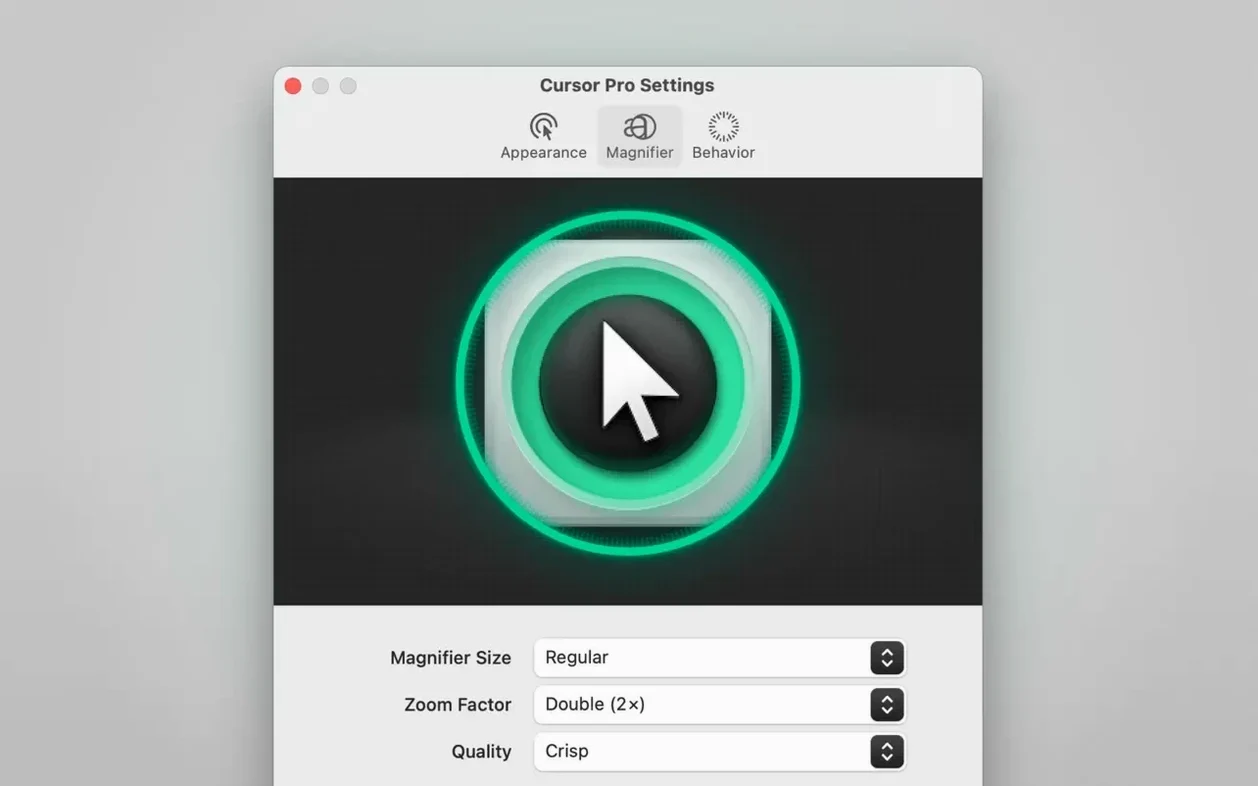
During a presentation, the mouse pointer can vanish into the background, especially with dense slides or live coding. Cursor Pro 2.4 keeps the pointer visible with a colored circle or diamond that follows every move, and it can magnify the area around it for close-up detail.
What does the pointer highlight look like?
You can choose between a circle or a diamond, and set the color to something that stands out against your content. The highlight follows the cursor smoothly, so it stays visible without being distracting.
How does the magnifier work?
The magnifier enlarges the screen content near the pointer, with a zoom factor you control. It is useful for showing small text or fine details during a lesson or a webinar.
Lives in the menu bar and toggles from anywhere
The app lives in the macOS menu bar, so you can adjust settings or enable auto-hide without opening a separate window. A global hotkey lets you toggle the highlight and magnifier from anywhere.
How Cursor Pro fits with other apps and macOS features
Cursor Pro sits alongside screen-sharing tools like Zoom, Microsoft Teams, or QuickTime Player without conflict. When you share your entire screen, the highlight and magnifier appear on the remote end, so your audience sees exactly what you are pointing at. The app does not interfere with screen-recording software either, which is helpful if you capture tutorials for later playback.
The global hotkey can be set to a key combination that does not clash with shortcuts in your main application. For example, if you use Keynote or PowerPoint, you can assign Cursor Pro to a modifier key that those presentation apps do not use. The auto-launch at login option means the app starts before you open your slides, so you do not have to remember it during a busy morning.
Because Cursor Pro lives in the menu bar, it works well with macOS Spaces and full-screen apps. You can switch between desktops and the highlight follows the cursor into whichever space you are using. The app does not create a separate window, so it does not clutter your Dock unless you choose to show it there.
Fix highlights missing on remote screens by sharing the full screen
Sometimes the highlight does not appear on the remote end during a screen share. This usually happens when you share only a single window instead of the entire screen. Cursor Pro works over full-screen sharing, so check your sharing settings and switch to full screen. Another cause is having the auto-hide option turned on while you are not moving the mouse for a few seconds. A quick shake of the mouse brings the highlight back.
The magnifier may feel too strong or too weak at first. The zoom factor is adjustable, so start at a low value and increase it until the detail is clear. If the magnifier covers too much of the screen, reduce the zoom or turn it off and rely on the pointer highlight alone.
If the global hotkey stops working, check whether another app has claimed the same shortcut. Many apps let you reassign their hotkeys in preferences. Changing Cursor Pro's hotkey to a new combination usually resolves the conflict.
I set a bright red circle for geometry before the first bell
I teach a double period of geometry on Thursday mornings. Before the first bell, I open Cursor Pro from Launchpad. The app starts in the menu bar, and I set the pointer highlight to a bright red circle because my slides use a lot of blue. I enable the magnifier with a modest zoom factor and assign the hotkey to Option+Command+M, which I have checked does not conflict with my graphing software.
During the lesson, I explain how to calculate the area of a composite shape. I move the cursor over each part of the diagram, and the red circle follows it, so the students know exactly where to look. When I need to point out a tiny measurement label, I press the hotkey. The magnifier enlarges the label and the red circle remains around it. The students can read the numbers on their screens without me having to zoom the whole slide.
Between classes, I switch to a different class group. I change the highlight color to green, because the next deck uses a dark background. The whole adjustment takes ten seconds from the menu bar. At the end of the day, I close the app or let it run in the background. It does not slow down my other work.
Clean circles and diamonds over Mouseposé's ripples and waves
Mouseposé also highlights the pointer, but it uses more screen effects like ripples and waves. Cursor Pro leans toward a cleaner look with circles and diamonds, which suits classroom or meeting environments where you want clarity over flair. Mouseposé does not include a magnifier, so if you need to show fine detail, Cursor Pro has the advantage.
Zoommy is another tool for screen presentations, but it focuses on magnifying the entire screen area rather than highlighting the pointer. Cursor Pro gives you both functions in one app. For presenters who want a simple pointer highlight and occasional magnification, Cursor Pro avoids the extra steps of running two separate utilities.
- macOS 11 or later
- Apple Silicon or Intel Mac
Questions I keep getting
Which macOS versions does Cursor Pro support?
Cursor Pro 2.4 is compatible with macOS 11 and later, and it runs on both Intel and Apple Silicon Macs.
Can I change the shape of the pointer highlight?
Yes, the pointer highlight can be a circle or a diamond, and you can customize its color.
Does Cursor Pro support a global hotkey?
Yes, the app supports a global hotkey so you can toggle the highlight and magnifier from any application.
How to install
- Open the downloaded disk image. This mounts the installer volume on your desktop.
- Drag the app into the Applications folder alias. This copies Cursor Pro to your Applications folder, where macOS expects it.
- After copying finishes, open the app from Launchpad. It will appear in the menu bar.
Similar apps





Sign in or join the club to leave a comment.
Nobody has commented yet.