- Version
- 4.34.2 (4.34.2) admin
- Studio or maker
- Software Ambience Corp.
- Languages
- Russian, English, German, Spanish, Italian, Chinese (Traditional), Chinese (Simplified), Polish, French, Swedish, Japanese
- Activation
- K'ed by TNT team
- Runs on macOS
- macOS 10.13 or later
- Chip type
- Apple Silicon, Intel 64-bit
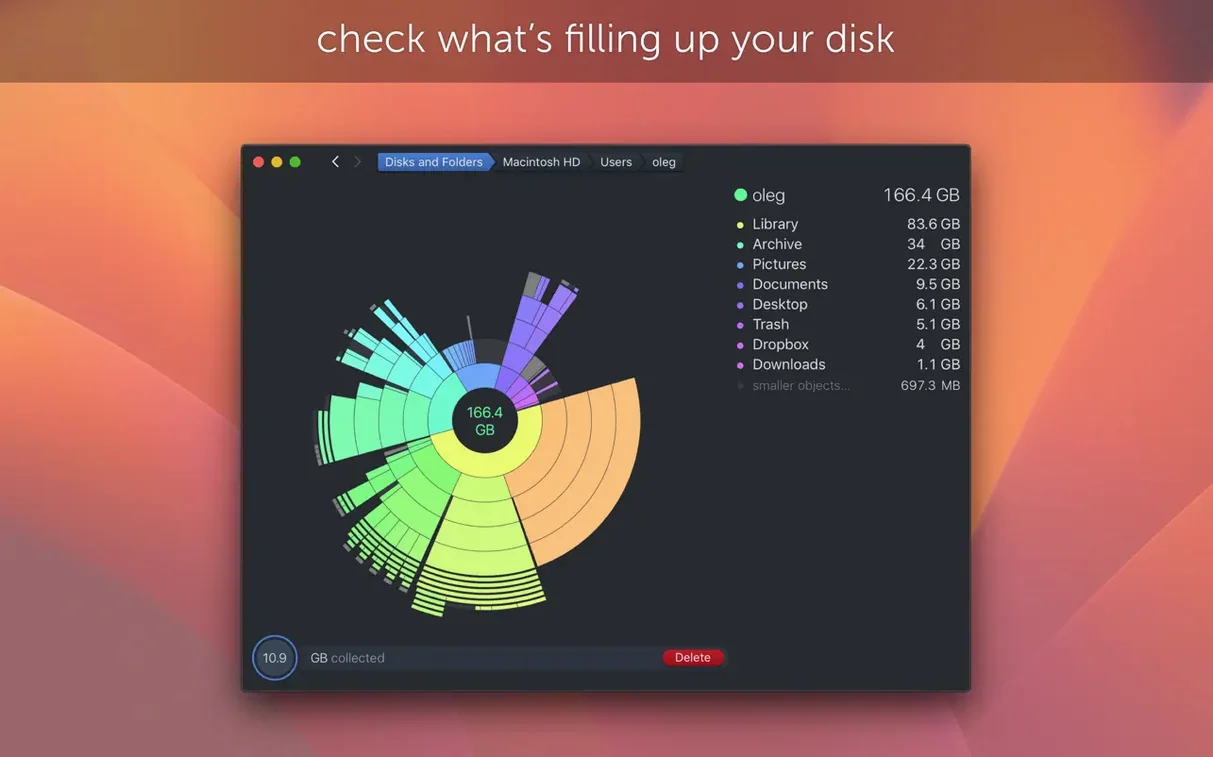
Anyone who has stared at a Mac's storage bar and wondered where the gigabytes went will feel at home with DaisyDisk. It's a disk space analyzer that turns your drive into a colorful, interactive map. You point it at a disk, it scans, and suddenly you see big colorful blocks for movies, backups, or that mysterious Other category.
One realistic task: finding the space hogs
Say your Mac reports 20 GB free, but you know you haven't downloaded anything big lately. Open DaisyDisk, pick your startup disk, and let it scan. The map appears quickly, with each file shown as a block. The huge blocks are your targets. Click one, and DaisyDisk shows what's inside. You might find an old virtual machine, a forgotten movie, or a cache folder you can clear. The Other section gets its own color, so you can see exactly how much space those system odds and ends take up.
Why the map makes a difference
A list of folders is fine, but a map shows scale at a glance. You don't have to open Finder and guess. DaisyDisk also accounts for APFS clones, so it counts each file only once in its space calculations. That means the numbers you see match reality more closely. It supports both Intel and Apple Silicon Macs, and the interface is available in English, German, and several other languages. For a teacher who just wants to know why the school laptop is full, it's a straightforward tool.
What changed in recent versions
Version 4.34.2 is a small fix release, but the update before it, 4.34, made a meaningful difference for anyone with an APFS-formatted drive. APFS clones are a macOS feature that lets the system store two copies of the same data without using twice the space. Earlier versions of DaisyDisk counted each clone separately, which could show more used space than was really there. Now the map and the numbers count only the first occurrence of each clone, so the total you see is closer to what the system reports. That matters if you use Time Machine or duplicate folders for backup work.
Version 4.34.1 fixed a scanning issue on older Macs running macOS versions before Sonoma. If you work with a school laptop that hasn't been updated in a while, that fix keeps DaisyDisk from stalling mid-scan. Version 4.33.2 improved hidden space estimation and corrected size calculations on FAT32 and exFAT drives, which is useful if you plug in an external USB key or a camera card. It also added support for macOS Tahoe, though that name covers a fairly recent system release.
Runs on macOS 10.13 or later, no extra utilities
DaisyDisk runs on macOS 10.13 or later and works on both ARM (Apple Silicon) and 64-bit Intel machines. No special drivers or extra utilities are needed. The application is about 20 MB on disk, so it won't crowd your drive. When you open it, the window uses your Mac's retina display resolution, so text and map details stay sharp. The interface itself is offered in eleven languages, including Russian, English, German, Spanish, Italian, Traditional Chinese, Simplified Chinese, Polish, French, Swedish, and Japanese. If you teach at a multilingual school, students can switch to their own language without guessing menu items.
How installation works
DaisyDisk comes as a disk image. You mount it, and macOS might show a Gatekeeper warning. To bypass it, press Enter in a Terminal window after mounting. Then drag the application to your Applications folder. That is a one-time step. After that, the app opens normally from your Applications list or dock.
Scan the wrong disk and waste time
The most common mistake is scanning the wrong disk. If you have an external drive plugged in and you are curious about your internal drive, check the disk list first. DaisyDisk shows all mounted disks in real time, but you need to pick the one you want to analyze. Another error is deleting items from within the map without checking what they are. DaisyDisk lets you drag and drop files to delete them, which is convenient, but it does not ask again once you confirm. Take a moment to click a block and see what is inside before you remove it. Beginners also sometimes forget about the Quick Look feature. If you hold down the space bar or activate Quick Look on a file, you see a preview of its contents. That can save you from deleting something you meant to keep.
Scan multiple disks at once without waiting
DaisyDisk can scan multiple disks at the same time. If you have a school laptop with both an internal SSD and an external hard drive, you can start one scan, then start another without waiting. The map updates as each scan finishes. The Other category gets its own color in the map, so you can spot it right away. That category often holds system files, caches, and application leftovers. Click on it to see what is actually inside. Another convenience is how DaisyDisk integrates with macOS Quick Look. When you select a file in the map, you can preview it without opening a separate program. That works for images, documents, and some audio files. If you are sorting through dozens of folders, it saves time.
- Fixes a bug.
- Adds support for APFS clones in space calculations.
- Counts only the first occurrence of each APFS clone, giving more accurate used space.
- macOS 10.13 or later
- Intel (64-bit) or Apple Silicon
Questions I keep getting
Does DaisyDisk show what's in the Other category?
Yes, DaisyDisk displays what is stored in the Other category, so you can see what those hidden files are taking up.
Does DaisyDisk work on Apple Silicon Macs?
Yes, DaisyDisk supports both ARM and 64-bit Intel architecture, so it runs on all modern Macs.
How to install
- Mount the disk image and run the app with Open Gatekeeper friendly mode.
- Press Enter in Terminal to bypass Gatekeeper.
- Drag the app into your Applications folder.
- Open the app from Applications when the copy is done.
Similar apps

Sign in or join the club to leave a comment.
Nobody has commented yet.