- Version
- 7.0.4
- Studio or maker
- Surtees Studios Ltd
- Languages
- English
- Activation
- Included
- Runs on macOS
- macOS 27 or later
- Chip type
- Apple Silicon, Intel 64-bit
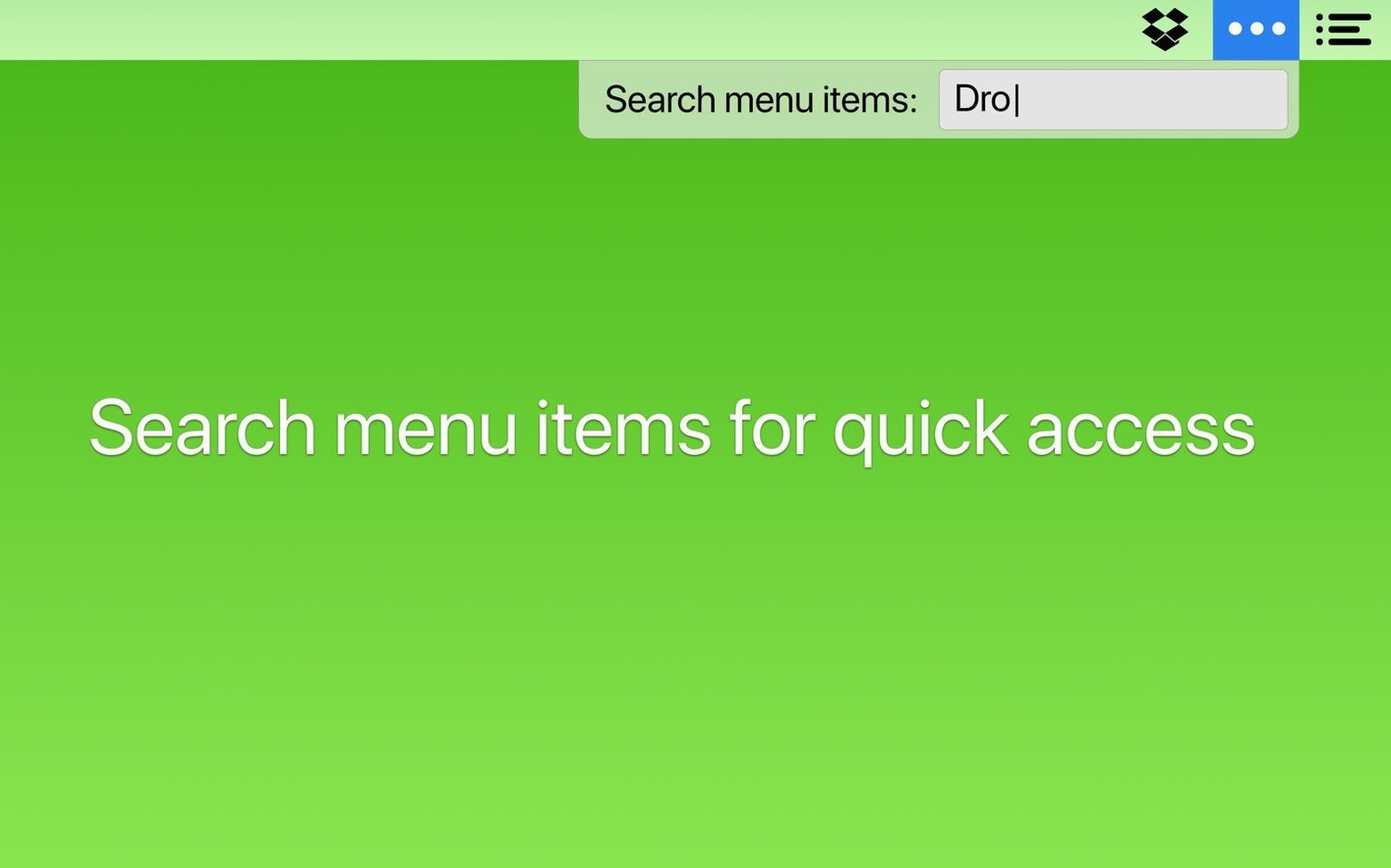
You know the feeling: your Mac’s menu bar fills up with icons until you can’t see the time. Bartender clears that clutter. It’s a menu bar manager that lets you decide which items stay visible, which go to the Bartender Bar, and which only show when they’re updating, syncing, or hitting an error.
Runs on Intel and Apple Silicon Macs
Bartender 7 is built for macOS 27 and supports both Intel and Apple Silicon Macs. That covers most machines from the last few years. You control items with keyboard shortcuts, triggers, or the minimal interface. Version 7.0.4 also updates the clipboard helper in the Command Bar. English is the only interface language.
Gives you back menu bar space with triggers and Shortcuts
The app changes the order of menu bar items, shows or hides them based on what you’re doing, and works with Shortcuts through app intents. It’s a quiet utility that does one thing well — gives you back space in the menu bar without hiding anything you actually need.
How Bartender fits into your Mac setup
Bartender is a utility that works alongside other macOS tools rather than replacing them. It integrates with Shortcuts through app intents, which means you can trigger show/hide actions from your own automations. If you already use Shortcuts for morning routines or focus modes, you can include Bartender in those workflows without opening the app separately.
The Command Bar, updated in version 7.0.4 with a refreshed clipboard helper, is accessible by keyboard shortcut. This means you don’t need to click the menu bar at all when you want to find a specific item — just type its name and press Enter. It’s a natural fit if you keep your hands on the keyboard for other tasks already.
Because Bartender hides its own icon if you want, the menu bar stays uncluttered even while the app runs. The triggers for showing items during updates, syncing, or errors mean you don’t miss important notifications, but you also don’t see them when they’re irrelevant. That’s the kind of quiet background behavior that works well with other system utilities like window managers or keyboard launchers.
More control and workflow integration than alternatives
There are other ways to manage menu bar clutter on Mac, and each takes a slightly different approach. The differences are mostly about how much control you get and how the app interacts with your normal workflow.
One common alternative is Vanilla, which hides menu bar items behind a simple toggle. Vanilla is straightforward but limited — you can’t set triggers for when items appear, and there’s no search or keyboard navigation. Bartender offers deeper control with triggers, search, and the Command Bar, which makes it better suited if you manage many items or prefer keyboard-driven access.
Another option is Dozer, which is lightweight and free. Dozer lets you hide items but offers no search, no triggers, and no keyboard shortcuts for navigating hidden items. It’s fine if you only need to tuck away a few icons, but Bartender becomes more useful as the number of items grows. The ability to reorder items and set conditional visibility makes a real difference when you have ten or more things in the menu bar.
There’s also Hidden Bar, which is very minimal — it gives you a simple divider that splits visible and hidden sections. Again, no search, no triggers, no keyboard navigation. Bartender’s advantage is that it doesn’t just hide things; it lets you decide when they appear based on what’s happening on your Mac.
Doesn't slow your Mac down when running in the background
Will it slow down my Mac when it’s running in the background?
Bartender is a lean utility. It doesn’t continuously scan or poll — it watches for triggers you set and stays quiet otherwise. Most people forget it’s running until they need it.
Do I need to give it screen recording permission?
Bartender 7 works without required screen recording. That’s a change from some earlier versions and from other menu bar managers that ask for accessibility or screen recording access. It respects your privacy by not needing that permission.
Can I still see notifications from hidden apps?
Yes, if you set triggers. Apps that show a badge or update icon during syncing, errors, or status changes can be set to appear automatically. You won’t miss a dropped connection or a finished upload.
Will it mess with my existing menu bar items after a restart?
Version 7.0.4 specifically fixes items shifting around after a restart, especially spacers. So that issue is handled now. Your layout stays where you put it.
Can I use it without a mouse?
Yes. The Command Bar supports keyboard navigation with arrow keys and Enter, and you can assign a keyboard shortcut to open the menu. If you prefer using a trackpad or mouse, the minimal interface works that way too.
Don't hide so many items you lose visual cues
The most common one is hiding too many items at once. It’s tempting to tuck everything away, but then you lose the visual cues that tell you an app is running or a process is active. A better approach is to start by hiding only the items you never click or check, then gradually move more over as you get comfortable with the triggers and Command Bar.
Another mistake is not setting triggers for important apps. If you hide something like an email client or a cloud sync tool, you might miss notifications unless you configure it to appear during updates or errors. Take a few minutes to think about which items you need to notice immediately and set triggers for those.
Some users also try to reorder items by dragging them in the main menu bar while Bartender is running. That can get confusing because items shift between visible and hidden states. It’s better to reorder items directly inside Bartender’s interface, where you can see the full list and move things without fighting the live menu bar.
Finally, people sometimes forget about the Command Bar. Instead of searching for an item or using the keyboard shortcut, they click through the Bartender menu every time. Once you get used to the keyboard shortcut and typing a few letters, it’s much faster than mousing around. That’s the kind of habit that takes a day to form and makes the app feel natural.
- macOS 27
- Intel or Apple Silicon processor
- English interface
Questions I keep getting
Does Bartender 7 work on Apple Silicon Macs?
Yes, Bartender 7 is built for macOS 27 and supports both Intel and Apple Silicon architectures.
Can I use keyboard shortcuts with Bartender?
Yes, Bartender supports keyboard shortcuts for opening and managing the menu bar.
How to install
- Open the downloaded disk image — it mounts a window with the app inside.
- Drag the app into the Applications folder — this copies it where macOS expects it.
- Launch the app from Launchpad after the copy finishes. That’s it.
Similar apps




Sign in or join the club to leave a comment.
Nobody has commented yet.