

- Version
- 2.6.1
- Studio or maker
- iZotope
- Languages
- English
- Activation
- Included
- Chip type
- Apple Silicon, Intel 64-bit
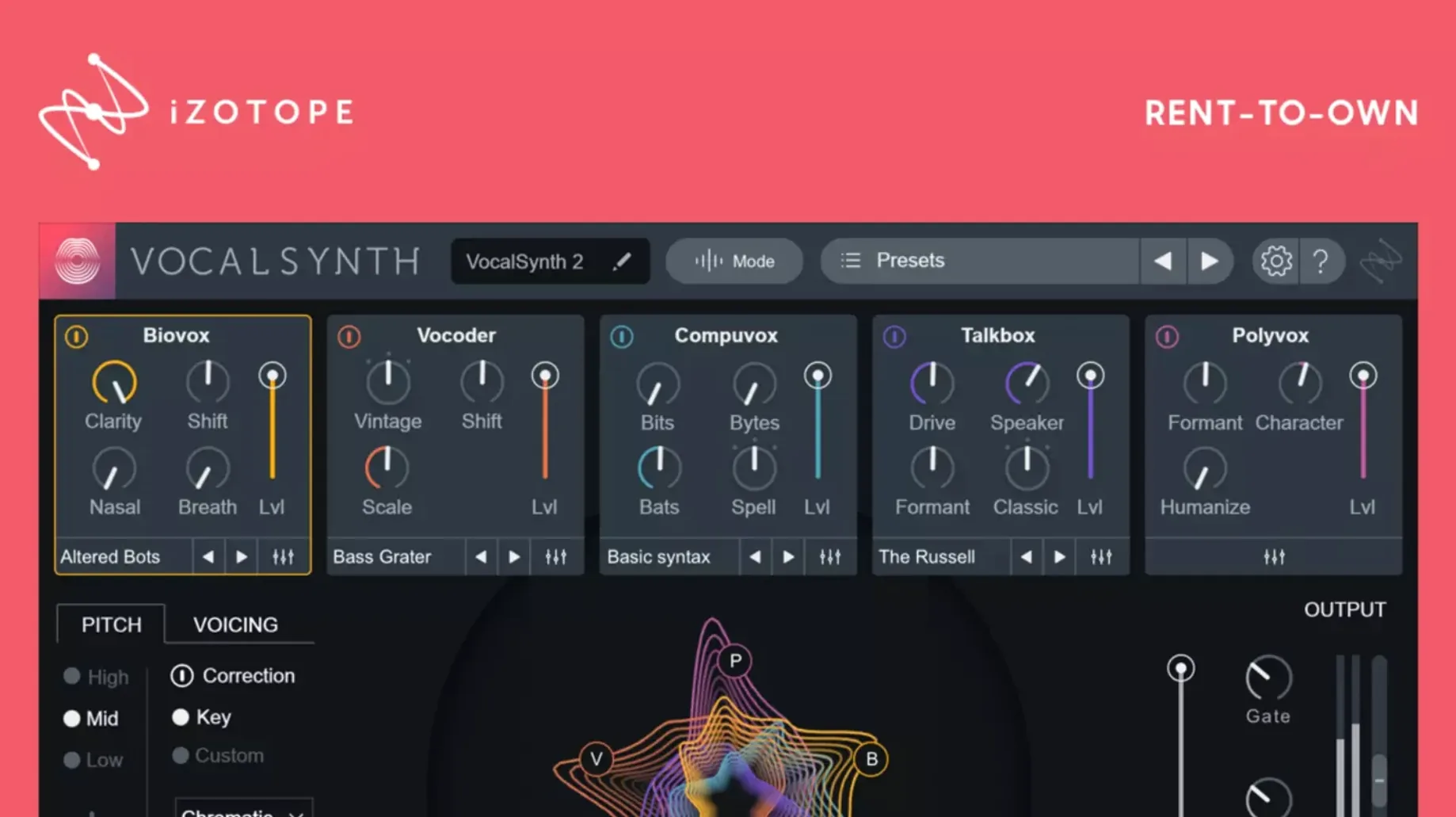
VocalSynth 2 from iZotope is a vocal processing plugin that shapes your vocals using multiple effect modules. The plugin offers Auto, MIDI, and Sidechain processing modes, and its enhanced spectral display responds to vowel sound characteristics.
Runs on both Apple Silicon and Intel Macs
VocalSynth 2 runs on both Apple Silicon and Intel Macs with 64-bit architecture. Version 2.5.0 added native Apple Silicon support and compatibility with macOS Monterey 12.3.x. The current version, 2.6.1, fixes an authorization recognition issue that could occur after updating from version 2.5.0. The interface is in English, and it works alongside Neutron, Ozone, and Tonal Balance Control.
The sound and how you use it
With multiple processing modules, you can blend effects like vocoding, talkbox, and polyphonic shifting. The spectral display gives you visual feedback on vowel shapes, making it easier to dial in the sound you want. It works as a standard plugin in any compatible DAW on macOS.
Auto mode is the default and worth changing first
When you open VocalSynth 2 for the first time, a few adjustments make the workflow more predictable. The plugin defaults to Auto mode, which analyses your vocal track and applies effects based on its pitch and dynamics. For most projects, I recommend starting with MIDI mode instead, especially if you want precise control over the vocoder or harmonizer. MIDI mode lets you play notes from a keyboard or draw them into your DAW's piano roll, so the effect follows your arrangement rather than guessing.
The Mix knob on the main panel is another setting to check early. For background layers, full wet can work well. The Stompbox section at the bottom of the interface has its own individual bypass buttons — turning off the effects you are not using can save CPU and keep the sound clean.
If you plan to use VocalSynth 2 with other iZotope plugins, enable the inter-plugin communication option in the settings. This lets you route the processed signal into Neutron or Ozone for further shaping, which I find useful when building a vocal chain from scratch.
Leaving all five modules active muddies the vocal
The most common mistake is leaving all five modules active at once. Each module adds its own layer of processing, and stacking them without a clear goal quickly turns a vocal into a muddy mess. I usually recommend starting with one or two modules, such as the Vocoder or Polyvox, and only bringing in the others when you hear a specific need.
Another frequent error is ignoring the spectral display. The display shows how the vowel sounds in your vocal are shaping the processed output. If the effect sounds nasal or harsh, a quick look at the display often reveals that a particular vowel is resonating too strongly. Adjusting the Formant Shift or the module's internal EQ can solve it without guessing.
Some new users also forget to check their MIDI routing. In MIDI mode, the plugin will not produce any sound until it receives a MIDI signal. If you hear silence after loading it, the first thing to check is whether your MIDI track is sending notes to the plugin. This is not a bug — it is simply how the mode works.
Lastly, beginners sometimes expect VocalSynth 2 to act like a simple pitch corrector. It is not. It is a creative effect designed for transformation, not subtle tuning. If you need pitch correction, you are better off using a dedicated tool and bringing VocalSynth 2 in later for the artistic layer.
Processing a student pop vocal on a mono channel
Let me walk through a session I might do after school, when I have a student's vocal recording to process for a project. The track is a simple pop vocal recorded in my DAW on a single mono channel.
First, I insert VocalSynth 2 on the vocal track and set the mode to Auto so I can hear the raw effect without playing MIDI. I choose a preset from the Vocoder category — something with a clear carrier sound — and listen through the verse. The spectral display shows me the vowel shapes are coming through clearly, so I know the routing is working.
Next, I switch to MIDI mode and draw a simple chord progression in my DAW's piano roll. The vocal now follows the chords, creating a harmonized effect. I add the Polyvox module to thicken the sound, setting it to a fifth above the root note. At this point, the vocal is starting to sound layered and full.
I check the Stompbox section and add a touch of distortion on one of the slots, just enough to give the chorus some edge. I bypass the other Stompbox slots to keep the CPU light.
Finally, I export the processed vocal as a new audio file so the student can use it without the plugin loaded. The whole process takes about twenty minutes, and the result is a vocal that sounds intentional and polished without losing the original performance.
Synthwave producer dialing in 1980s vocoder sound
Consider an electronic music producer who makes synthwave tracks. They have a clean vocal take but want it to sit in the mix like a retro vocoder from the 1980s. They load VocalSynth 2, set the mode to MIDI, and play a simple bassline on their MIDI keyboard. The Vocoder module locks onto the bassline's pitch, and the spectral display shows the vowel shapes blending with the synth character. A quick adjustment to the Formant Shift raises the timbre slightly, making the vocal sound brighter without losing the vintage feel. The result is a vocal that fits the genre's aesthetic without requiring additional hardware or outboard gear.
- Fixed an issue where existing authorization was not recognized for some users after updating from version 2.5.0.
- macOS version: Monterey 12.3.x or later
- Architecture: Apple Silicon or Intel 64-bit
- Interface language: English
Questions I keep getting
Does VocalSynth 2 work on Apple Silicon Macs?
Yes, version 2.5.0 added native support for Apple Silicon, and version 2.6.1 continues that support.
What processing modes does VocalSynth 2 offer?
It offers Auto, MIDI, and Sidechain processing modes.
What macOS version is required?
The plugin supports macOS Monterey 12.3.x and later.
How to install
- Install the plugin using the provided installer package.
- Follow the activation instructions included in the package to authorize your copy.
Similar apps
Sign in or join the club to leave a comment.
Nobody has commented yet.