
- Version
- 1.0 fix
- Studio or maker
- Avalanche Studios
- Languages
- Russian, English, German, Spanish, Italian, Polish, Portuguese, French, Japanese
- Activation
- Not required
- Chip type
- Intel 64-bit
- Tried out on
- macOS Tahoe, Mac mini 2024 M4
- First released
- 1.09.2015
- Voice languages
- English
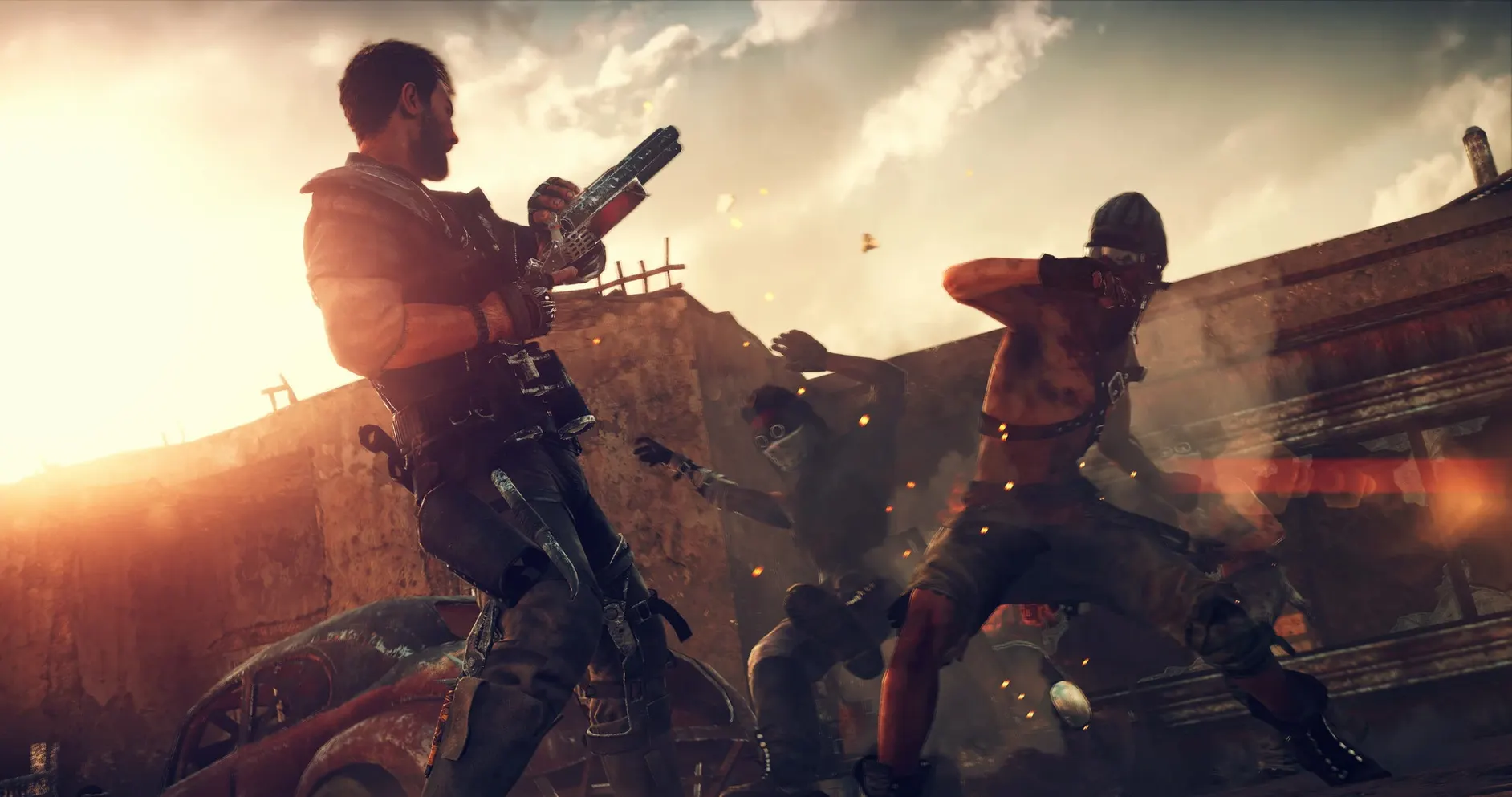
The 1.0 fix addresses stability on Intel Macs, so the wasteland runs a little smoother than before. What you get in the box is Avalanche Studios' open-world take on the Mad Max franchise: a lone warrior, his car, and a desert that wants both of you dead.
Exploring a dry open world at your own pace
- Players who like exploring a big, dry world at their own pace
- Switching between on-foot brawls and car-to-car combat without loading screens
- Anyone who wants the interface in English, German, French, Spanish, Italian, Polish, Portuguese, Russian, or Japanese
Third-person action on Intel Macs with a hostile wasteland
- It is a third-person action game, not a driving sim
- Built for Intel Macs, so Apple Silicon users will need translation layers
- The wasteland is hostile; expect frequent scavenging and repair stops
A sample run: claiming a new stronghold
Let me walk through one typical session to show how the game weaves together its systems. This is useful if you are new to the game or just need a reminder of the rhythm after a long break.
I started from my last save point, sitting in the Magnum Opus outside a small enemy camp. The objective was to clear the camp so the territory becomes available for upgrades. The first step is always reconnaissance: I used the binoculars from the car to tag enemies and spot the scarecrow towers. Tagging helps later when you are on foot and lose sight of a shotgunner behind a dune.
Next came vehicle approach. I drove in at medium speed, hitting the outer barricades. The 1.0 fix handles this part well even on an older Intel iMac — the frame pacing stays predictable during the crash physics. Once the car stopped, I switched to on-foot combat. The brawling uses a timing-based counter system. A common mistake is mashing the attack button; if you wait for the enemy's flash cue and press the counter key instead, Max takes down groups much faster. After the last guard fell, I claimed the camp by interacting with the flagpole. That changed the map icon from enemy red to friendly blue and unlocked a scrap-collection point.
Keeping a browser map open while playing in windowed-fullscreen
Mad Max on macOS works well alongside a few everyday habits. I often keep a browser window open with a map of the Wasteland's hidden locations. Because the game runs in a windowed-fullscreen mode by default, Command+Tab switches to Firefox or Safari without crashing the game. That is not true for every open-world port, so it is worth mentioning.
Another pairing: I use the macOS screenshot shortcut (Command+Shift+3) to capture funny or impressive moments. The screenshots land on the desktop as PNG files, and since the game does not have a built-in photo mode, these system shots are the easiest way to save a view or a wreck. For voice chat during co-op sessions — though the game is single-player only — Discord runs on a second monitor without stealing input focus from the game.
The game folder itself lives wherever you unpacked it. If you use macgamestorrent.com regularly, you might keep a dedicated Games folder in your home directory. That keeps Finder tidy and makes backups simple: just copy that one folder to an external drive.
Frequent scavenging and repair stops in the wasteland
The game asks for the MadMaxData folder again
After you unpack the archive, double-click the Mad Max file. A window opens asking you to locate the MadMaxData folder. If you moved the folder after unpacking, or if the path contains special characters, the game might not find it automatically. The fix: navigate back to the folder and select it. Once you pick it the first time, the game remembers the location for future launches.
Language is not what you expected
The game ships with English as the default voice and interface language. To switch the interface to another language — say, Russian or German — open the game package. Right-click Mad Max in Finder and choose Show Package Contents. Then go to Contents/Resources and open activated.ini in TextEdit. You will see a line like language=english. Delete english and type russian (or whichever language you prefer from the list). Save the file and relaunch the game. The menus and subtitles change; voice remains English.
Low FPS or stutter on an Intel Mac
If the game feels sluggish, check that no other heavy app is running. The 1.0 fix is tuned for Intel architecture, but the wasteland is demanding. Quit Chrome or Slack before launching. Also try lowering the resolution in the graphics settings from the main menu — dropping from 1920x1080 to 1600x900 usually frees up enough headroom without making the picture blurry. Do not set everything to low at once; change one slider at a time to see what matters most on your machine.
The game will not start after a macOS update
Occasionally a system update changes how macOS handles older 64-bit binaries. If Mad Max stops launching, the first step is to check the game folder's permissions. Right-click the Mad Max file, choose Properties, then Permissions, and make sure Execute is checked. If it is already checked, try running it from the terminal once to see any error messages: open Terminal, drag the Mad Max file into the window, and press Enter. The output often hints at the problem.
- Stability improvements for Intel Macs
- No new content in this update
- macOS: not specified
- Architecture: Intel
- Other: none listed
Questions I keep getting
Can I change the game language on Mac?
Yes. Open the Mad Max package contents, go to Contents/Resources, edit activated.ini in TextEdit, and replace english with russian (or another supported language).
Is Mad Max an open-world game?
Yes, it is an open-world third-person action game where vehicles and on-ground combat both play a central role.
How to install
- Unpack the archive, then open the file named Mad Max. This starts the installer.
- In the next window, select the MadMaxData folder. The game needs that data folder to find its assets.
- Restart the game when prompted, then play. The restart lets the game apply the initial setup.
- To change the language, right-click Mad Max and choose Show Package Contents. Go to Contents/Resources, open activated.ini in TextEdit, delete english next to language, and type russian (or another supported language).
Similar games




Sign in or join the club to leave a comment.
Nobody has commented yet.