- Version
- 1.41(a) [Wineskin]
- Studio or maker
- FireFly Studios
- Languages
- Russian, English
- Activation
- Not required
- Chip type
- Apple Silicon
- Tried out on
- macOS Sequoia, MacBook Air (M1. 2020)
- First released
- 31.07.2002
- Voice languages
- Russian, English
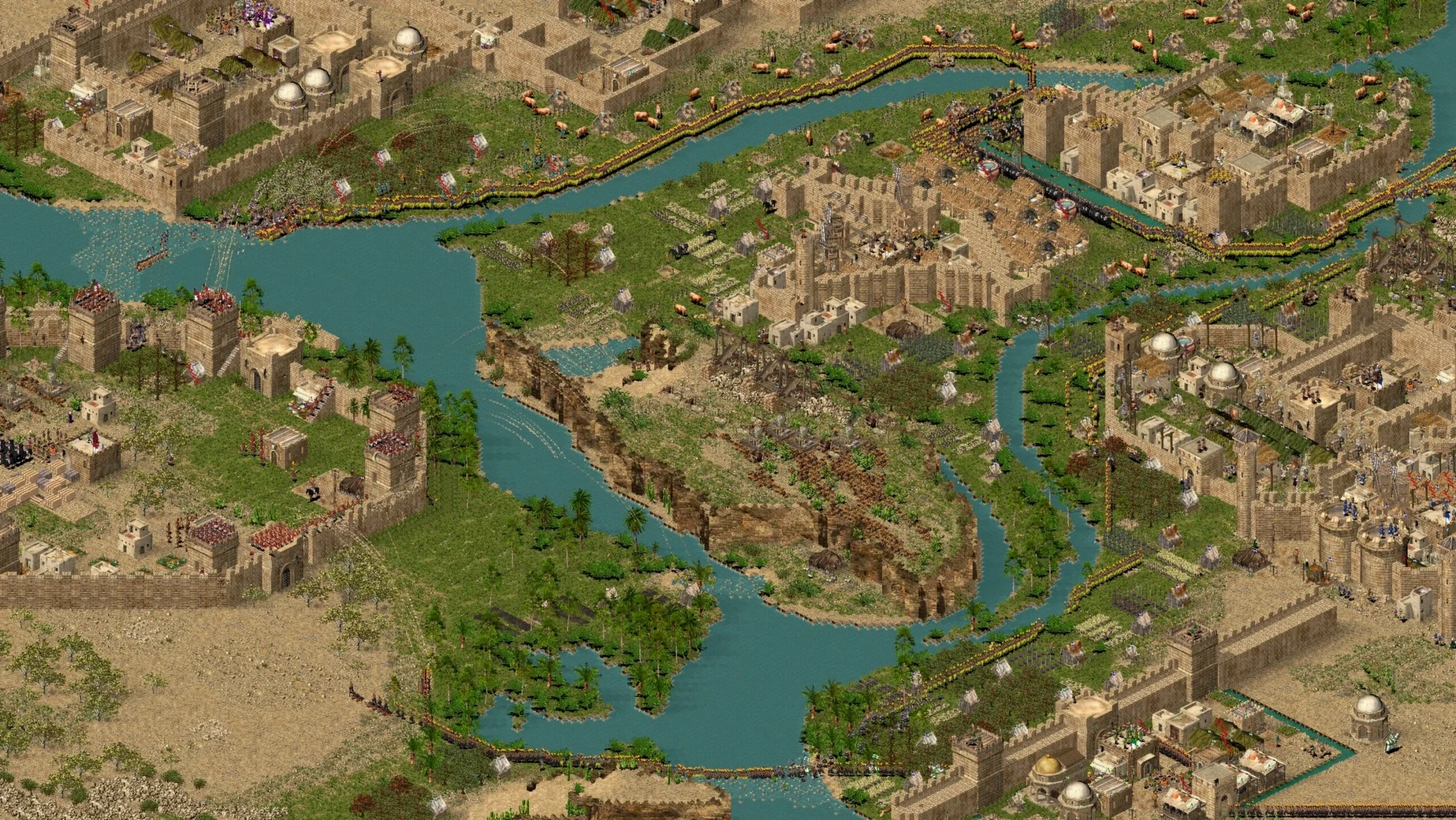
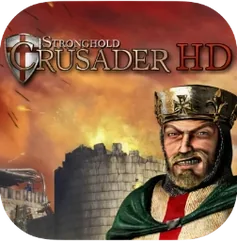
Stronghold Crusader HD runs on Apple Silicon Macs, including the M1 MacBook Air tested on macOS Sequoia. The package combines two games: Stronghold Crusader and the Extreme version, which increases the unit limit from 1,000 to 10,000. The HD edition adds higher-resolution graphics and a real-time scalable battlefield view that lets you zoom in and out during combat.
What campaigns and missions are included?
The game features 4 historical campaigns set during the Crusades, with more than 100 unique missions overall. You lead castle sieges and defend your own fortifications across a range of desert and river maps.
What new units and abilities are available?
New units include assassins and horse archers, expanding the tactical options for offense and defense. The Extreme version also allows larger armies, which changes how you plan larger battles.
What languages and extras come with the HD edition?
The game includes both English and Russian text. The HD edition also adds the scalable battlefield view and higher-resolution support, along with bug fixes in the latest official release.
Crusader HD adds Extreme mode and Crusades setting to the original Stronghold
If you know the original Stronghold HD, you will notice that Crusader HD shares the same core economic and military systems but adds the historical Crusades setting and the Extreme mode. Compared to Age of Empires II HD on Mac, Stronghold Crusader HD focuses more on castle layout and siege tactics than on technology trees and resource collection. The Extreme version's 10,000-unit cap makes battles feel larger than anything in the standard Age of Empires games, though the pathfinding can be less forgiving with crowds.
Banished is another Mac-compatible city builder, but it is about survival and resource chains, not combat. If you want to build walls, dig moats and watch armies clash, Stronghold Crusader HD is the closer fit. Medieval II: Total War offers larger campaigns and diplomacy, but it requires more processing power and has a steeper learning curve. Crusader HD stays simpler: you build, you fight, you move on to the next mission.
Set display resolution to 1920x1200 before starting a campaign
Before you start a campaign, open the in-game options menu and check the display resolution. If the game window looks off or the text is too small, set the resolution to 1920x1200 both in macOS display settings and inside the game. This resolves most display scaling issues.
In the Extreme version, the unit limit can be toggled in the game's settings. If you are playing on a MacBook Air, you may want to start with the standard 1,000-unit limit and only switch to Extreme once you are comfortable with the performance. The scalable battlefield view is also worth testing early: zoom in during a siege to see individual soldiers and zoom out to track the whole assault.
For language, the game defaults to English text and voice. If you need Russian, switch it in the options before you start the first mission. The change applies to both text and voice.
Restart the game if you get a black screen after Command-Tab
- Game does not start or shows a black screen after Command-Tab. Close the game and restart it. This is the simplest fix and usually works. If the black screen reappears, avoid switching away from the game window during play.
- The game has sound but the screen stays black or frozen. Set your macOS display resolution to 1920x1200 and match that setting inside the game's options. After you finish playing, you can change the resolution back to your usual preference.
- An error message appears at first launch. Open the downloaded disk image again and run the Fix file included in the package. This applies needed adjustments to the Wineskin wrapper. After that, launch the game from Launchpad as normal.
- You want to switch between Stronghold Crusader and the Extreme version. Open the app package contents, launch the Wineskin tool, go to Advanced, then Configuration, and change the Windows app path to point at the other game executable. Test the run to confirm it works. This is straightforward once you know where to look.
- Higher-resolution support in the HD edition
- Real-time scalable battlefield view
- Added resolutions and bug fixes in the latest official release
- macOS Sequoia
- Apple Silicon (tested on MacBook Air M1, 2020)
How to install
- Mount the downloaded disk image.
- Drag the app into the Applications folder shortcut.
- After copying finishes, launch the app from Launchpad.
- If an error appears at startup, run the Fix file from the disk image.
- If the game shows a black screen after Command-Tab, restart the game.
- If the game has sound but does not start, set the display resolution to 1920x1200 in macOS and the game.
- After playing, change the display resolution back.
- To switch between the included game executables, open the app package contents, launch Wineskin, open Advanced, go to Configuration, change the Windows app path, and test the run.
Similar games


Sign in or join the club to leave a comment.
Nobody has commented yet.