- Version
- 1.2.1
- Studio or maker
- solarsuit.games
- Languages
- Russian, English, German, Spanish, Chinese (Traditional), Chinese (Simplified), Korean, Portuguese, Turkish, French, Japanese
- Activation
- Not required
- Chip type
- Apple Silicon
- Tried out on
- macOS Tahoe, Mac mini 2024 M4
- First released
- 6.08.2025
- Voice languages
- English

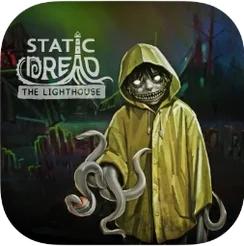
Version 1.2.1 of Static Dread: The Lighthouse puts you in the role of a lighthouse keeper on an island where villagers perform rituals to sea gods. The harbor authorities reactivate an old lighthouse to keep sea routes open, but ships return from long voyages without crews. The keeper’s sanity is part of the story, and your decisions affect the fate of ships and the town. Multiple endings mean each playthrough can turn out differently.
Lighthouse horror for slow-burn fans
This is a horror game built around atmosphere and choice rather than fast action. It suits players who enjoy slow-burn tension and branching narratives. The story draws from nautical folklore and isolation, so if you like games that make you think about consequences, this one fits. The interface supports English, German, Spanish, Simplified Chinese, Traditional Chinese, Korean, Portuguese, Turkish, French, Japanese, and Russian, which makes it usable in multilingual classrooms or club settings.
Runs on Apple Silicon without internet
Static Dread runs on Apple Silicon Macs. There is no Intel version listed. Once you copy the app to your Applications folder, you can launch it from Launchpad. The game does not require an internet connection after installation, so it works well for after-school game club sessions where you want something offline and self-contained.
Fix a first-launch setup snag
A few things tend to trip people up when they first get Static Dread set up. If the app won’t open, make sure you have the disk image mounted and the app fully copied into the Applications folder before you try launching it from Launchpad. Running it straight from the mounted image causes permissions problems on Apple Silicon.
Some players report that the game starts in English even when their system language is set to something else. You can change the language from the game’s settings menu before you start a new save. The voice language stays in English regardless of your text language choice, so don’t worry if the audio doesn’t match the on-screen text — that is expected.
If you see a warning that the app is from an unidentified developer, control-click the app in the Applications folder and select Open from the shortcut menu. You only need to do this once; afterward it works normally.
Auto-save eases replay choices
Version 1.2.1 includes a few quiet details that make repeated playthroughs easier. The game saves automatically at key story points, so you can experiment with different choices without losing progress. There is no separate save file management to worry about — the game handles it in the background.
Multiple endings mean you will want to replay after finishing once. The game does not require you to delete old saves to start fresh; you can begin a new game from the main menu and the previous save stays preserved. This makes it straightforward to compare how different choices affect the fate of the ships and the town.
The language menu lets you change text language mid-session, which is handy if you are using Static Dread in a classroom setting where students speak different languages. You do not have to restart the game for the change to take effect.
- macOS (version not specified by developer)
- Apple Silicon processor (Intel not supported)
Questions I keep getting
Does Static Dread have multiple endings?
Yes, the game includes multiple endings, and your choices affect the fate of ships and the town.
What languages does the game support?
It supports English, German, Spanish, Simplified Chinese, Traditional Chinese, Korean, Portuguese, Turkish, French, Japanese, and Russian.
Can I run this on an Intel Mac?
No, the listed version only supports Apple Silicon Macs.
How to install
- Mount the downloaded disk image.
- Drag the app into the Applications folder.
- Launch the app from Launchpad after copying finishes.
Similar games





Sign in or join the club to leave a comment.
Nobody has commented yet.