- Version
- v2 1.2.1
- Studio or maker
- Canopy
- Languages
- English
- Activation
- Included
- Runs on macOS
- macOS 26 or later
- Chip type
- Apple Silicon, Intel 64-bit
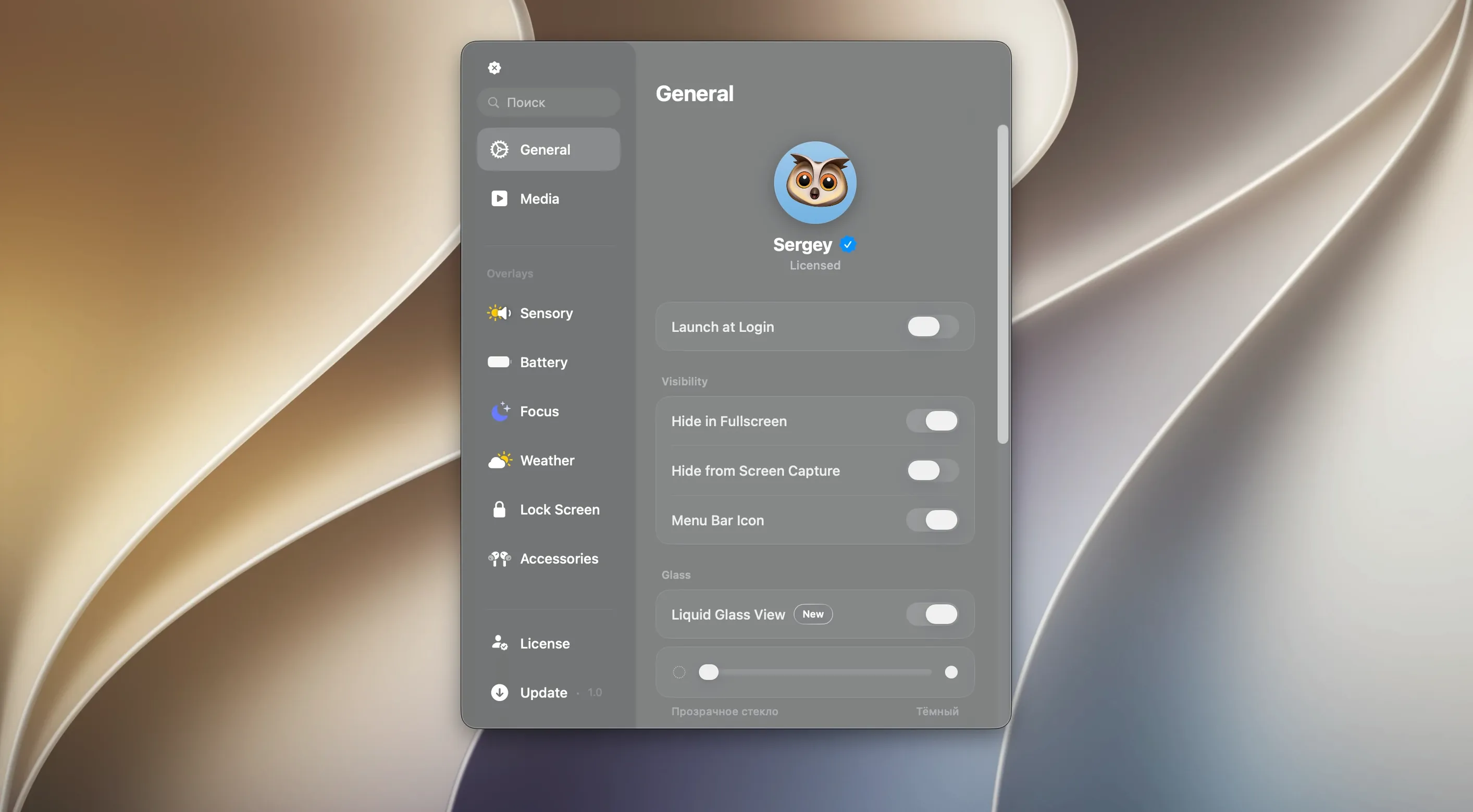
You are deep in a full-screen editor, and the trackpad scrub moves the playhead in your music app without leaving the keyboard. Canopy puts that kind of control where your eyes already are: a small interactive panel that sits in the notch on newer Macs, or as a floating widget at the top of the screen on models without one.
Media controls and Liquid Glass effects that stay one glance away
- Media controls that stay one glance away while you work in another app.
- Liquid Glass effects that match the visual language of current macOS.
- A menu bar panel that acts as a hub for notifications and quick actions.
Runs on Apple Silicon and Intel 64-bit Macs; launch from Launchpad
- It runs on both Apple Silicon and Intel 64-bit Macs, so older hardware is covered.
- The interface is in English only.
- After installation, launch it from Launchpad, not directly from the Applications folder.
Even a well-designed app like Canopy benefits from a few early adjustments. Here are the settings I usually change first when setting it up on a school machine or my own.
Move the panel out of the notch when notifications stack up
The default panel position works for most people, but you can move it. On a Mac with a notch, the panel sits inside it by default. If you find that the notch area feels cramped when notifications stack up, try moving the panel to the menu bar instead. On a Mac without a notch, the floating widget position is adjustable too. I prefer it centered, just below the menu bar icons, so it does not overlap with app menus.
Next, the notification style. Canopy can show activity from music players, timers, and other apps. By default, it might show everything. I turn off notifications for apps I do not use often, keeping only the music player and the system timer active. That way, the panel stays quiet until something I care about happens.
The Liquid Glass effect is a visual choice. It is on by default, and it looks good against dark wallpapers. On lighter backgrounds, the effect can feel a bit heavy. There is a toggle to reduce its opacity or turn it off entirely. I usually set it to a lower opacity so the panel stays readable behind a bright window.
Lastly, the media controls. Canopy picks up whatever media app is playing. If you use multiple audio apps, check that the correct one is selected. The panel remembers your choice, so you only need to set it once.
Canopy interacts with music apps and timers, unlike Island
Canopy is not the only app that adds a Dynamic Island-style panel to macOS. Two others I have looked at are Island and NotchMe.
Island focuses on a static display. It does not interact with music apps or timers. It is a good choice if you only want a polished clock replacement. Canopy does more: it is an active panel that responds to what you are doing, not just a display.
NotchMe is closer to Canopy in spirit. It adds media controls and basic notifications to a notch-style panel. Where it differs is in its visual effects. NotchMe uses simpler shapes and flat colors. Canopy uses Liquid Glass effects that feel more integrated with macOS. NotchMe also does not offer a floating widget for Macs without a notch. On an older MacBook without a notch, Canopy creates a floating widget that works the same way as the notch version.
None of these apps are replacements for each other. Canopy sits between them: it is more interactive than Island and more visually refined than NotchMe.
Launch from Launchpad instead of the Applications folder
The most common mistake is launching Canopy from the Applications folder instead of Launchpad. The app needs to register itself with the system after you copy it into Applications. If you double-click it in the folder, it may not show the panel correctly. Always open it from Launchpad after the initial copy.
Another mistake is expecting it to control every media app. Canopy works with common music players and system media controls, but not with every streaming service in a browser. If you use a web-based player, check whether Canopy detects it. Sometimes you need to play a track first before the panel picks it up.
Some users try to move the floating widget by dragging it like a normal window. It does not work that way. The widget position is set in the app preferences. Trying to drag it can hide it behind other windows, which is confusing. Use the settings to position it instead.
Finally, beginners sometimes leave every notification type active. The panel fills up quickly with alerts from timers, music changes, and system events. It is better to prune the list early. A quiet panel is more useful than one that buzzes constantly.
Canopy sits in the school iMac notch during a teaching day
I teach maths in the morning and run the game club after lunch. Canopy sits in the notch of the school iMac all day. Here is how a typical session goes.
I arrive and open the iMac. The panel is already there, centered in the notch. It shows the time and a small music note icon because last night I left a playlist paused. I tap the music note, and the panel expands to show the track name and a play button. I start the playlist. Now I can control volume and skip tracks from the panel without leaving the grading app.
Between classes, I set a timer. I tap the panel to bring up the timer controls. I set it for five minutes, enough to tidy the desk before the next bell. The panel shows a small countdown in the notch. When the timer ends, Canopy sends a brief notification. I do not need a separate timer app open.
During game club, I use Canopy to switch between a music app and the club game. The panel remembers the last media source, so I can pause the soundtrack when explaining a rule and resume it with one click. The Liquid Glass effect makes the panel visible even when the classroom projector is on and the lights are dimmed.
At the end of the day, I close everything. Canopy remembers the timer and media settings for the next session. I do not have to set it up again.
This update brings Canopy to version 2 1.2.1. The build carries a round of under-the-hood refinements that keep things running smoothly on current Macs.
- macOS 26 or later
- Apple Silicon or Intel 64‑bit processor
How to install
Weighing in at only 11 MB, Canopy asks for macOS 26 or later and runs happily on an Apple Silicon or Intel 64‑bit Mac.
- Open the disk image you downloaded. It mounts a window with the app and a shortcut to your Applications folder.
- Drag the app icon onto the Applications shortcut. macOS copies it across and the app is ready once the copy finishes.
- Find Canopy in Launchpad or your Applications folder and open it. That’s all — you can eject the disk image now.
Similar apps



Sign in or join the club to leave a comment.
Nobody has commented yet.