
- Version
- 5.4.2.006
- Studio or maker
- Celemony
- Languages
- English
- Activation
- K'ed by MORiA
- Runs on macOS
- macOS 10.12 or later
- Chip type
- Apple Silicon, Intel 64-bit
Melodyne runs natively on both Intel and Apple Silicon Macs, so it feels at home on an older MacBook as well as the latest M-series machines. The interface is in English, and the minimum system is macOS 10.12, which covers a lot of ground.
Notes on a grid, not knobs
| Item | Detail |
|---|---|
| Developer | Celemony |
| Version | 5.4.2.006 |
| Type | VST plugin and stand-alone |
| Editions | Essential, Assistant, Editor, Studio |
| Architecture | Universal Binary (Intel/Apple Silicon) |
| Interface language | English |
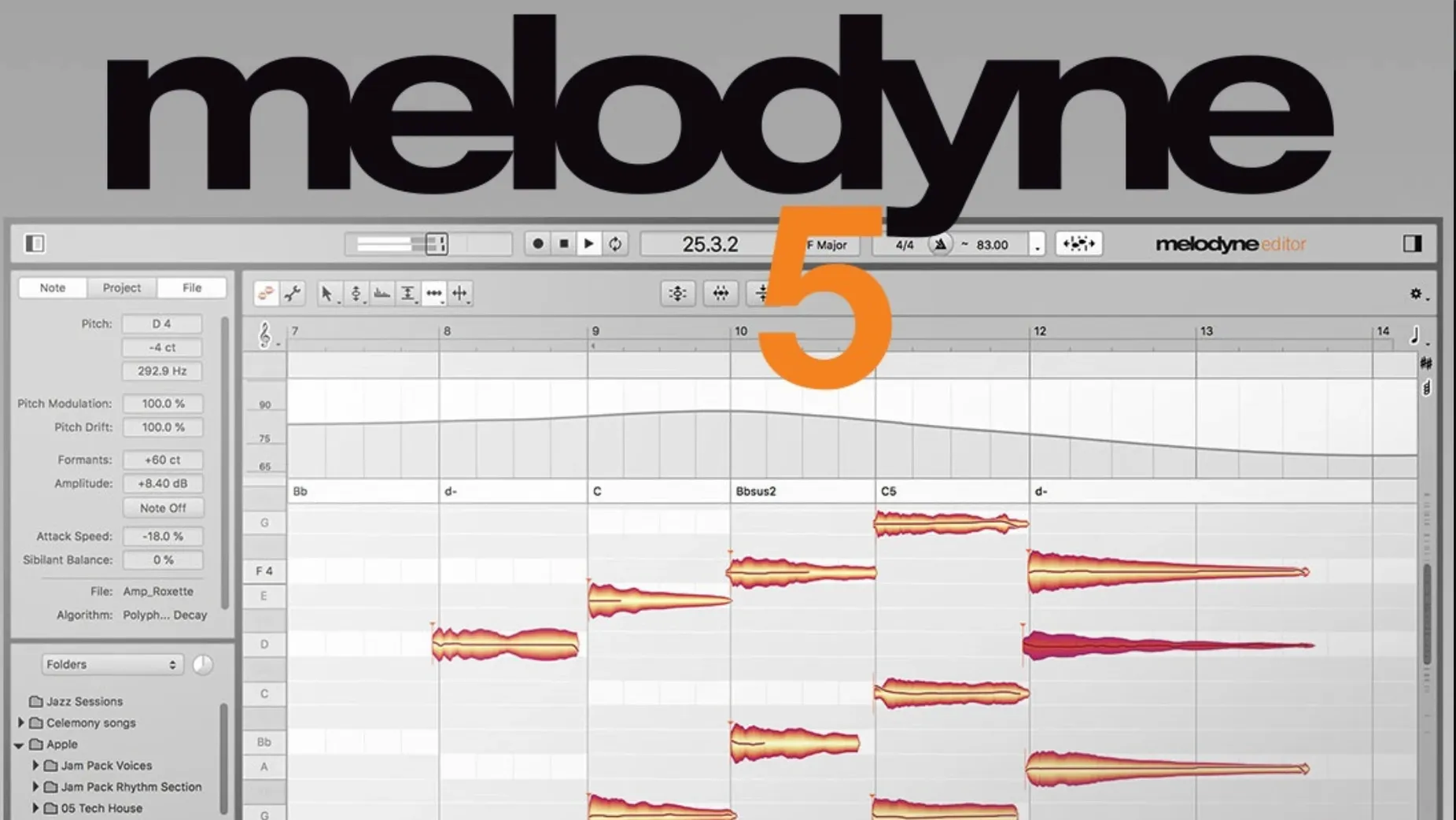
What makes Melodyne stand out is how you interact with the audio. Instead of twisting knobs, you see notes on a grid and can drag them into tune, adjust timing, or reshape a performance. The Fade Tool lets you soften note transitions, while the Leveling Macro evens out dynamics. There's even a Percussive Pitched algorithm for drums and other pitched percussion. You can work on a vocal track to bring it into the key of your composition, or use the plugin directly inside your DAW for quick fixes. It's less about fixing mistakes and more about giving you control over how a performance sits in the mix.
ARA integration for deep workflow
Melodyne fits into your workflow in a few different ways depending on how you like to work. The most straightforward is using it as a plugin inside a DAW that supports VST, AU, or ARA. ARA is the key here — it means Melodyne and your DAW share the same audio data, so you don't have to transfer files back and forth. You open Melodyne, edit, and the changes appear inside your project immediately. This works with Logic Pro, Cubase, Studio One, and several other DAWs that support ARA 2.
If you prefer to work outside the DAW, Melodyne runs as a stand-alone application. You drag in an audio file, edit it, and export the result. This is useful when you want to clean up a vocal take before bringing it into a larger project, or when you're working on a sample you plan to use across multiple tracks. The stand-alone mode also means you can open Melodyne on its own when your DAW isn't running, which saves resources if you're just doing a quick pitch correction.
On macOS, Melodyne handles standard file operations like drag-and-drop from Finder. You can drag a WAV or AIFF file onto the Melodyne window and it loads right in. The trackpad scrolling improvements in version 5.4.2 make navigating the note grid smoother on MacBooks, so zooming and panning feel more natural. If you use Spaces or full-screen mode, Melodyne behaves well in both — the window stays where you put it.
Set buffer size to match your DAW
When you open Melodyne for the first time, a few settings can save you time later. I recommend starting with the audio preferences. Set your buffer size to match what your DAW uses — 128 or 256 samples is common for recording, while 512 or 1024 works for mixing. This keeps latency consistent between Melodyne and your host. If you're using the stand-alone version, select your audio interface from the menu so Melodyne outputs through your monitors or headphones.
The detection settings are worth a look too. Melodyne analyzes audio based on the algorithm you choose: melodic for vocals and monophonic instruments, percussive pitched for drums and tuned percussion, or polyphonic for chords. By default it guesses, but you can set a preferred algorithm for new files. If you mostly edit vocals, set it to melodic and skip the guessing step.
Another useful setting is the note color scheme. Melodyne lets you color notes by pitch, timing, or velocity. If you're tuning vocals, color by pitch shows you instantly which notes are flat or sharp. For timing work, color by timing highlights notes that are early or late. It's a small change that makes the grid easier to read at a glance.
Scenario: A choir teacher fixing a group recording
Imagine you direct a school choir and recorded a rehearsal on a portable recorder. The sopranos drifted sharp on the final chorus, and one alto came in late halfway through. You have the WAV file on your Mac and want to fix it before sending it to parents. In Melodyne stand-alone, you drag the file in, select the soprano notes in the chorus, and drag them down until the pitch matches the key. Then you find the late alto note, grab it, and slide it earlier until the timing feels right. The Fade Tool lets you soften the note edges so the edit doesn't sound abrupt. You export the corrected file and it's ready to share, no DAW needed.
Workflow: Tuning a vocal sample to match a track key
Here's a step-by-step for a common task: taking a vocal sample or phrase and adjusting its pitch so it works in your song's key.
- Load the audio. Open Melodyne as a plugin on the vocal track in your DAW, or drag the file into the stand-alone window. Melodyne analyzes the audio and displays notes on the grid. Each note shows its detected pitch.
- Check the key. Look at the scale ruler on the left side of the grid. Melodyne shows the detected key and scale. If your song is in C major and the sample is in G major, the notes will look out of place. You can change the detected key manually if Melodyne guessed wrong.
- Select notes to move. Click and drag to select the notes you want to retune. For a whole phrase, select everything. For individual words or syllables, select just those notes.
- Shift pitch. Drag the selected notes up or down. Melodyne snaps to the scale if you have snap enabled, which keeps notes in key. If you want more control, hold a modifier key to move in finer increments.
- Adjust timing if needed. If the sample's rhythm doesn't match your track, grab individual notes and slide them left or right to align with the beat. The grid shows time in bars and beats, so you can line things up visually.
- Tune the formants. If the sample sounds unnatural after pitch shifting, adjust formants. This changes the character of the voice without altering pitch. Raise or lower formants until the voice sounds natural again.
- Export or commit. In stand-alone mode, export the file. In a DAW with ARA, the changes are already in place. If your DAW doesn't support ARA, render the track to bounce the edits to a new audio file.
This workflow works for vocal samples, rap verses, spoken word, and even instrumental phrases. The Percussive Pitched algorithm handles drums the same way, letting you tune a snare or tom to match the song's tonal center.
Universal Binary runs on Intel and Apple Silicon
Because Melodyne is a Universal Binary, it runs on both Intel-based Macs and Apple Silicon machines without needing Rosetta. The installer is a standard disk image — mount it and run the installer. The interface is in English, and the minimum system requirement is macOS 10.12, so it works on older systems as well as the latest versions. Version 5.4.2 includes optimizations for macOS Sequoia, so if you're on that version, Melodyne should work without issues. The trackpad scrolling improvements in this update make navigation smoother on MacBooks, especially when zooming in on dense note regions.
If you search for melodyne mac free or melodyne torrent, you might find older versions or unofficial builds. The version here is 5.4.2.006, which is the current release with the latest fixes. Melodyne crack mac and melodyne mac torrent are terms that come up often, but this build is ready to install directly. For those who prefer a direct download, melodyne 5 torrent might lead to dated copies, so this version ensures you get the update that includes the crash fix and Sequoia compatibility.
- Optimizations and bug fixes.
- Adaptations for macOS Sequoia.
- Improved trackpad scrolling.
- Fixed a crash that could occur when opening Melodyne in ARA and plugin use cases.
- macOS 10.12 or later
- Intel or Apple Silicon processor
- English interface
Questions I keep getting
Does Melodyne run on Apple Silicon Macs?
Yes, the Mac version is a Universal Binary, so it runs natively on both Intel and Apple Silicon processors.
What does the 5.4.2 update fix?
The update brings optimizations, bug fixes, and adaptations to macOS Sequoia, plus it addresses a crash that could occur when opening Melodyne in ARA and plugin use cases.
How to install
- Mount the downloaded disk image by double-clicking it in Finder.
- Run the installer and follow the prompts — it's the standard Mac installation routine.
Similar apps
Sign in or join the club to leave a comment.
Nobody has commented yet.