- Version
- 1.0.30.358
- Studio or maker
- Direct Music
- Languages
- English
- Activation
- Not required
- Runs on macOS
- macOS 10.15 or later
- Chip type
- Apple Silicon, Intel 64-bit
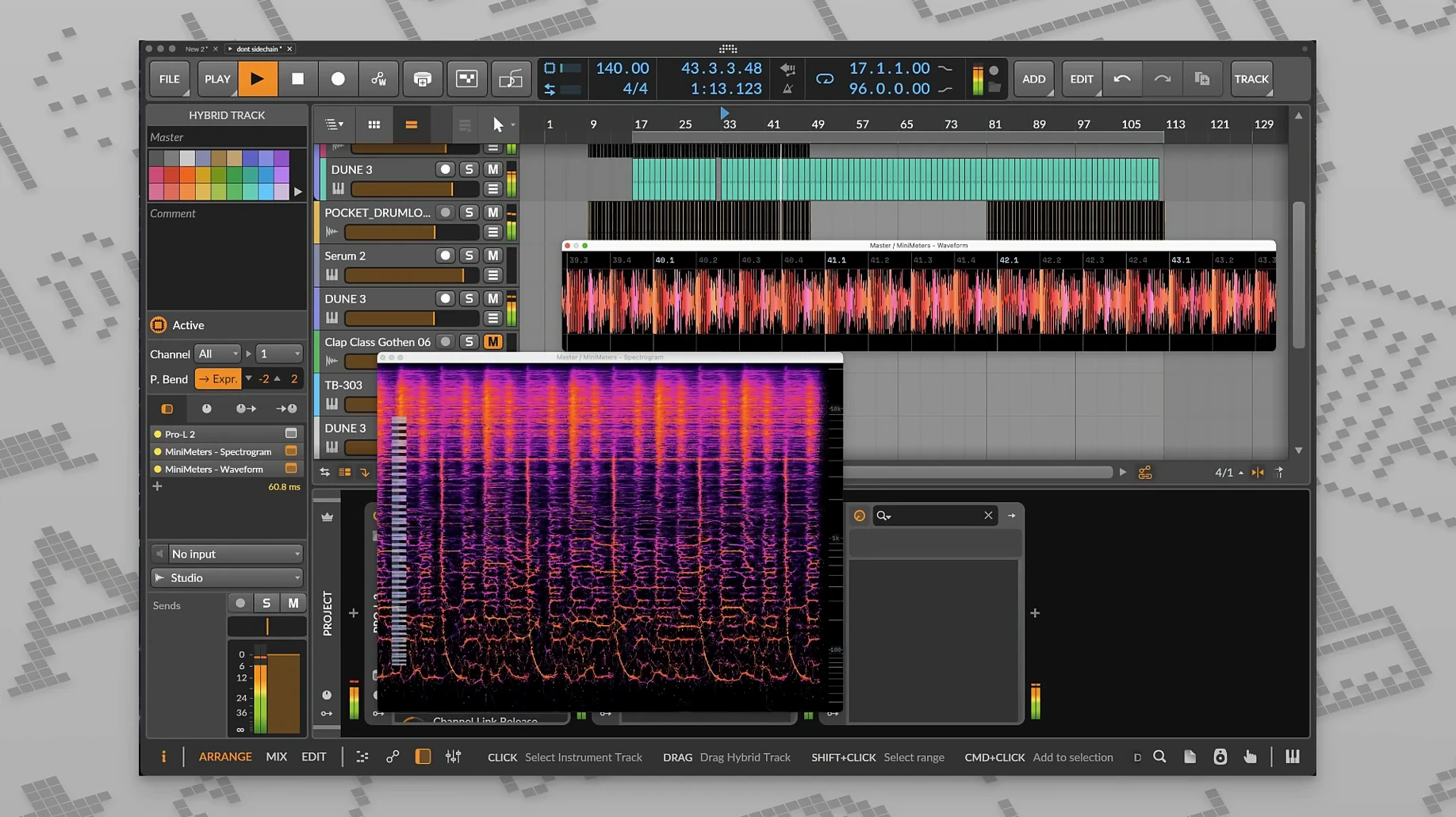
You are adjusting a mix and need to see loudness at a glance, without squinting at tiny DAW meters. MiniMeters opens a clear display that shows overall and peak LUFS, a waveform, and a frequency spectrum, all in one window. The developer, Direct Music, calls it a simple audio metering application and plug-in suite, and it is available for Windows, macOS, and Linux.
Checking loudness levels in a DAW or standalone
- Checking loudness levels in a DAW, using the MiniMetersServer to send audio from your project to the meter display.
- Monitoring system audio as a standalone app, without opening a DAW at all.
- Customizing the interface — choosing which tools, colors, and layout you want visible.
Requires macOS 10.15 or later and English interface
- It works on macOS 10.15 and later, on both Intel and Apple Silicon Macs.
- The interface is in English.
- Version 1.0 was released on August 1, 2025, and the current update fixes long-standing bugs and small UI issues.
Easy .dmg install for Macs from 2019 or later
If your Mac is from 2019 or later, you are probably fine. The installer comes as a .dmg file. You open it, double-click MiniMeters.pkg, and follow the on-screen prompts. It is a straightforward process.
Another common question is whether the app gets in the way during work. MiniMeters is designed to be compact. You can position the window on a second monitor or tuck it into a corner of your main screen. It updates in real time without noticeable lag, so you can keep it open while you adjust faders or apply processing. It does not need to be the front-most application to keep running.
People also ask about system audio versus DAW audio. The standalone version captures whatever your Mac is playing, which is useful for checking a final bounce or comparing a reference track from Apple Music or Spotify. To meter audio inside your DAW, you run MiniMetersServer alongside your project. The server sends the signal from your DAW to the MiniMeters display. The developer provides clear instructions for setting this up.
How MiniMeters compares with similar tools
I have tried a few other metering options over the years. Here is how MiniMeters stacks up against three of them.
Youlean Loudness Meter is a popular free option for loudness measurement. It shows LUFS values and has a clean interface. However, Youlean does not offer a standalone mode for macOS system audio in the same way. It also lacks a built-in stereo meter and waveform display. MiniMeters gives you more visual information in one place, which saves time when you are switching between tasks.
MeterPlugs Hornet LU Meter is another lightweight tool. It is reliable for loudness readings and works as a plug-in. MiniMeters has a broader set of tools — the frequency spectrum and waveform are included without needing a separate plug-in. The ability to customize colors and layout also makes it easier to read at a glance, especially when you are working in a dim studio or classroom.
DPA dB-Meter focuses on loudness and peak levels. It is good for quick checks but does not offer the same depth of analysis. MiniMeters combines loudness, stereo balance, frequency content, and waveform in a single window. For mixing and mastering, that means fewer windows open and less context switching.
None of these are bad tools. But MiniMeters stands out for its all-in-one approach and the option to work both as a standalone app and with a DAW server. It is a practical choice if you want one window that shows the essentials.
Fixing the .pkg file when Gatekeeper blocks it
During installation, the most frequent issue I hear about is the .pkg file not opening. This usually happens when macOS Gatekeeper blocks it because the app was downloaded from the internet. The fix is simple: right-click or Control-click the .pkg file and choose Open from the context menu. Then click Open again in the confirmation dialog. This works for any installer that gives you the "can't be opened" message.
Another snag is that MiniMetersServer does not appear in the DAW's plug-in list. The server is not a plug-in itself — it is a separate application. You run it before you open your DAW, or while the DAW is running, and then route audio to it. In most DAWs, you add a send or a bus that goes to MiniMetersServer. If you do not see the server listed as an audio output device, check that you downloaded the right version for your Mac's architecture. The installer includes both Intel and Apple Silicon binaries, so the right one should be selected automatically.
Sometimes the display shows no signal even though audio is playing. This usually means the audio source is not routed correctly. In standalone mode, make sure MiniMeters has permission to access system audio. On macOS 10.15 and later, you may need to grant microphone or audio input permission in System Preferences under Security & Privacy. For DAW use, verify that MiniMetersServer is running and that your project's output is routed to it.
A minor but common annoyance is that the layout resets after an update. MiniMeters saves its settings, but some users find that colors or tool visibility change. The official help suggests setting up your preferred layout and then saving it if the option is available. I have learned to take a quick screenshot of my setup after customizing it, just in case.
Works on a second display with Logic Pro, Ableton, or Reaper
MiniMeters works well alongside other audio utilities. If you use Logic Pro, Ableton Live, or Reaper, you can keep MiniMeters open on a second display while you work. The server integration means you do not need to bounce audio to check loudness — you see it in real time as you adjust. This is especially helpful during mastering, where small level changes can make a big difference.
For those who use reference tracks, MiniMeters is handy. Load a reference into Apple Music or VLC, run MiniMeters in standalone mode, and compare the loudness and frequency balance with your own mix. You can switch between sources without leaving the metering window.
macOS Spaces and Stage Manager are compatible. You can assign MiniMeters to a dedicated Space or keep it pinned in Stage Manager so it stays visible while you switch between your DAW, browser, or notes. The window stays small and unobtrusive, which is exactly what you want for a monitoring tool.
If you already use other Direct Music tools, MiniMeters fits into that ecosystem without conflicts. The developer designed it as a standalone product, so there is no shared plug-in manager or licensing system to worry about. It just sits there and shows you numbers and graphs, which is all you need from a meter.
- Long-standing bugs fixed.
- Small UI issues resolved.
- macOS 10.15 or later
- Intel or Apple Silicon
Questions I keep getting
Can MiniMeters run as a standalone app?
Yes, MiniMeters can work as a standalone application for checking system audio, without needing a DAW.
How to install
- Open the downloaded disk image.
- Double-click MiniMeters.pkg to start the installer.
- Follow the on-screen instructions to complete the installation.
Similar apps



Sign in or join the club to leave a comment.
Nobody has commented yet.