

- Version
- 1.0.9
- Studio or maker
- Slate Digital
- Languages
- English
- Activation
- k'ed by GUISEPPE
- Runs on macOS
- macOS 11 or later
- Chip type
- Apple Silicon
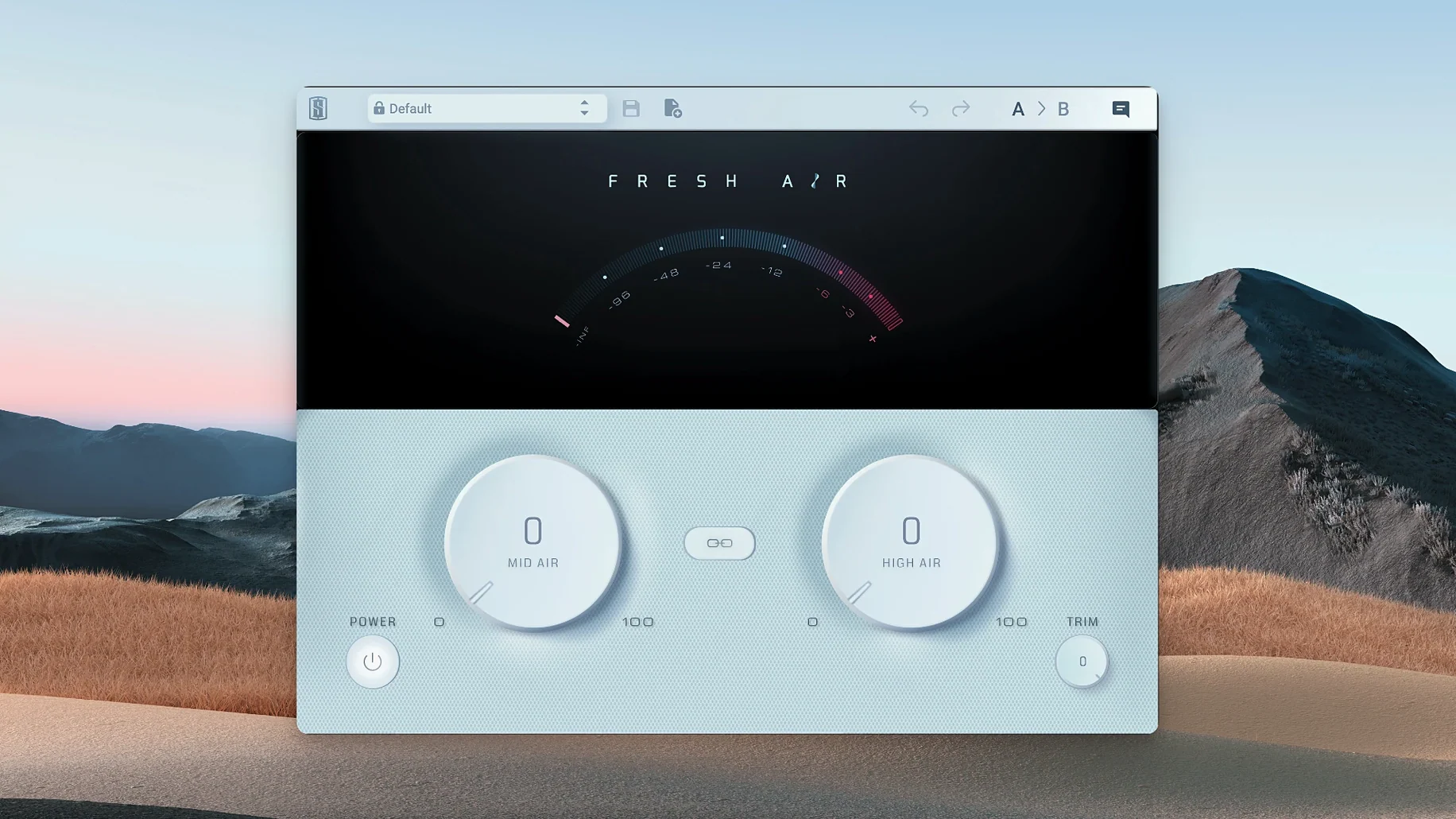
If you have ever reached for a classic exciter to add sparkle to a dull vocal or lifeless drum bus, Fresh Air works in a similar spirit but with modern control. It brightens the high end without tipping into harshness, using a blend of vintage-style circuits and clean dynamics processing.
Mid Air
Adjusts upper-mid frequencies to add presence and clarity. Turn it up when a track feels a little boxy or needs to cut through without being piercing.
Air
Lifts the topmost highs — the air band — adding openness and sheen. Useful for vocals, cymbals, or any source that needs a subtle high-frequency lift.
Link
Locks the Mid Air and Air controls together so they move as one. Great for quick, balanced adjustments when you want to brighten a whole mix or bus without dialing each band separately.
Start with the two main knobs set to minimum
When you open Fresh Air for the first time, the two main knobs are set flat at their minimum. That is a good starting point, but a few small adjustments before you start turning dials can save time later.
Set the Trim control to -2 dB or -3 dB before you touch Mid Air or Air. Fresh Air can add noticeable level when you boost the high frequencies, and that extra loudness tricks your ear into thinking it sounds better than it really does. By compensating the output level first, you hear the tonal change, not just a volume jump. Once you have your sound, you can always readjust Trim for the final output.
The Link button is worth switching on right away if you are working on a bus or a full mix. With Link engaged, turning either knob moves both together, keeping the relationship between presence and shine steady. On individual tracks, leave Link off so you can set each band independently.
Start with small moves. A quarter turn on Mid Air or Air often gives enough lift, especially on sources that already have some high-frequency content. You can always turn up further, but pulling back harshness after the fact is harder than adding it gradually.
Check activation options before installing
Does Fresh Air work with any DAW?
Yes, it runs as a standard audio plugin. As long as your digital audio workstation supports plugin formats on macOS, Fresh Air should appear in your plugin list after installation. No extra setup is required beyond the normal install process.
Machine activation works without an iLok
Fresh Air can be activated in three ways: iLok Cloud, an iLok USB dongle, or machine activation directly on your computer. Machine activation is the simplest option if you do not own an iLok. You authorize the plugin on your Mac and it stays active without extra hardware or a cloud connection. The choice is yours based on how you manage other plugins.
A small amount of Mid Air and Air opens the master bus
Slate Digital designed Fresh Air for individual tracks and for the mix bus. On a master bus, a small amount of Mid Air and Air can add openness across the whole mix without making individual elements sound brittle. Start with Link engaged and very low settings — just a few percent — to keep the balance natural.
Does it introduce latency?
Fresh Air processes dynamically but does not add significant latency. You can use it during tracking or mixing without worrying about timing shifts. If you are running many instances on a session, your DAW handles the overall buffer size as usual.
Will it sound good on every source?
It works well on bright sources and dull ones alike, but it is not a fix for every mix problem. If a track lacks any high frequencies, Fresh Air can add air, but it cannot replace missing upper harmonics entirely. It is a polishing tool, not a corrective one.
workflow: brightening a dull vocal recording
Imagine you have a vocal take that sounds a little closed in or muffled, as if the singer was too far from the mic. Fresh Air can open it up without the artificial sheen that some exciters add.
- Start with Trim at -3 dB. This keeps your level honest as you make changes.
- Turn Mid Air up slowly while listening to the vocal's clarity. Stop when the vocal sits more forward in the mix without sounding honky or nasal.
- Bring in Air gradually. This adds the top-end shimmer. Listen for the moment the vocal starts to feel open and breathy, not sibilant or piercing. For a vocal, Air often stays below the Mid Air level.
- Adjust Trim back to unity if needed. Compare the processed and unprocessed sound by bypassing the plugin. The vocal should sound brighter but not louder.
- Refine with Link off. If the vocal still feels closed, add a touch more Mid Air. If it sounds too crisp, reduce Air slightly. Each band works independently, so you can fine-tune the balance.
This same workflow works for dull acoustic guitars, soft synth pads, or any track that needs presence without aggression. On drums, start with Air first and add Mid Air sparingly to avoid making the snare sound thin.
Version 1.0.9 improves Apple Silicon compatibility
Version 1.0.9 is a maintenance update. It does not introduce new controls or a redesigned interface. Instead, it focuses on compatibility and stability improvements for modern systems. Users on macOS 11 and later, especially those running Apple Silicon natively, should find the plugin loads and processes as expected without workarounds. No new presets or features were added, so the workflow remains identical to earlier 1.0.x releases. If you were on an older version, upgrading to 1.0.9 ensures the plugin stays reliable on current operating systems. The core sound and controls are unchanged, so your mix settings transfer without adjustment.
- macOS 11 or later
- Apple Silicon
- English interface language
How to install
- Follow the standard installation procedure for the plugin.
Similar apps
Sign in or join the club to leave a comment.
Nobody has commented yet.