- Version
- 3.10 [MAS]
- Studio or maker
- Apple
- Languages
- English, German, Spanish, Italian, Chinese (Traditional), Chinese (Simplified), Korean, Dutch, French, Japanese
- Activation
- K'ed by TNT team
- Runs on macOS
- macOS 15.5 or later
- Chip type
- Apple Silicon, Intel 64-bit
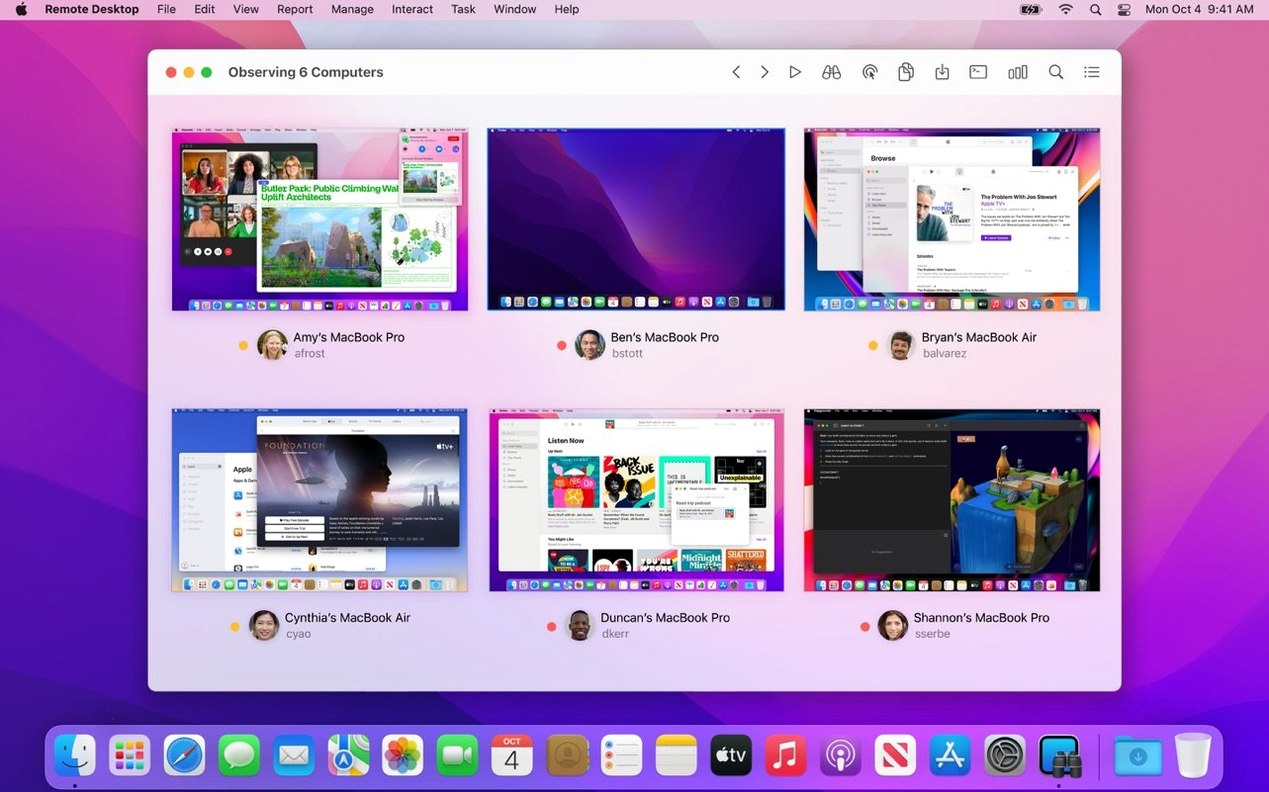
If you already use Screen Sharing to peek at another Mac on your network, Apple Remote Desktop 3.10 is the fuller toolbox that grows from that same idea. It manages many Mac computers at once, so you can see what is on their screens, copy files over, or push out software without walking to each desk.
Control any Mac and copy-paste between machines
Think of the times you have to update a lab of iMacs or help a colleague whose menu bar vanished. Remote Desktop lets you view and control any Mac, and you can copy and paste between your machine and theirs. Need to install an app on several computers? You can send the installer and run it remotely. The built-in reporting shows who is logged in and what applications they use, which helps with scheduling or simply knowing when a machine is free.
Automation and control beyond the basics
You can lock screens, put Macs to sleep, restart them, or shut them down from your chair. For quieter help sessions, Curtain Mode hides the client screen so the user sees only a blank display while you work. Automator support adds more than 40 actions, so you can chain common tasks like "wake all Macs in Room 2" into a single workflow. Version 3.10 needs macOS 15.5 or later, and the Remote Desktop Client must be on each managed Mac for full control.
Working alongside other macOS tools
Apple Remote Desktop does not sit alone — it connects well with the tools you already use. If you manage Macs through Apple School Manager or Jamf, Remote Desktop handles the tasks those platforms do not cover easily. For example, I use it alongside Automator to create workflows that update software on a group of computers after they wake from sleep. The more than 40 built-in actions in Automator let you combine a remote restart with copying a file, all without opening Terminal.
Remote Desktop also works through VNC, meaning you can manage Windows, Linux, and UNIX machines from the same interface. If a lab has a mix of operating systems, you do not need a second tool. The Curtain Mode feature is especially useful when you help a teacher during class — the student sees nothing on the screen, and you can walk them through steps without showing your own desktop.
For network administrators, Remote Desktop supports remote Spotlight search. You can find a specific file on a distant Mac without logging in fully. This pairs well with the reporting system that tracks more than 200 hardware characteristics: you can search for a serial number or a particular memory configuration across an entire fleet.
Compatibility with macOS Tahoe 26 and two daily-session additions
The latest update, version 3.10, adds compatibility with macOS Tahoe 26. If your school or office has upgraded to that system, Remote Desktop still works without a hitch. Two additions make a real difference during daily sessions. First, the new Accessibility and Remote Keyboard menu and toolbar items on macOS Tahoe 26 or later let you control a remote Mac's accessibility features and keyboard settings directly. Second, VoiceOver support for the remote Mac means you can assist users who rely on screen reading, even when you are not at their desk.
The usual bug fixes and performance improvements apply, but these changes are the ones I notice in my own work. No new learning curve — just a few more tools in the same interface.
For those looking to get started, the setup follows typical steps: mount the disk image, press Enter in Terminal to bypass Gatekeeper, drag the app to the Applications folder, and launch. The disk image is Gatekeeper-friendly, so the process is straightforward.
A workflow: update a classroom of 20 iMacs to a new app
Here is a task I run every few months. I need to install a new version of a textbook companion app on all 20 iMacs in my maths classroom. The old version still runs, but the new one fixes a bug that matters for the next unit.
- Prepare the package. I download the app installer and copy it to a shared folder on my own Mac. I make sure the Remote Desktop Client is installed on each classroom Mac — this is a one-time setup I did when I first configured the lab.
- Select the target computers. In Remote Desktop, I create a smart list based on the room name or IP range. This saves time; I do not need to pick each machine manually.
- Copy the installer. I drag the installer file from my Mac to the list of remote Macs. Remote Desktop handles the encrypted copy over the network. For computers that are offline, I schedule the installation for later — the app will copy the file as soon as the machine comes back online.
- Run the installer remotely. I use the Send Unix Command feature to run the installer script on all 20 Macs at once. I can watch the progress in the Remote Desktop window. If one machine fails, I can retry just that one.
- Verify the installation. I use the reporting function to check which version of the app each Mac now shows. The report lists all 20, and I can see at a glance that the task is complete.
This workflow takes about ten minutes from start to finish. Without Remote Desktop, I would walk between desks with a USB drive.
Wednesday morning: checking 60 school Macs from one list
Wednesday morning, 8:15. I sit down at my desk with coffee and open Remote Desktop. The main window shows a list of all managed Macs in the school — about 60 machines across three labs and a library. I check the status column: most are awake, a few are asleep from overnight.
First, I wake the sleeping Macs using the Wake button. One of them, in the library, does not respond. I select it and try a Send Message command — no reply. I use the Observer window to view its screen, but it is blank. I send a Restart command, and after a minute the screen appears. Likely a hung process from a student's session the day before.
Next, a colleague emails to say her Mac in the staff room freezes when she opens the gradebook. I open a Curtain Mode session so she cannot see my screen, then take control. I run Console remotely to check logs — a permissions issue with the gradebook app. I fix it with a quick command and close the session. She thanks me, and I move on.
By 9:00, I run a hardware report across all machines. The report shows disk space — one lab is low. I schedule a cleanup script to run during the lunch break. The report also flags two machines with old OS versions; I add them to an update list for next week.
I leave Remote Desktop running in the background. If I need to copy a file or check a screen later, it is one click away. By the time I leave at 4:00, I have handled three remote sessions, one software push, and a hardware audit — all from the same chair.
- Adds macOS Tahoe 26 compatibility.
- Adds Accessibility and Remote Keyboard menu and toolbar items on macOS Tahoe 26 or later.
- Adds VoiceOver support for remote Mac on macOS Tahoe 26 or later.
- Includes bug fixes and performance improvements.
- macOS 15.5 or later
- Intel or Apple Silicon Mac
- Remote Desktop Client on managed computers (for full control)
Questions I keep getting
Does Apple Remote Desktop work with macOS Tahoe 26?
Yes, version 3.10 adds compatibility with macOS Tahoe 26, including new Accessibility and Remote Keyboard menu items and VoiceOver support for remote Macs.
How to install
- Mount the disk image and open it. You may need to bypass Gatekeeper the first time.
- Press Enter in Terminal to allow the app to run.
- Drag the app to your Applications folder.
- Launch Apple Remote Desktop from Applications.
Similar apps



Sign in or join the club to leave a comment.
Nobody has commented yet.